Add Quotation
Detail Tab
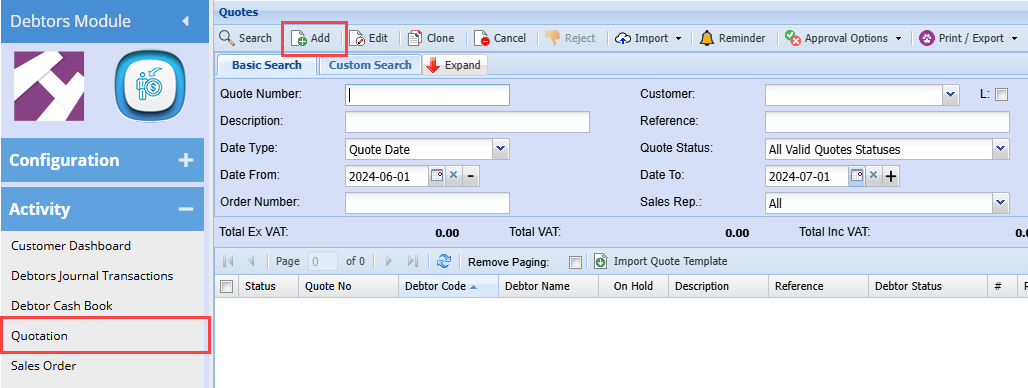
Debtors Module> Activity> Quotation
The quotes screen will open
To search for existing quotations, select your search criteria and click search
Search criteria can be quote description, order number, customer name, etc
Select a date range
To create a new quotation, Click the Add Button as shown below
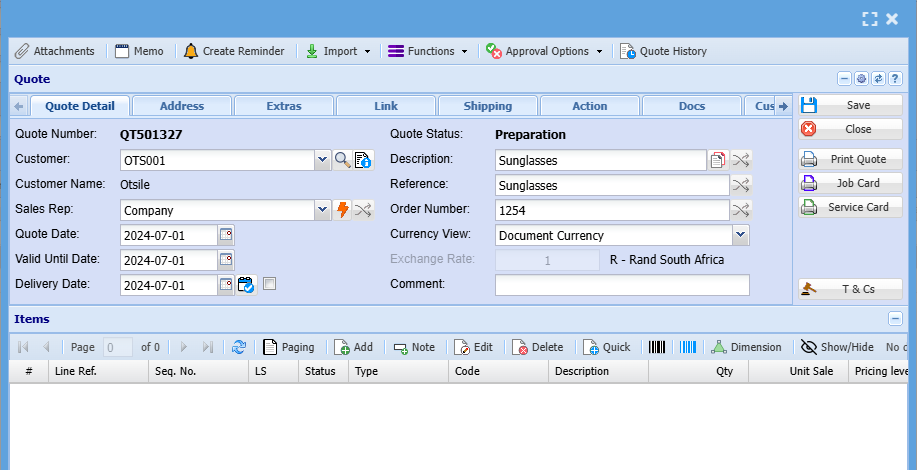
This will display the New Quote screen
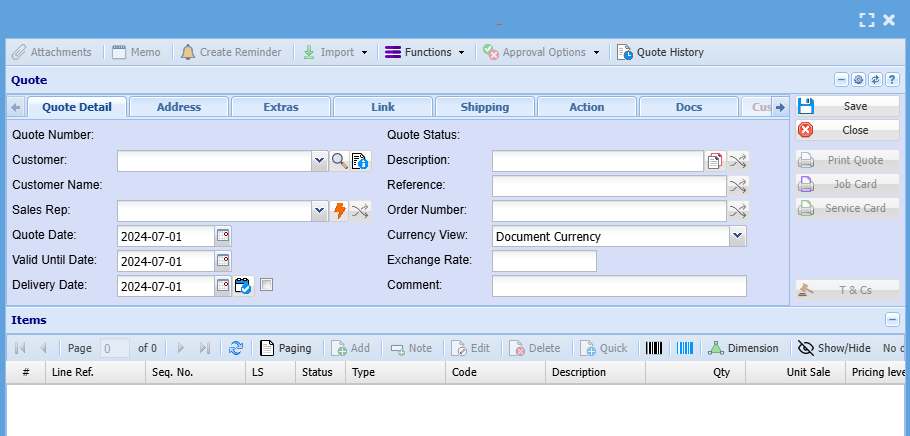
Add information below so that the greyed-out buttons can appear:
- Select the customer/ debtor you are creating a quotation for, from the drop-down menu.
- Select the sales rep on the drop-down selection, if applicable
- Update dates if necessary
- Add description and reference
- Add order number, if applicable
Then, once you are done adding all relevant information click Save and all the greyed-out buttons will be opened as shown below:
Line Items
You can only add a line item after adding all the necessary information needed on the quote detail tab and all greyed buttons have been greyed out
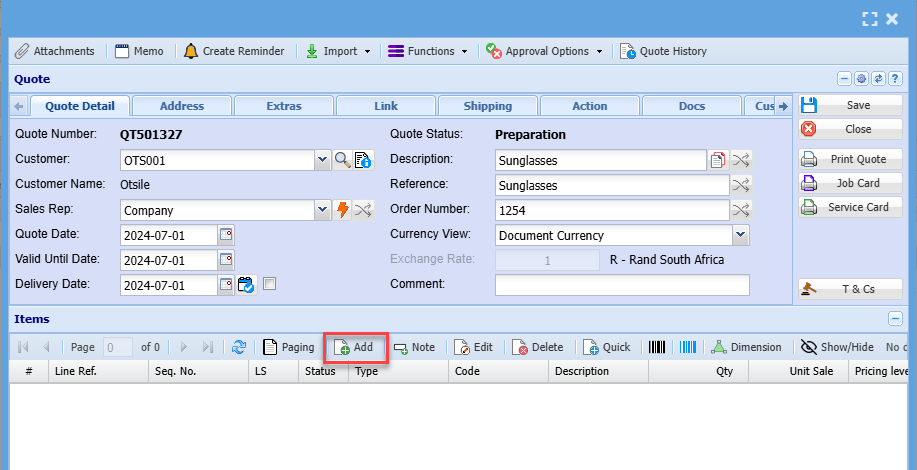
To add line items click on the middle Add Button shown below
Then the screen below will appear
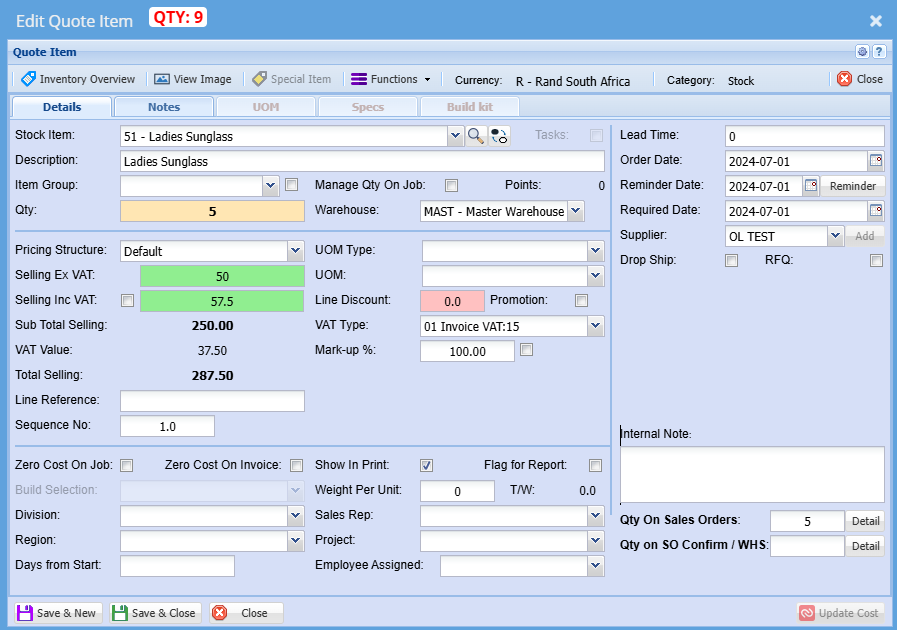
Select the item you want to quote on the drop-down selection
You can also search for the item by using part of the code or the name of the item you wish to quote the customer on
You can change the description to match what you want to see on the quote or leave it as it is
Enter the quantity you are quoting the customer/ debtor on
Make sure pricing is correct
Select a relevant warehouse if you have multiple warehouses
Select the correct VAT Type
Click Save & Close if capturing numerous line items
Click Save & Close if capturing a single line item
Once done
All line items will appear on the grid below:
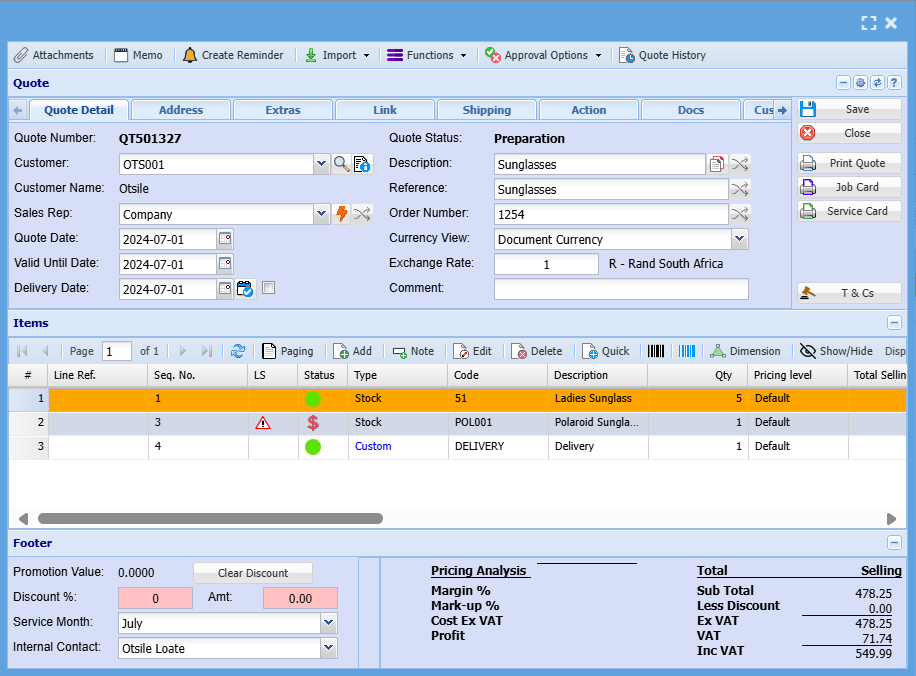
You can then print the quotation and send it to a customer/ debtor
Or promote it to a relevant document
Functions Drop Down
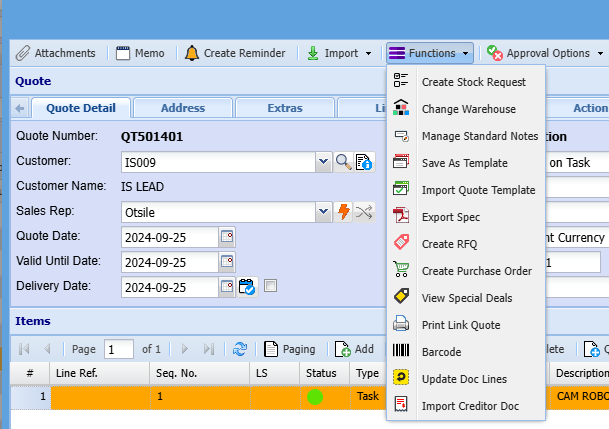
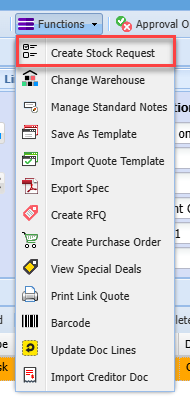
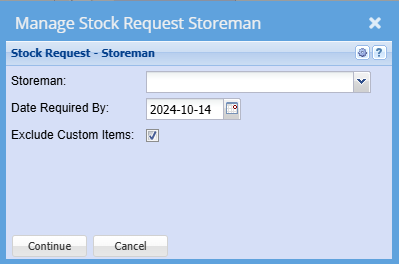
Create Stock Request
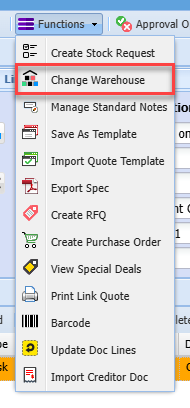
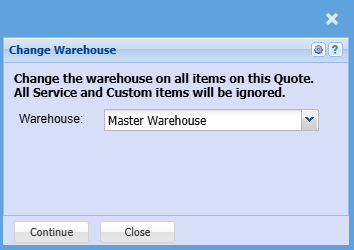
Change Warehouse
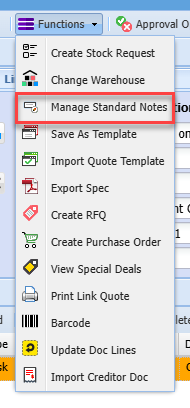
Manage Standard Notes
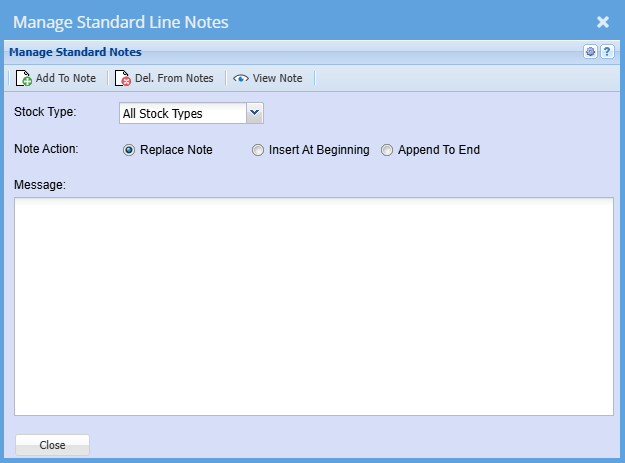
This window allows the user to add a specific Note to each line on a Quote.
The Stock Type drop down will allow the user to specify All lines or lines of a selected inventory type e.g. Stock, Service etc.
The Note Action radio buttons allows the user to modify the note to a limited extent by either replacing the whole note, inserting a new note in front of the existing note and keeping the existing note or adding a new note to the end of an existing note.
Click the Add To Note button to add the Note to the lines subject to the previous two selections.
Once the note has been added and also based on the selection of the Stock Type drop down the user can view the resulting note by clicking on the View Note button.
By clicking on the Delete Notes button and subject to the selection of the Stock Type drop down the notes can be removed from the quote lines.
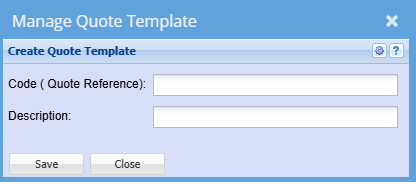
Save As Template
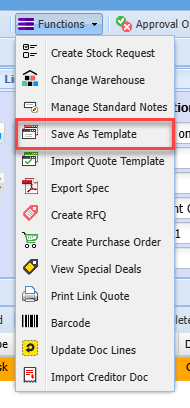
It allows a user to create a quote template by filling in the Code and Description.
Import Quote Template
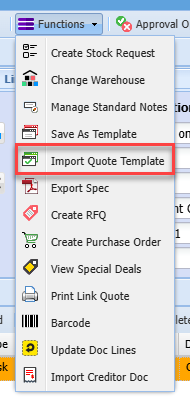
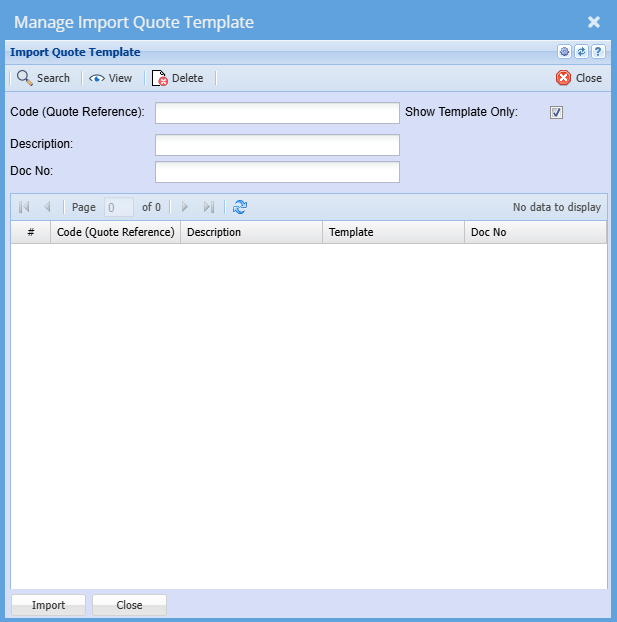
This allows a user to import a copy of a quote that was previously saved as a Quote Template.
Code – enter the code of the quote template and then click on the Search button.
Description – enter the description of the quote template and then click on the Search button.
If Code and Description are left blank, the system search will retrieve all quote templates.
Once the desired template has been located select that template and either click on the Import button or double click on the grid line.
Import button – allows a user to import a quote template into the currently opened quote.
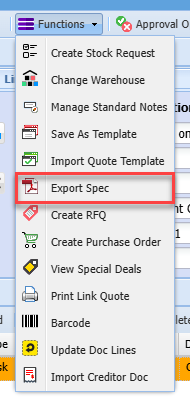
Export Spec
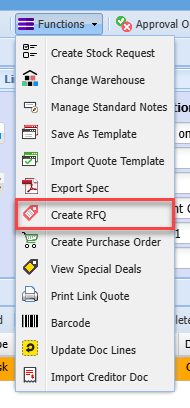
Create RFQ
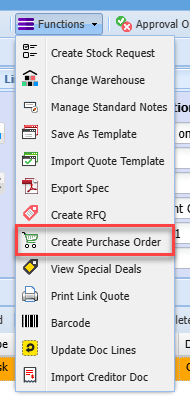
Create Purchase Order
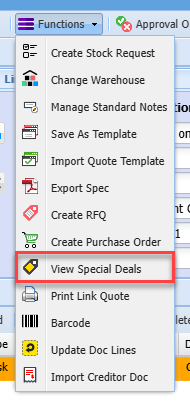
View Special Deals

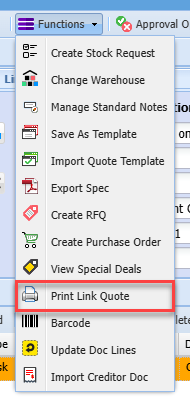
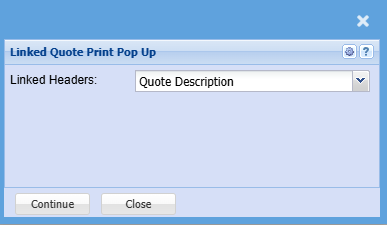
Print Link Quote
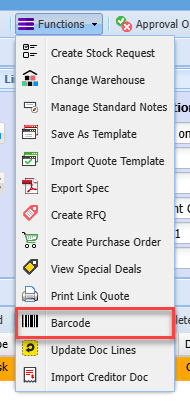
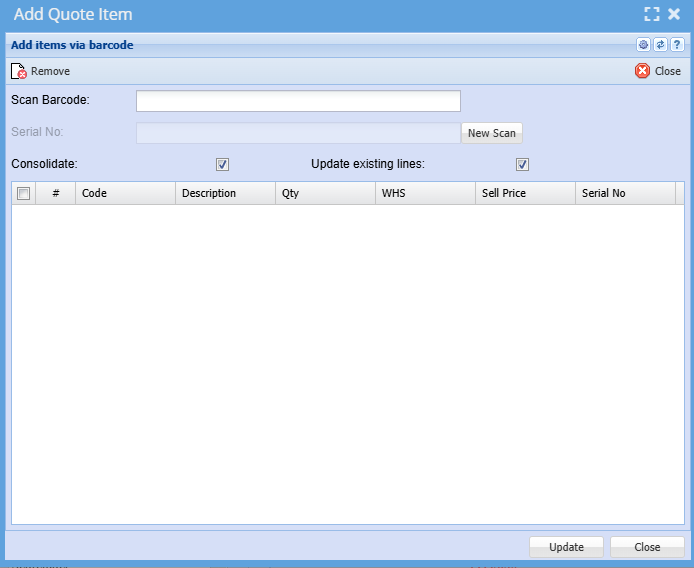
Barcode
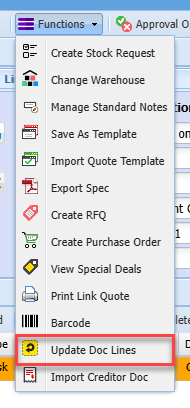
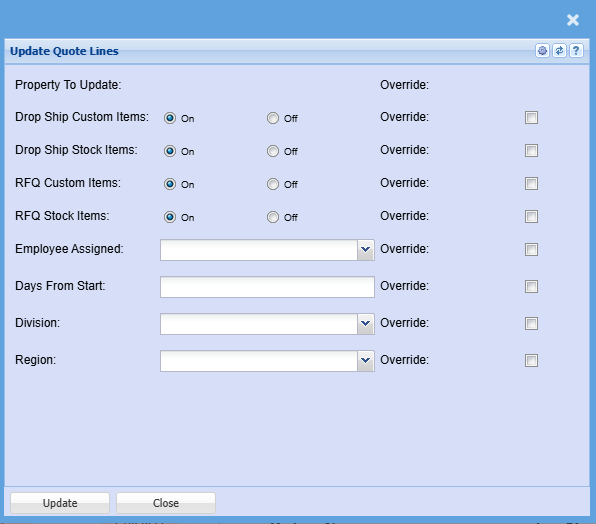
Update Doc Lines
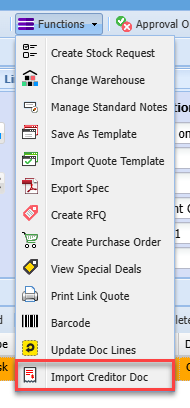
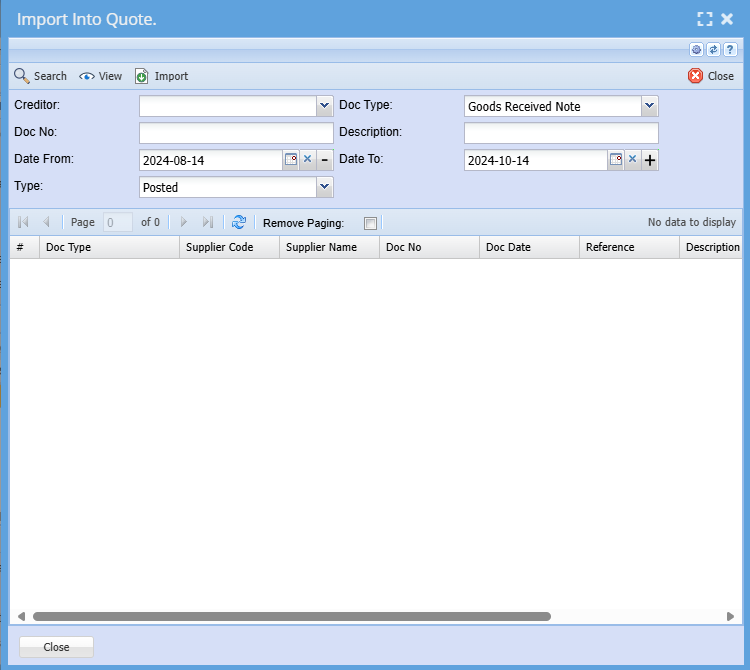
Import Creditor Doc