
Add Invoice
Video training manual 2016 - Click Here
Debtors Module> Activity>Invoice
Detail Tab
ClickDebtors AddModule> toActivity>Invoice
The Invoice screen will open
To search for existing invoices, select your search criteria and click search
Search criteria can be invoice status, reference, customer name, etc
Select a date range
To create a new Invoiceinvoice, Click the Add Button as shown below

This will display the New Invoice screen
Select the customer you want to create the invoice to and enter invoice header details as shown in the table below this image.
Once complete click save so all the created out buttons can open
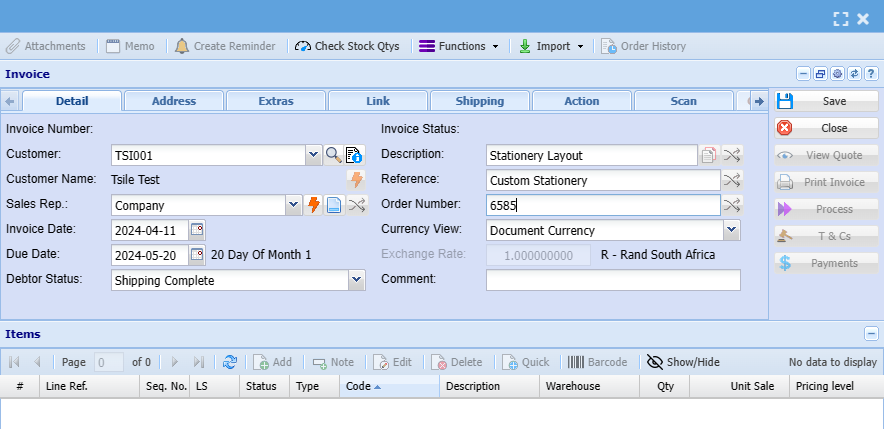
| Customer | Select the customer that has to be invoiced. |
| Customer Name | This field will automatically be filled in when the customer is selected. |
| Date | This is the invoice date which defaults on the current date. |
| Short Details | A short description of the items on the invoice. |
| Reference | Any reference for example the person you talked to. |
| Order No | The clients order number. |
| Sales Rep | If you have sales reps set up then you select the sales rep here. |