
Support Log Capture Process
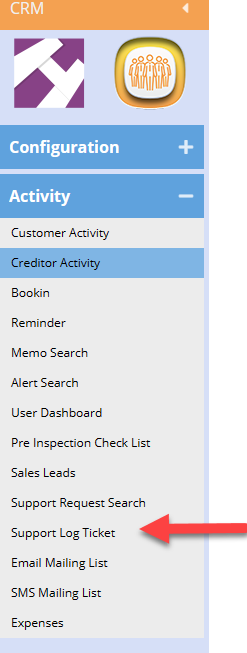
Go to WebatarCRM Module > Activity> Support Log Ticket
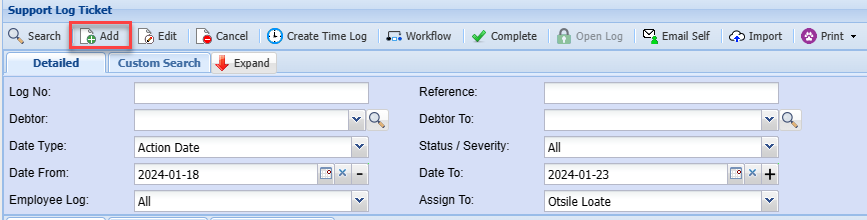
Select: Support Log Ticket Menu Item
.png)
 bv
bv.png)
.png)
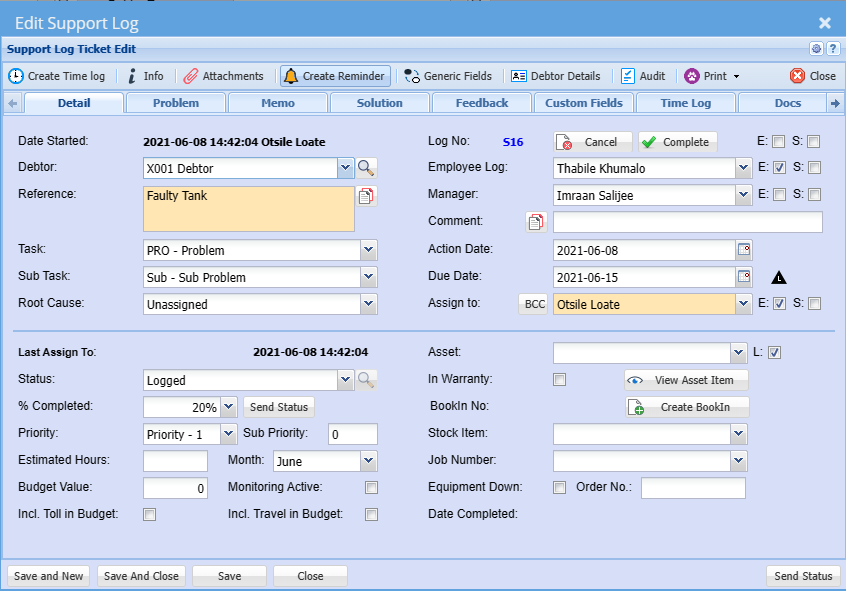
| Debtor |
|
| Reference | Enter a Reference for the Support Call |
| Task | Select a Task from the Drop Down |
| Sub Task | Select a Sub Task from the Drop down |
| Action Date | Enter the Action Date: Typically, this would be the date the task will be done |
| Due Date | Enter the Due date for the Task to be completed |
| Assign To | Select the Technician that the Support Call is to be assigned to |
| Status | Select the Support Call Status |
Click Save
Click the Problem Tab
.png)
Enter the details of the problem or task that is required to be performed
ClickAfter clicking save
You willyou note that the notes typed will move to the right-hand side
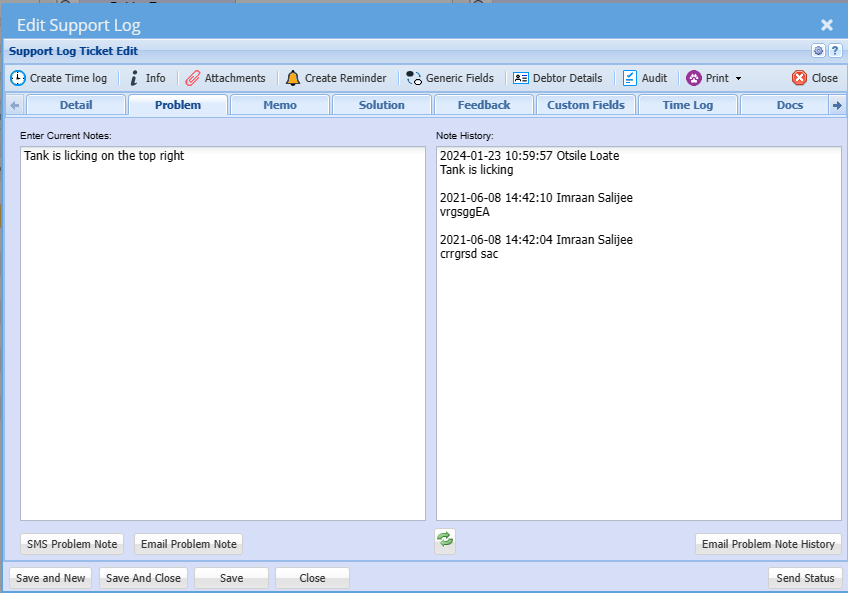
And the date time and user who captured the note is logged
.png)
Click the Feedback tab
Enter details of the feedback that you wish to forward to the client
.png)
Click Save
Once again, the note is moved to the right-hand side and logged with Time, date and user.
If you wish to email the client feedback as well, you can click the Save and Send Button.
This will email the Client and the Technician the notes captured.
.png)
Once the technician has been to site and performed the relevant tasks, he can enter further details on this page and again Save or Save and Send.
Upon completion of the Support Call, the technician can then call up the Support Log Ticket and enter and further details as well as enter the “Root Cause” if applicable.
.png)
Creating a Time Log from Support Log Ticket
If you wish for the Technician to log their time spent on the Support Call, while on the Support Log Ticket, the Technician can opt to create a time log as follows:
The Technician can Search for the Support Ticket
Debtor Module> Interactions> Support Log Ticket
Enter the client name or date range or log number
And click Search
.png)
Highlight (click Once) on the required Support log Ticket
Click the Create Time Log Button
.png)
.png)
Click Yes
.png)
1.Select the Agreement Contract
2.Select the Task performed from the drop down
3.Select the respective sub task
4.Select the respective Billing Rate
5.Capture details of the task performed
check the time log date is correct
1.Enter Time Started
2.Enter the Time Ended
The time log can then be either printed or emailed to yourself and then forwarded to the client for signature and /or their records.