
Sales Leads Search
Basic Search
Video training manual 2016 - Click Here
Webatar > Activity> Sales Leads
.png)
This is where the user creates a new Sales Lead or search for an existing one.
Search button allows a user to search using filter options.
If no filter options are selected all Sales Lead records are displayed on the grid.gird.
Sales Lead Search is where you search for existing sales leads or create new sales leads
The search criteria can be narrowed by inputting information in any of the following filter fields.
Webatar > Activity> Sales Leads
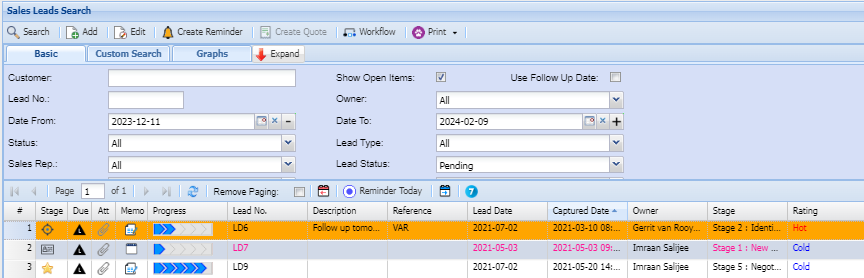
At the top of the screen on the navigation ribbon, there are 5 buttons and one drop down list
Expand button: to show more search filter options or Contract button to show less search filter options.
Add button: to create a new Sales Lead.
Edit button: to make changes to an existing Sales Lead.
Delete button: to delete an existing Sales lead.
Print Export Drop Down allows one to select from the following options:
Export: export Sales Leads to Excel file
Print Grid: print all the Sales Leads display on the gird
Print Lead Details: prints a lead form of the Sales Lead selected
Print Lead Form: prints a lead form template as per example below
Expand Button
Custom Search
.png)
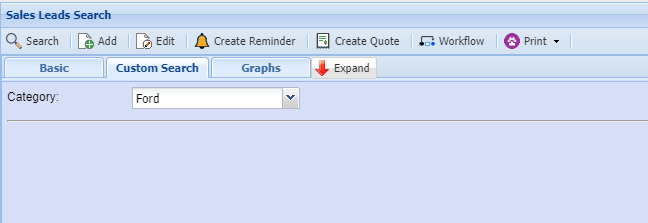
If the | all
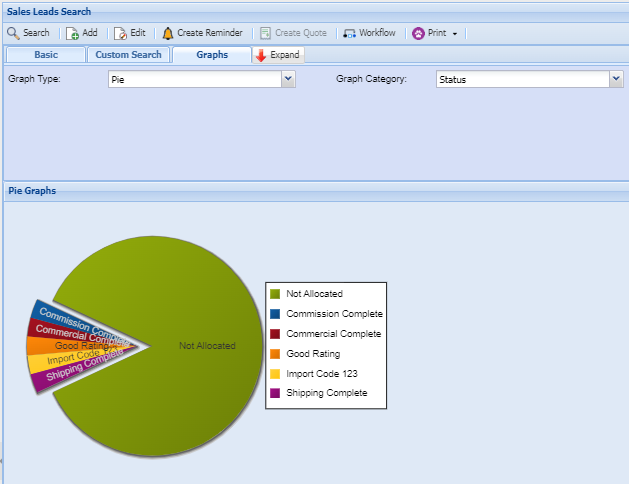
Graph tab
.png)
Graph | Type: Select graph type from drop down |
Graph | Category: Select the graph Category from the drop down |
Date From: the start period for the selection
Date To: the end period for the selection