
Sales Leads Search
Basic Search
Video training manual 2016 - Click Here
Sales Lead Search is where you search for existing sales leads or create new sales leads
Webatar > Activity> Sales Leads
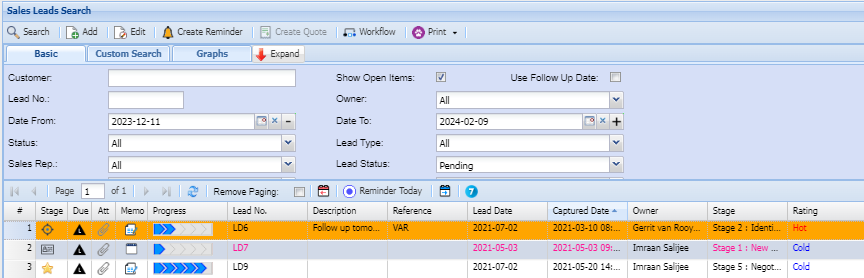
If no filter options are selected all Sales Lead records are displayed on the gird.
Sales Lead Search is where you search for existing sales leads or create new sales leads
| Basic Search | If you know lead number of the sales lead or part information on the sales lead you can search for information on Basic search tab |
| Custom Search | If you have setup custom fields in your debtor or customer setup, you can search for the items in this area. |
| Graphs | You can search for information by making use of Bar graph or Pie chart |
Webatar > Activity> Sales Leads
| Customer | Search prospects by prospects name |
| Lead No | Search for information using a Lead No |
| Date From | Select date range you want to search from |
| Status | Select status you want to search by on the drop down |
| Sales Rep | Select a sales rep for |
| Show open Items | |
| Use Follow Up Date | |
| Owner | |
| Date To | |
| Lead Type | |
| Lead Status | |
| Grid |
At the top of the screen on the navigation ribbon, there are 5 buttons and one drop down list
Print Export Drop Down allows one to select from the following options:
Export: export Sales Leads to Excel file
Print Grid: print all the Sales Leads display on the gird
Print Lead Details: prints a lead form of the Sales Lead selected
Print Lead Form: prints a lead form template as per example below
Expand Button
Custom Search
If the lead number in the Basic search Tab or any other search filter fields are left blank, the search will display all the leads listed in the system sorted by lead number. The search criteria can be narrowed by inputting information in any of the following filter fields.
Graph tab
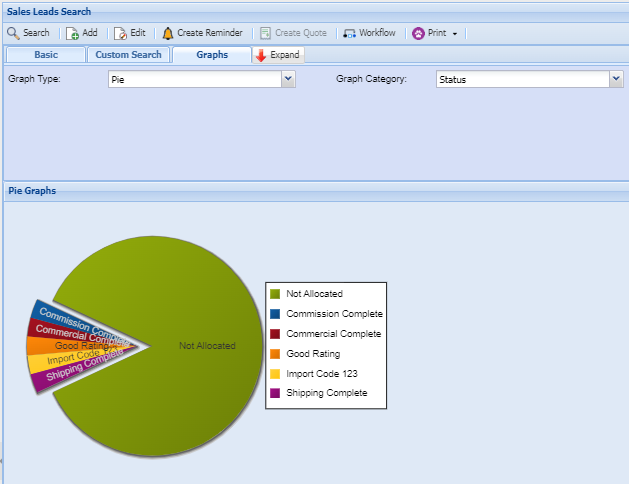
Graph Type: Select graph type from drop down options
Graph Category: Select the graph Category from the drop down options
Date From: the start period for the selection
Date To: the end period for the selection