
Sales Leads Search
The Sales Leads screen allows users to create new Sales Leads or search for existing ones.
Video training manual 2016 - Click Here
Webatar > Activity> Sales Leads
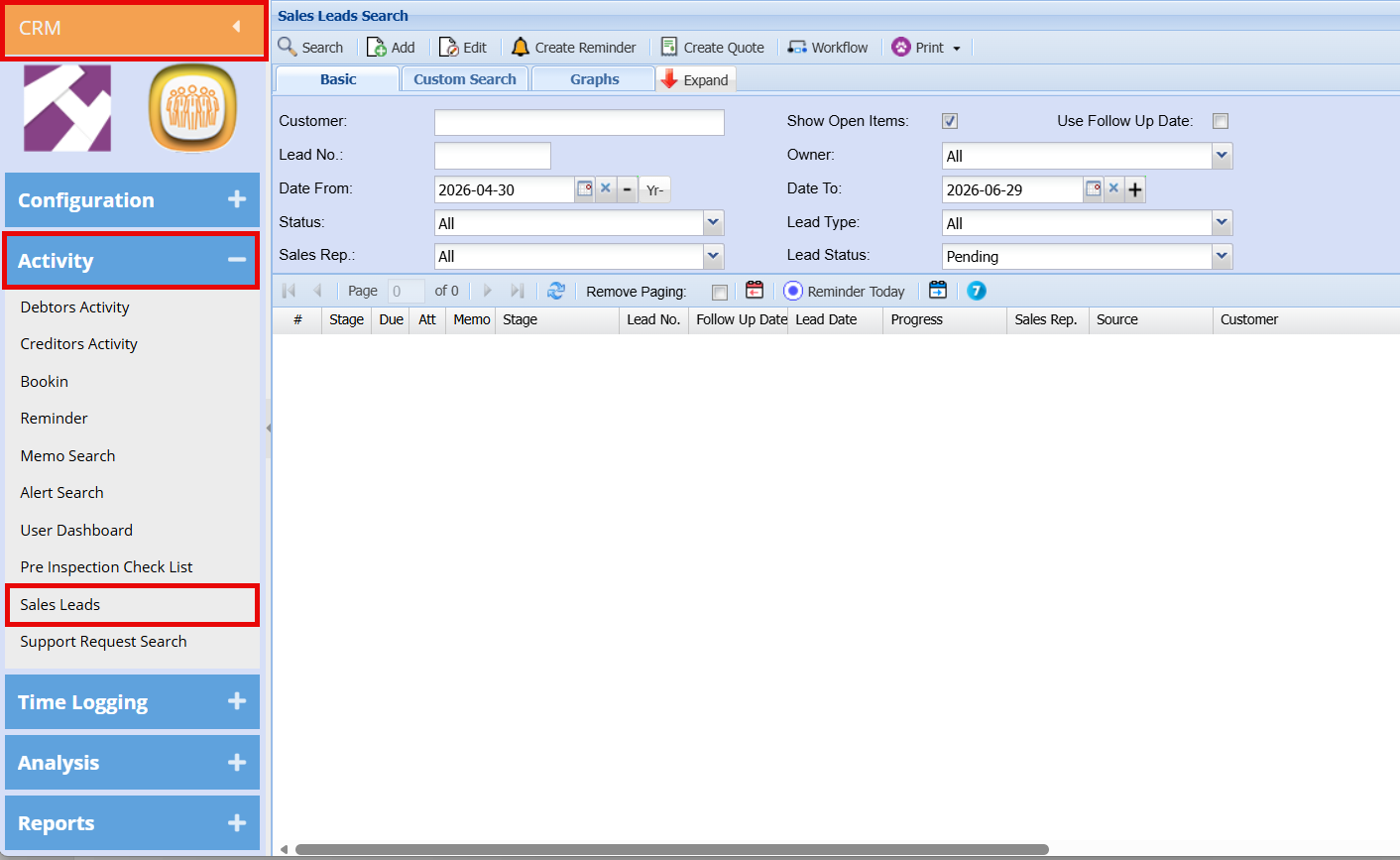
Search Functionality
The search panel enables users to filter and locate Sales Leads using criteria such as Customer, Lead Number, Date Range, Status, Sales Representative, Owner, and Lead Type.
- Select the desired filters and click Search to refine results.
- If no filters are applied, all Sales Leads will be displayed in the grid.
Use the Expand button to show additional search filters, or Contract to hide them.
Action Buttons
Located on the top navigation ribbon:
- Search: Runs the search based on selected filters.
- Add: Creates a new Sales Lead.
- Edit: Opens the selected Sales Lead for editing.
- Create Reminder: Sets a reminder linked to a Sales Lead.
- Create Quote: Generates a quote from the selected Sales Lead.
- Workflow: Access workflow-related actions.
- Print: Opens print and export options.
Print / Export Options
The Print dropdown provides the following:
- Export: Export Sales Leads to an Excel file.
- Print Grid: Print all Sales Leads currently displayed in the grid.
- Print Lead Details: Print details of the selected Sales Lead.
- Print Lead Form: Print a blank Sales Lead form template.
Results Grid
The lower section of the screen displays the results grid, showing all matching Sales Leads with key details such as:
- Stage
- Due Date
- Lead Number
- Follow-Up Date
- Lead Date
- Progress
- Sales Representative
- Source
- Customer
Basic tab
If the lead number in the Basic search Tab or any other search filter fields are left blank, the search will display all the leads listed in the system sorted by lead number. The search criteria can be narrowed by inputting information in any of the following filter fields.
Graph tab
.png)
Graph Type: Select graph type from drop down options
Graph Category: Select the graph Category from the drop down options
Date From: the start period for the selection
Date To: the end period for the selection