Creating and Send Bulk Mail CRM (Debtors)
- Click on the template that you would like to send out
- Click "Send Mail"
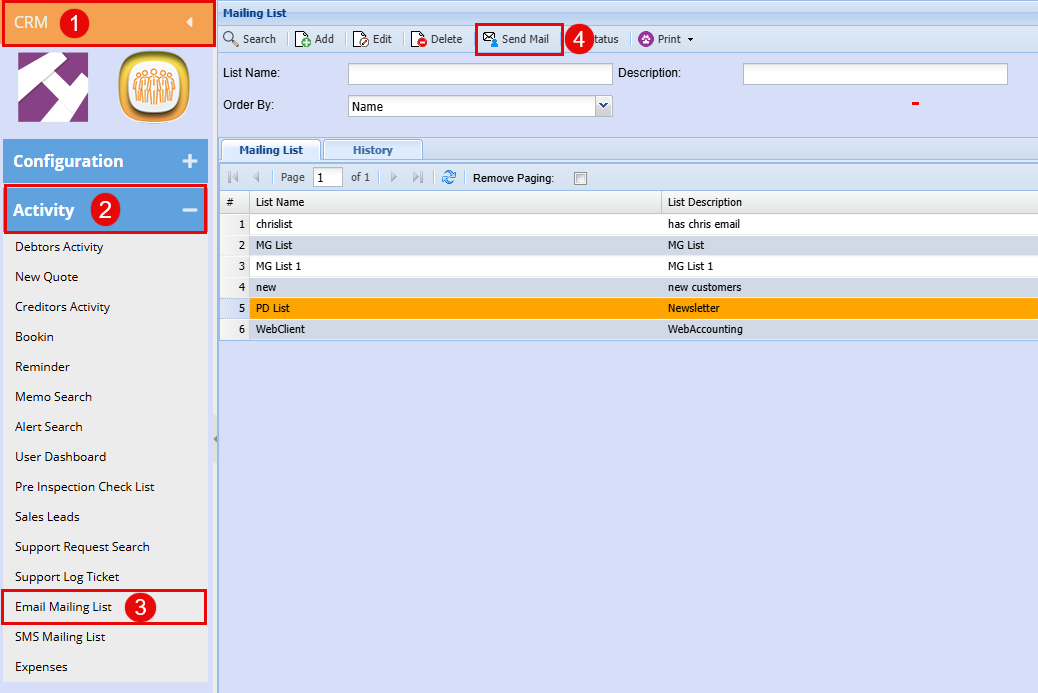
The below screen will open.
- Choose a Letter Template from the drop-down menu to determine the content of your outgoing message.
- Select a Mailing List using the "List Selection" drop-down to specify your email recipients.
- Manage Attachments by double-clicking an item to move it between the "Available Attachments" and "Selected Attachments" sections. Double-click again to remove it if needed.
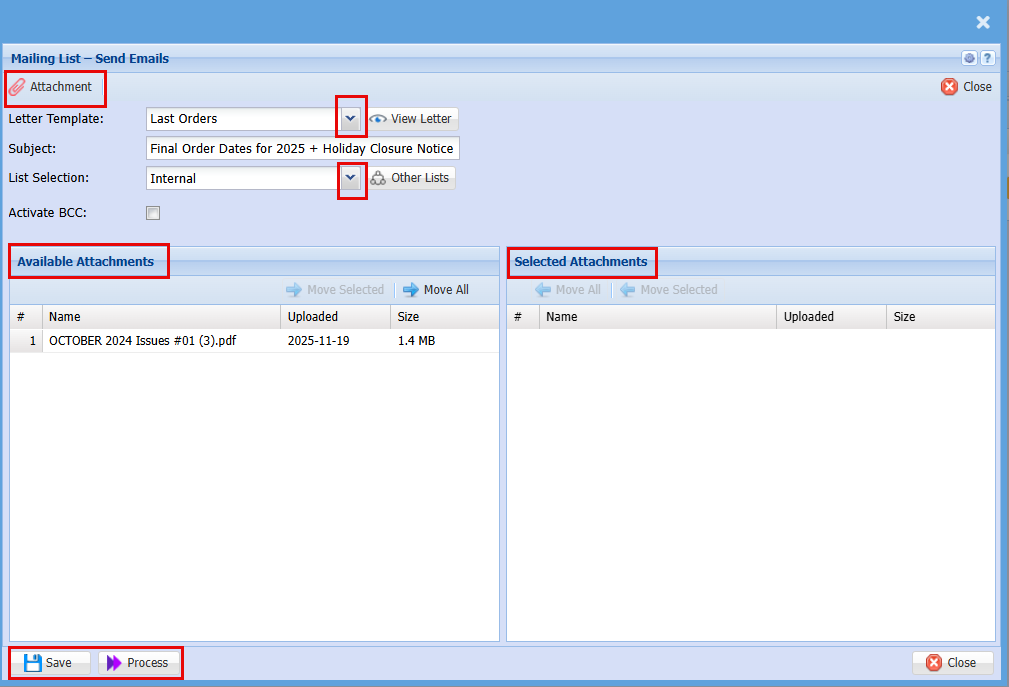
| Attachment | Here you can upload any attachment you would like to send out with your email |
| Letter Template | Select your email template from the drop-down menu |
| View Letter | Click to view the Template you have selected |
| Subject | The Subject line should auto populate with the description from when you created the template |
| List Selection | Select the list of contact you wish to send the letter too. |
|
Other Lists |
By clicking Other Lists, you can add multiple contact lists to send the mail out too. |
| Activate BCC | |
| Available Attachments | These are the attachments that have already been uploaded and available for selection. |
| Selected Attachments | These are the attachments that have already been selected to be sent out with the email. |
| Save | By Clicking Save you will save all the setting you have created and selected |
| Process | By clicking Process your letter will be emailed out |
To add an attachment:
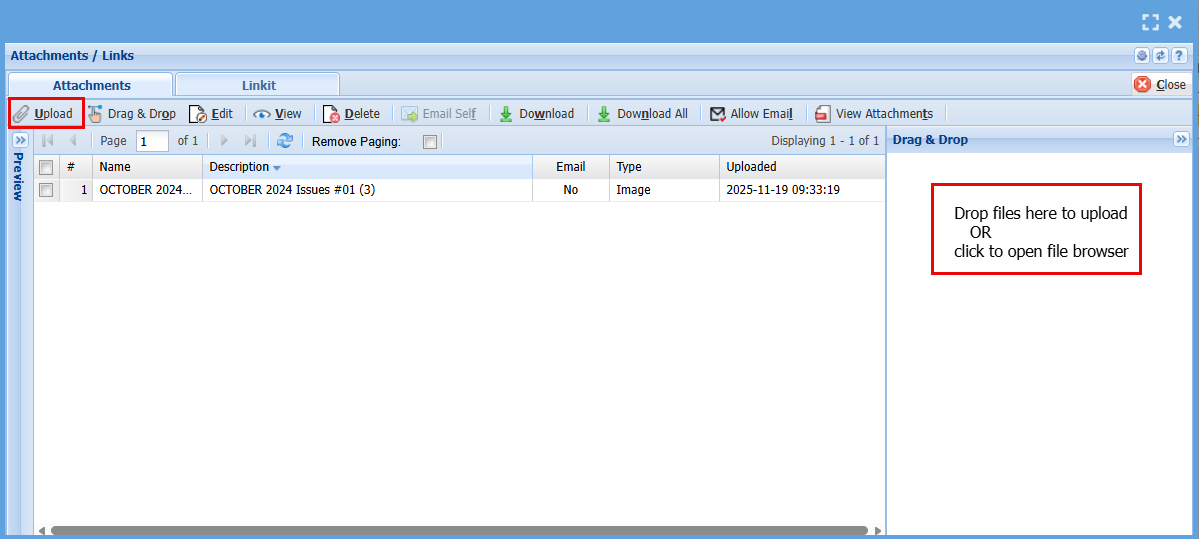
- Click "Attachment" and the below screen will open
- Click "Upload" or drag and drop your attachment in the "Drag & Drop" box