Send Bulk Mail CRM
Creating
a mail Template
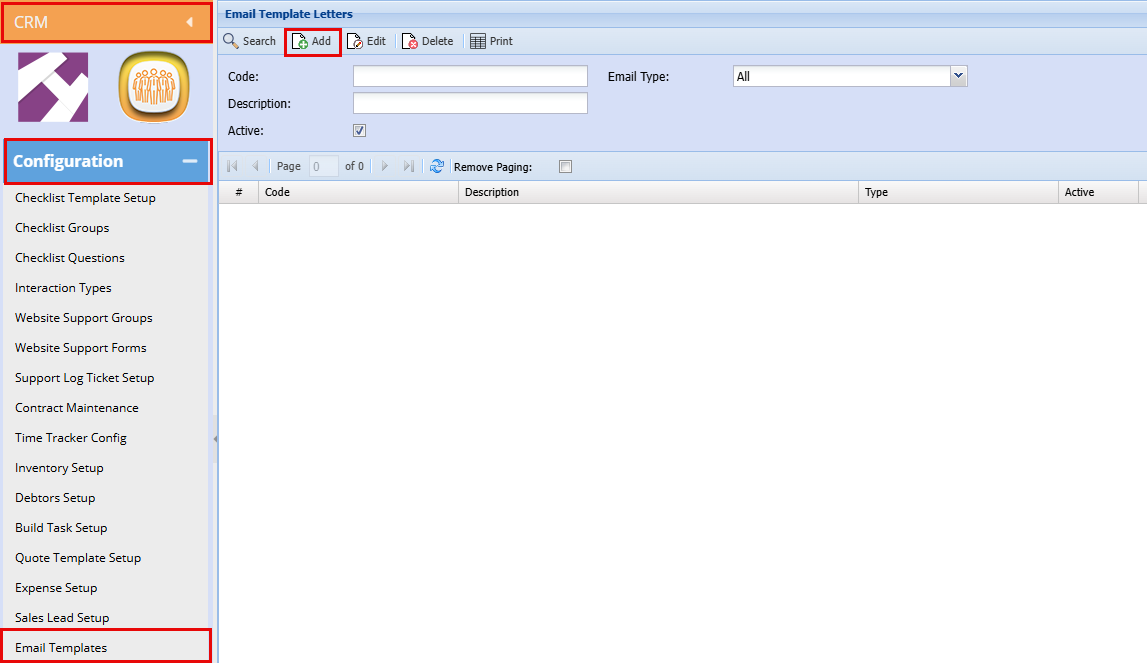
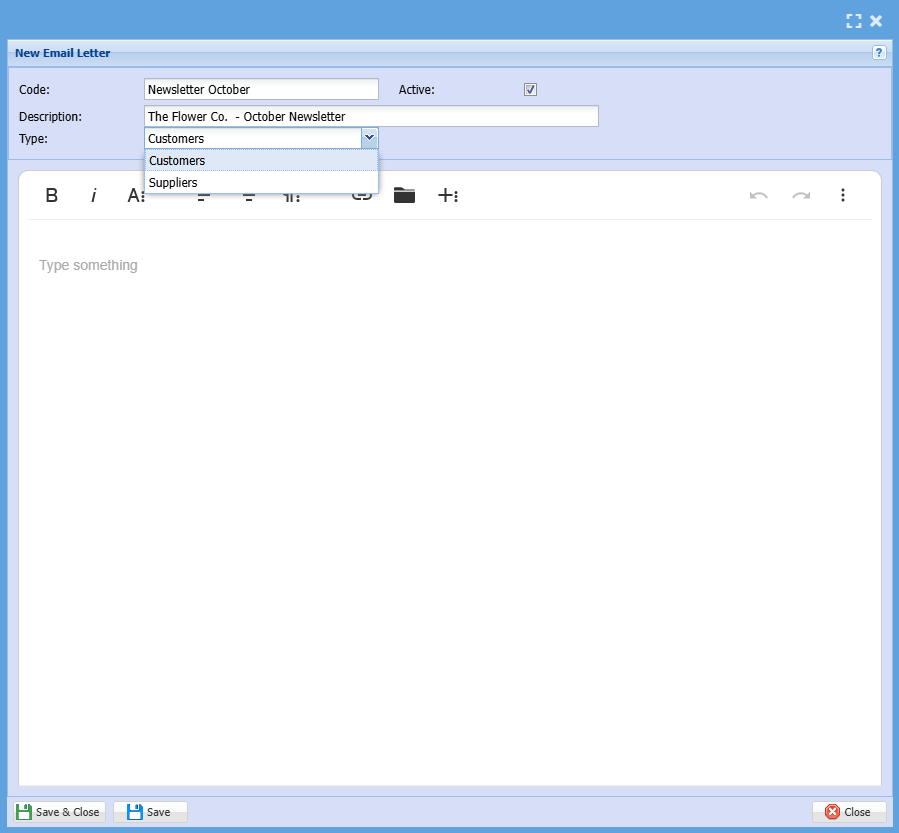
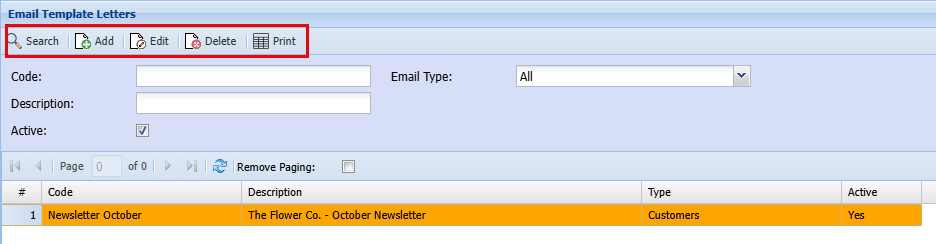
CRM Module> Configuration> Email Template

| |
| |
|
|
| |
| |
|
|
| |
| |
|
|









In the white text box, create your newsletter then click Save and Close.
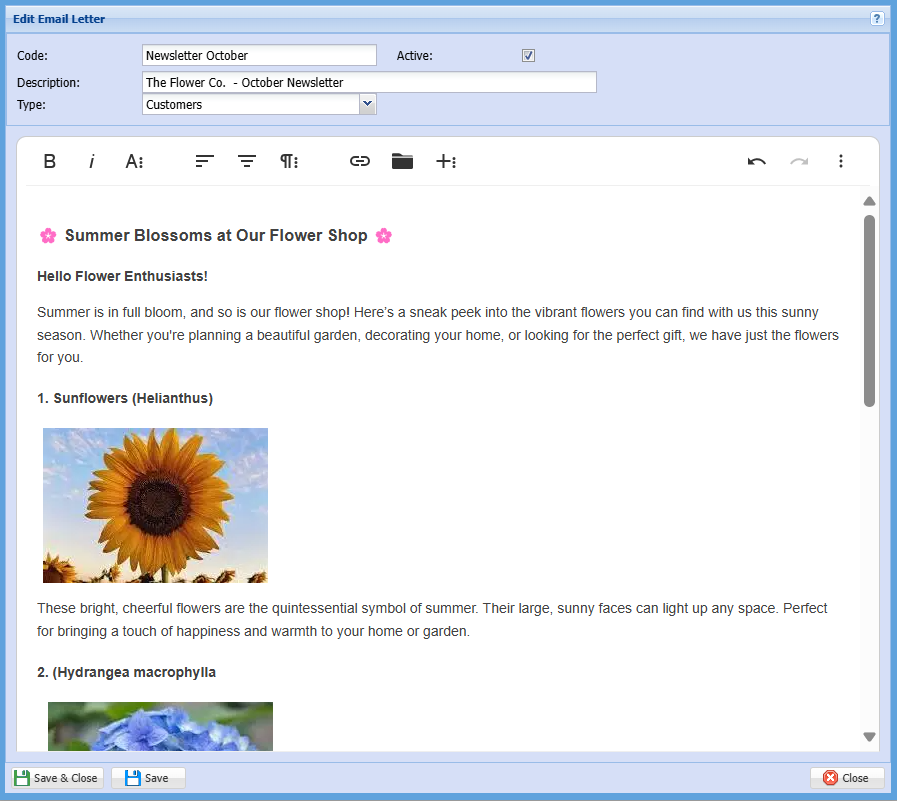
Once you have clicked save and close you will have a draft email to send
Sending an Email
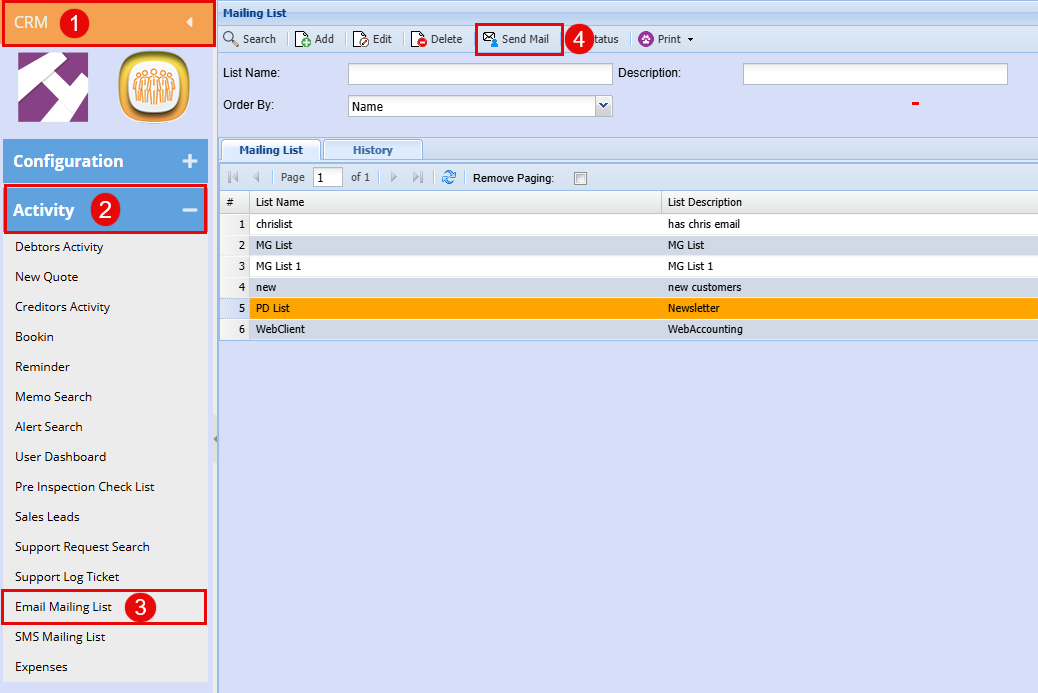
CRM Module> Activity> Email Mailing List
Highlight the mailing list you want to send an email to
Click Send Mail
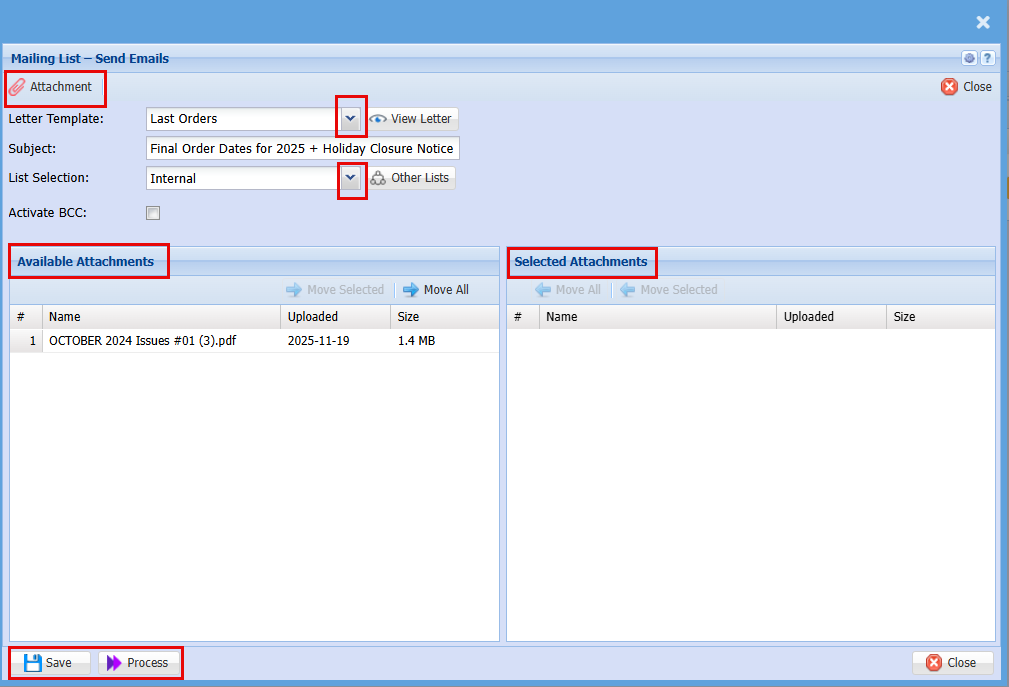
Choose your Email template that you would like to send out
YourThe Subjectbelow linescreen shouldwill autoopen.
- Choose
whata Letter Template from the drop-down menu to determine the content of yourdescriptionoutgoingwasmessage. - Select
youacreatedMailing List using the "List Selection" drop-down to specify youremail.email recipients. - Manage Attachments by double-clicking an item to move it between the "Available Attachments" and "Selected Attachments" sections. Double-click again to remove it if needed.
| Attachment | Here you can upload any attachment you would like to send out with your email |
| Letter Template | Select your email template from the drop-down menu |
| View Letter | Click to view the Template you have selected |
| Subject | The Subject line should auto populate with the description from when you created the template |
| List Selection | Select the list of contact you wish to send the letter too. |
|
Other Lists |
By clicking Other Lists, you can add multiple contact lists to send the mail out too. |
| Activate BCC | |
| Available Attachments | These are the attachments that have already been uploaded and available for selection. |
| Selected Attachments | These are the attachments that have already been selected to be sent out with the email. |
| Save | By Clicking Save you will save all the setting you have created and selected |
| Process | By clicking Process your letter will be emailed out |
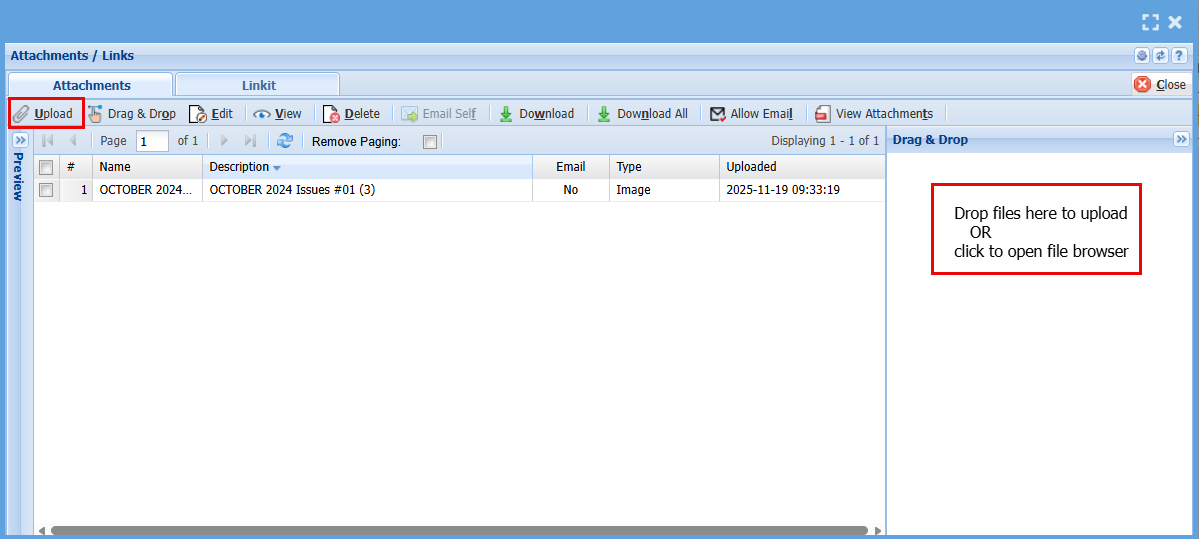
To add an attachment:
- Click "Attachment" and the below screen will open
- Click "Upload" or drag and drop your attachment in the "Drag & Drop" box