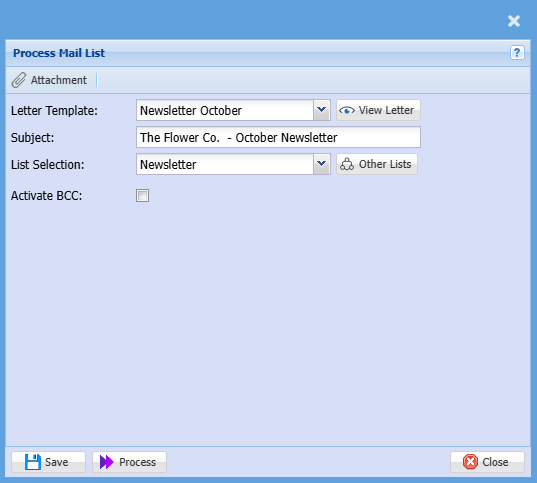
Send Mail Function
Creating a mail Template
CRM Module> Configuration> Email Template
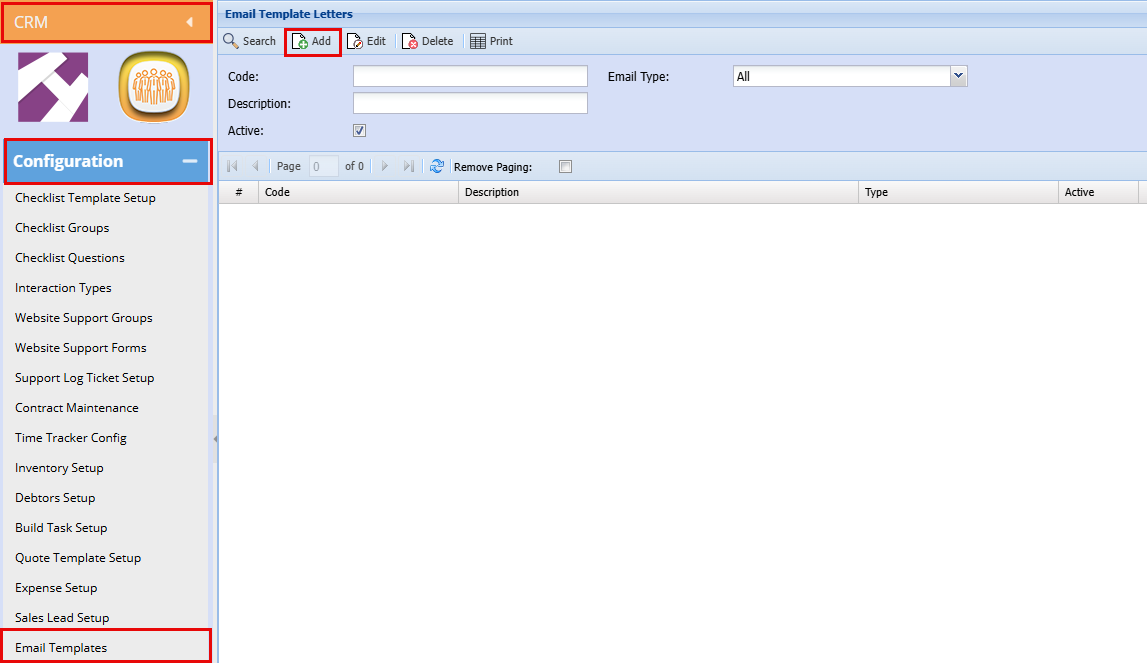
Click Add
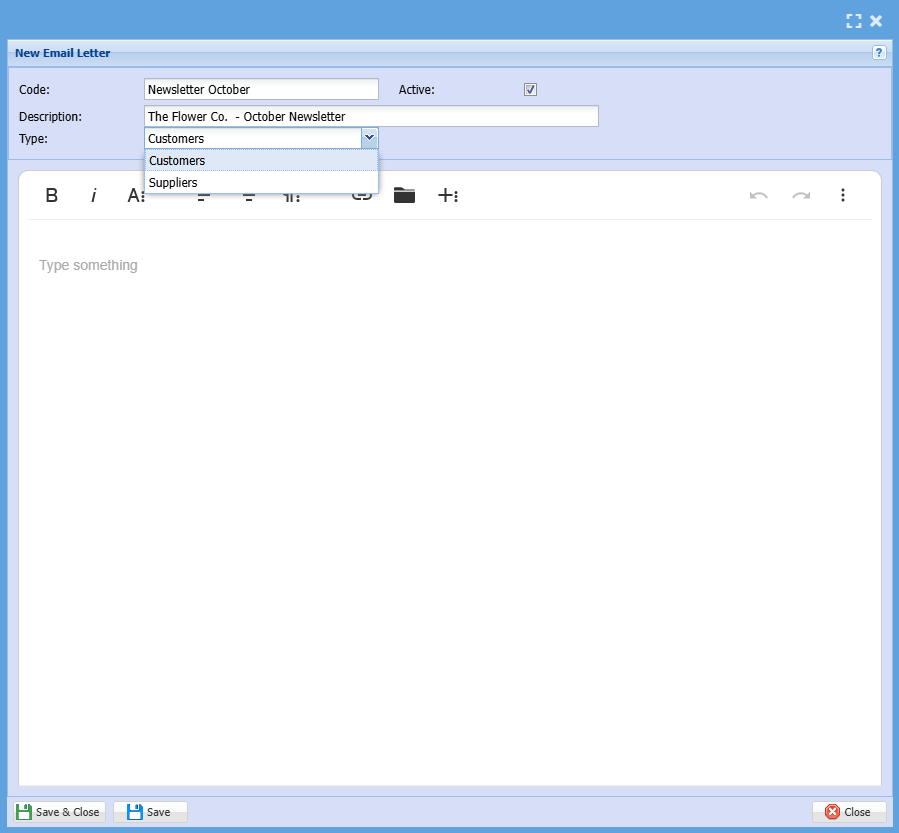
| Code | Add a code or Name for your newsletter |
| Description | Add a description for your newsletter, this will also be your Subject Line in your email |
| Type | Select your email Type (Customer/Debtor, Creditor/Supplier) |

|
|
Makes Text Bold |
|
|
Makes text Italic |
|
|
Here you can underline, Add Subscript, Change Font and Font Size, Text and Background Colour, etc.) |
|
|
Select to have your text aligned to the left |
|
|
Select to have your text centered |
|
|
This gives you more options to format your text |
|
|
You can click here to insert a link |
|
|
Click here to insert a file as a link |
|
|
This will give you options to insert a picture, Video, Grid, Emoji's, Special characters or Line breaks |









In the white text box, create your newsletter then click Save and Close.
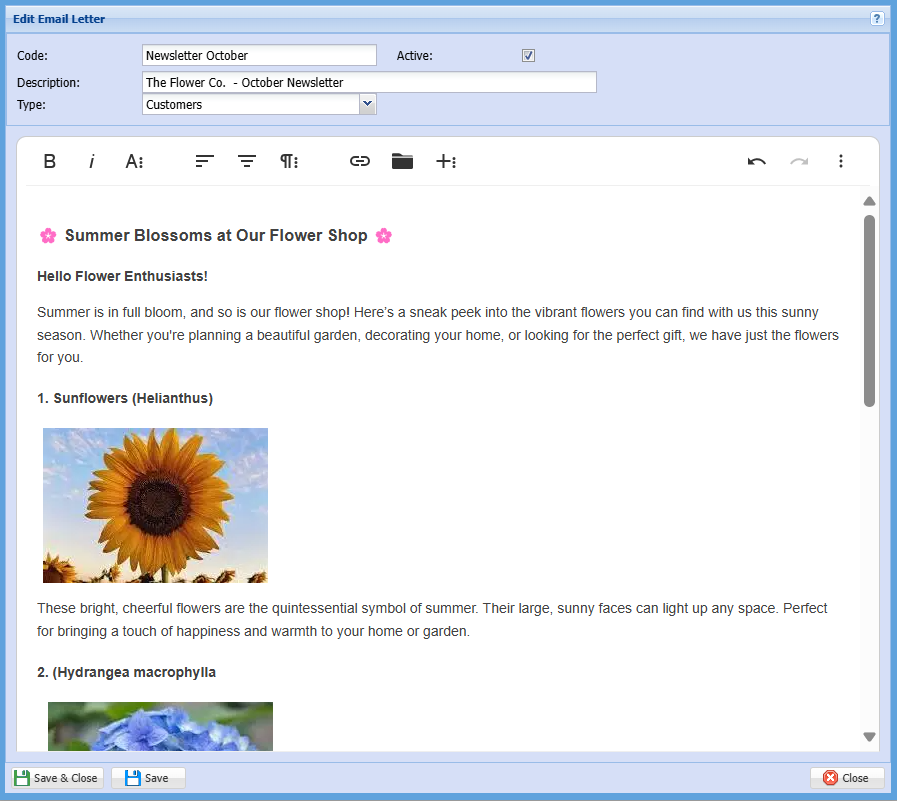
Once you have clicked save and close you will have a draft email to send
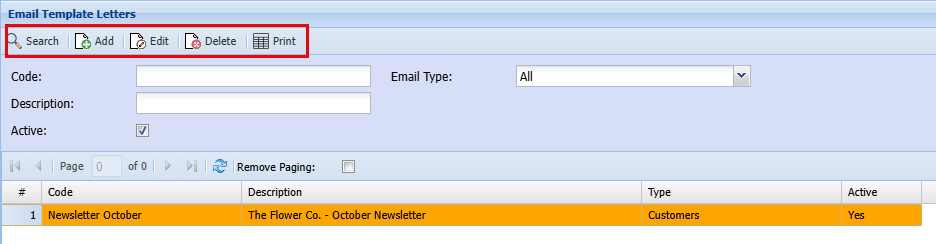
| Search | If you have a list of email templates you can use the search button to find a specific email |
| Add | Click add to do a new email |
| Edit | Highlight the email template you would like to edit and then click Edit. |
| Delete | Highlight the email template you would like to delete and then click Delete. |
| This will print a list of all your templates |
Sending an Email
CRM Module> Activity> Email Mailing List
Highlight the mailing list you want to send an email to
Click Send Mail
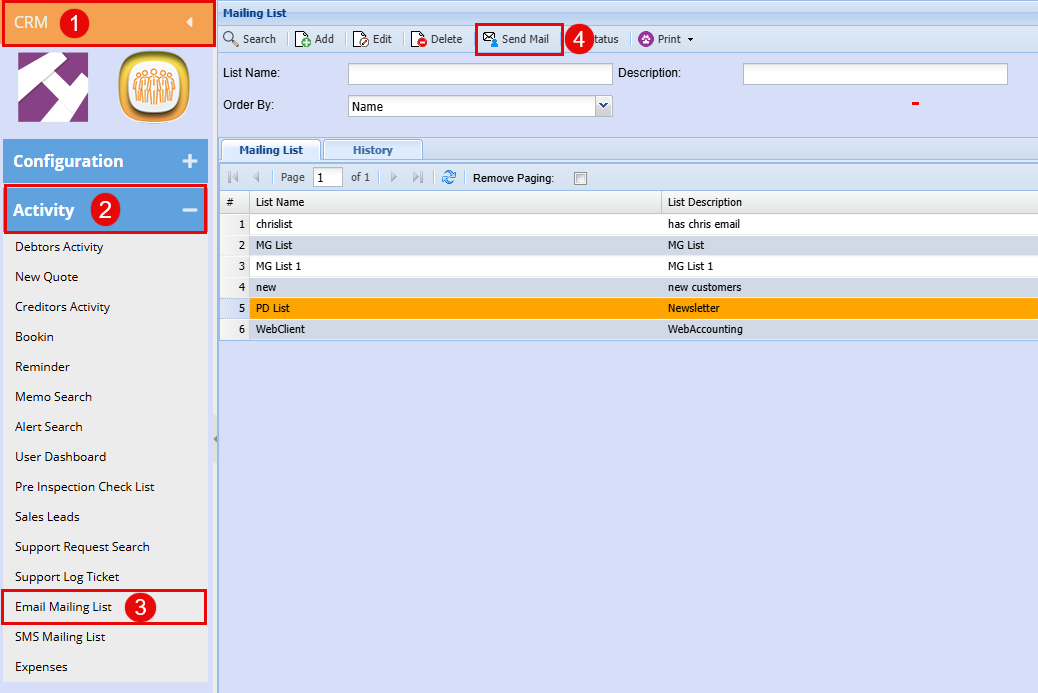
Choose your Email template that you would like to send out
Your Subject line should auto populate with what your description was when you created your email.