
Send Mail Function
Creating a mail Template
CRM Module> Configuration> Email Template
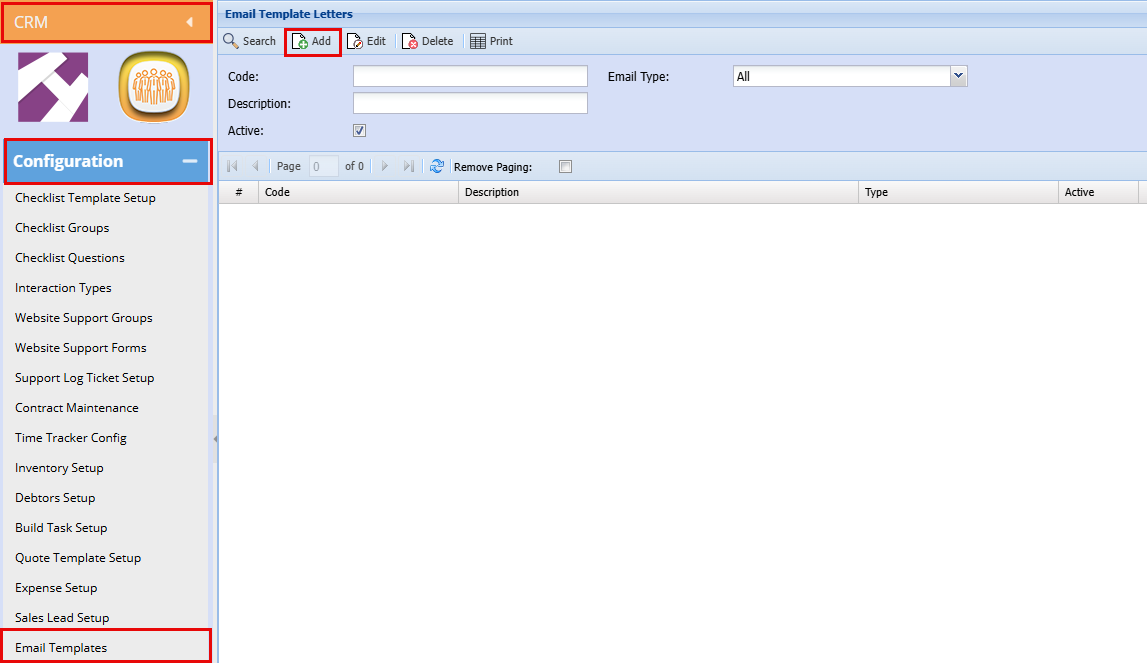
Click Add
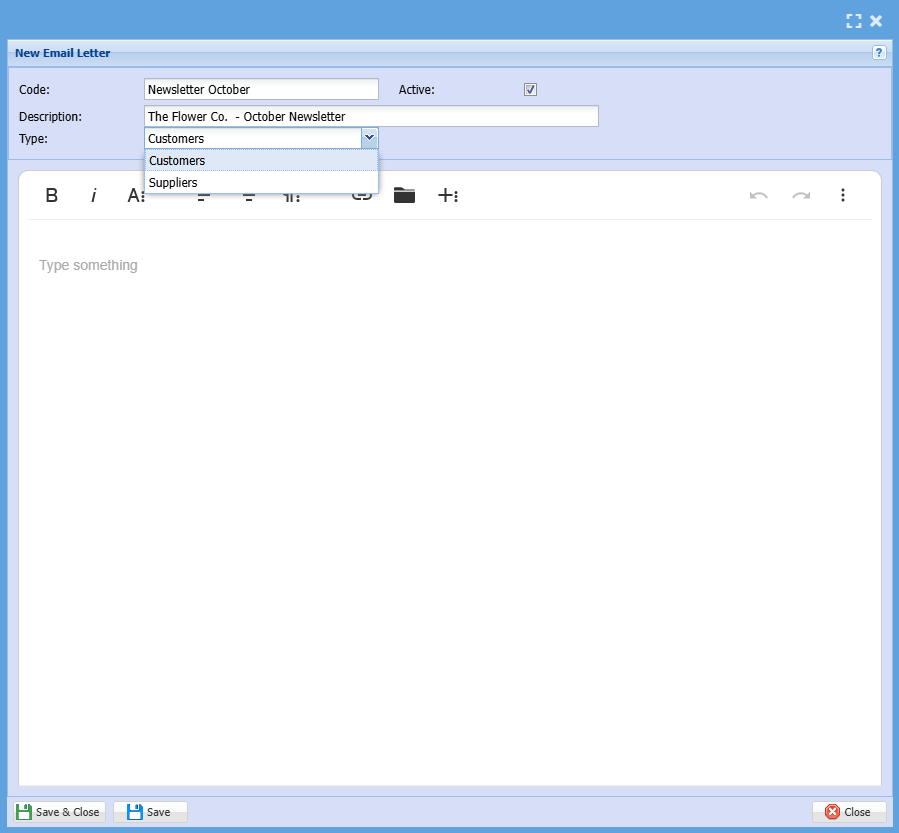
| Code | Add a code or Name for your newsletter |
| Description | Add a description for your newsletter, this will also be your Subject Line in your email |
| Type | Select your email Type (Customer/Debtor, Creditor/Supplier) |

|
|
Makes Text Bold |
|
|
Makes text Italic |
|
|
Here you can underline, Add Subscript, Change Font and Font Size, Text and Background Colour, etc.) |
|
|
Select to have your text aligned to the left |
|
|
Select to have your text centered |
|
|
This gives you more options to format your text |
|
|
You can click here to insert a link |
|
|
Click here to insert a file as an attachment |
|
|
This will give you options to insert a picture, Video, Grid, Emoji's, Special characters or Line breaks |









In the white text box, create your newsletter then click Save and Close.
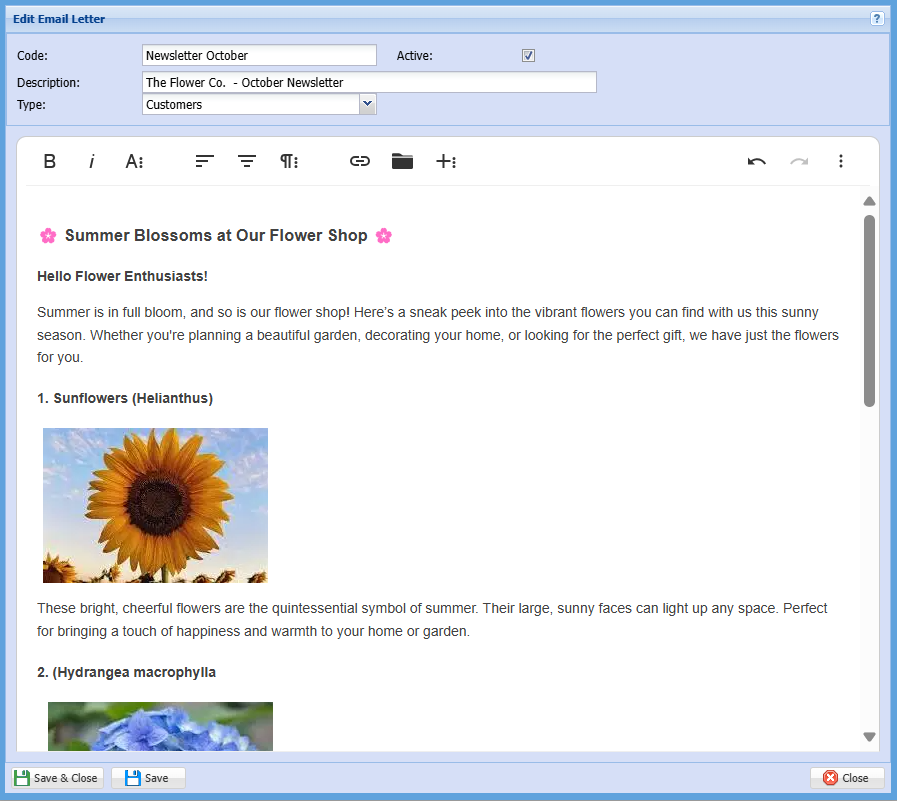
Once you have clicked save and close you will have a draft email to send
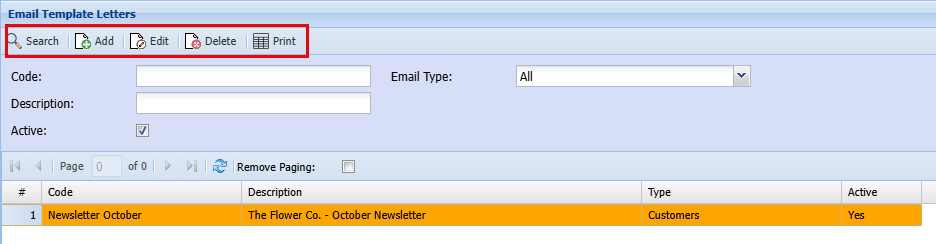
| Search | If you have a list of email templates you can use the search button to find a specific email |
| Add | Click add to do a new email |
| Edit | Highlight the email template you would like to edit and then click Edit. |
| Delete | Highlight the email template you would like to delete and then click Delete. |
| This will print a list of all your templates |
Sending an Email
CRM Module> Activity> Email Mailing List
Highlight the mailing list you want to send an email to.
Click Send Mail
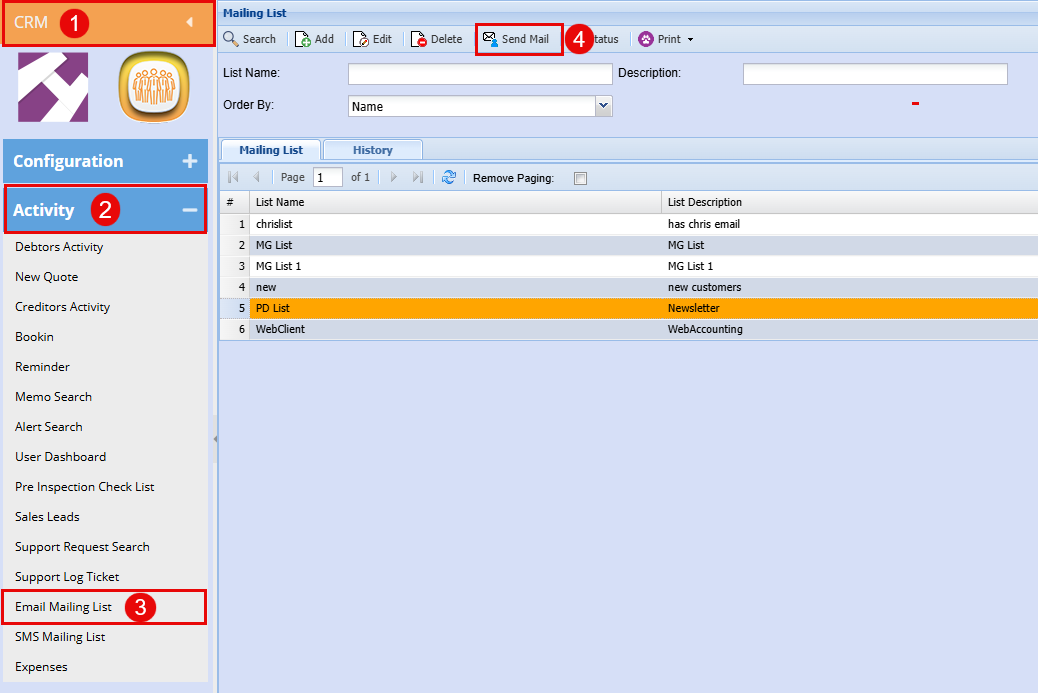
Select your newsletter from the drop-down menu
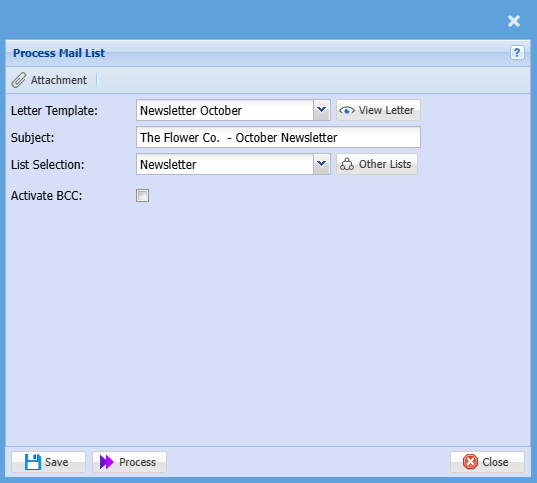
| Attachment | Click Attachment to add an attachment to your email. |
| Letter Template | Select the email template from the drop-down menu that you want to send out . |
| View Letter | By clicking View Letter you will be able to see what the mail out will look like. |
| Subject | The subject line is automatically populated with you template description. |
| List Selection | Select the mailing list from the drop-down menu that you wish to send an email too. |
| Other Lists | By clicking the Other Lists button, you will be able to add multiple mailing lists to the email you are sending out |
| Activate BCC | |
| Save | Click Save to save your template |
| Process | Click Process to send the email out |
| Close | Click Close to close this window |
When you are ready happy to send out your email click Process.