
Send Mail Function
Creating a Mailmail Template
CRM Module> Configuration> Email Template
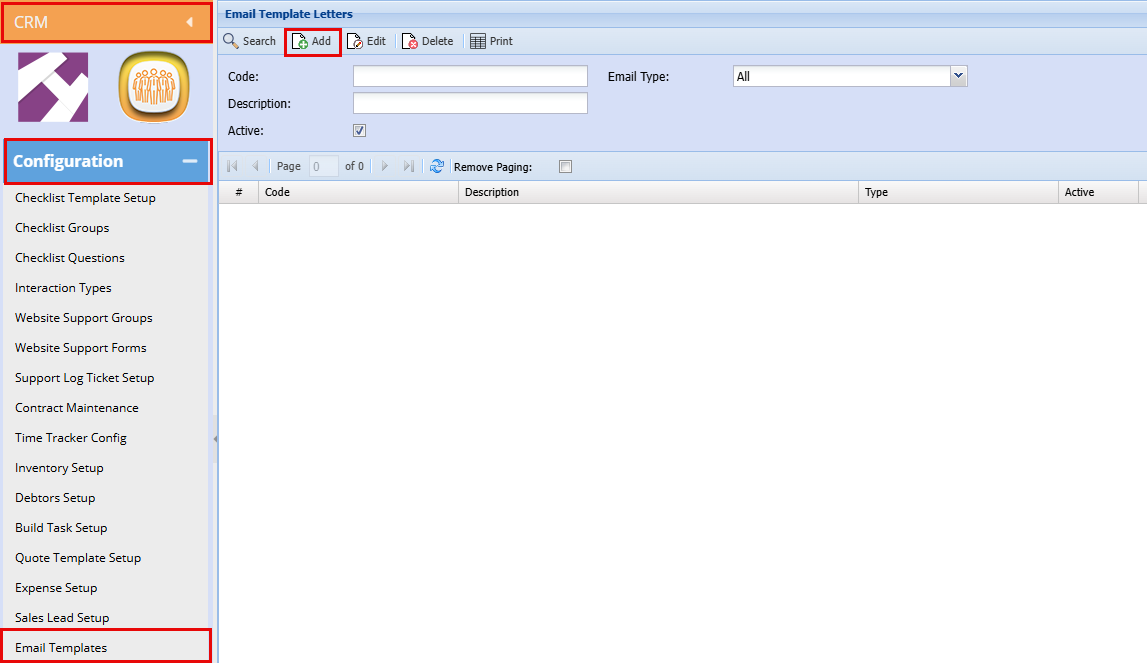
Click Add
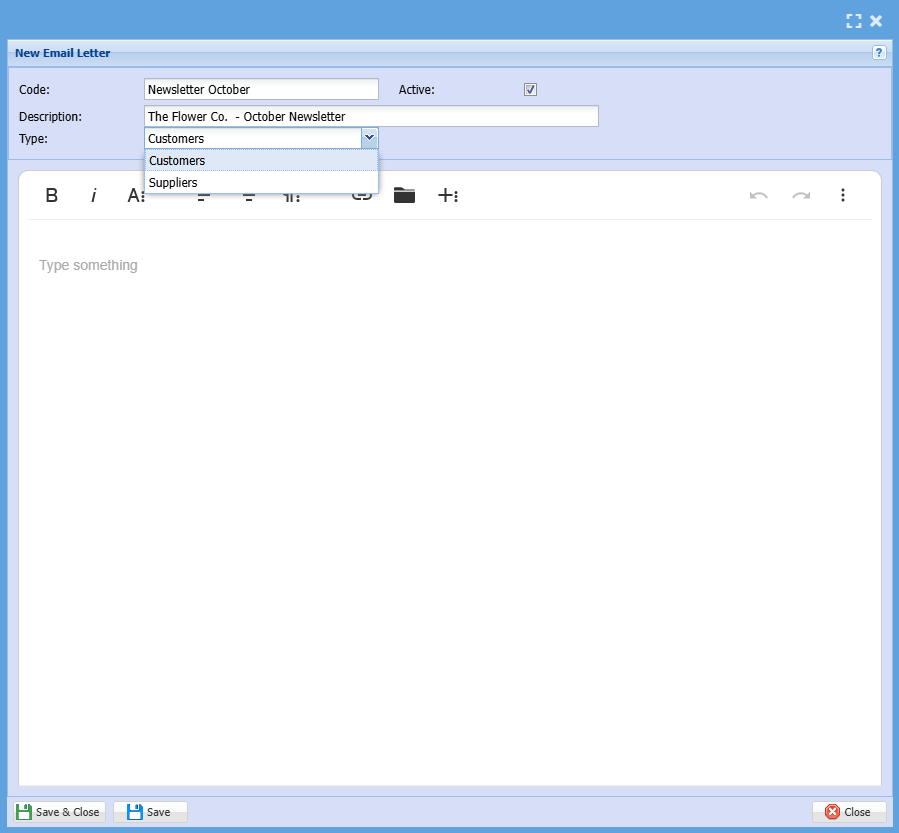
| Code | Add a code or Name for your newsletter |
| Description | Add a description for your newsletter, this will also be your Subject Line in your email |
| Type | Select your email Type (Customer/Debtor, Creditor/Supplier) |

|
|
Makes Text Bold |
|
|
Makes text Italic |
|
|
Here you can underline, Add Subscript, Change Font and Font Size, Text and Background Colour, etc.) |
|
|
Select to have your text aligned to the left |
|
|
Select to have your text centered |
|
|
This |
|
|
You can click here to insert a |
|
|
Click here to |
|
|
This will give you options to |



.png)






OnIn the white screen,text that’sbox, wherecreate theyour messagenewsletter detailthen isclick goingSave and Close.
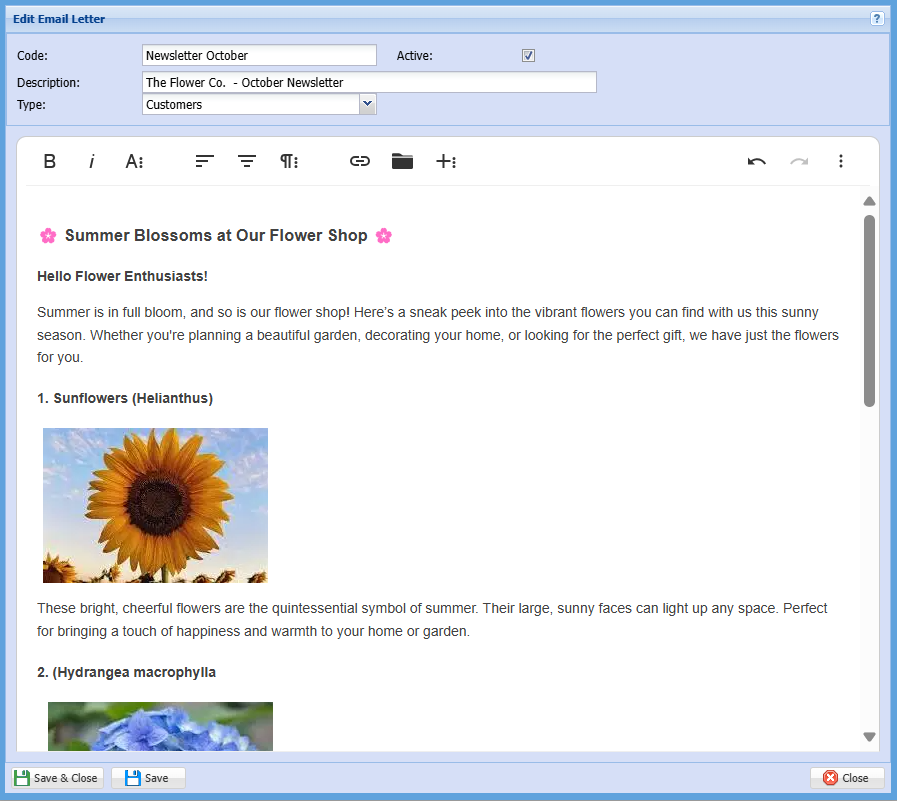
Once you have clicked save and close you will have a draft email to besend and can be formatted according to users preference
Subject – Message subject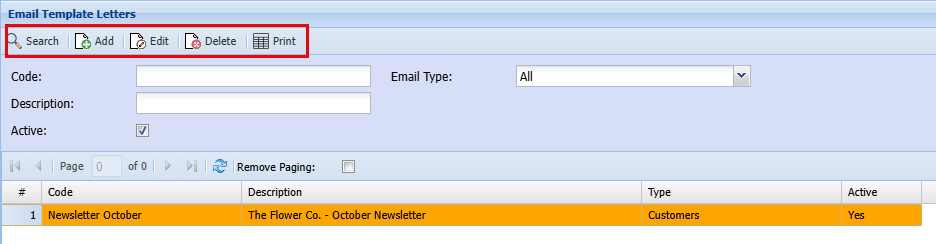
List–The
drop
downSearch
arrowIf
allowsyou have a user to select a the one list but while the tree search allows a multiples of email liststemplates Helpyou –can givesuse the headersearch andbutton to find a mustspecific Copyemail thebottompart
Add
Click add to
the header and the message will be read “Dear [ContactFirstName]” when processing
Attachment– allowsdo a usernew toemailattacheither
aEdit
document or picture related to the message and has five buttons
Save– saves the mail
Process – ProcessesHighlight the email template you would like to edit and then click Edit.
Delete
Highlight the email template you would like to delete and then click Delete.
Print
This will print a list of all your templates
Sending an Email
Close – Closes the mailing mail list