Stock Order Functions Explained
Buttons Explained
Items
Work out your quantities to order and send them to Purchase Orders
Add Item To List Button
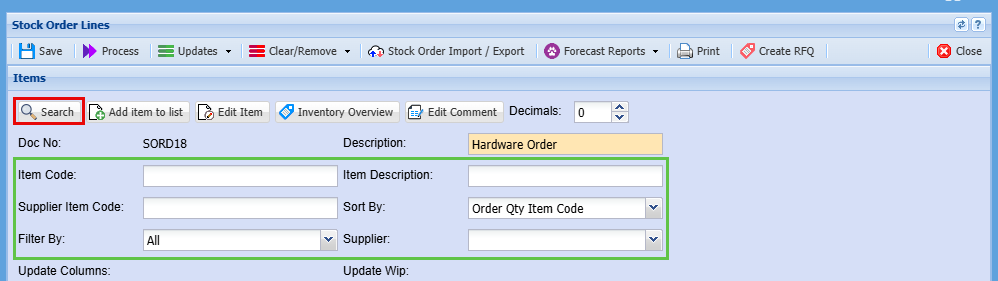
You may find that an item is not on the Stock Order list, you can search for this item and add it to the order
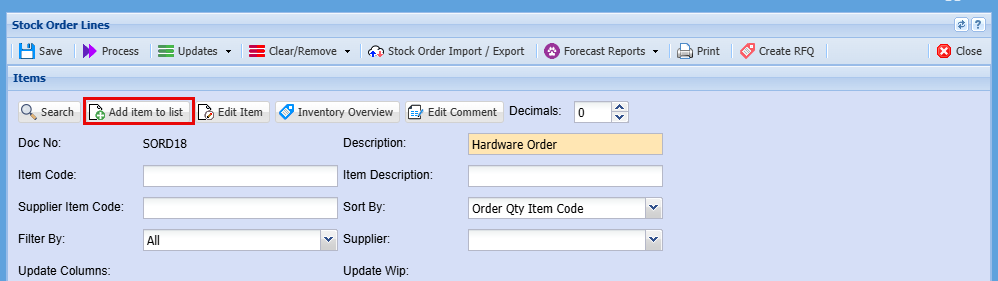
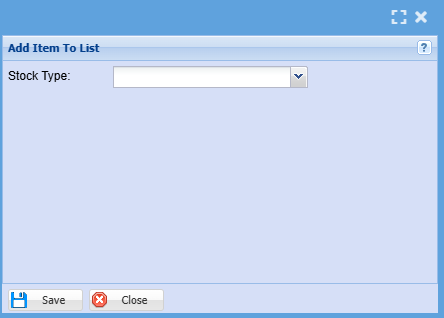
Select or search for an item in the drop-down menu and click "Save"
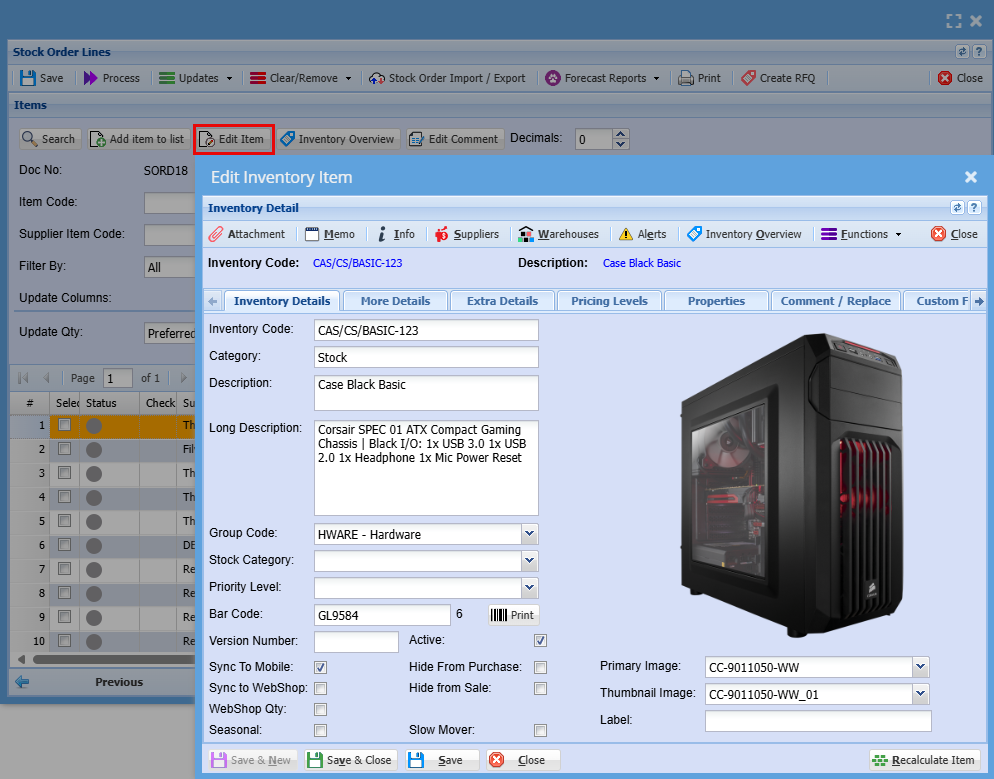
You can highlight a row and click the Edit Item button which will take you to the item to make any changes you require to the main system. Changes will not show in your Stock Order as this is like a snapshot of the data at the time if "Save" being clicked. You will need to double click on the line item and make changes to your Stock Order lines.
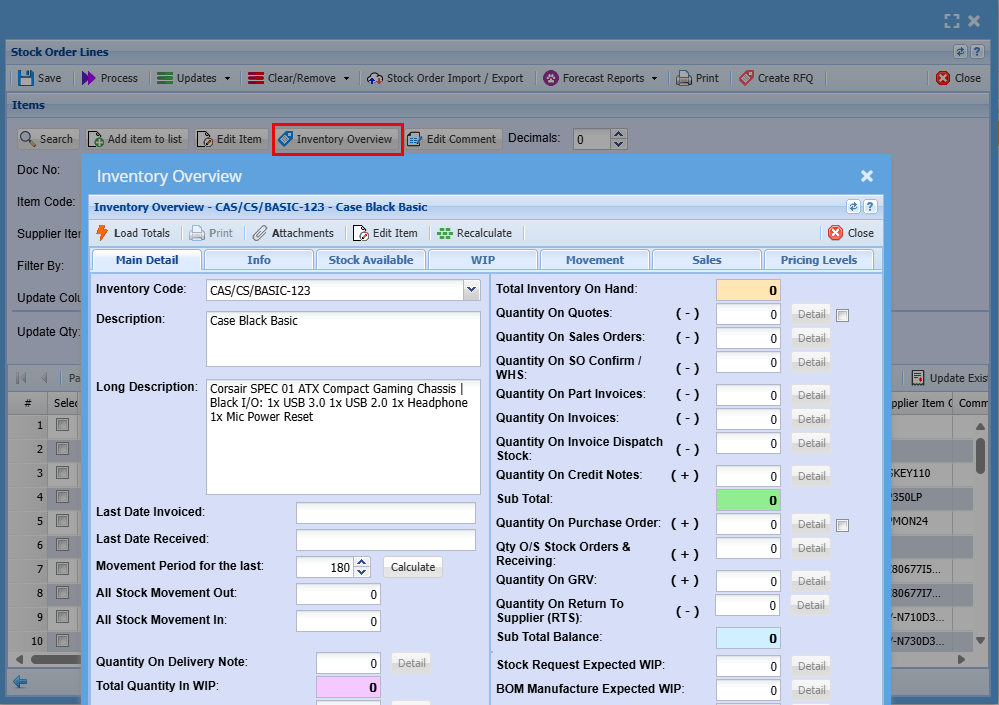
Inventory Overview Button
The inventory overview window allows a quick access to view information on an item.
It is accessed in most windows where stock items are present
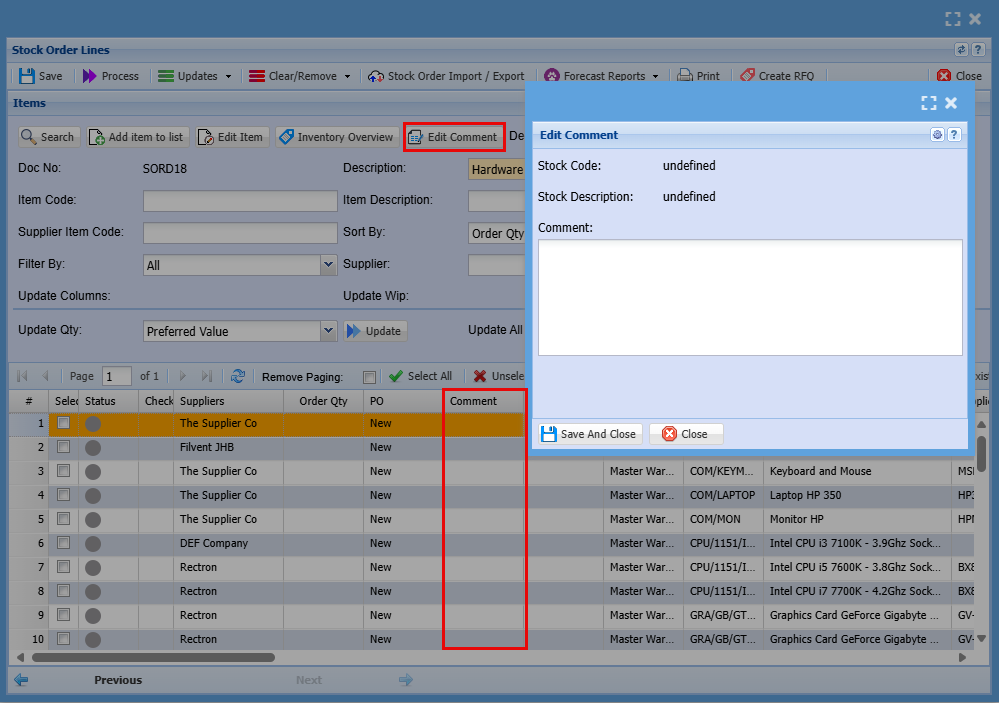
Here you can edit comments made for each item
Grid Buttons Explained
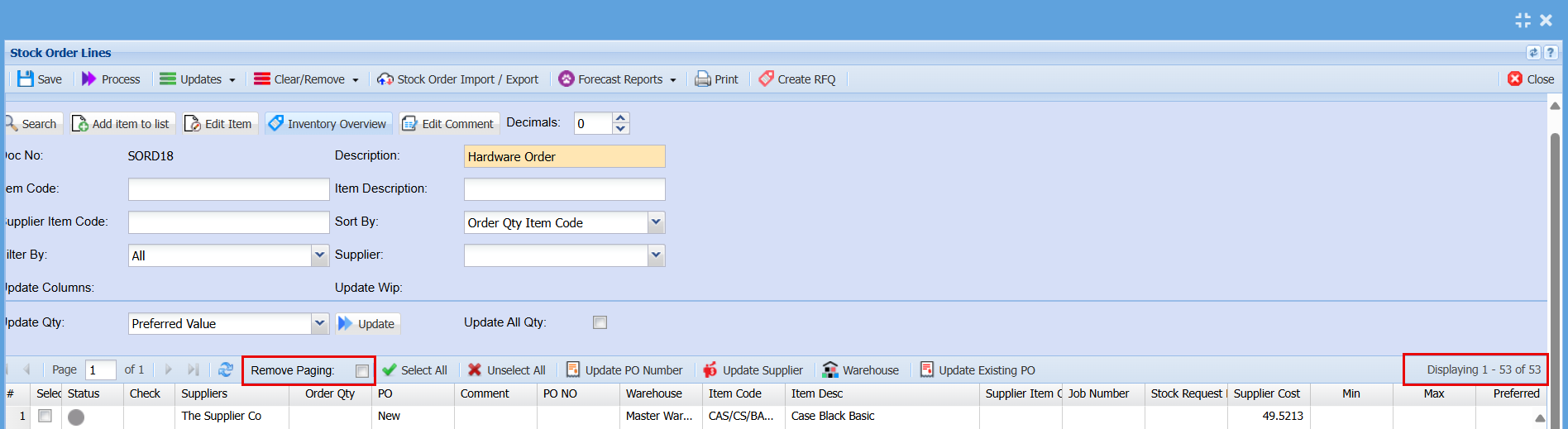
Remove Paging
Put this tick on to displays all Stock Order items on a single page If the Order list exceeds the default 100 lines. If this box is not ticked and you have more than 100 items, you will need to click through the pages with the arrows 
Select All / Unselect All
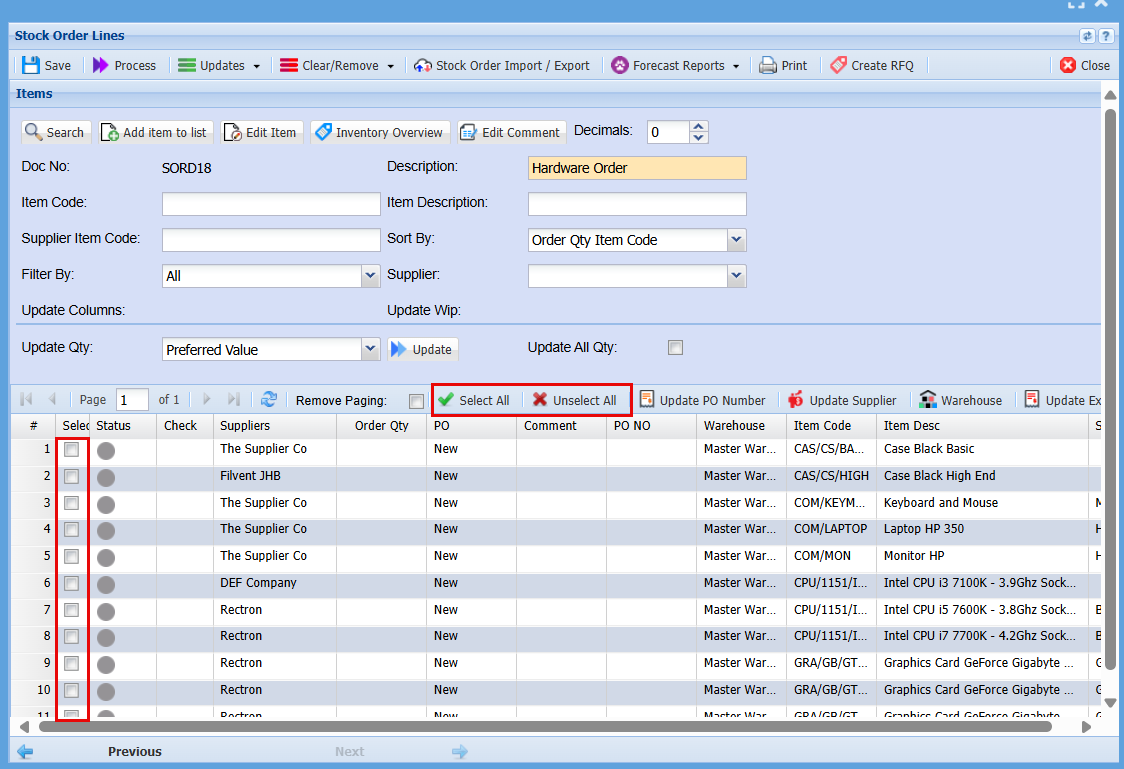
The Stock Order Lines can be all selected and unselected by clicking on the Select All or Unselect All button. Or you can tick the boxes individually.
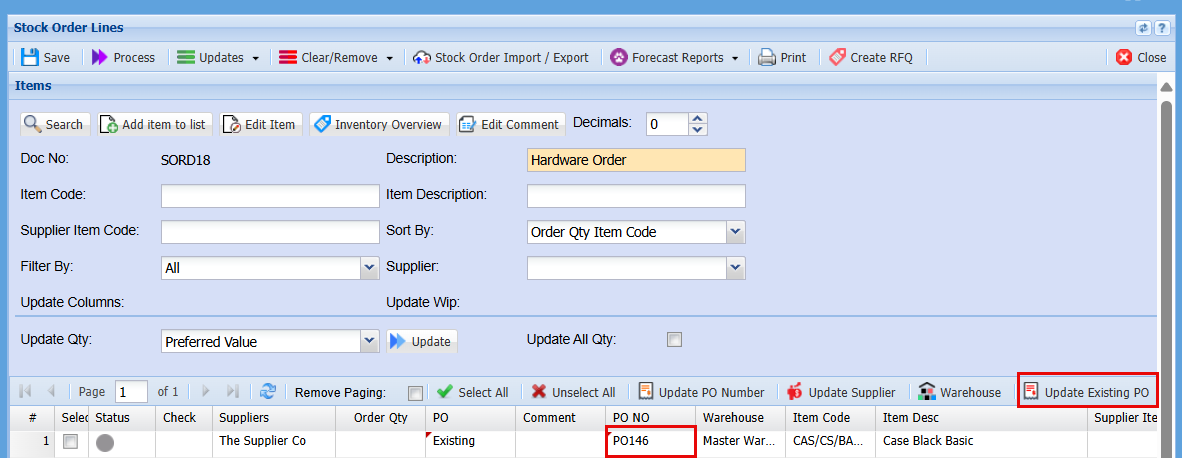
Update PO Number
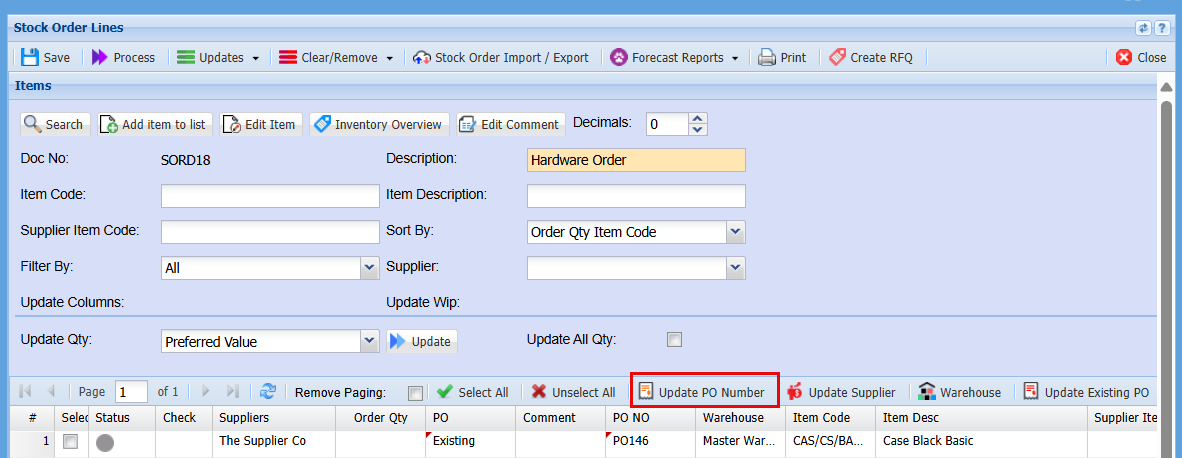
All purchase orders will appear as new when a Stock Order is created. If a purchase order already exists for a supplier and you want to add an item to that order, tick the select the checkbox for the item and click the 'Update Existing Number' button. This will change the status of the PO from 'New' to 'Existing and add the Existing PO number to the PO NO Column.
Update Supplier
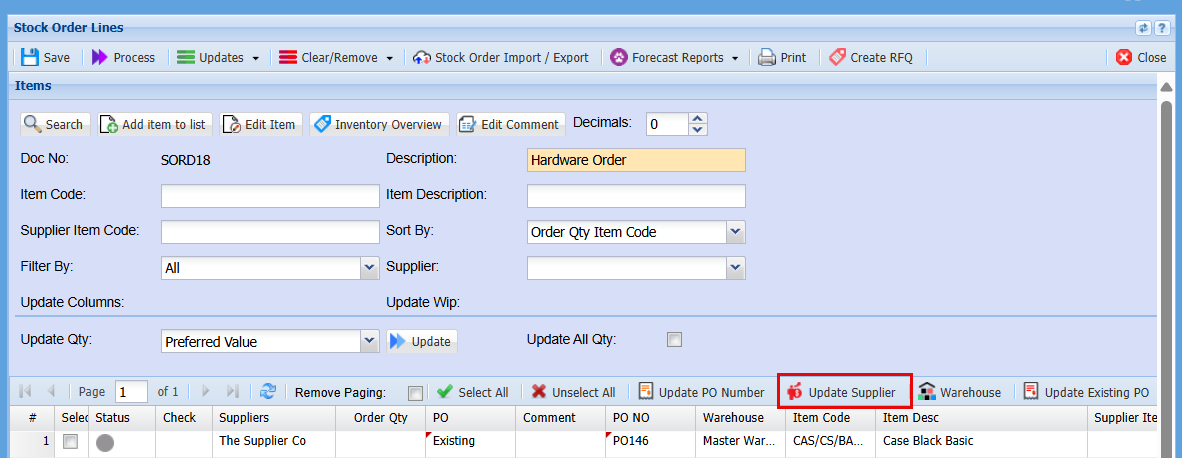
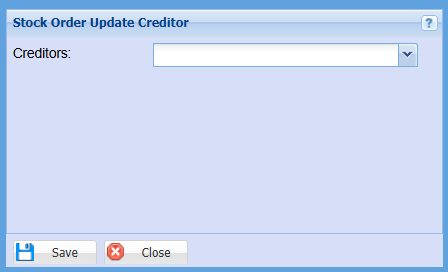
When a Stock Order is created, the Default Supplier will automatically populate in the order. If you need to change the supplier for a stock item, highlight the relevant line, click the 'Update Supplier' button, select the desired supplier from the drop-down menu, and click 'Save'
Warehouse and Minimum and Maximum Quantities
If you are working with multiple Warehouses and are wanting to order for a different warehouse, highlight the line you want to change, click the "Warehouse" button, select your warehouse form the list and click "Save".
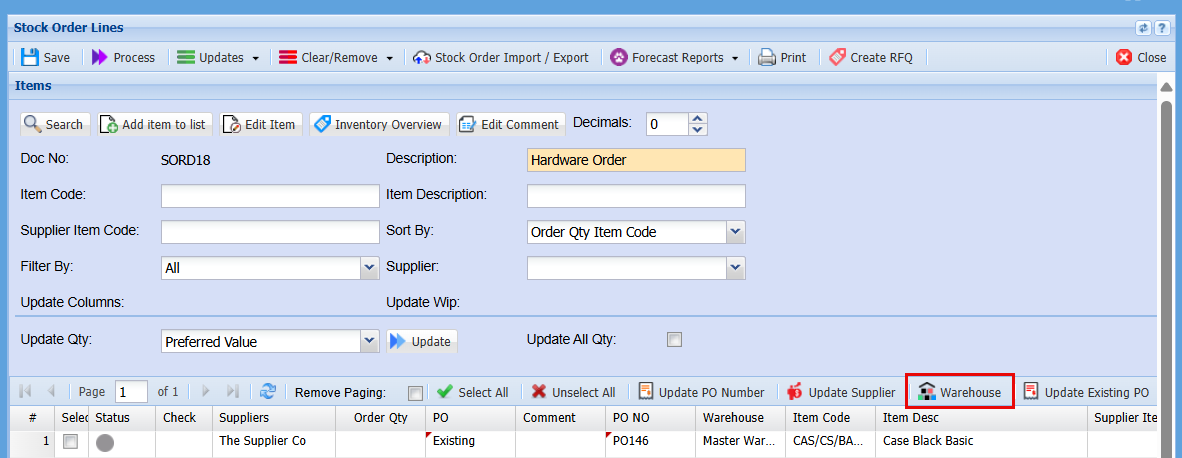
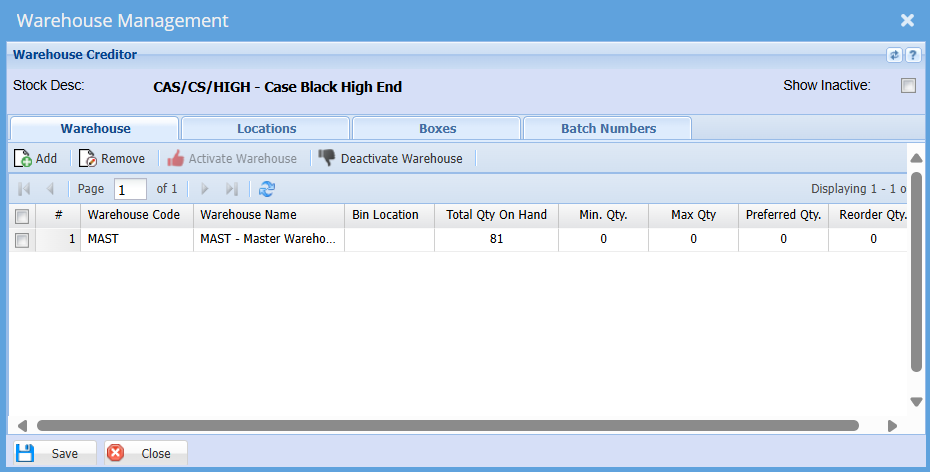
While in the Warehouse, you can view the minimum and maximum quantities for a specific item. At this stage, you can update your minimum and maximum quantities, as well as your preferred and reorder quantities to assist with future ordering and forecasting.
Once these quantities are set, you can configure the system to send you daily email updates when stock quantities reaching the minimum level. These notifications will inform you when to reorder and how much to reorder based on your specified quantities.
Update Existing PO
If you already have an existing PO Number associated with a stock item in your Stock Order and you want to change it, you can click the "Update Existing PO" button and select a different Purchase Order from the list.