Purchase Order Overview
Overall process
.png)
The Purchase Order process can run in multiple options from simple steps to multiple steps dependent on how the company wants to run the system:
Below are the various options:
| Option 1 |
GRV process |
The quickest and easiest route to get stock into the system and update the supplier. Skips all the steps.
Has two basic steps:
- Create GRV (Preparation)
- Process (Complete) (Stock is updated)
|
| Option 2 |
PO to GRV |
- Create a Purchase Order (Preparation)
- Authorise
- Order
- When ordering, select option to go directly to GRV
- Skips Receive Stock and Delivery note
- Find GRV as preparation
- Process GRV (Stock is updated)
|
| Option 3 |
PO with authorise to GRV |
- Create a Purchase Order (Preparation)
- Request authorisation
- When authorised by manager, email sent to say authorised
- Find Purchase Order and click on Order.
- When ordering, option to go directly to GRV. (Skips Receive Stock and Delivery note)
- GRV is marked as preparation (GRV section)
- Process GRV (Stock is updated)
|
| Option 4 |
PO to Receive stock (All) to GRV |
- Create a Purchase Order (Preparation)
- Request authorisation
- When authorised by manager, email sent to say authorised
- Find Purchase Order and click on Order.
- Moves Purchase Order to Receive Stock (waiting for stock to be received)
- Go to Receive Stock section
- Receive all stock
- Process to GRV
- Find GRV as preparation
- Process GRV (Stock is updated)
|
| Option 5 |
PO to Receive stock (Part) to GRV |
- Create a Purchase Order (Preparation)
- Request authorisation
- When authorised by manager, email sent to say authorised
- Find Purchase Order and click on Order.
- Moves Purchase Order to Receive Stock (waiting for stock to be received)
- Go to Receive Stock section
- Receive part stock
- Process to GRV
- Find GRV as preparation
- Process GRV (Stock is updated)
- Purchase Order is marked as Part Purchase Order and sits in Receive stock awaiting to receive rest of stock
- Receive rest of Stock
- Process to GRV
- Find GRV as preparation
- Process GRV (Stock is updated)
- Purchase Order will be closed
|
| Option 6 |
PO to Receive stock (All) to GRV
Foreign Supplier - Multicurrency
Multicurrency Supplier CANNOT go via Delivery note and must go GRV route.
This is because freight and shipping costs are added to the supplier invoice to change the cost of items to landed cost.
|
- Create a Purchase Order (Preparation)
- Request authorisation
- When authorised by manager, email sent to say authorised
- Find Purchase Order and click on Order.
- Moves Purchase Order to Receive Stock (waiting for stock to be received)
- Go to Receive Stock section
- Receive all stock
- Process to GRV
- Find GRV as preparation
- Go to Importation cost button
- Add in three basic custom / shipping costs
- Customs VAT / GST (Tax)
- Costs without VAT / GST
- Costs with VAT / GST
- Stock is updated with additional costs
- Process GRV (Stock is updated)
- Freight company invoice is processed with GRV
|
| Option 7 |
PO to Receive stock (All) to Delivery Note to GRV
If going the Delivery note route, Purchase Order should have correct costs.
If not, then the average or latest cost will be changed on the item.
|
- Create a Purchase Order (Preparation)
- Request authorisation
- When authorised by manager, email sent to say authorised
- Find Purchase Order and click on Order.
- Moves Purchase Order to Receive Stock (waiting for stock to be received)
- Go to Receive Stock section
- Receive all stock
- Process to Delivery Note (Stock is updated at this point)
- Go to Delivery Note section
- Match Supplier invoice to Delivery Note (Purchase Order prices)
- Change price if necessary
- Process Delivery note
- Delivery note processed will create and process a GRV
- Process is done
|
| Option 8 |
PO to Receive stock (Part) to Delivery Note to GRV
If going the Delivery note route, Purchase Order should have correct costs.
If not, then the average or latest cost will be changed on the item.
|
- Create a Purchase Order (Preparation)
- Request authorisation
- When authorised by manager, email sent to say authorised
- Find Purchase Order and click on Order.
- Moves Purchase Order to Receive Stock (waiting for stock to be received)
- Go to Receive Stock section
- Receive part of stock
- Process to Delivery Note (Part Stock is updated at this point)
- Go to Delivery Note section
- Match Supplier invoice to Delivery Note (Purchase Order prices)
- Change price if necessary
- Process Delivery note
- Delivery note processed will create and process a GRV
- First part Process is done
- Repeat 6 to 14 again until Purchase Order fully complete
|
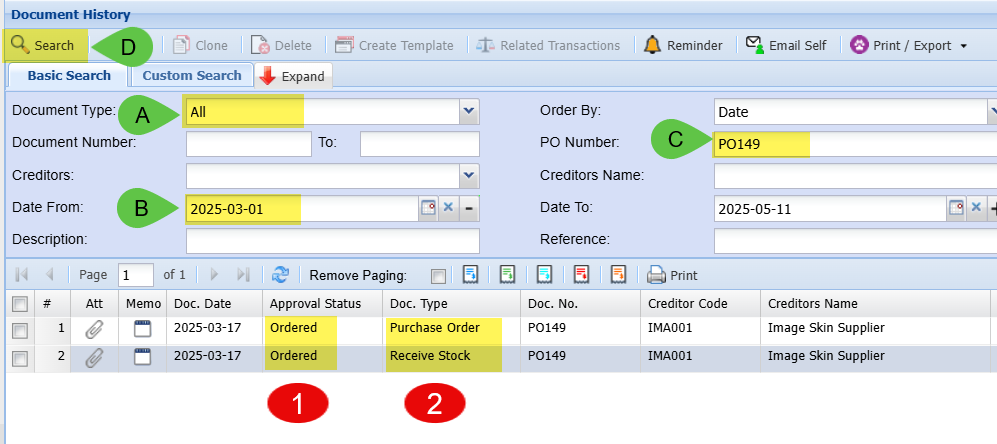
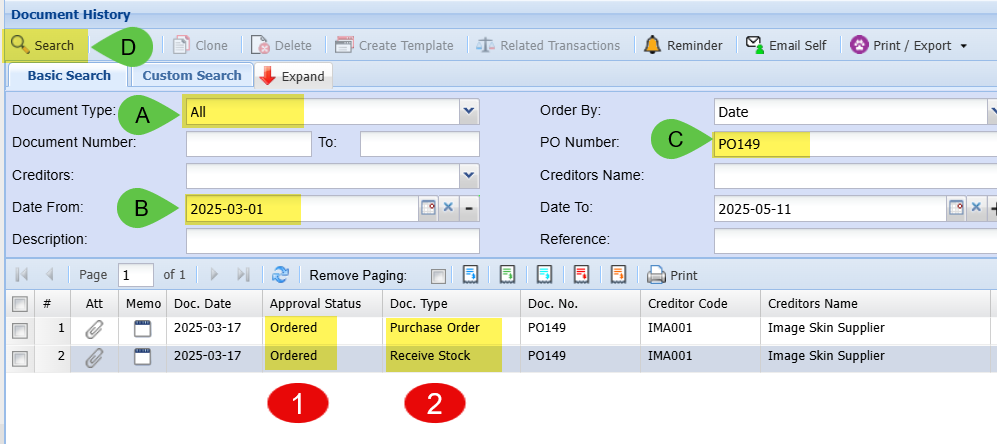
Find where the Purchase Order is in the process:
Best place to look is in Creditors Module > Analysis > Creditors Document History
Note: If you find the document here, one CANNOT EDIT the document, one must go to the Activity section and find the document.
Ensure the following settings are correct
| A |
Ensure Document Type is set to ALL |
| B |
Check dates |
| C |
Enter the Purchase Order Number |
| D |
Click on Search |
View the results
| 1 |
Check Approval Status
This will tell you the status
|
| 2 |
Doc Type
This will tell you where the document is
|
Purchase Order Flow Summary
The following steps are taken to ensure that all purchases from the company goes through the Creditors Module.
| 1 |
Create the purchase order |
| 2 |
Ensure all the supplier details are correct |
| 3 |
Select the correct item, Ledger custom item |
| 4 |
Attach the original supplier quote |
| 5 |
Send for approval |
| 6 |
The manager receives an email to approve a specific purchase order |
| 7 |
Manager to go into Webatar App (or main system) and find the necessary purchase order for approval |
| 8 |
The manager checks the supplier invoice and how the purchase invoice is captured |
| 9 |
The manager approves the purchase order |
| 10 |
At this stage an email will be sent back to the originator who sent the purchase order for approval, that the purchase order has been approved |
| 11 |
The capturer then pushes the purchase order to receive stock and sends the approved purchase order to the supplier |
| 12 |
Upon Receipt of the goods or invoice, the goods or invoices checked that the values were the same as the purchase order. |
| 13 |
The clerk will then Confirm all and push the purchase invoice to a goods receive voucher (GRV) |
| 14 |
An email will be sent to the accounts Department, where they will be notified that hey goods received voucher document is ready to be processed to the system.
|
| 15 |
The purchase invoice from the supplier is checked for the final time and then processed into the system. |
.png)
Video training manual 2016 - Click Here