
PURCHASE ORDER AUTHORISATION MANUAL
This procedure caters for this manual process of printing hard copies of documents to be automated and electronic.
Once all items have been captured on the Purchase order and all details checked for correctness, click the Approve Button.
Click Close.
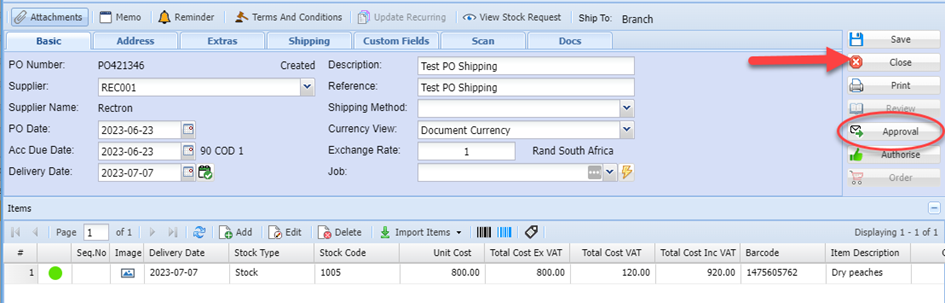
Should you not wish to send the PO for authorization at this point, you can close the screen.
When ready to Approve, search for the captured PO as follows:
On the Purchase Order Menu, enter the Supplier name or Code, check the date range and click Search.
Click on the required order once to highlight it, click the Approve Button.
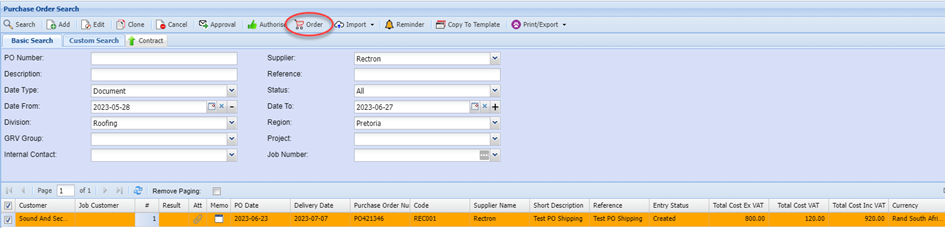
This then sends an email to the Manager informing him/ her that there is a PO awaiting authorization.
The PO status will now change from Created to Approval indicating that the PO has been sent for Authorization.

AUTHORISATION PROCESS
The Manager will then log onto the system or via the Webatar APP search the required PO and perform the necessary checks.
Go to Creditors Module > Activity
Select Purchase Orders Menu Item
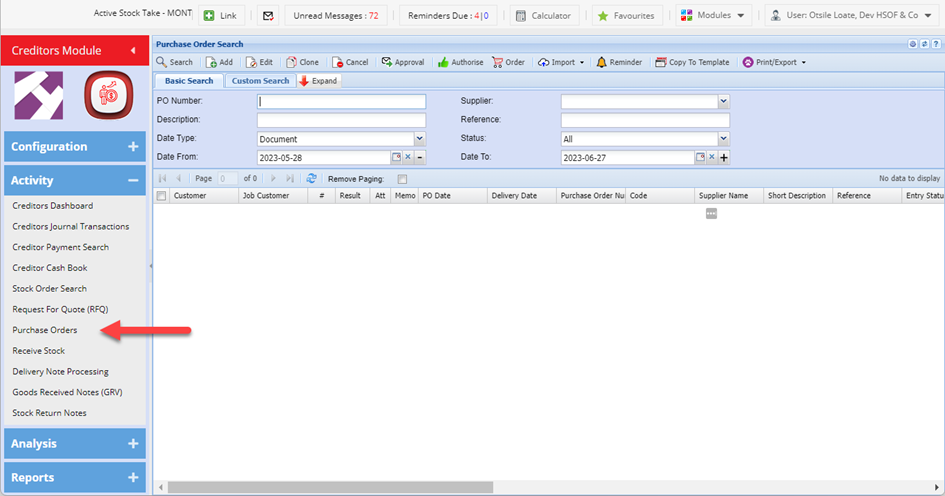
Enter the Supplier code or name.
Enter the respective date range that the Purchase Order was captured.
Click Search
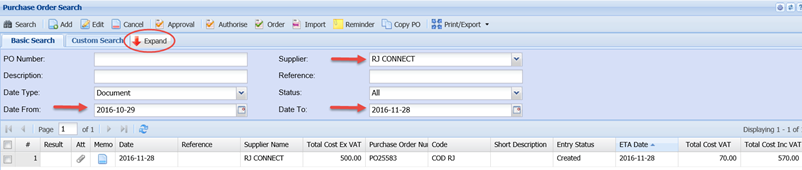
You can further filter your search by clicking on the Expand Button
And entering any of the other criteria that you may have on hand, e.g. Division, Region
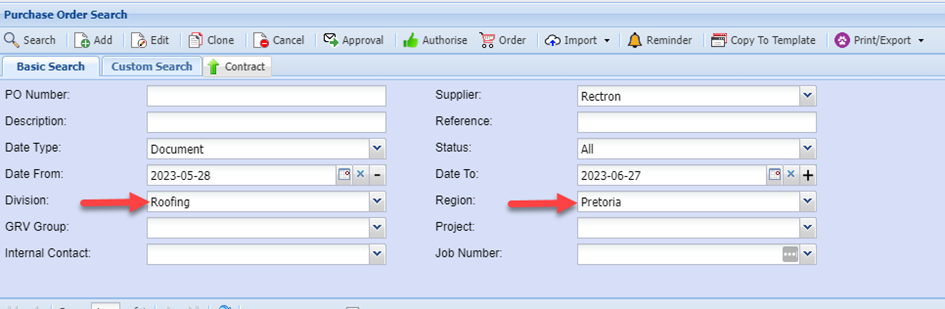
All Purchase orders within the selected criteria will be displayed in the grid.
Click the Attachments shortcut to view ant attachments.
The icon will be red if any attachment are uploaded
If not, this icon will be grey.
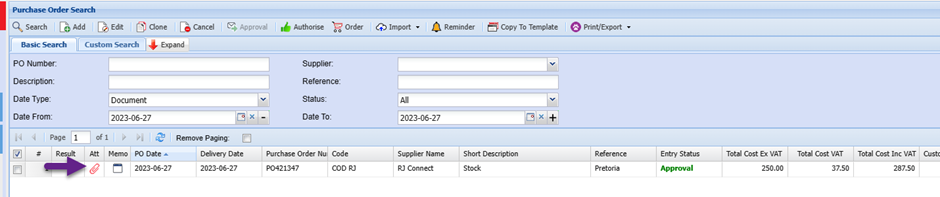
Should you need to check and verify any details of the order, double click on the required PO to open the lines.
Once you have reviewed the PO and performed the necessary checks and ready to Authorize,
Highlight the required purchase order and click the Authorize Button
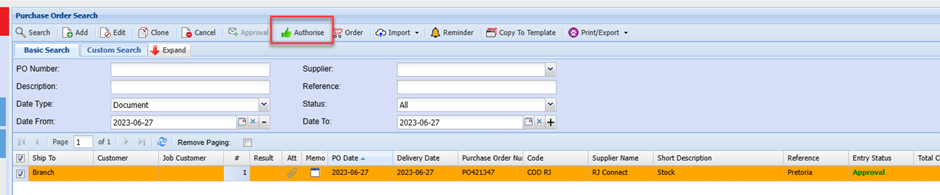
You will notice the status has changed to “Authorized”.
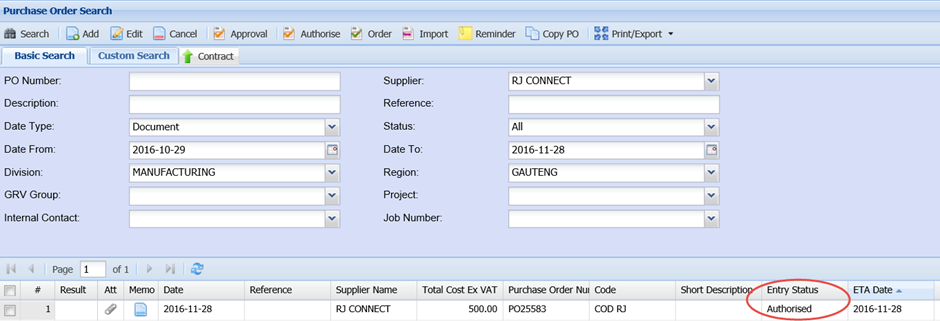 An email is then sent to the capturer that the PO has been authorized and he/she may proceed to forward the PO to the Supplier.
SUBMITTING PO
Search for the PO as per the standard steps:
Creditors Module> Activity> Purchase Orders
Enter the Search criteria
Click Search
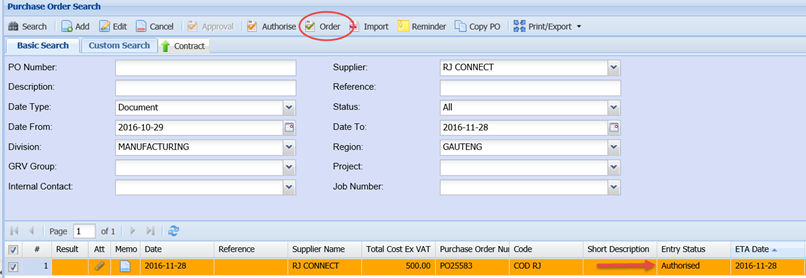 Check that the status is set at Authorized.
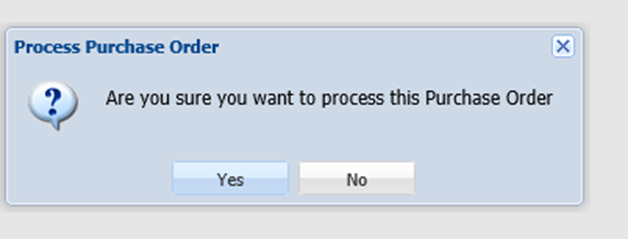
Click Yes
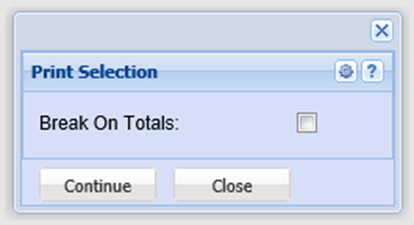
Click Continue
The purchase order will Print to Screen.
Select Email to send the PO to the Supplier
Note: Should you not have segregation of duty, i.e.. A clerk capturer the Order and a manager then Authorizes Orders, the below steps can then all be done by the same person (if authorized to do so) capturers Authorize, and Order steps as outlined above can all be done at the time of capturing the PO by the Authorized person.

Click the Email Button
Verify the email address is correct.
Enter your message.
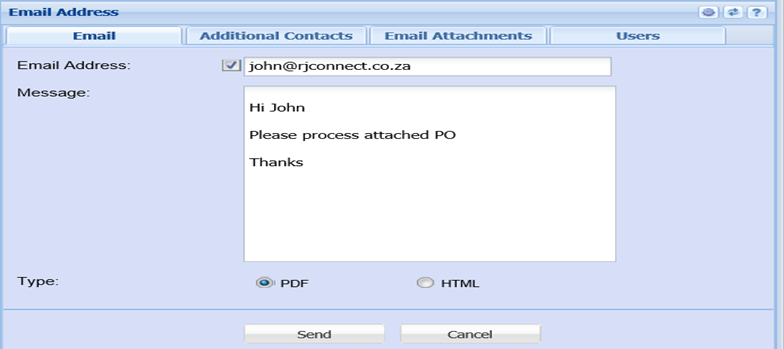
Click Send
This will send an Email with PDF attachment of the PO to your Supplier.
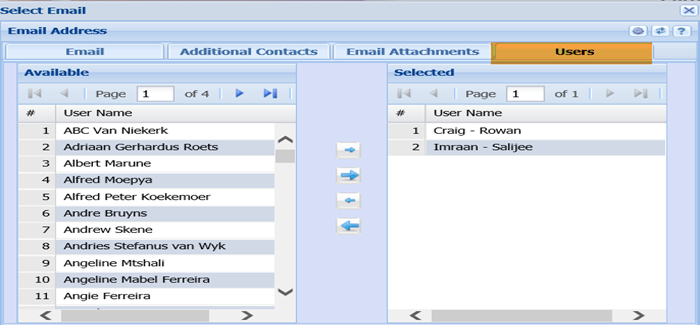
You can CC yourself and any other colleagues if necessary.
Click the Users tab and double click on the required names in the Left Column to select.
Click Send