Add Stock Order
The stock order function enables the automatic creation of supplier purchase orders. This means you don't have to generate purchase orders for each supplier or add items individually.
This feature does require a few setups to be in place for optimum use:
| Default supplier setup on each item | This is so that the system knows which supplier to create the Purchase order against |
| Min / Max quantity levels on each item | Used on some of the options to determine order quantities. |
To Create a new stock order, go to Creditors Module > Activity > Stock Order Search
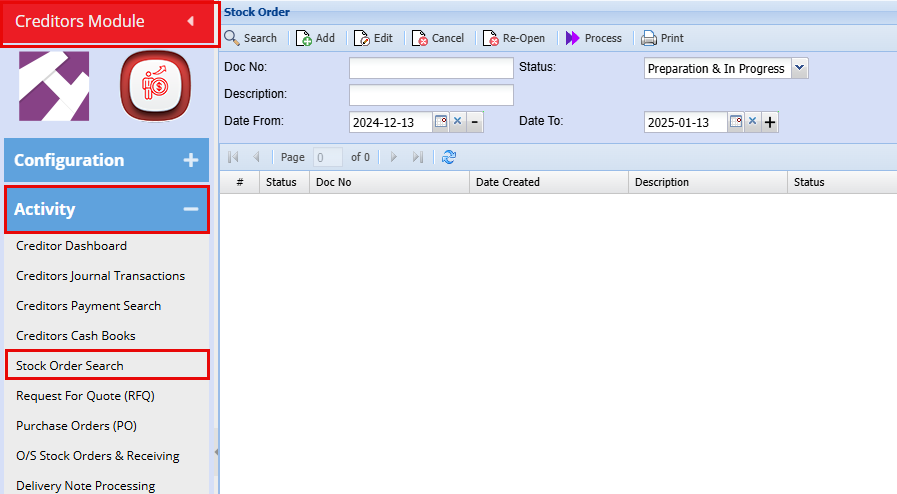
| Search | Allows you to search for an existing Stock Order. |
| Add | Allows you to create a new Stock Order. |
| Edit | Allows you to edit an existing Stock Order. |
| Cancel | Allows you to cancel/Delete an existing Stock Order |
| Process | Allows you process a Stock Order once you are happy with it. |
| Allows you to Print Out the Stock order into an excel format. |
Click Add to create a new Stock Order batch.
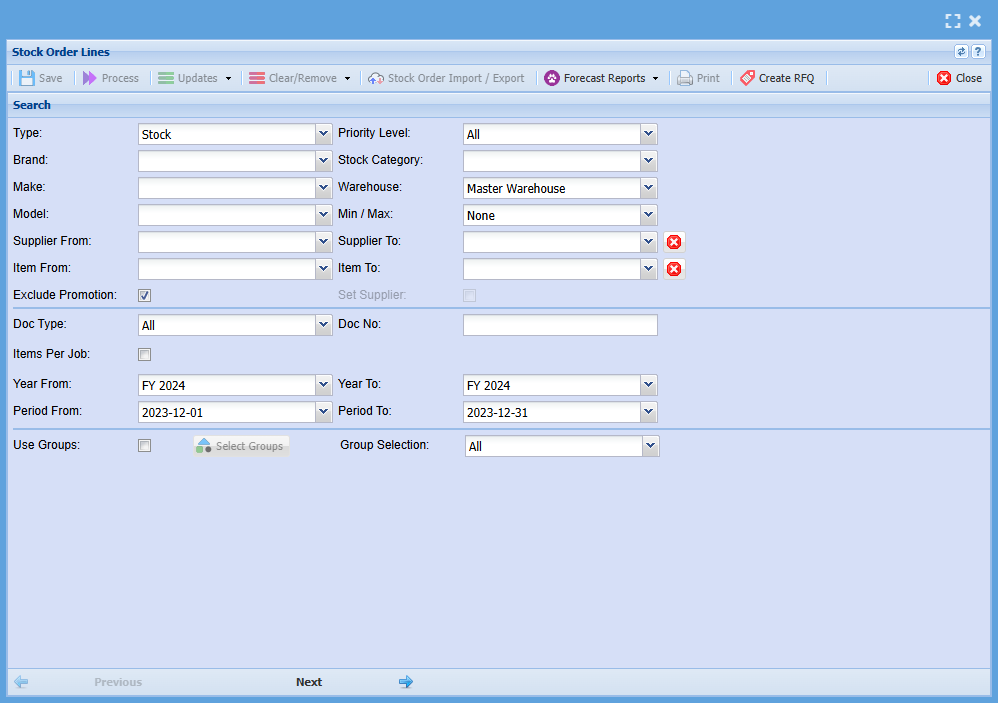
| Type | Select the type of Item you are wanting to process a Stock order for, normally this would stay as Stock. |
| Brand | Select the brand from the drop-down menu to refine your selection for your Order |
| Make | Select the Make from the drop-down menu to refine your selection for your Order. |
| Model | Select the Model from the drop-down menu to refine your selection for your Order. |
| Supplier From / Supplier To | Select a Suppliers/ you wish to create an Order for. |
| Item From / Item To | If you leave the stock item fields blank, all stock items will be displayed. If you choose specific stock items, the Stock Order will include only those items. |
| Exclude Promotions | If you tick this box, it will exclude items that are currently on Promotion. |
| Priority Level | Priority levels are setup at the Item Setup stage, if you use Priority Levels you can refine your Order here by filtering for the desired items. |
| Stock Category | Stock Categories are setup at the Item Setup stage, if you use Categories, you can refine your Order here by filtering for the desired Stock Category. |
| Warehouse | If you have multiple warehouses, you can select all warehouses the system will fetch stock items from all warehouses. If you want to filter by a specific warehouse, select the warehouse from the drop-down menu. |
| Min / Max | Select Min/Max if you want to filter your inventory items by stock level, leave it on none if you do not wish to filter by min/max. |
| Doc Type | Select the document type from the drop-down menu. |
| Doc Number | Add the document number to filter for items that are associated with that specific document. |
| Items per Job | If you are ordering stock for specific jobs, by ticking this box it will separate the order by job. |
| Year From / Year To | Select the year From and Year To Dates from the drop-down menu |
| Period From / Period To | Select the period From and the Period To from the drop-down menu |
| Use Groups | If you would like to create a Stock order using groups tick the box, this will open two columns which you can shift stock items from what is available to the second column that will filter for your order. |
| Group Selection | If you have groups set up, you can select a group from the drop-down menu to refine your stock order. |
There are 2 option to add items to the order batch in bulk:
| Using Brand / Make setup | Using Item Group setup |
|
This is the Brand and Make the item is linked to.
Using this option, selecting a particular Brand, will result in all items linked to the selected Brand being automatically added to the batch without you having to select each item individually. |
This option looks at the Group code the Item is linked to and pulls through all items linked to the selected Group(s).
Click on the Brand Drop down to see the list of Brands. To use the group code option, tick the box “Use Groups”. Double click on the required item Group code in the left (available) box to move the group to the selection box on the right. |
When using Groups to filter your stock items for your order:
Tick the "Use Groups" Box, and then Click on the Select Groups button as shown below
Double click on one of the groups under the Available list, this will add it to the Selected List
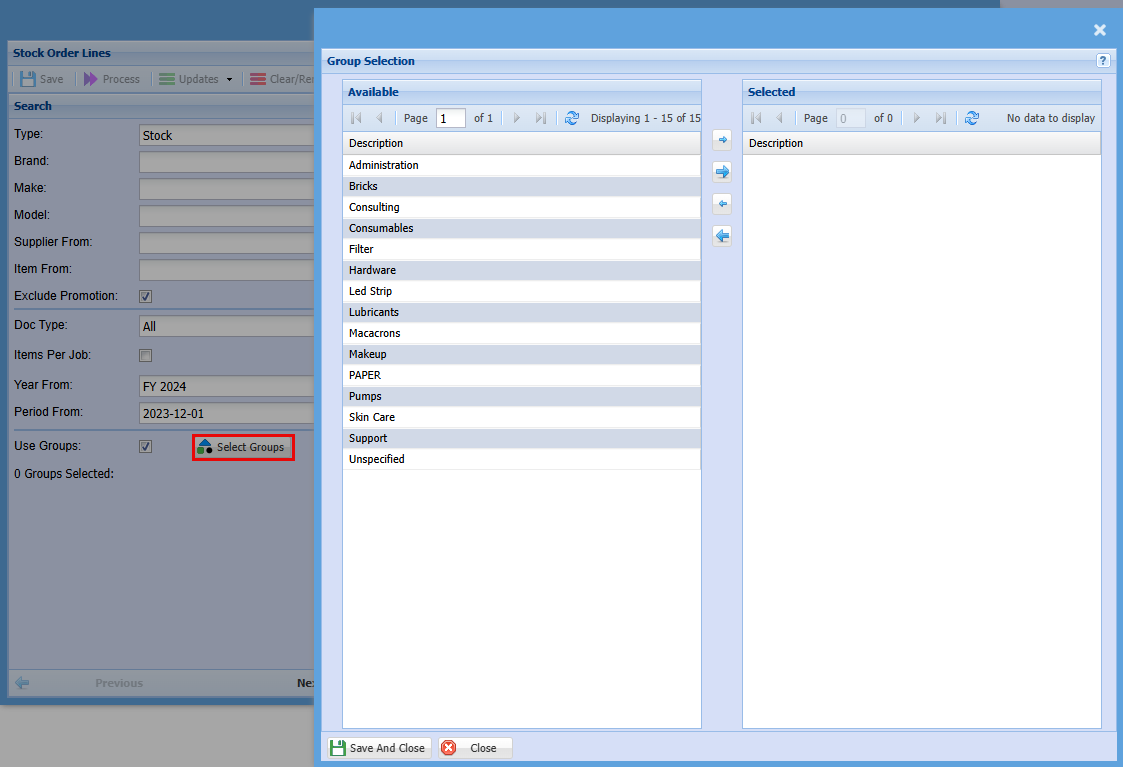
Once the require Brand/ group code(s) have been selected, click Save and Close, and then click Next at the bottom of the screen

This will open a window with all items linked to Group code you have chosen. You will see how many items this group has pulled through to your Stock Order to the right just about the grid.
Enter a description (Yellow Block) that will be used on this Purchase order
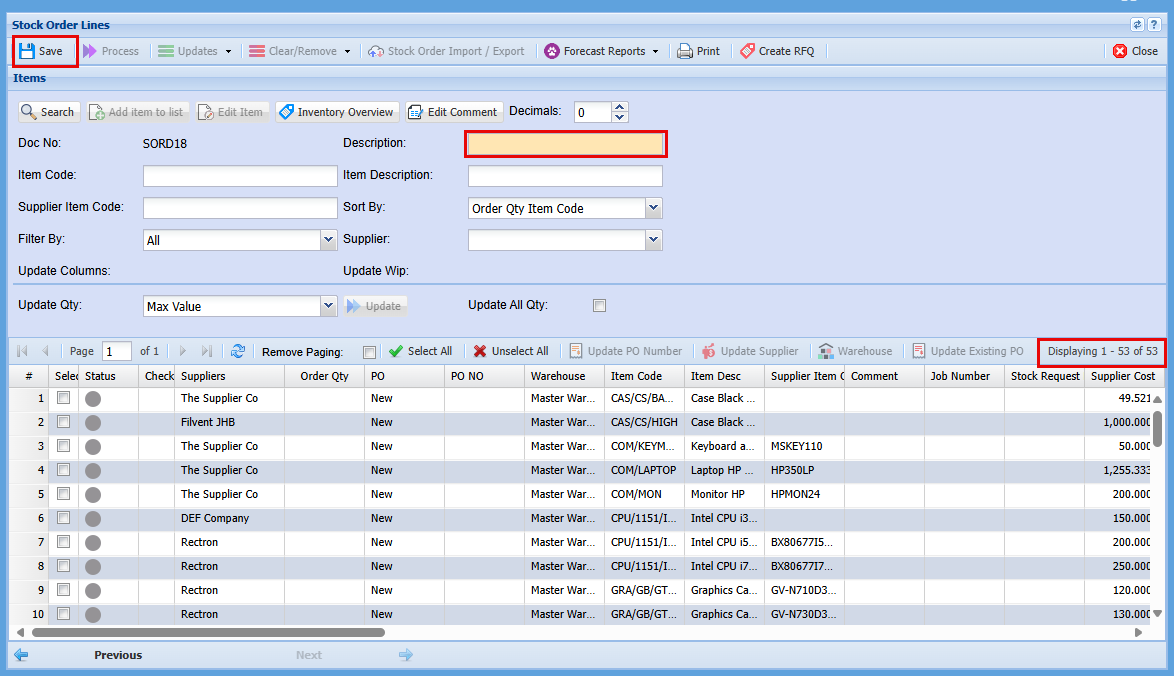
By clicking 'Save' will activate the Stock Order and the button at the top of the screen. At this point, the Stock Order functions as a 'Snapshot' of the stock data from the main system. You can make changes to the order without affecting the main system, unless the changes are made in the 'Edit item' tab. Changes made to the main system will not be reflected in your Stock Order because it is a 'Snapshot'. Therefore, any necessary changes should be made to the individual lines of the order.

| Save | Click save to save changes made to the Stock Order |
| Process | Click Process when you are happy with your Stock Order and you want to finalise the Order which will create a purchase order for each supplier. |
| Updates | These are the 3 steps you need to complete to populate the grid columns containing all your stock items in your Stock Order |
| Clear / Remove | This will either remove a Stock Item from the Stock Order or you can clear the quantities in the order |
| Stock Order Import /Export | This allows you to export your stock Order list, allowing you the opportunity to update it in Excel if you prefer, once you are happy with your spreadsheet you can import it back in. |
| Forecast Report | Here you will find a few reports you can print. |
| Click print to print the Stock order you have created | |
| Create RFQ | You can request a Quote from here as well for a specific stock item by highlighting the line and clicking this button |
Items
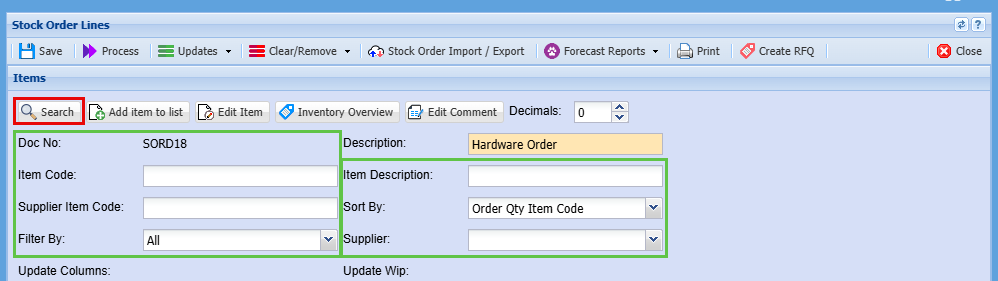
Add Item To List Button
You may find that an item is not on the Stock Order list, you can search for this item and add it to the order
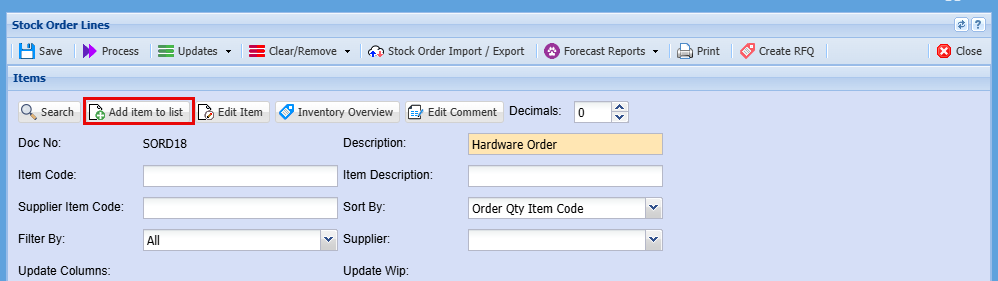
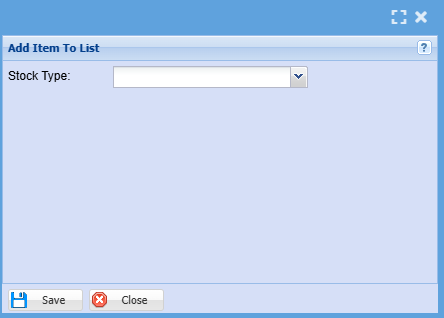
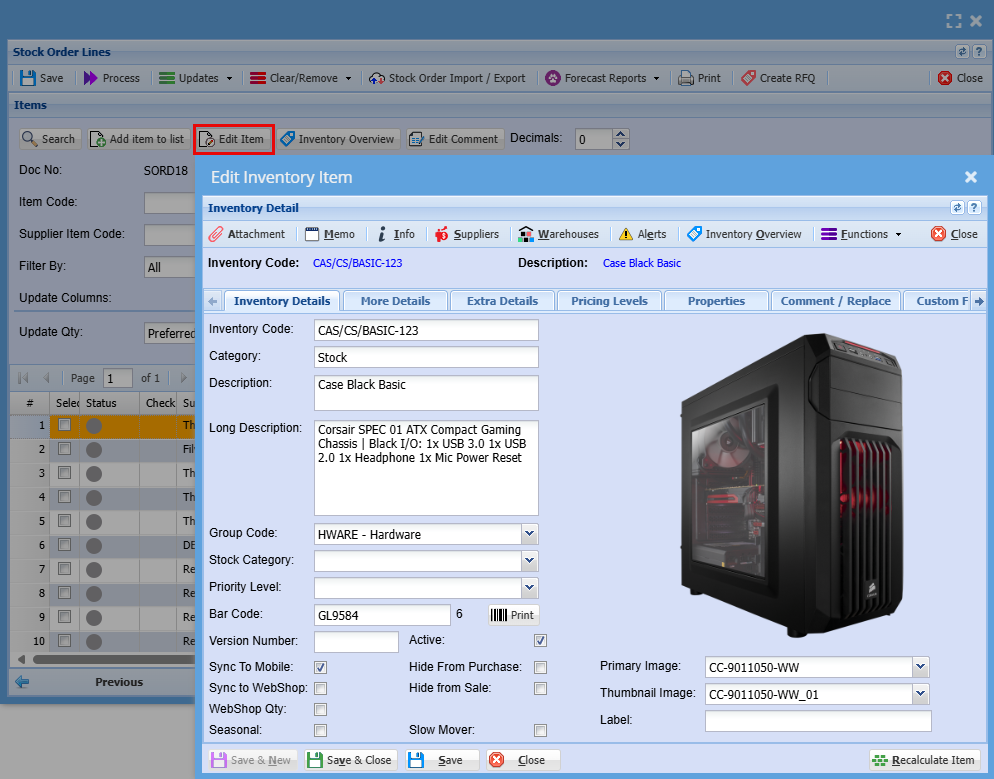
You can highlight a row and click the Edit Item button which will take you to the item to make any changes you require. Changes will not show in your Stock Order as this is like a screenshot of the data when you clicked save to save the order. You will need to double click on the line item and update from there.
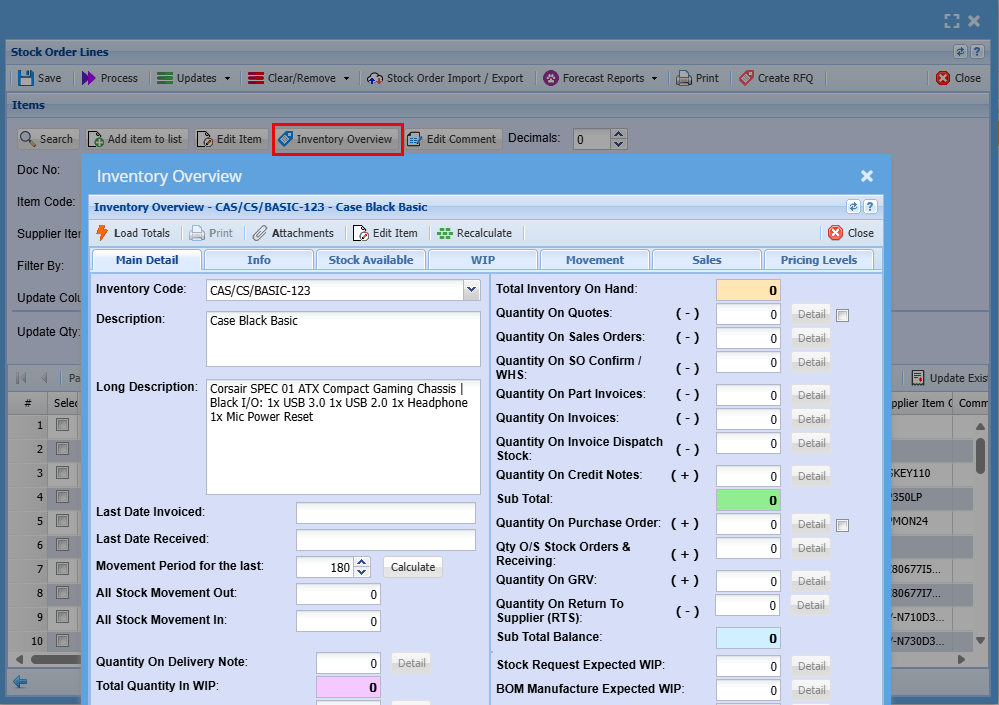
Inventory Overview Button
The inventory overview window allows a quick access to view information on an item.
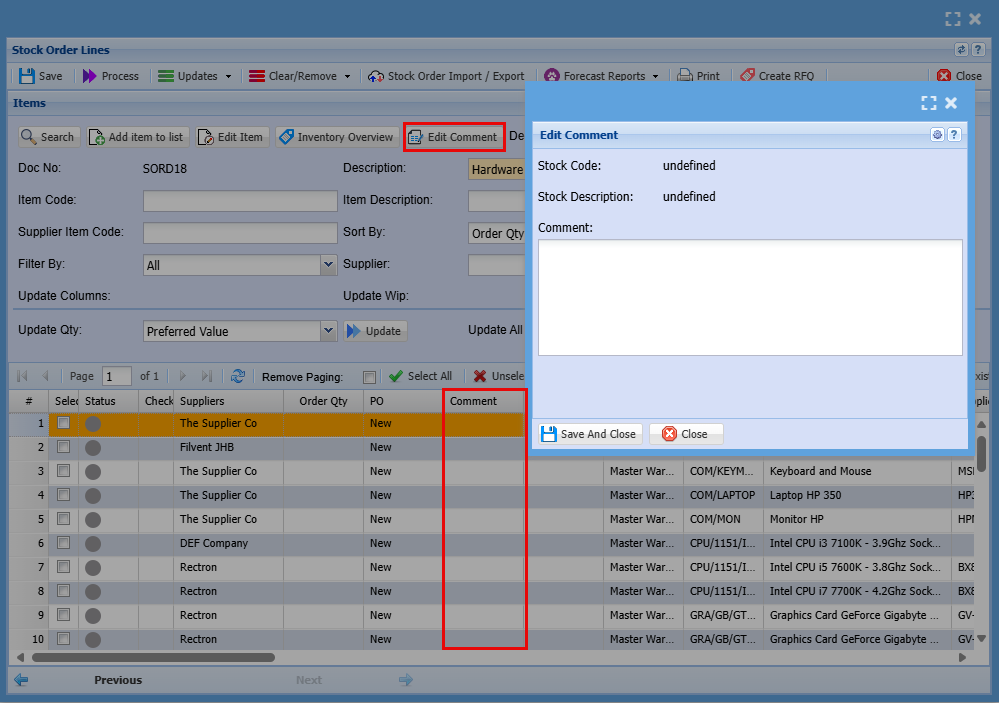
Here you can edit comments made for each item
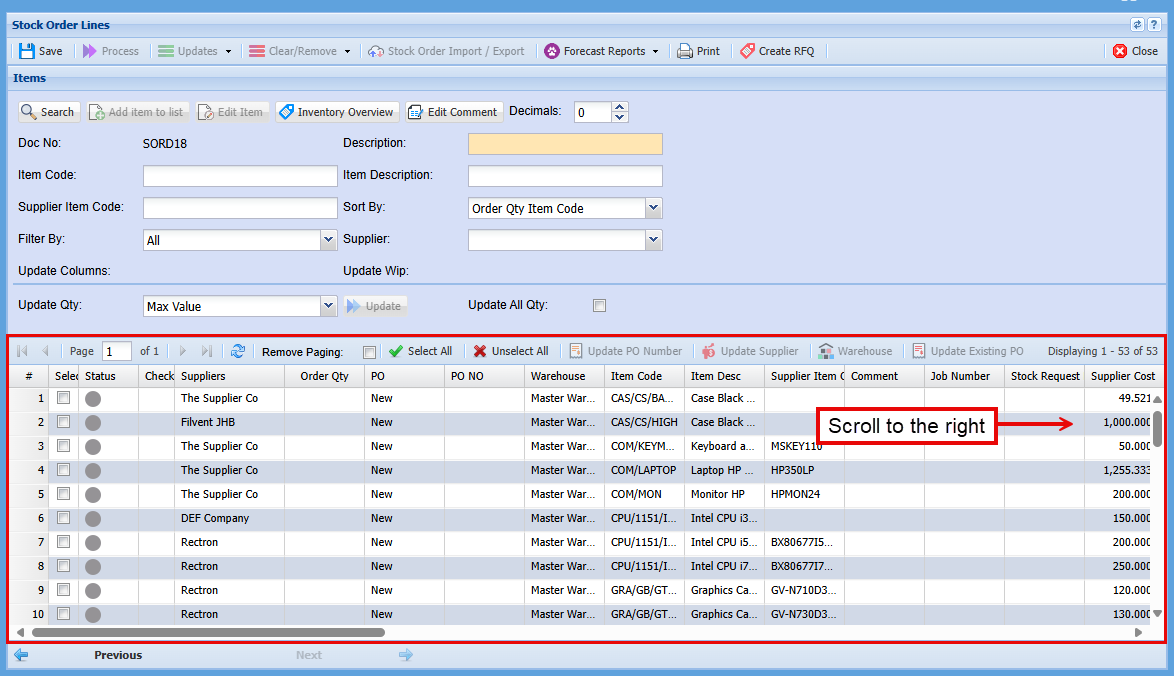
Updating the Stock order
When you look at the stock items and scroll to the right you will see many fields that need to be filled in before you process this Stock Order. To do so you need to complete the 3 steps under the "Update" Dropdown tab.
Updates Dropdown
These are the 3 steps you need to complete to populate the Stock item grids columns.
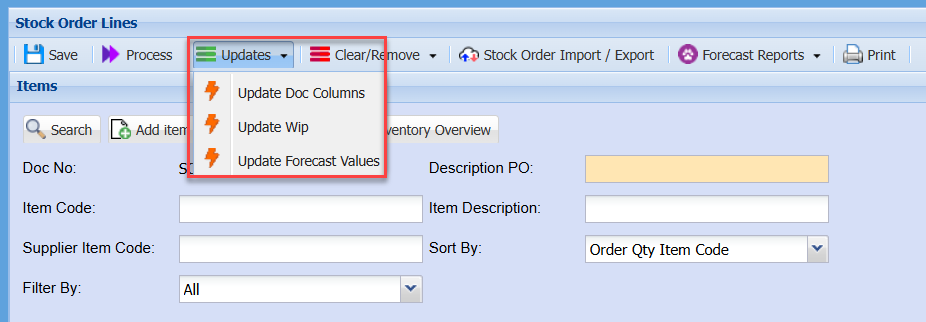
Update Doc Columns
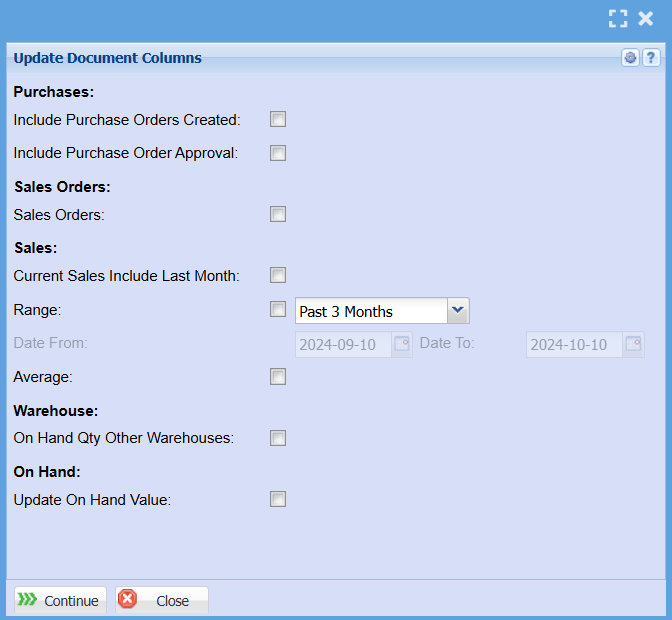
You now need to determine which calculation you wish to apply in order to update the required order quantities for each item.
The order quantities applied to each respective item can be determined from a number of options:
Click the Update Qty drop down to see the list of options:
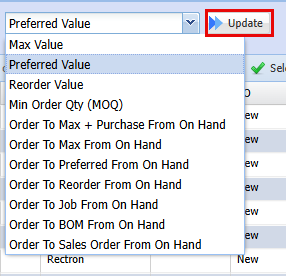
| Max Value | Populates the order quantities to equal the Maximum qty as per item setup |
| Preferred Value | Populate the order quantities to equal the Preferred Quantity as per item setup |
| Min Order Qty (MOQ) |
Will populate the Order Quantities to equal Minimum order quantity as per item setup. Note the Minimum quantity and the Minimum order Quantity are different Minimum quantity is the minimum holding quantity. Minimum order quantity is the minimum quantity that can be ordered from the supplier. |
| Order To Max + Purchase From On Hand | Populates the order quantities to be Item Maximum Qty less Qty on Hand less qty on open Purchase orders |
| Order To Max From On Hand | The difference between the maximum quantity and the on hand quantity |
| Order To Preferred From On Hand | The difference between the Preferred item Quantity and the on hand quantity |
| Order To Reorder From On Hand | |
| Order to Job From On Hand | |
| Order To BOM (Bill of Material) From On Hand | |
| The difference between the Reorder quantity and the quantity on hand |
In this example, we are going to be using the Reorder from on hand option This will calculate the difference between the Reorder level on the item setup and the current on hand quantity. And update the order quantity on this batch with this difference. |

| 1. | Click the Select All Button |
| 2. | Select: Order to Reorder from on hand |
| 3. | Click the Update button |
| 4. | You will notice the order quantities on the grid have been populated with the respective quantities |
You can then review the quantities to be ordered
Should you wish to override any of the quantities, click the select box
Then click on the order quantity field
Enter the amended quantity
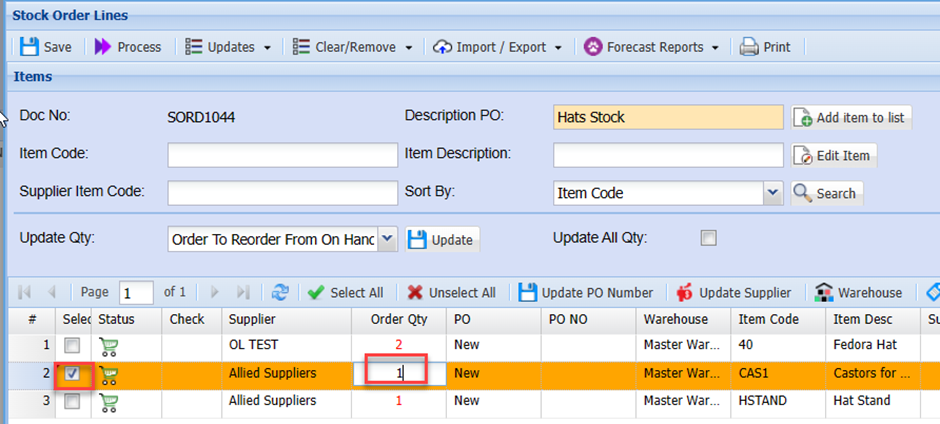
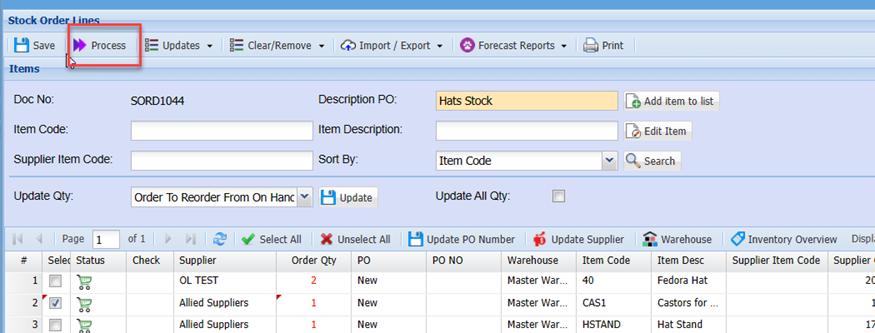
Once you are satisfied with the quantities to be ordered from supplier, click the Process button to create the Purchase order(s)
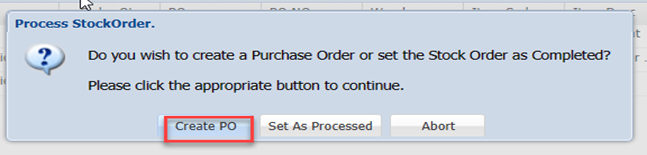
Select Create PO
Click Ok
To view the Purchase order:
Go to Activity > Purchase Orders
Search
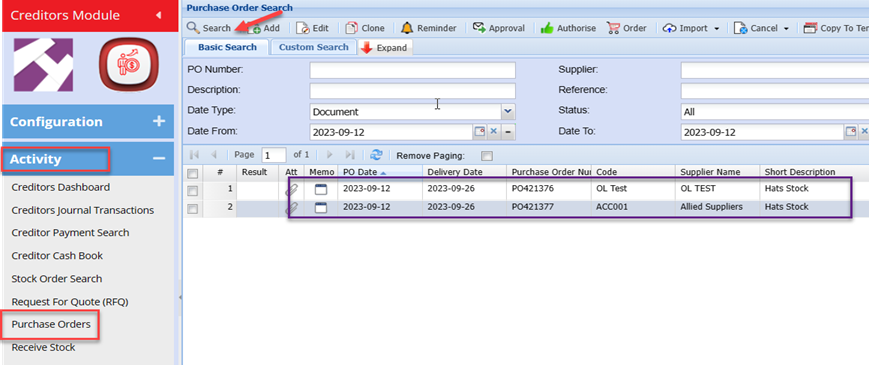
You should now see the purchase orders listed and can process these using the normal purchase order authorisation and order procedures.
Note: you may find several purchase orders, this is because a purchase order is created for each of the default supplies (if the items have different default suppliers linked)
You can still edit the supplier and any other details before finalizing the Purchase order.
Update Doc Columns
Update Wip
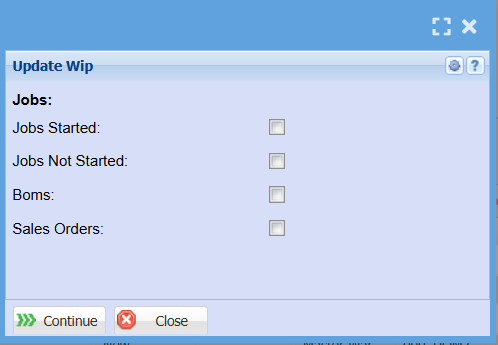
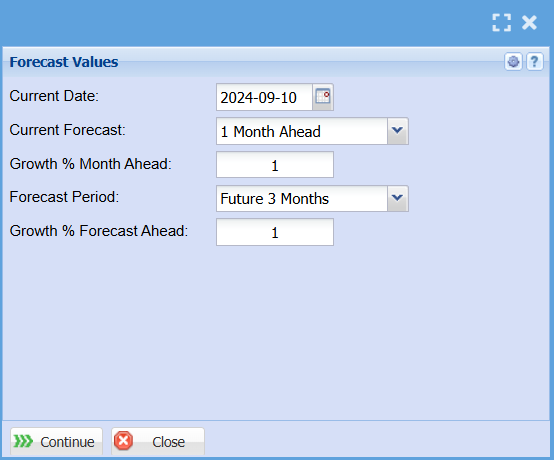
Update Forecast Values