Add Creditor Journal Transaction

| Attachments | |
| Memo | |
| Clone | |
| Create Template | |
| Custom Fields | |
| Create Reminder |
Note: each action listed has a corresponding Contra GL Account set on the system as a default.
The system can be set to allow the user to change default contra account.

| Action | Select the action from the drop-down box. e.g. Creditors Journal Credit |
| Date | Enter the transaction date for the journal. |
| Creditor | Select a Creditor for the Short Search – just type in part of the code or name and hit enter on the keyboard and select the Debtor. e.g. STO001 |
| Customer Link | |
| Currency | |
| Amount Inc VAT | Enter the amount including VAT the system will automatically work out the Tax Amount and the Amount Excluding VAT. |
| VAT Account | |
| Description | Add the Description – e.g. GRV - Telkom |
| Additional Comment | Add in additional comments if required. |
| Outstanding Balance | |
| Reference | Enter a Reference e.g. Telkom |
| Supplier Inv. No. | Enter Supplier Invoice Number. e.g. INV1234 (if applicable) |
| Exchange Rate | |
| Importation VAT | |
| VAT Type | Select the VAT Type on the drop-down Box e.g. GRV VAT |
Click on Next Arrow
If you are categorizing and allocating entries to Regions and Division, select the respective option from the drop down
If not allocating transaction to Divisions/Regions then you can leave this Blank
The Contra Transaction box allows for contra journals to be created and processed at the same time
Contra Journals are typically used in the case of intercompany accounts or where you have a supplier that happens to also be a Debtor on the system and you simply offset the accounts against one another.

Cost Centres
| Region | |
| Project | |
| Job Allocation | |
| Division | |
| Track It | |
|
Job Service Item |
Contra Transaction
| Contra Transaction Tick | Once this tick is on it will allow you to see the greyed-out section |
| Contra Debtor | |
| Contra Creditor |
Branch
| Branch |
Click Next
If the system is set to allow changing the contra GL account, you can enter the required GL account and select or click the drop drop-down arrow and search for the required account.
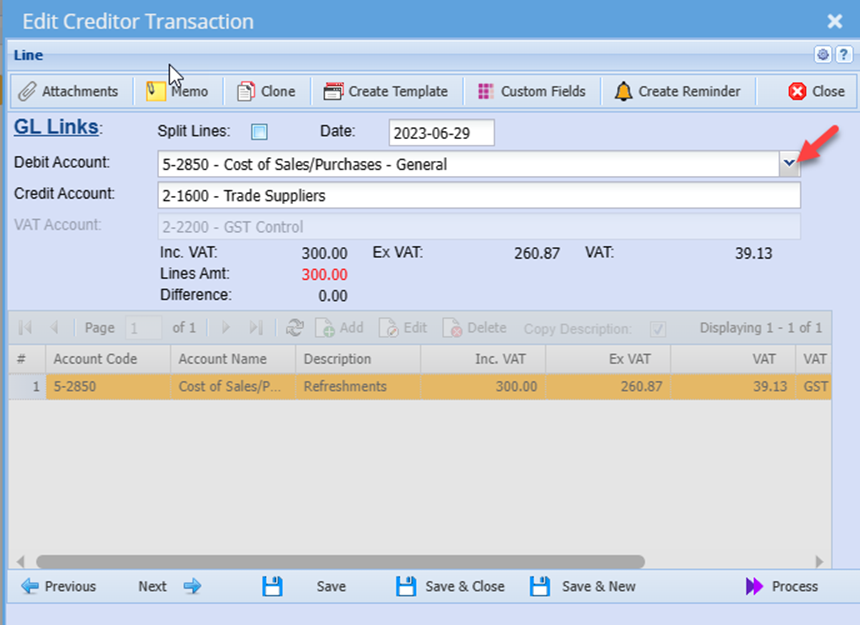
Split Account
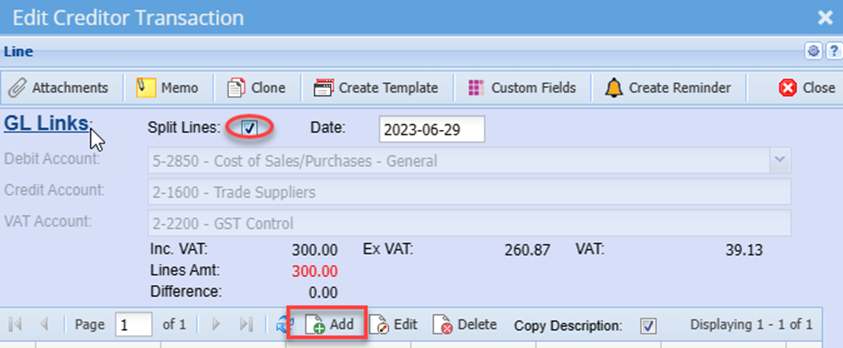
If the transaction has to be split to various Contra accounts, you can click on the Split Lines Tick box. Ten click the Add in the centre of the screen and add the respective Contra GL Accounts with the respective amounts.
Tick this box only if the entry is being split.
Alternatively, click NextNext.
This screen allows the user to Allocate the entry to a specific transaction(s)
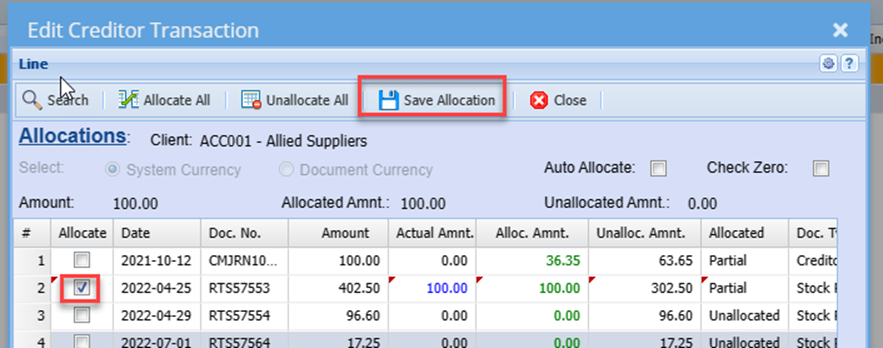
Tick the relevant transaction and then click the Save Allocation Button
This saves the User from having to do the Allocations separately once the journal is processed.
Click Next

| Search | |
| Allocate All | |
| Unallocate All | |
| Save Allocation |
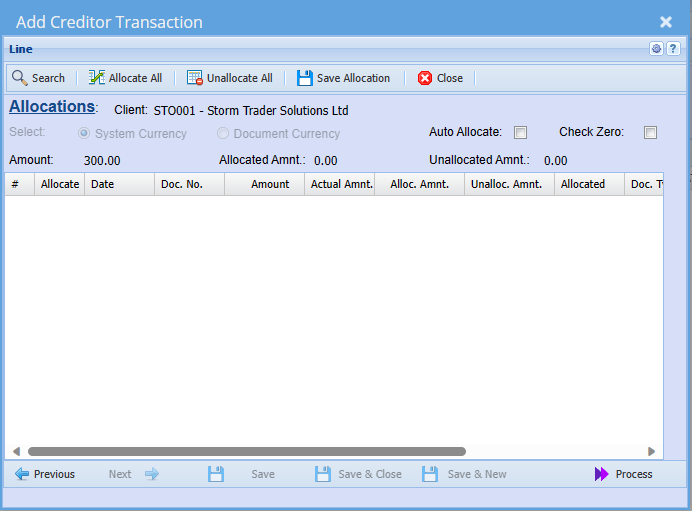
When ready, click the Process button.
This will then process the journal and post the relevant entries
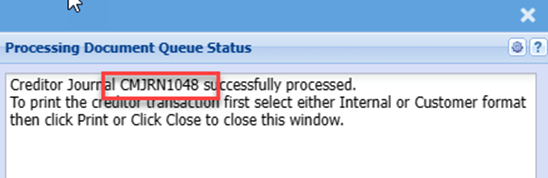
A Pop-up message will occur with the Journal number if successfully processed, alternatively the message will display any error found.