
WOF and Car Serivces Items
Checking a Vehicle in and Out for a WOF or Service
Use the Webatar app on any android mobile device to log Actions against a specific Asset (Car)
Webatar App> Asset Tracker> Asset Action
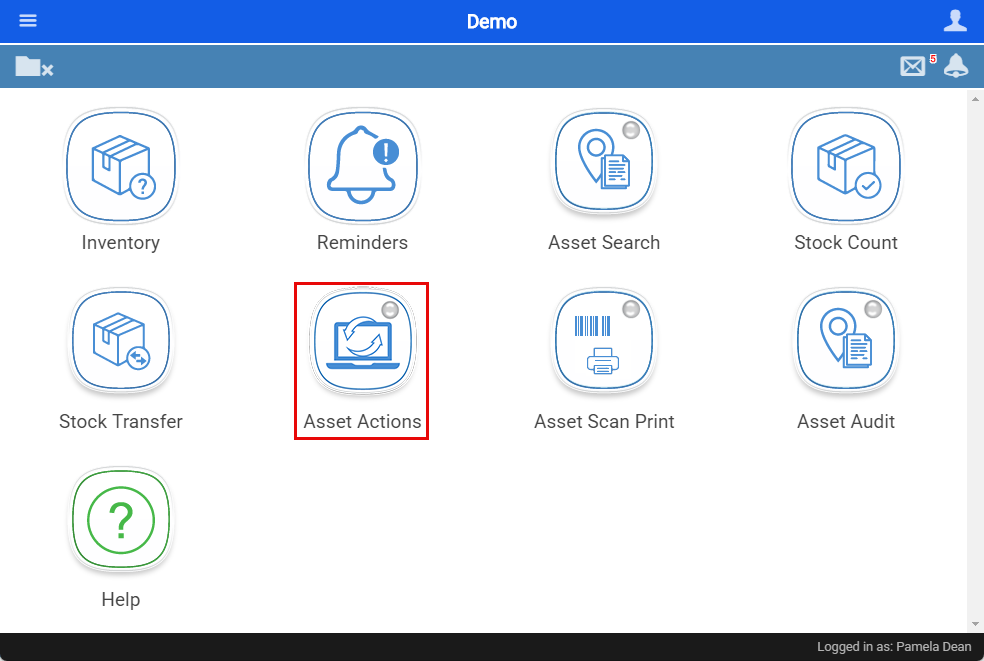
- Select the Action you would like to log (eg: Book a vehicle in for a service or a WOF)
- Select your location
- Search for the asset using the Assets unique item code
- Then click sync to server
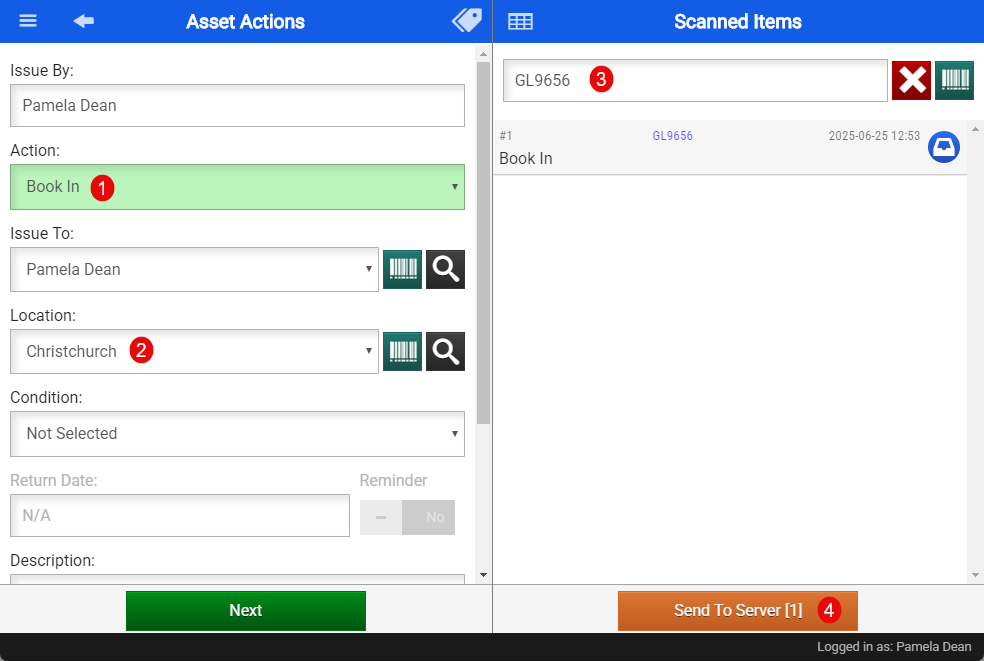
Updating the WOF, REGO and Service Date
- Select the Action you would like to log (eg: Book a vehicle in/out for a service or a WOF)
- Select your location
- Search for the asset using the Assets unique item code
- Click on the blue icon

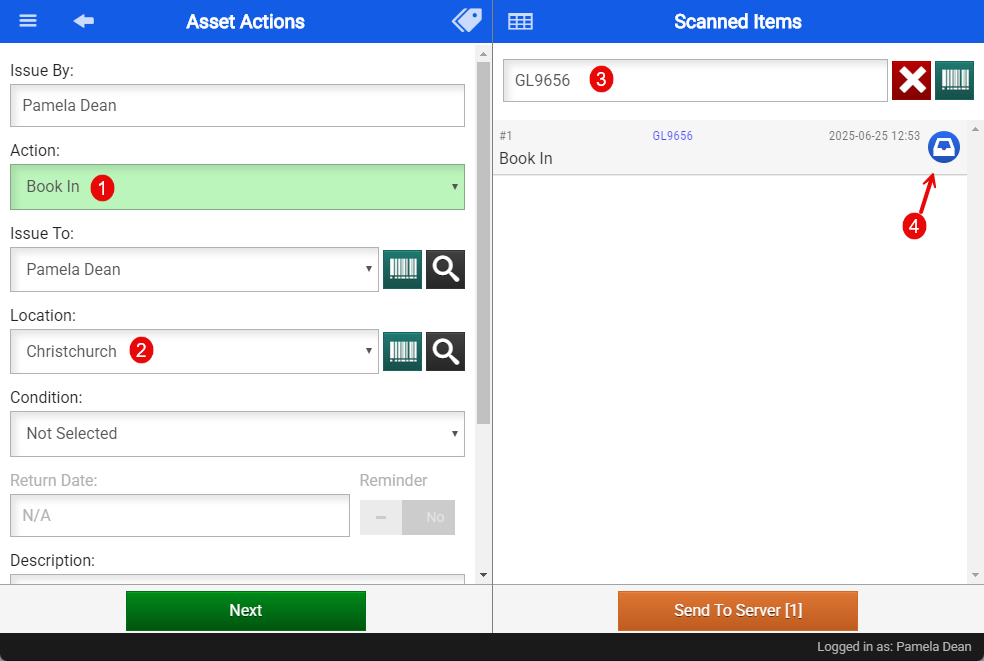
Select the Yellow Icon with the Car
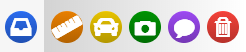
 |
Opens Action Options |
|
|
Add Measurements |
|
|
Add Vehicle Service Details |
|
|
Add Photos |
|
|
Add Notes |
|
|
Delete Action |


Update the Service, WOF and/or the REGO details by selecting today's date and then select how many months from today's date the WOF. Service or Rego will be due. This can be sent up to send out an email reminder to the customer reminding them of this.
- Click "confirm"
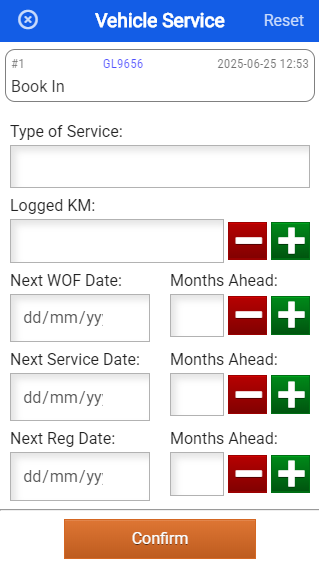
This will then create a Log for Action taken and will update the Due dates for the next WOF, Service or REGO.
Asset Module> Activity> Asset Tracker
Double click to open the asset up
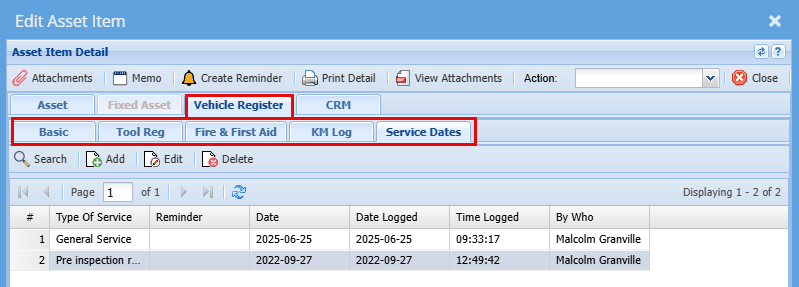
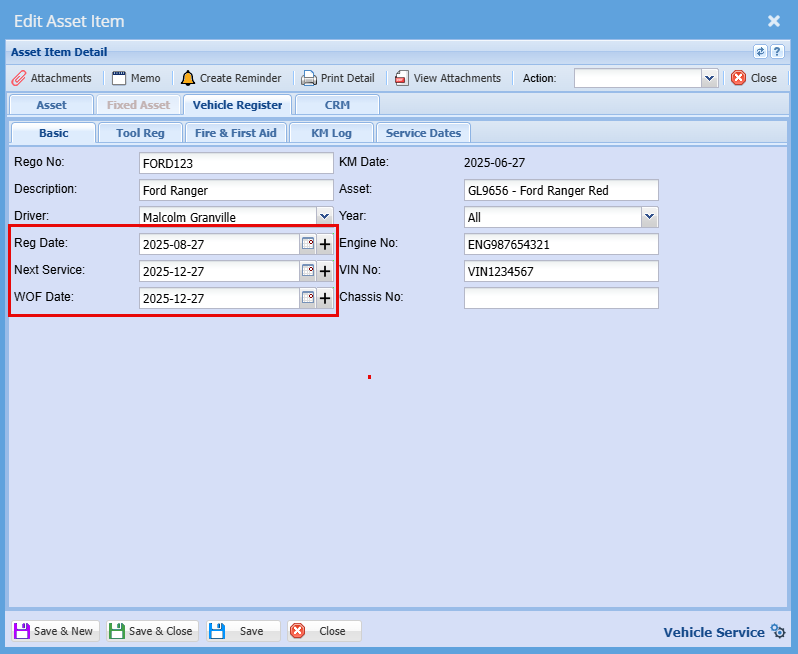
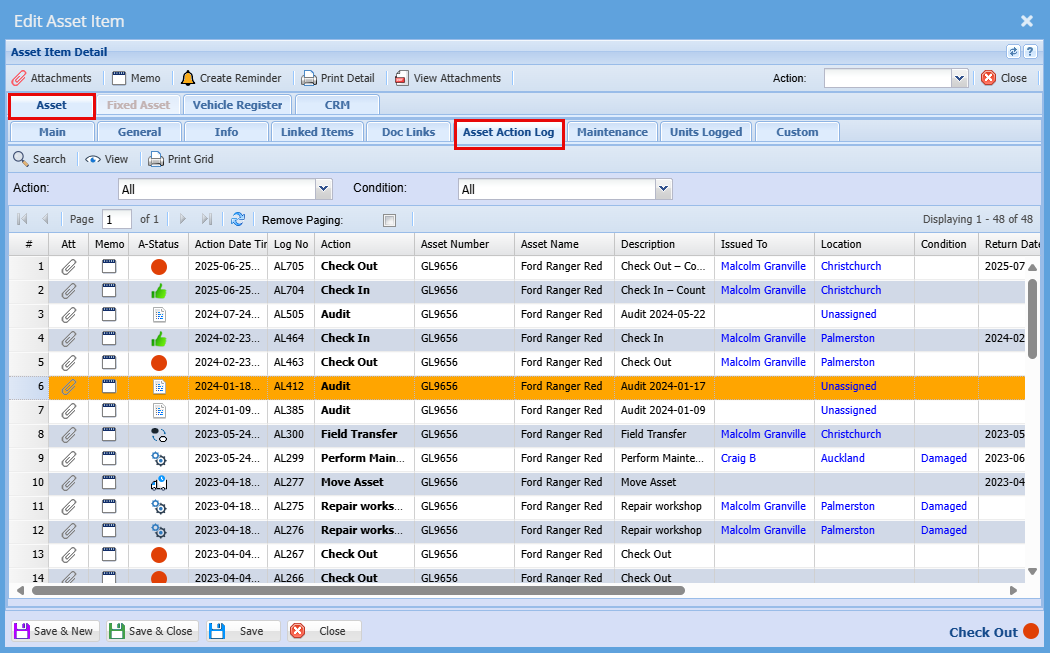
You can find a full log
Asset Module> Activity> Asset Tracker
Asset - Asset Action Log
Adding Automated Letter for WOF and Car Services
Setup the various action Letter that can occur against an Asset
Asset Module> Configuration> Email Letter Templates> Add

This could be used for:
- When the Car is due for a Service or a WOF
- When the Car is booked in
- Sending a reminder for a WOF or Serice due soon
- When the car is booked in for the actual service
- When the service or WOF is complete, and the car is ready to be picked up etc...
Add a code and Description for your letter
Select the type of action
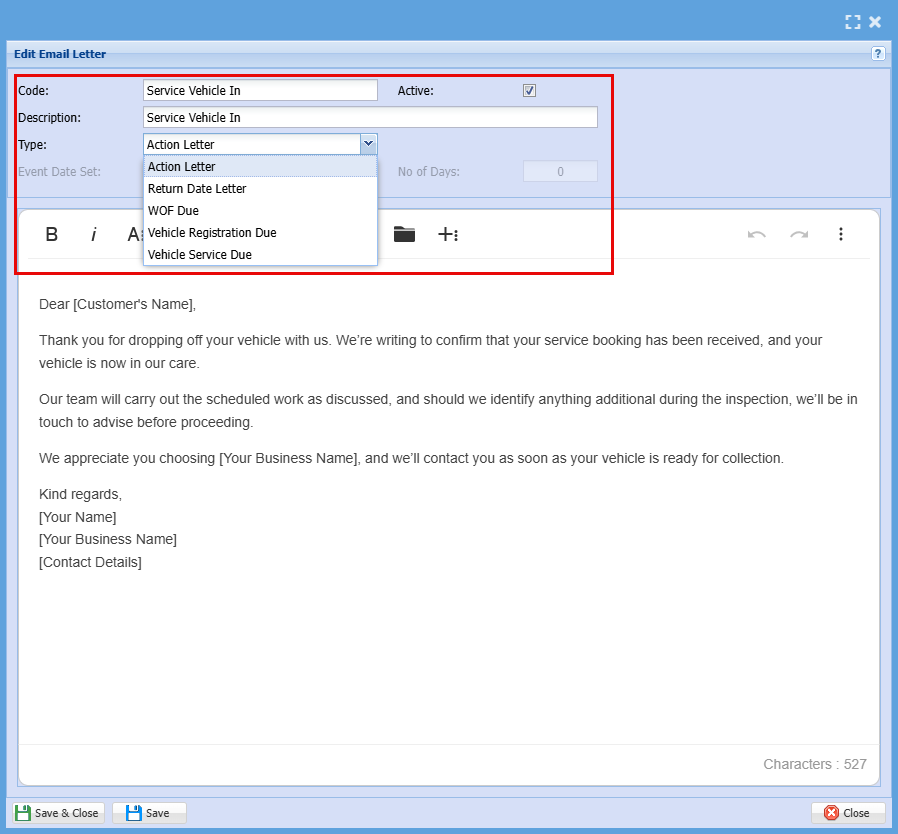
Adding Actions
Asset Module> Configuration> Asset Action
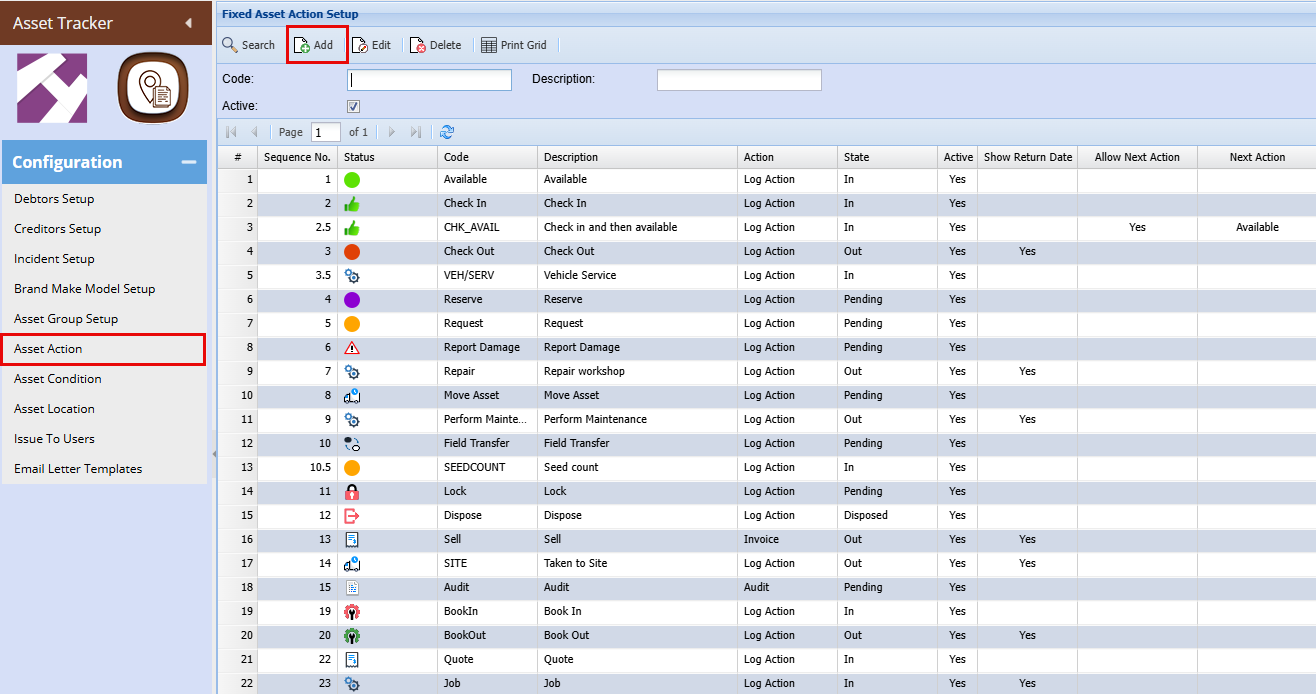
Click Add
Complete the fields as required:
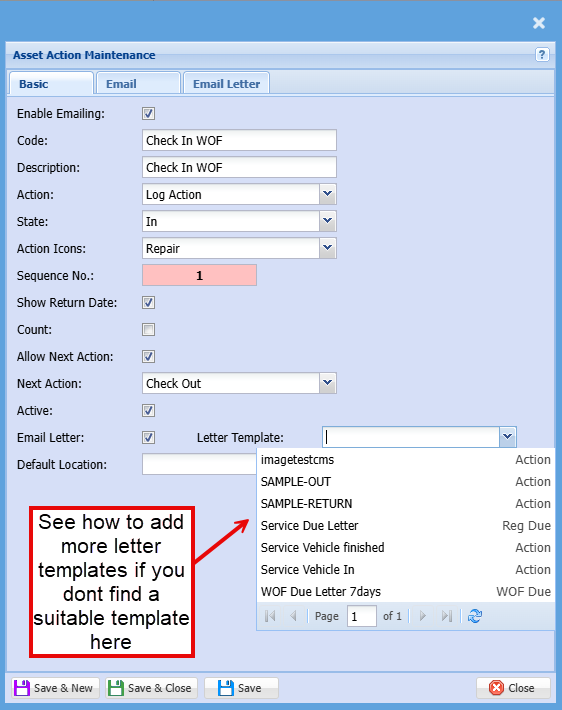
| Enable Emailing | |
| Code | Use a unique code for each Letter |
| Description | The description will be used as the Subject Line for your email |
| Action | Choose an action that describes what you will be doing (You can set up your Actions you want to have as options) |
| State | Choose the state that best describes this action (In / Out / Pending / Disposed) |
| Action Icon | Choose an Icon of your choice |
| Sequence No. | This is the sequence in your Action List |
| Show Return date | This can be left blank, but this can trigger a reminder to a customer that an asset is due back |
| Count | |
| Allow Next Action | |
| Next Action | |
| Active | Ticking this box will allow this action to be active, it can be deactivated by unticking this box |
| Email Letter | Tick the box if you would like to trigger a email letter |
| Email Letter Template | Select the template for the email letter to be triggered |
| Default Location | Choose your location |