
Fixed Asset_ Asset Management Item Setup
Default Setting for Fixed Assets
Before creating Fixed Asset for the Asset Management it is necessary to populate the default values.
System Configuration -> Administration -> Defaults -> System Defaults ->
Fixed Asset Minimum Balance For Transaction as determined by company policy

Additional Default Setting for the Fixed Asset as per 3 above
General Ledger Module -> Configuration -> General Ledger Accounts
Search the GL Account Detail relating to the specified fixed asset GL Item.
.
Creating a Fixed Asset
Fixed Asset are created in two ways in the system. The first way would be via a GRV and the second way would be to create a new Fixed Asset directly in the Asset Management module. When creating a Fixed Asset via a GRV the Fixed Asset is part of the Inventory system and the Serial Numbers can be tracked throughout the system.
GRV Method
When producing a GRV that is going to create Fixed Assets the GRV line item must be a Fixed Asset inventory type and the inventory type must be ticked as Serial Number Tracking. One other requirement is Allow GRV Item to Asset tick box found on System Configuration -> Administration -> Company Profile -> Advanced Settings -> Settings needs to be ticked.
On the GRV line item once the inventory item has been selected and the quantity has been specified click on the Create Serials button and create the serial numbers as specified on the items being captured.
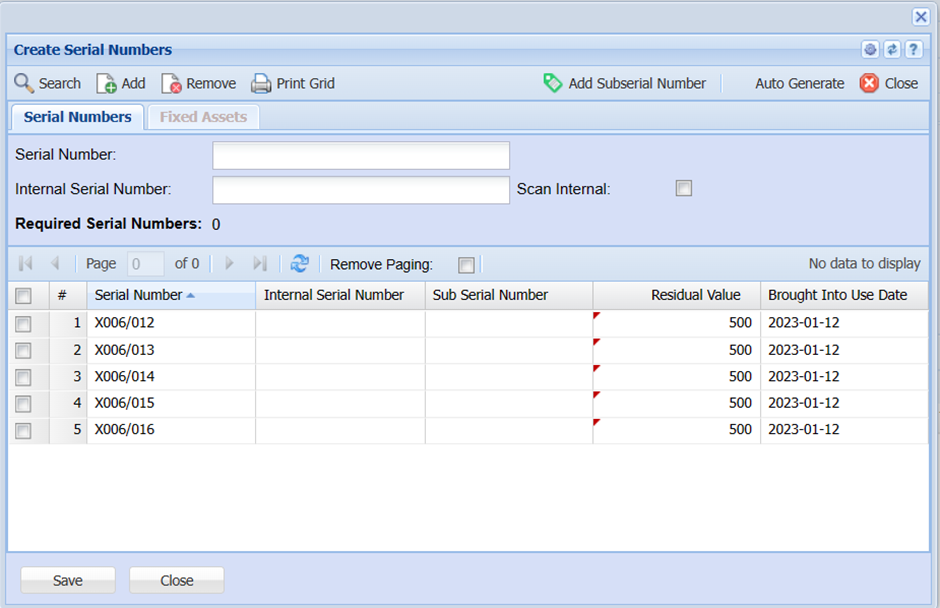
It is important to ensure that a Brought Into Use Date is created for each serial number created. These dates can be edited on the grid if required. Residual values for the serial number can also be capture on the grid at this time.
When the GRV is processed the Residual Value and Brought Into Use Date will be captured into the Fixed Asset along with all the other default data discussed above.
Create Asset directly in Asset Management
Access Asset Management module.
Asset Management >Activity -> Asset Search
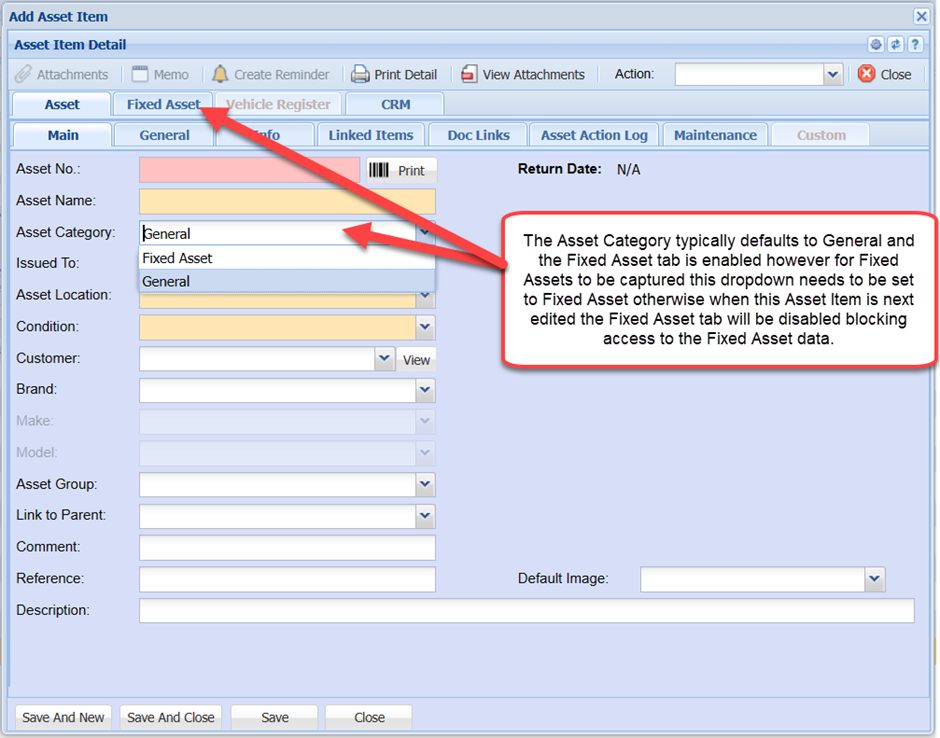
Click on the Add button and capture the necessary details for an Asset. Please note the system will not allow the duplication of Asset Numbers.
NB : Assets created directly will not be linked to any Inventory Item as a Serialised Item
NB : All fields with a Yellow or Pink background are compulsory fields.
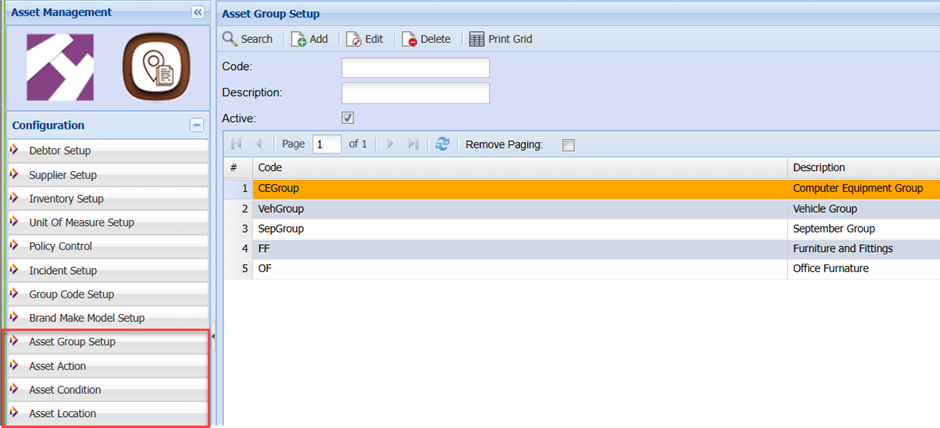
Asset Management Module
Access the Asset Management Module -> Configuration.
The items below may require additional entries to satisfy your company requirements.
Access the Asset Management Module -> Activity -> Asset Search
You will notice that the Serial Numbers captured earlier in the GRV now appear in the Asset Tracker Search as individual Fixed Asset Items.
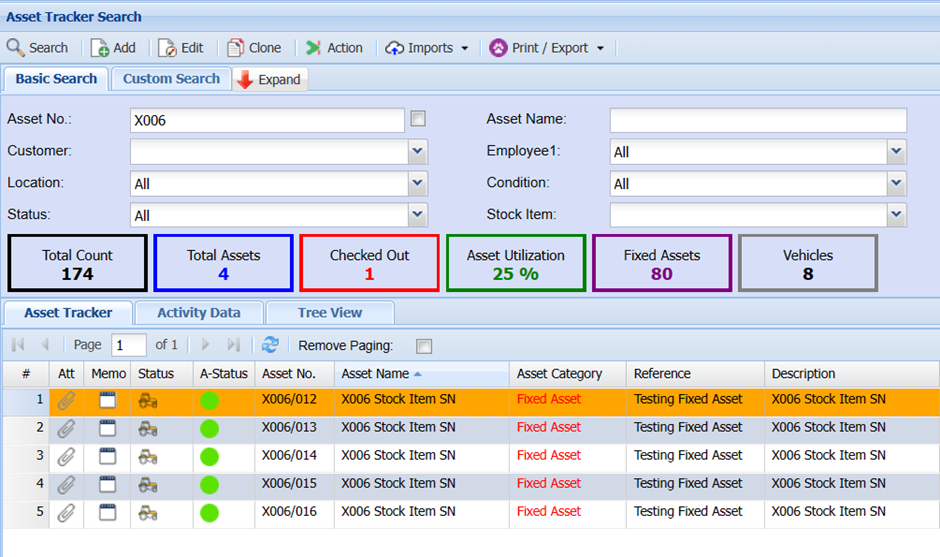
When viewing the Asset Details by selecting and then clicking on the Edit button you will notice that most of the important data has been populated from the various default setups through the GRV processing.
Important Tabs to View when Editing the Asset

The tabs above display the general information about the asset and some of the field are editable. The Asset Action Log is a grid displaying all the Actions that take place against the Asset.

The tabs above display the information for dealing with depreciation, selling and disposing of assets. The Fixed Asset Log is a grid displaying all the financial transactions that are created against the particular asset starting with the GRV which was processed to create the Asset.
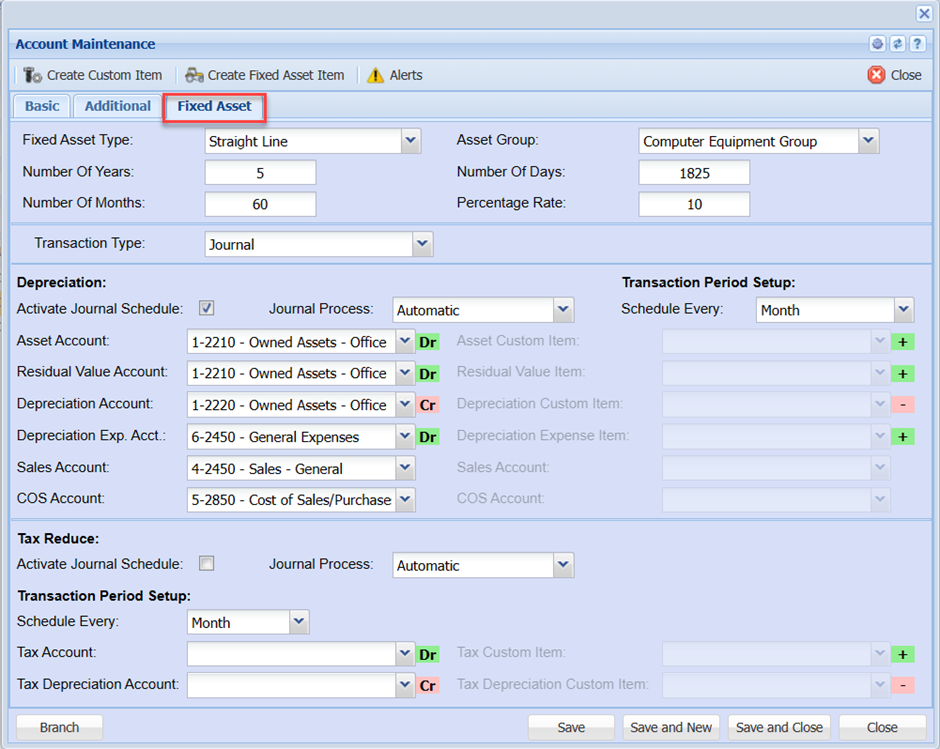
Fixed Asset -> Information
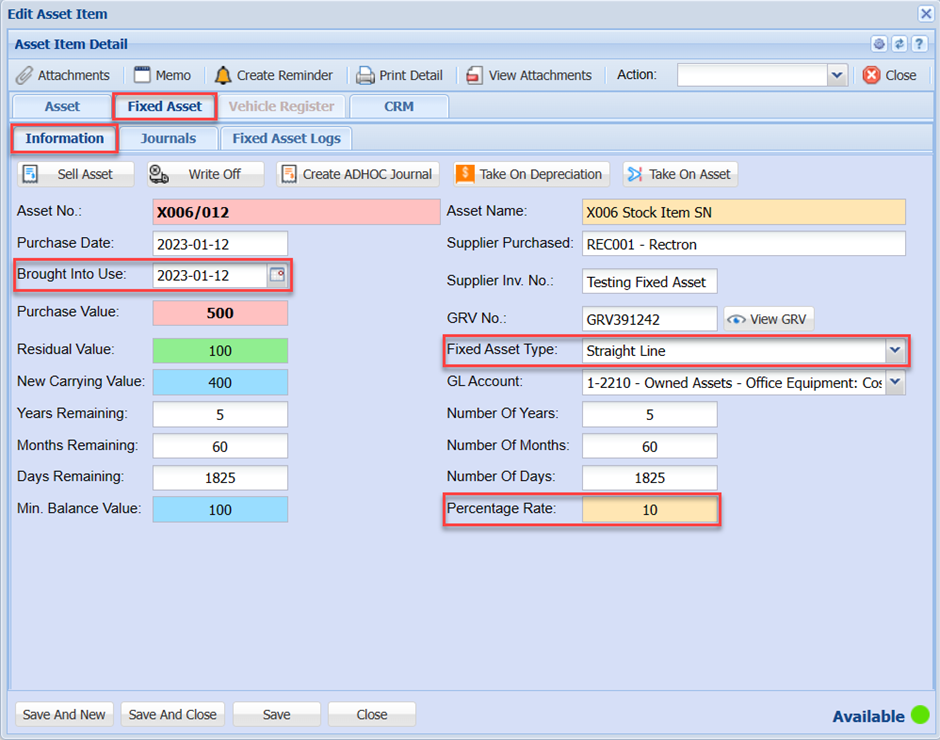
Brought Into Use Date : Is the day from which the first depreciation will be calculated.
Fixed Asset Type : The type of depreciation to be applied to this asset Straight Line or Reducing Balance.
Percentage Rate : The percentage depreciation to be calculated at each period. Monthly / Annually.
Fixed Asset -> Journals
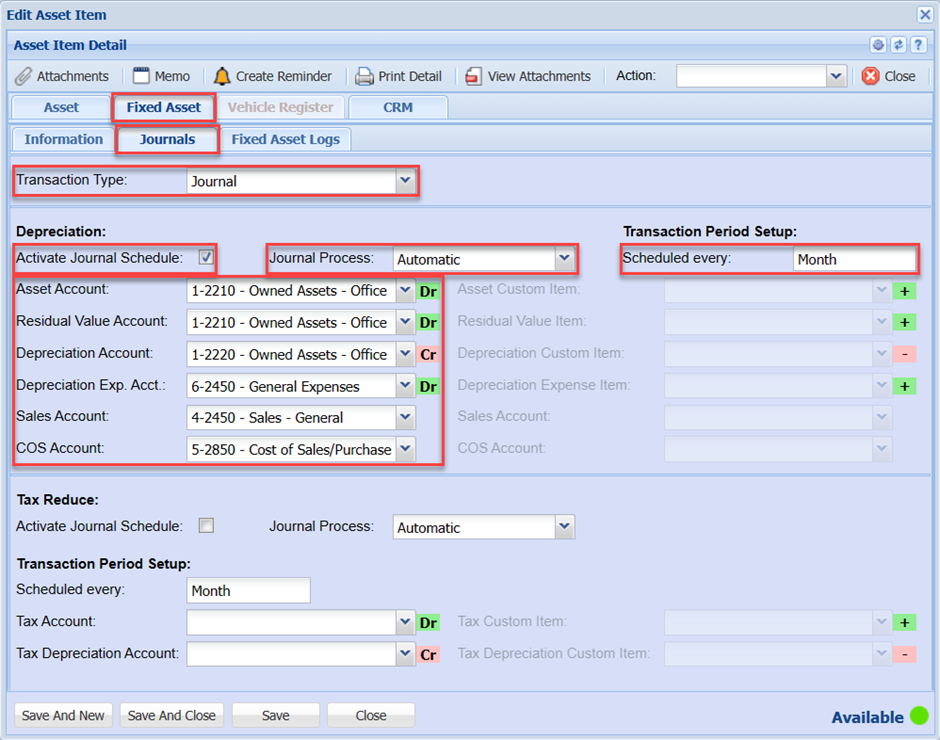
Transaction Type : Journal or GRV (still under development)
Activate Journal Schedule : Ticked – will be selected in the Fixed Asset Depreciation Schedule which will run at a predetermined time as specified in the Fixed Asset Depreciation Schedule setup. Unticked will be ignored by the Fixed Asset Depreciation Schedule.
Journal Process : Automatic – the subsequently created depreciation journal will be automatically processed. Manual – the subsequently created depreciation journal will remain in a Preparation status to be found in the General Ledger module under Activity -> GL Journals and click on the Search button.
Asset Account etc. : These are all the predefined accounts required for the various transactions that will take place against this Asset item e.g. Depreciation, Selling, Disposing and ADHOC Journal transactions.