Barcode Count Capture
Starting and capturing barcodes
Open up the Barcode Count App
| Products |
Use this area to upload your inventory list.
|
| New Count |
Use this section to carry out your stock counting.
|
| Results |
Use this section to access the files available for export from the Barcode Count App.
|
To add your own inventory, see Barcode Count App Import file - Click Here
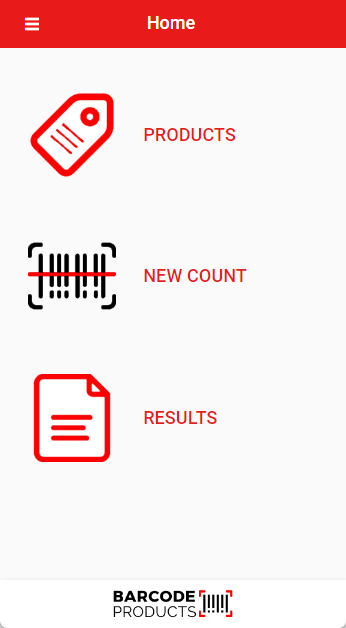
To start to capture barcodes without setting up your products, click on New Count
To add your own inventory, see Barcode Count App Impo... | Huge ERP Manual
- Person
personNamename- who is going to capture barcodes - Enter Location
- Tap the tick at the top right of the screen
Enter
Tapping the keyboard icon at the top will toggle the on‑screen keyboard on (✓) or off (✕), allowing you to view the app in full screen
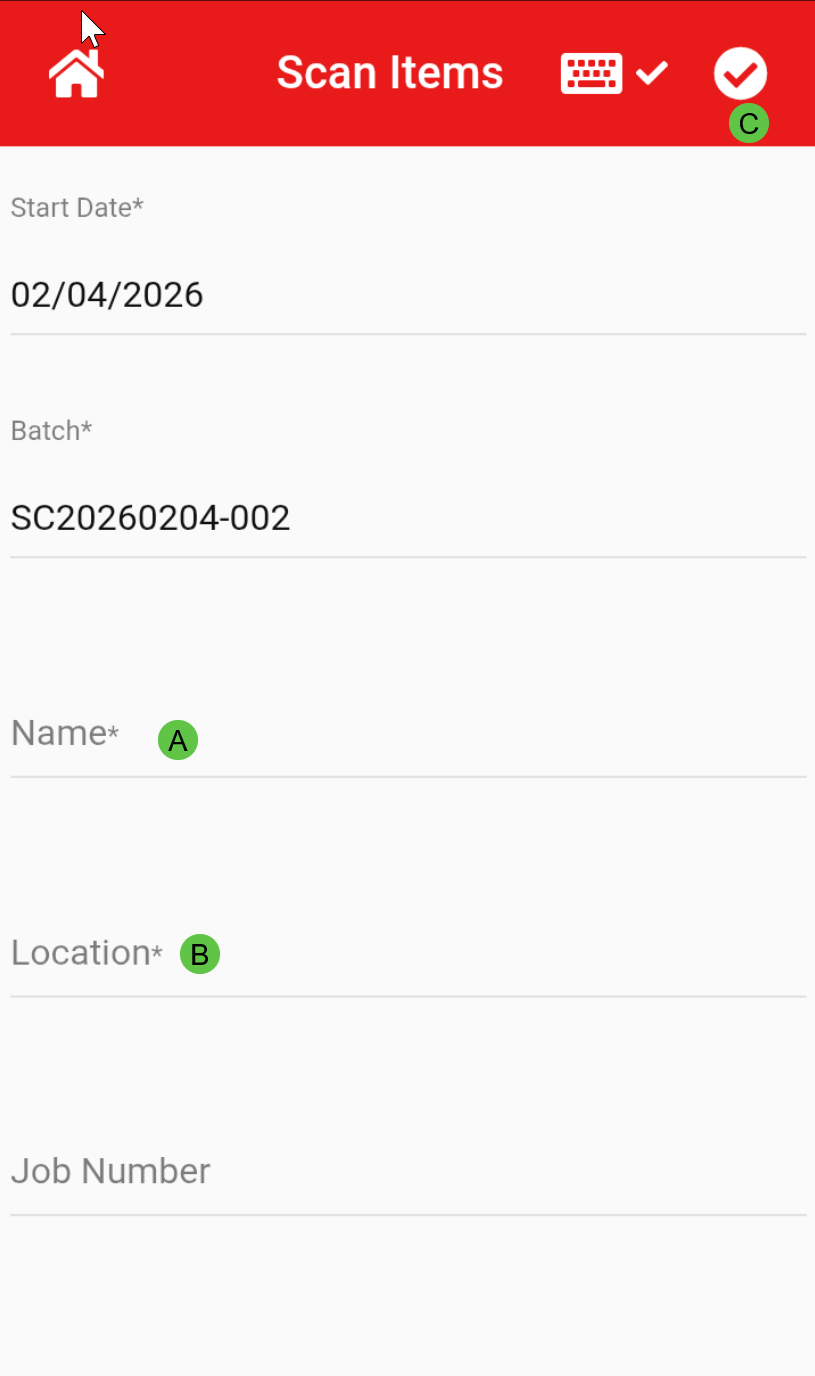
EnterNow Location
Followare steps 1ready to 3
Scanning your barcodes
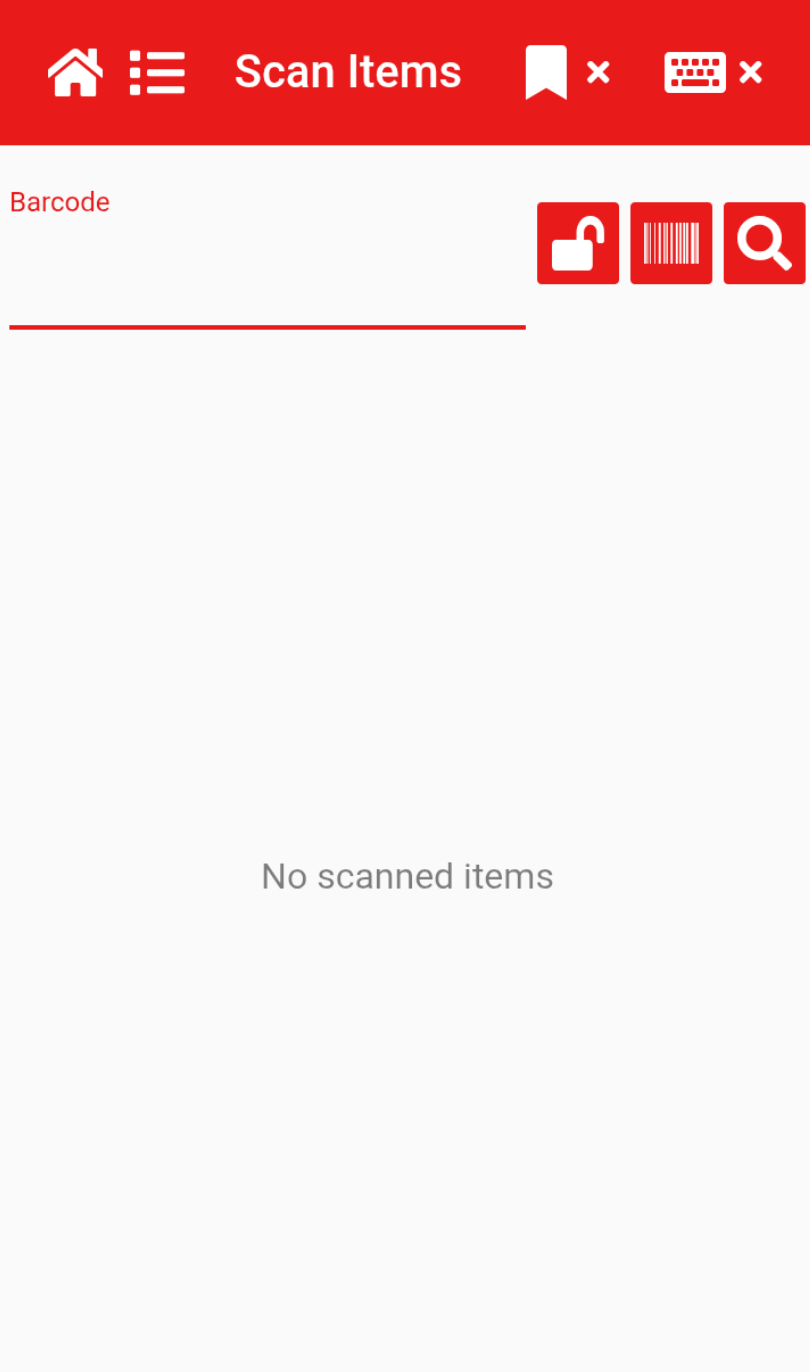
Scan your barcodes
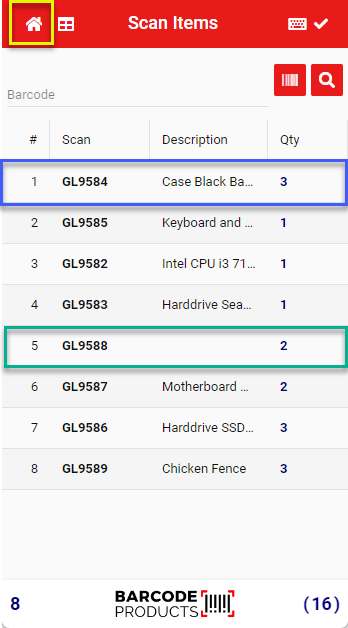
If the barcode matches the database, then the description will appear (see blue highlighted below)
If barcode does not match anything in database, then barcode will appear with no description (see green highlighted below)
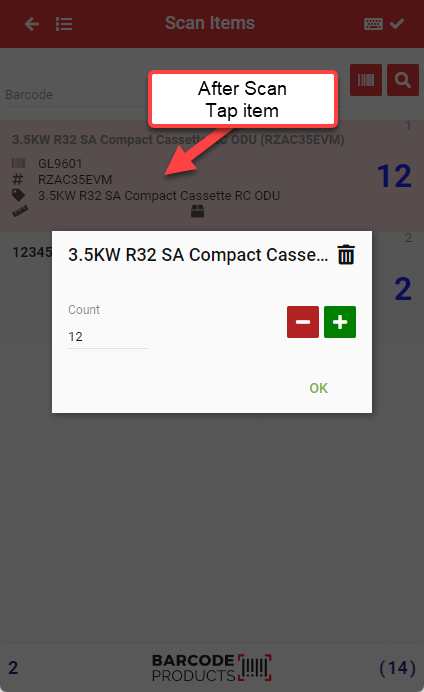
To edit the quantity of a scanned item, tap on the item to open up the edit quantity.
Enter the amount or click on the plus and minus buttons to change quantity.
Click OK to accept your change
When complete, click Home button to go to Results
See your scanned results
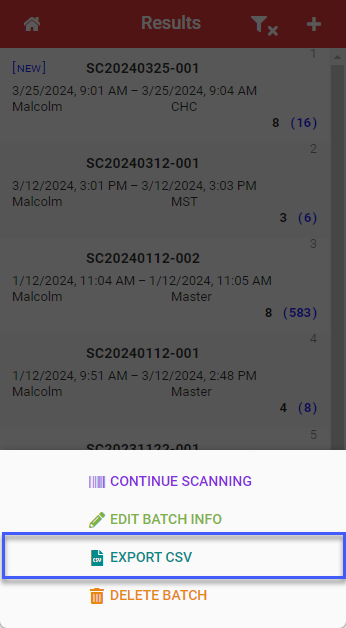
Click on result to export
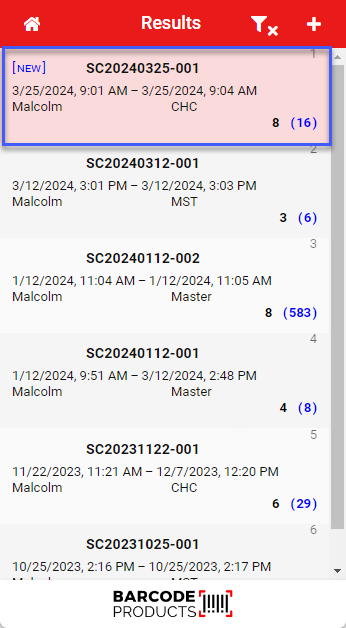
Click on Export file
Save the file on the device (take note of the location you are saving
Open up G-mail on device, find file and attach to email to email out.