
Creating and Restoring Backup
Creating a Backup
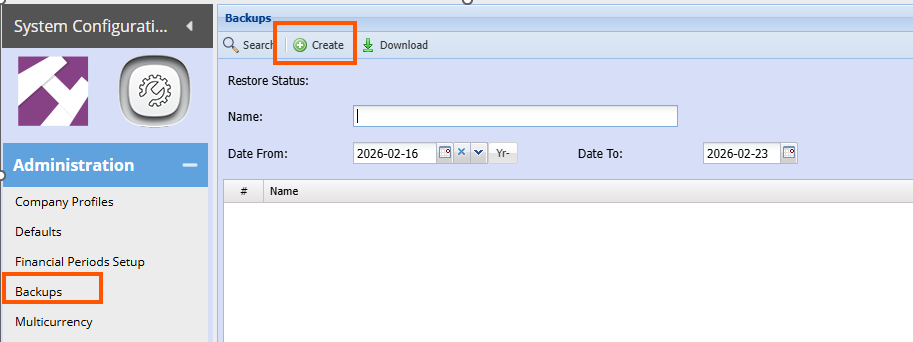
To Create a backup manually, go to:
System configuration>Administration>Backups
Click Create
Leave the file path as is and only enter your initials or preferred description at the end of the file name
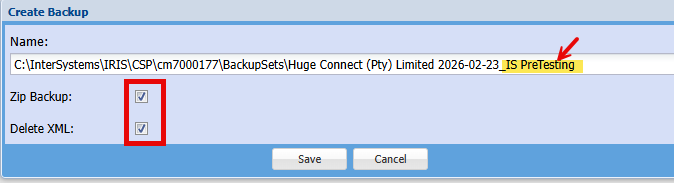
Ensure both tick boxes are ticked
Click Save
Click Search after a minute or 2 and notice the file size
Click Search again
If the file size stops increasing, the backup is complete.

Restoring a Backup
To Restore a backup, ensure all users are logged off the system.
Important: Restoring a backup will erase any transactions or setups and information added on the database subsequent to the date the backup being restored was taken.
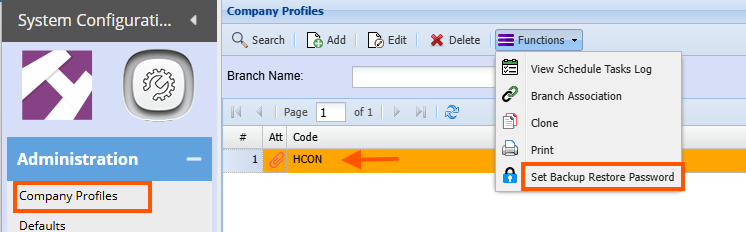
Go to : System configuration>Administration>Company Profiles
Search
Select the company name (Click once on the name)
Click the function Drop down
Select Set Backup restore password
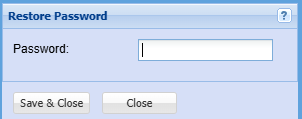
Enter a password
Save and Close
Go to: Administration>Backups
Click Search
Click once on the backup required
Click the Functions drop down and select Extract Backup 
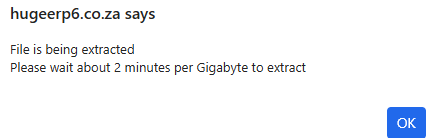
Below message will appear
Wait for a minute or 2 depending on the size of your database
Click Search
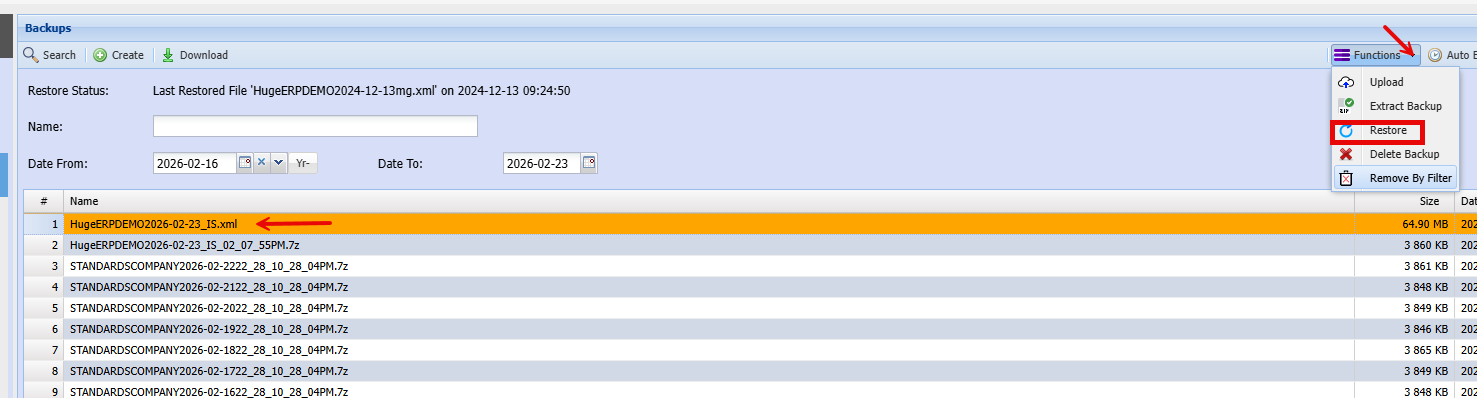
Ensure you have selected the .xml backup file (this is the unzipped file you extracted in above step)
Click functions drop down
Select Restore
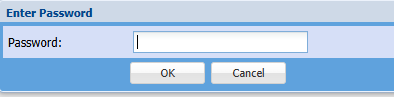
Enter the password you created earlier
Click Ok
The backup will now begin restoring
Click ok to the pop-up message
Once the backup has been restored, you will note the last restore details will be populated with the current date & time
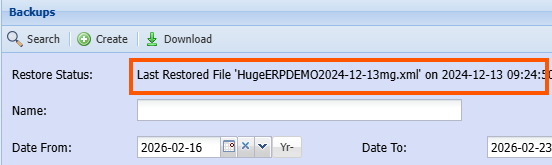
This then completes the backup restore procedure
No Comments