Asset Audit
Create a Standard audit or blind audit
| Standard Audit |
Standard audit is green Standard Audit allows one to view items in location Once scanned the list is reduced |
| Blind Audit |
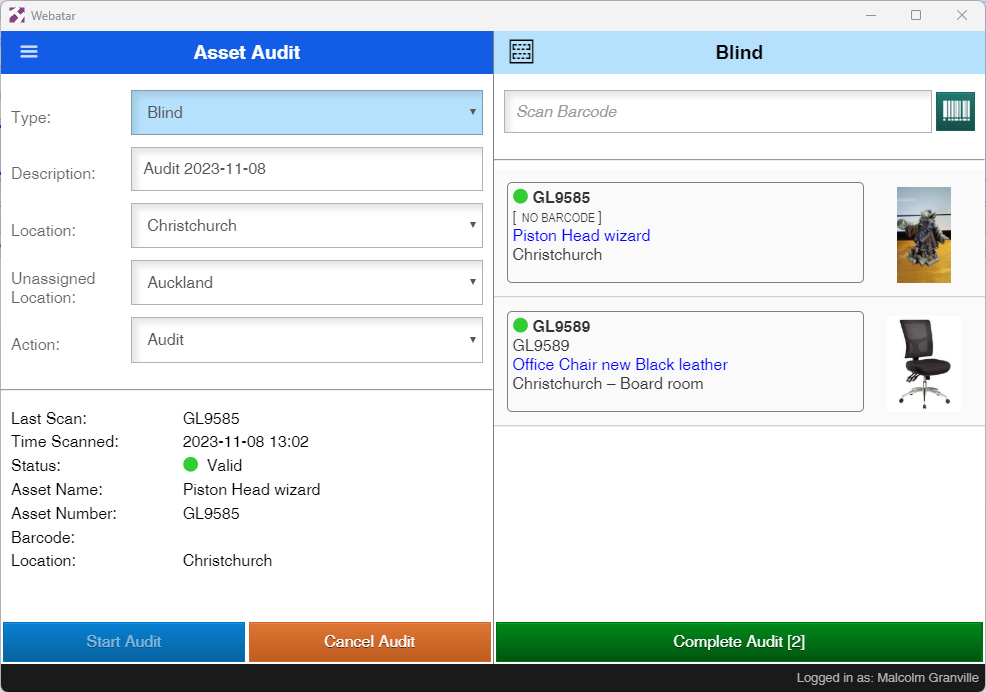
Blind audit is blue Does not show assets at location Only shows items that are scanned in audit |
Note: to limit the user from seeing the standard Audit, setup in security
Icons defined
|
|
Full item details on grid |
|
|
Compact grid view |
|
|
Scanned items are hidden |
|
|
Scanned items can be viewed in list Scanned items are marked with a green dot to show it is valid |
|
|
Blue icon - item in audit, but not scanned |
|
|
Green icon - Item scanned in audit and is found and valid |


Activating an Audit
Once all basic information has been filled in
| Type | Standard or Blind audit |
| Description | Default description which can be overridden |
| Location | The location of the audit |
| Unassigned Location | The location that assets will be moved to that have not been audited |
| Action | The action assigned to the audit |
In order to start the audit, the basic information must be filled in.
Then click on the blue start button to activate the audit
| Start Audit | Start the audit |
| Cancel Audit | Cancel the current |
| Complete Audit | Complete the audit and update the assets that an audit was done |
Standard Audit

Note: A new audit cannot be created until the audit is complete or Canceled
Blind Audit
A blind audit is marked as blue
Only items scanned are shown
The system will not show what assets exist against the location
An unassigned location must be specified so that assets that are outside of the audit will be moved to the Location specified