
Inventory Defaults Tab
System Config > Defaults > Inventory
Inventory Expenses Property allocations fix
Used to enforce a stock category to be selected on inventory setup save
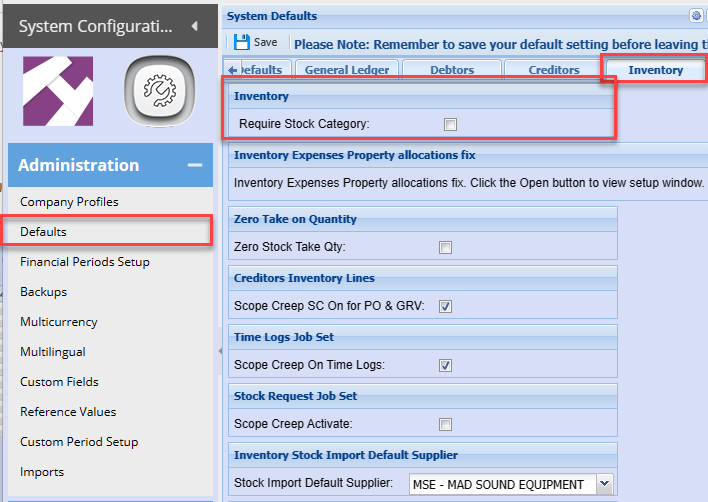
Set to enforce Stock category to be selected
.png)
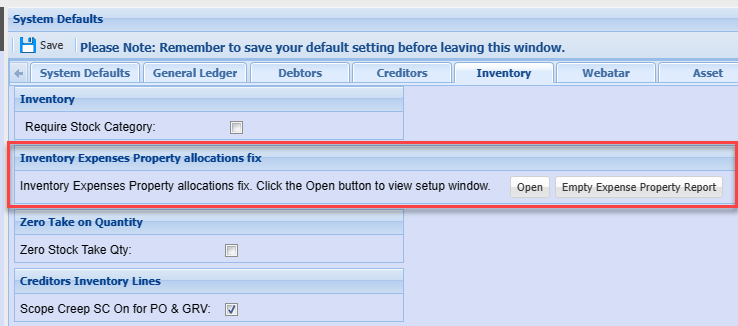
Inventory Expenses Property allocations fix
Check all items without an expense property allocated with the Empty Expense Property Report
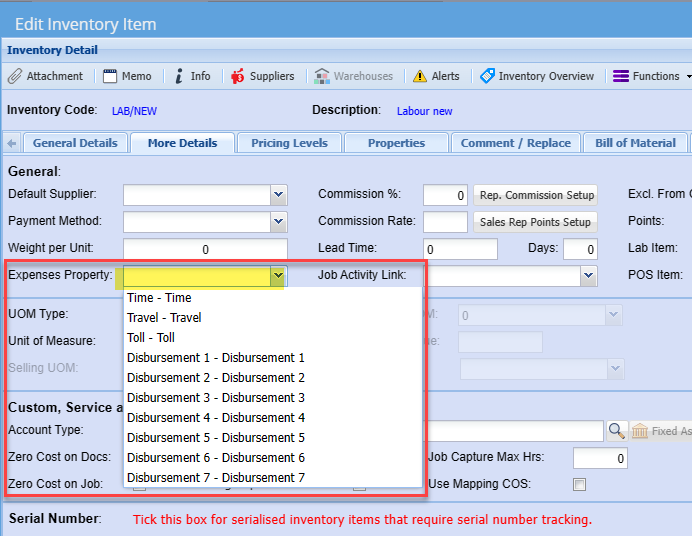
Appliable to Service and Custom type items
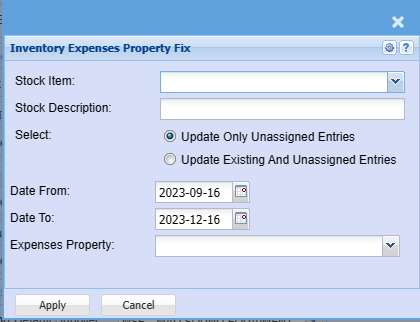
Custom and Service type items
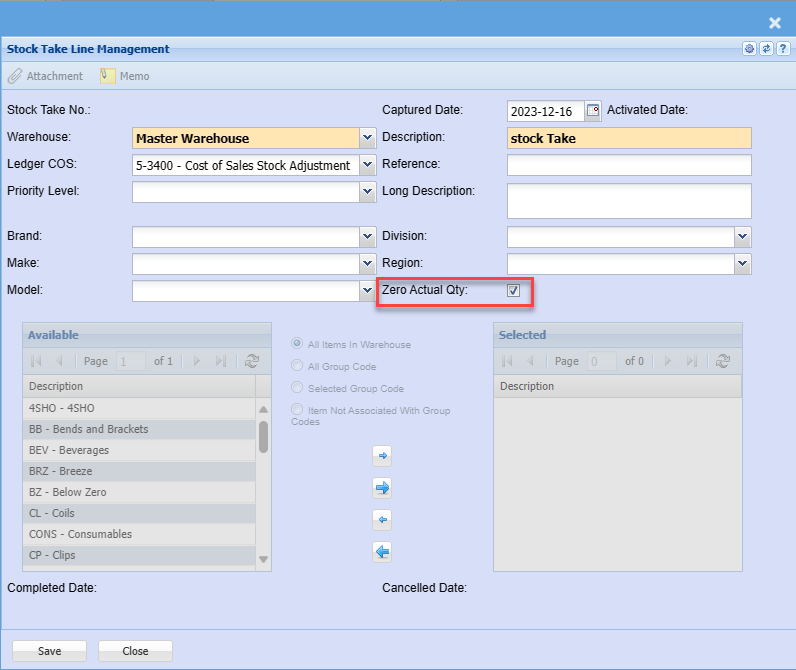
Zero Take on Quantity
Used this to set the tick for zero all items in a stock take

Sets the tick box on for every new stock take created
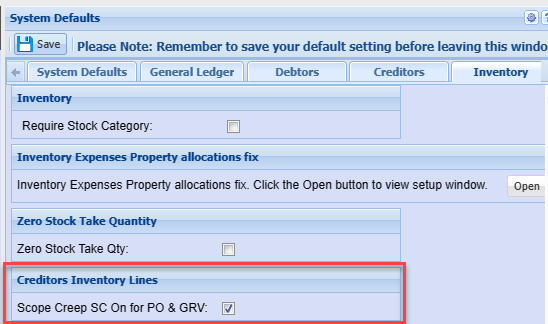
Creditors inventory items
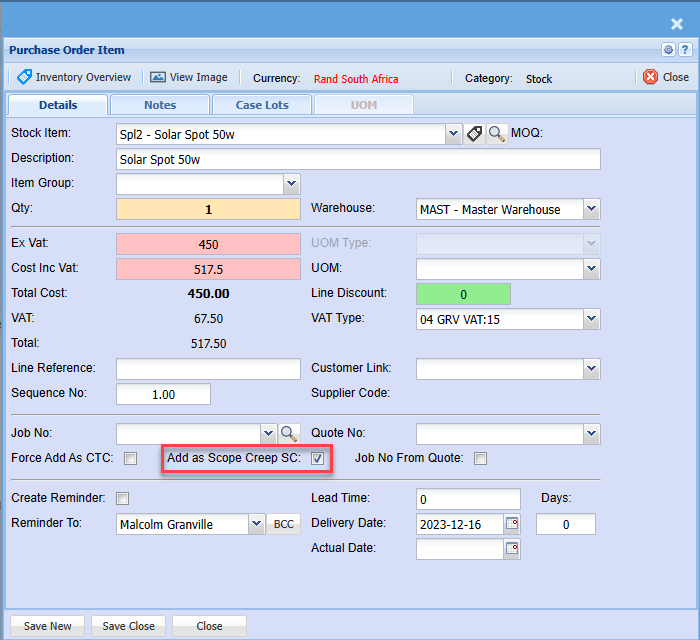
Enforce tick box on for Scope Creep (SC) on all Purchase order and GRV lines
Overrides rules on document ticks for Jobs Scope Creep
Document lines enforce tick
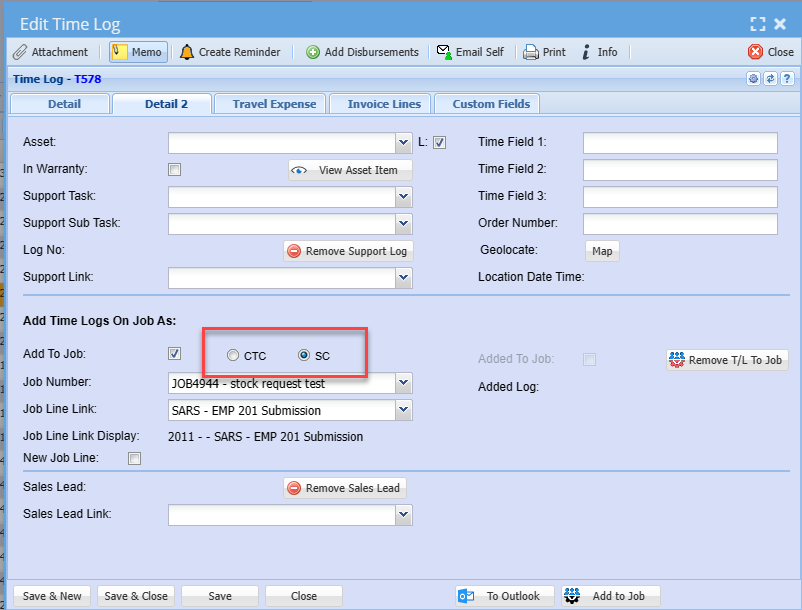
Time Logs Job Set
Set Scope Creep on Time Logs
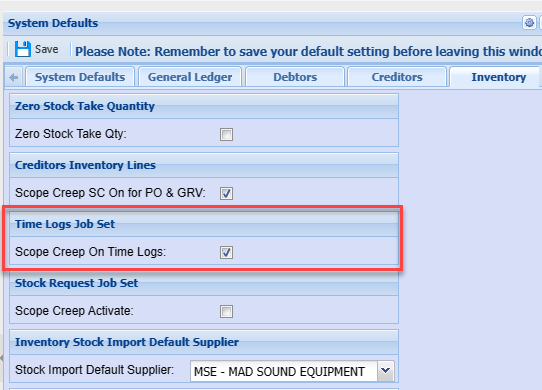
Sets the Job type to SC for time logs
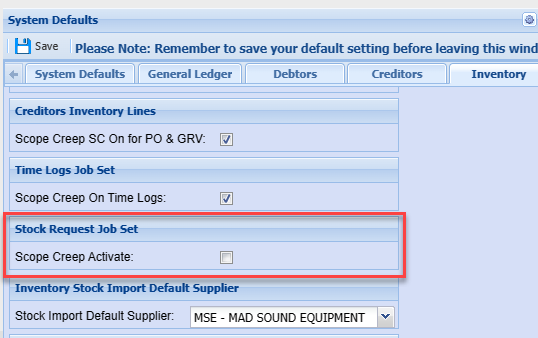
Stock Request Job set
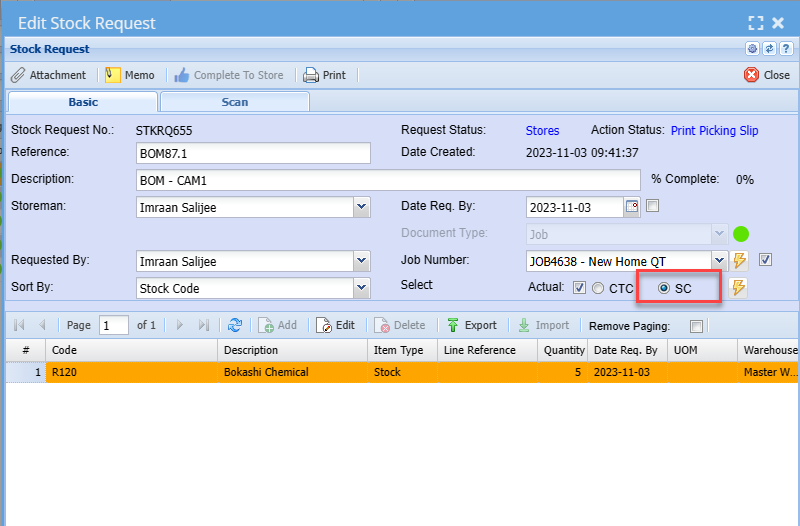
Enforce the Scope Creep on Stock Requests
Stock request set to Scope Creep
Inventory Stock Import Default Supplier
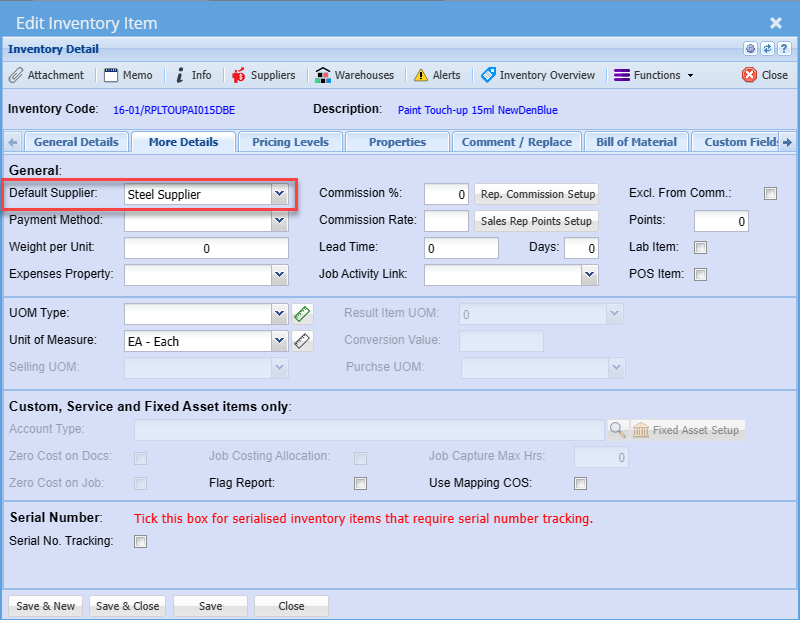
Set a default supplier when importing inventory items.
Useful when the field in the import file for the supplier is left blank, it sets this default supplier
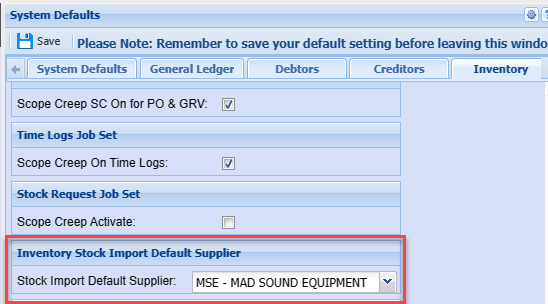
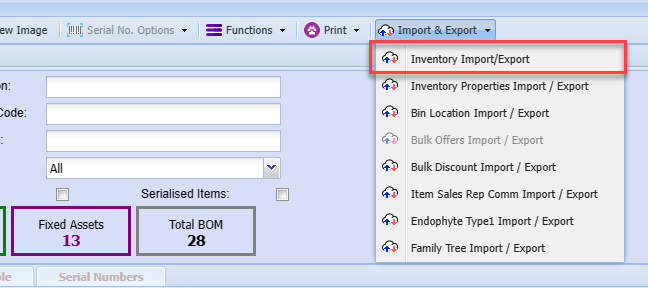
When importing stock
Sets and adds a default supplier when importing
Barcode Printing Style
Setting up Barcode printing from system to GoDex label printers
Print barcodes directly from
- Inventory
- Assets
- Asset Scan and Print
- Debtors Documents
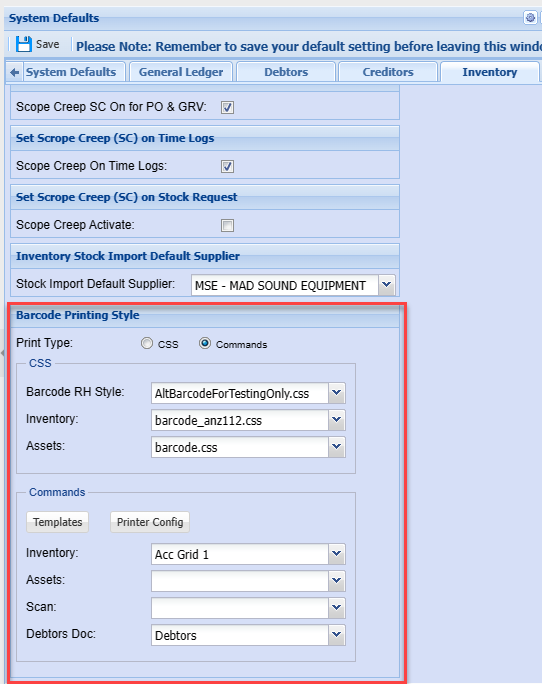
CSS Print Type
Setting a CSS is a predefined label layout (this is going to be discontinued by 2025)
Commands
Setting the templates via the GoLabel software
Templates button
Set various templates to use
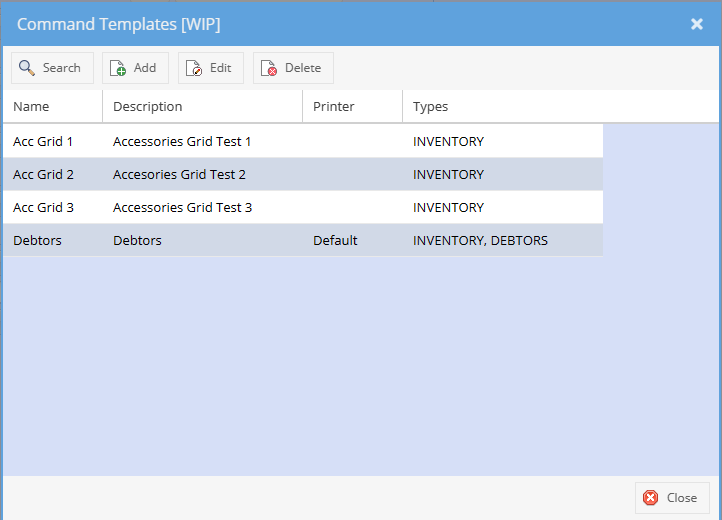
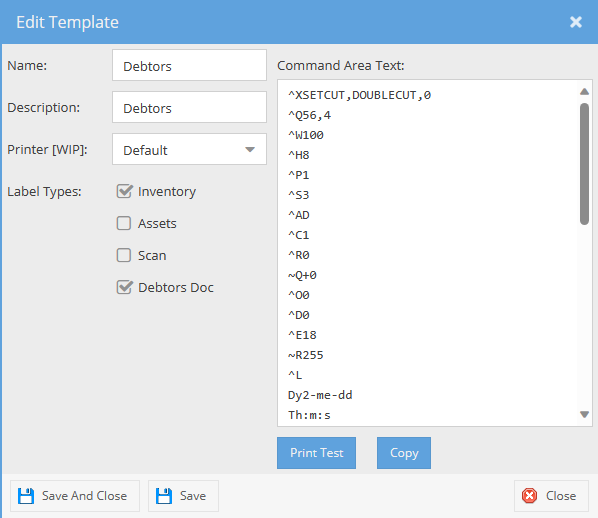
Edit Template
Copy command from GoLabel and paste into Command area
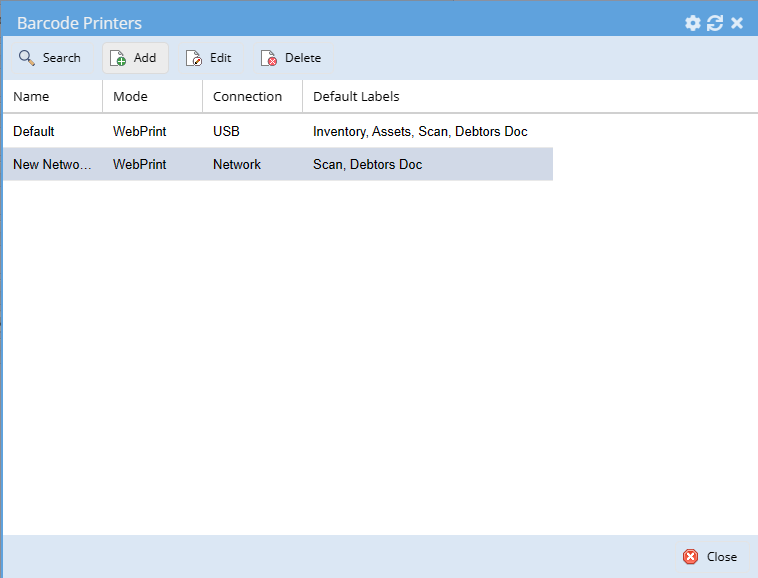
Printer Config Button
Setup how the printer is connected either by USB or Network
Set the Printer defaults
WebPrint it is best to use the port 16327 than 8080
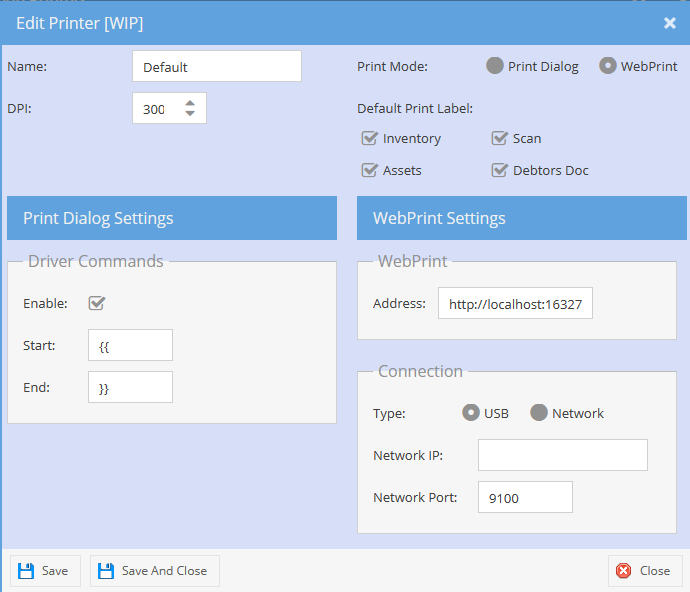
| Printer Name | Name the printer |
| DPI | Set the DPI of the printer 200 or 300 DPI |
| Print Mode: Print Dialog | Used for testing to see print command code to screen when printing |
| Print Mode: WebPrint | Use this as default to print to the printer via the WebPrint |
| Driver Commands | Set as seen above |
| WebPrint |
Setup the Address Use port 8080 or 16327 (best to use 16327 on secure network environments) |
| Connection |
Set USB or Network Enter IP address Enter Network port - usually 9100 |