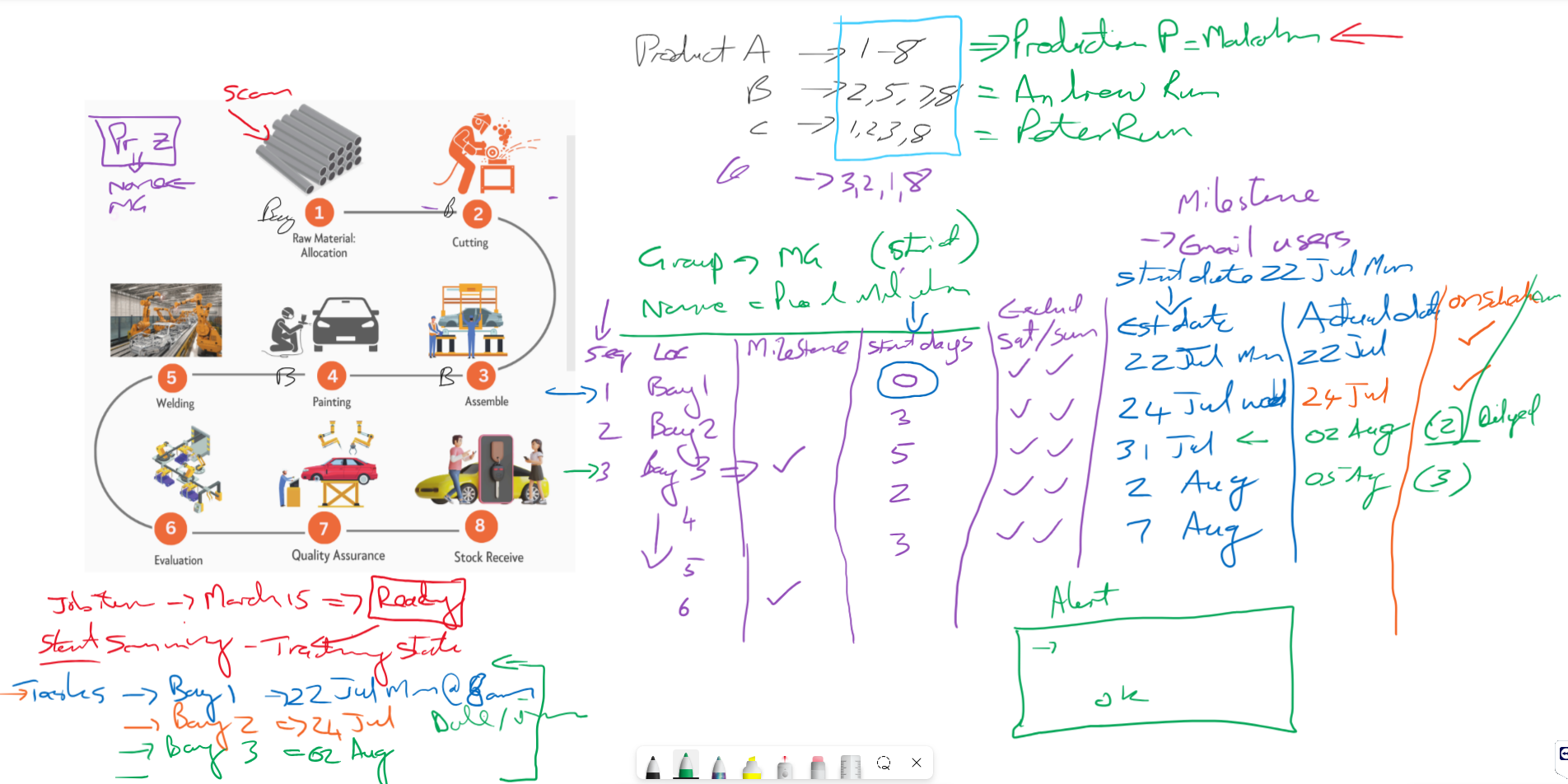
Production Tracking Location Planning
Setup a planning sequence for locations
Production Tracking > Configuration > PT Location Planning
Allow for a group to be a default
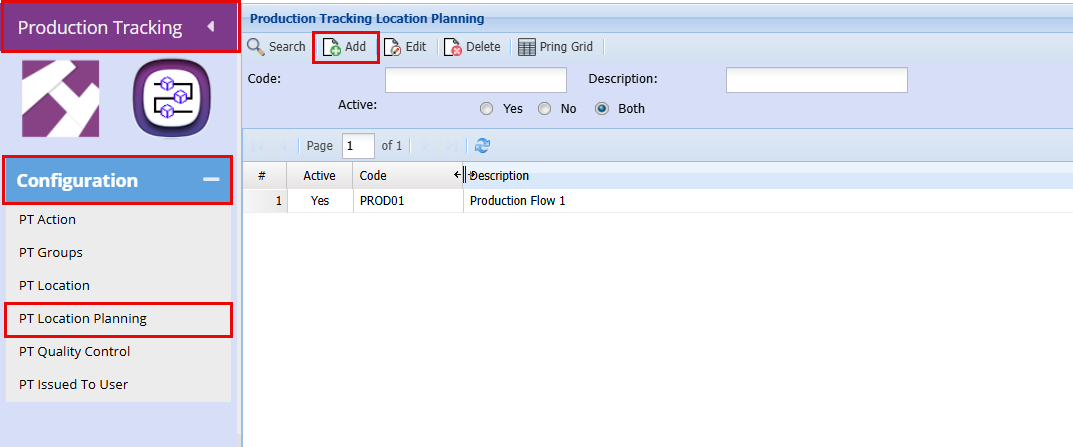
- To create a Production Plan click "Add"
- Add a "Code"
- Add a "Description"
- Click "Save"
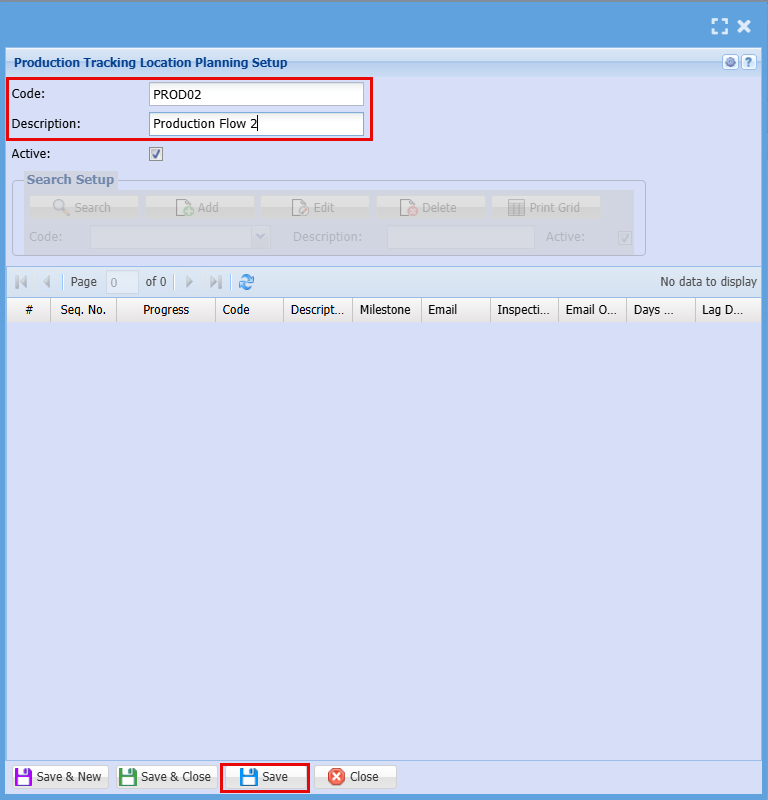
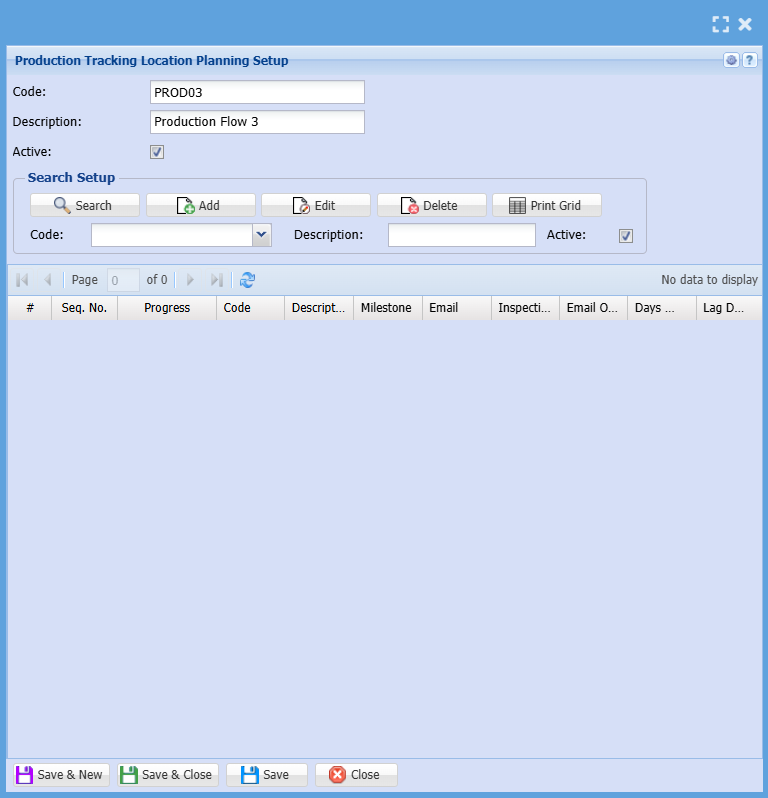
By clicking "Save" the "Search Setup" Grid will become active
- Click the "Add" button to start compiling your production flow.
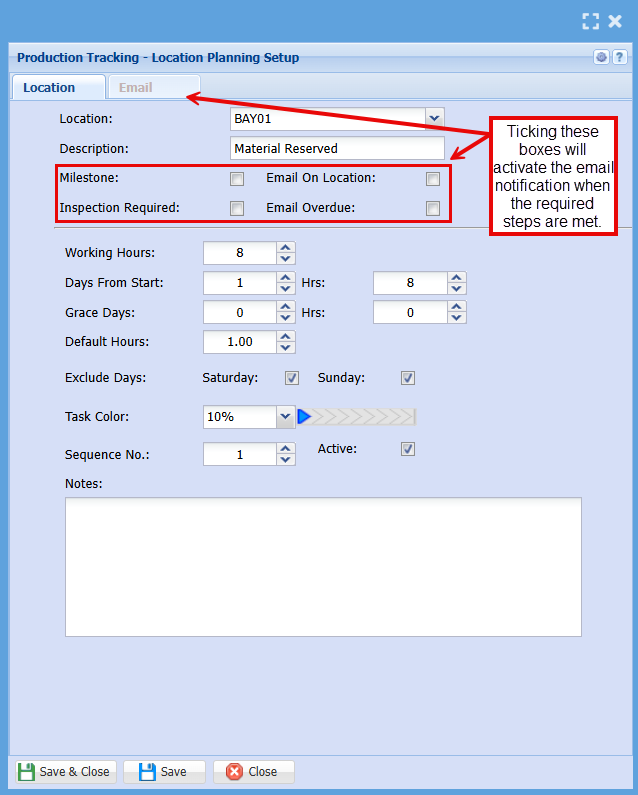
HereThe below window will pop up, here you will set up each stopstep of the production flowflow.
Select
- Complete the
below:fields required
Add
|
Working Hours |
How Many hours work are there in a day |
|
Days From Start |
In how many days do you plan on starting this job |
| Grace Days | Are you allowing any grace days for this job |
| Default Hours | How many hours are you allowing for this job |
| Exclude Days |
Do you work on weekends? If not, tick the boxes to exclude them from the day count.
|
| Task Colour |
This will display as a progress bar to visually show how far along you are with the specific job.
|
| Sequence Number |
|
| Notes | Add notes (Optional) |
The estimated planning times will only become active when the first location is scanned
- Click "Save"
- Repeat the above steps for the full production flow
Email Setup for Production Tracking
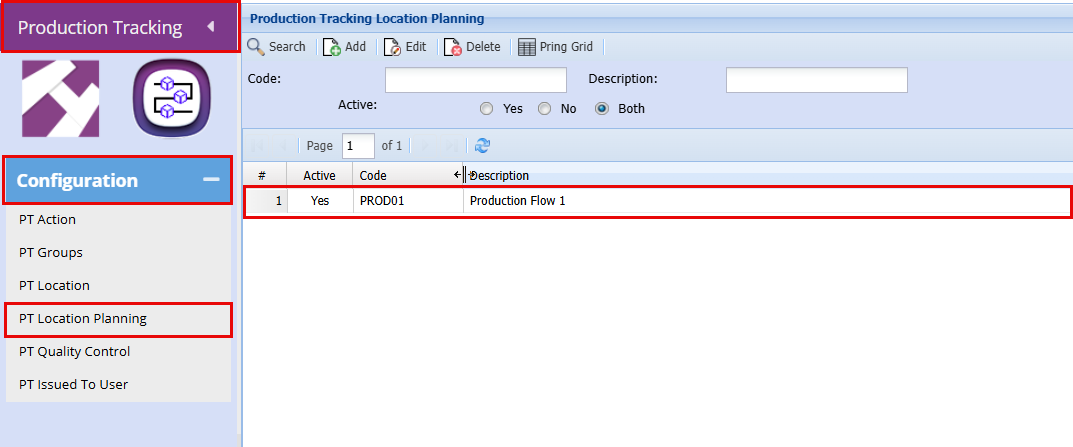
Production Tracking > Configuration > PT Location Planning
- Double click on the Production Flow you want to add an email notification to
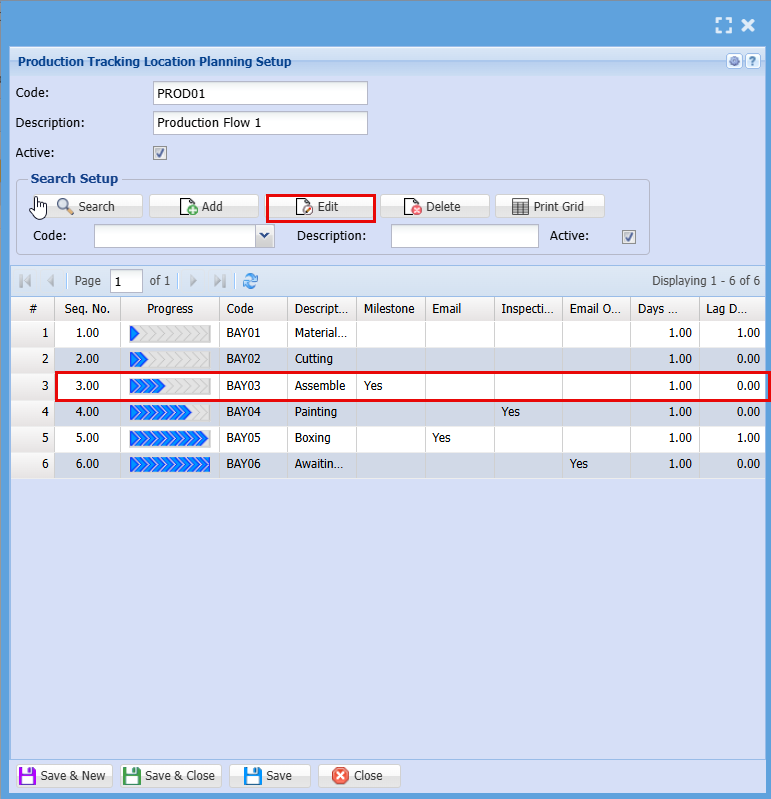
- Double click on the Process or click Edit to open up the line for the process you want to activate email notifications for
EmailTick Setup
Addof athe productionemail locationyou planningwant to receive
Add
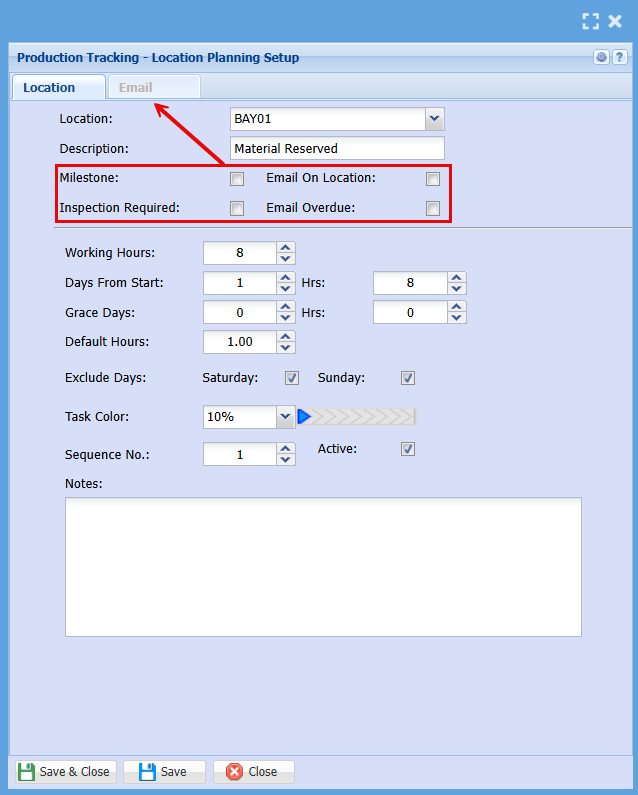
| Milestone | Triggers
|
| Email on Location | Triggers an email when the job hits a certain Location or Bay |
| Inspection Required | Triggers an email when an inspection is |
| Email Overdue | Triggers an email when the job falls behind schedule |
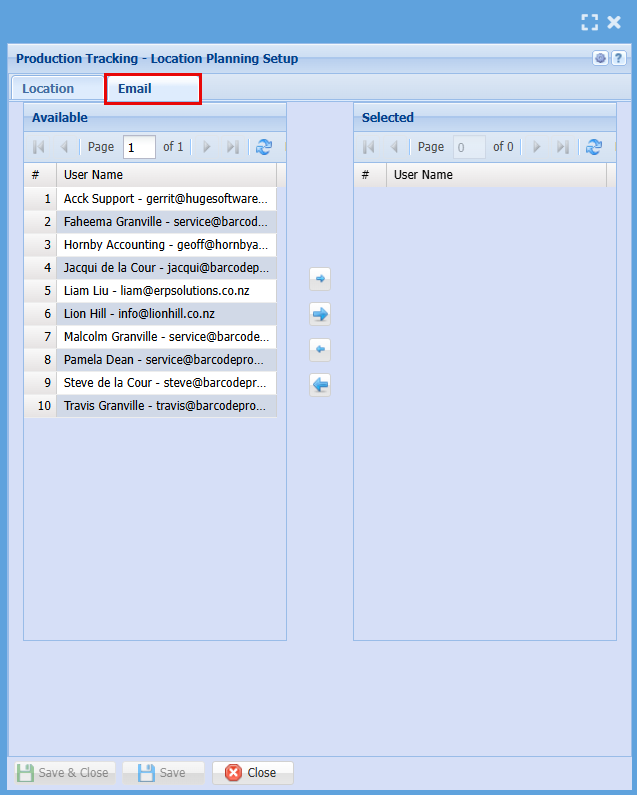
- Click on the Email Tab
- Double Click on the people who are to receive the email notification
- Click "Save & Close"
Total Planning