Production Tracking Location Planning
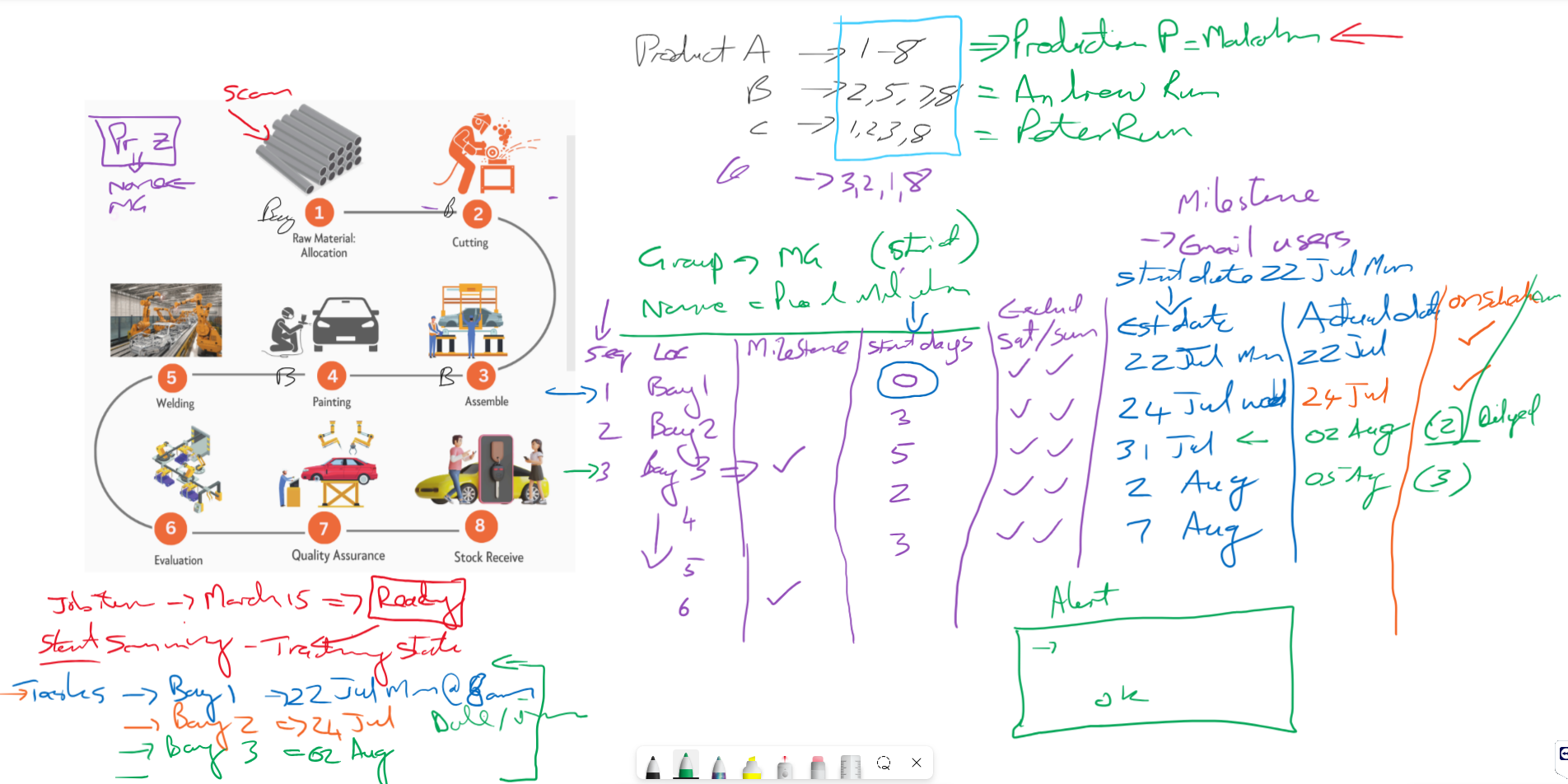
Setup a planning sequence for locations
CreateProduction aTracking > Configuration > PT Location Planning group with Locations
Allow for a group to be a default
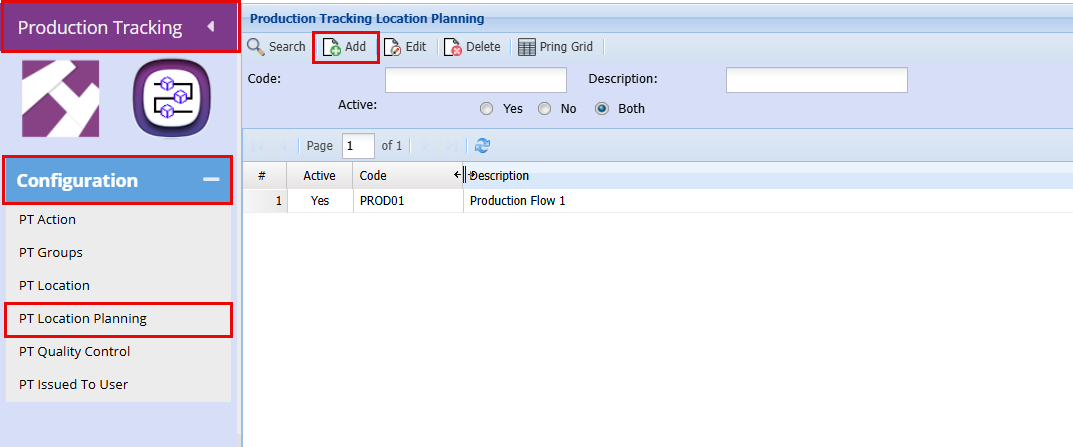
- To create a Production Plan click "Add"
- Add a "Code"
- Add a "Description"
- Click "Save"
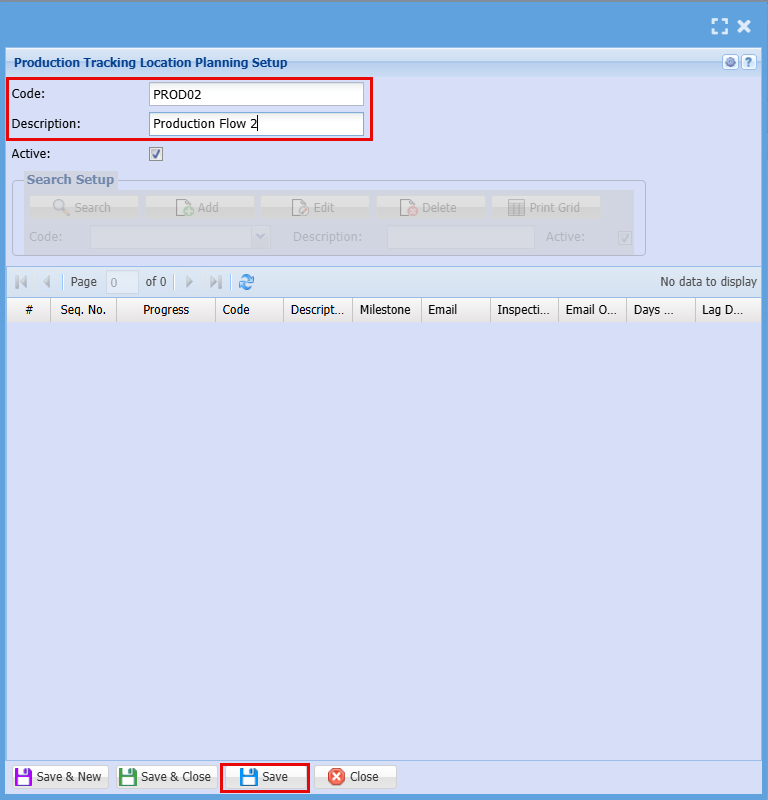
By clicking "Save" the "Search Setup" Grid will become active
- Click the "Add" button to start compiling your production flow.
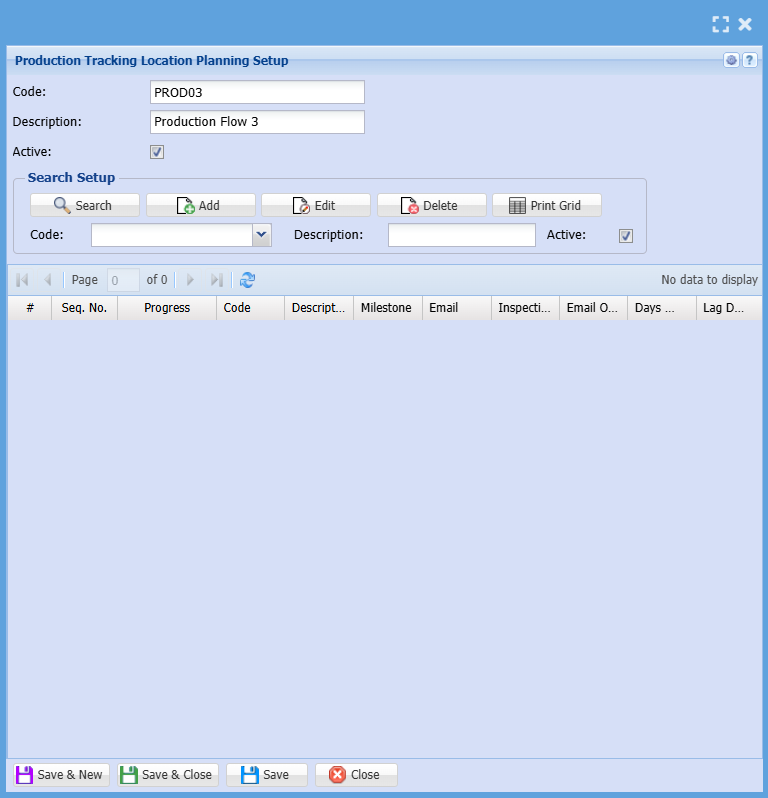
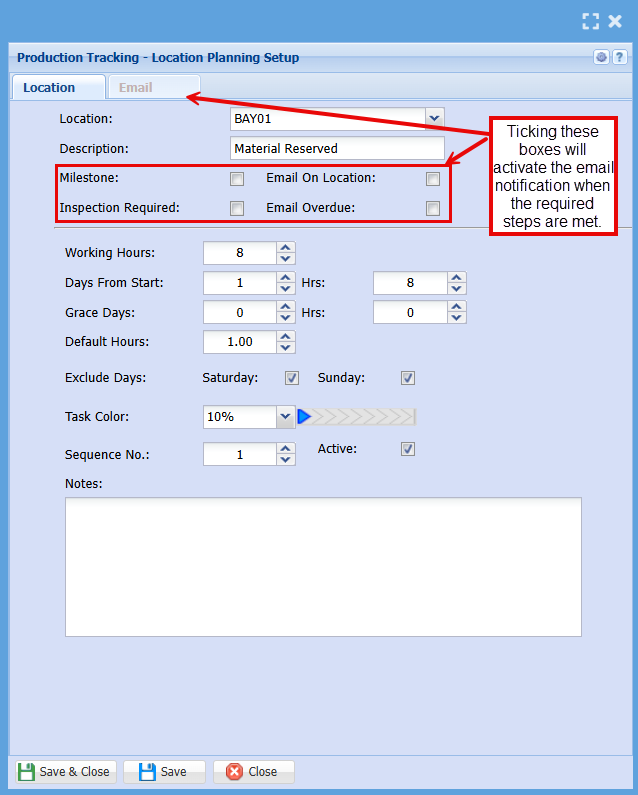
Here you will set up each stop of the production flow
Select a Location/Bay (Description will be auto populated if completed at location setup)
Add the below:
|
Working Hours |
How Many hours work are there in a day |
|
Days From Start |
In how many days do you plan on starting this job |
| Grace Days | Are you allowing any grace days for this job |
| Default Hours | How many hours are you allowing for this job |
| Exclude Days |
Do you work on weekends? If not, tick the boxes to exclude them from the day count.
|
| Task Colour |
This will display as a progress bar to visually show how far along you are with the specific job.
|
| Sequence Number |
A sequence number sets the order of steps or tasks within a job.
|
| Notes | Add notes (Optional) |
- Click "Save"
- Repeat the above steps for the full production flow
Email Setup
Add a production location planning
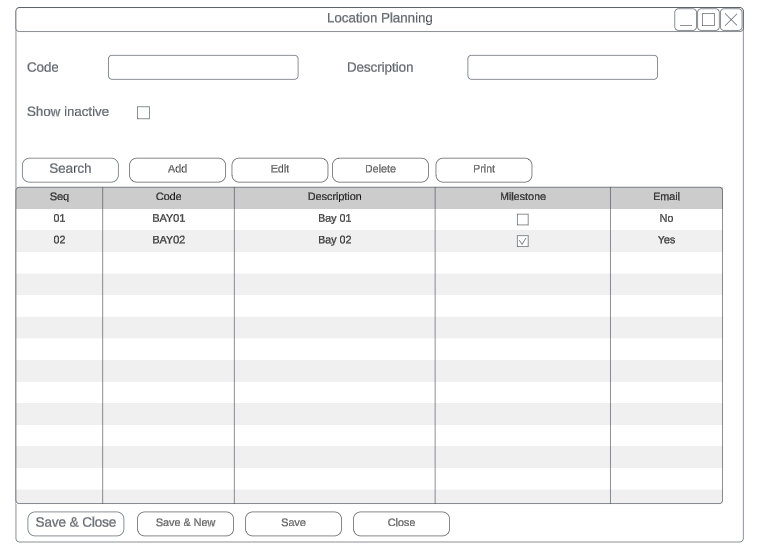
Add a sequence
Sequence planning allows one to estimate when certain tasks will take place.
The estimated planning times will only become active when the first location is scanned
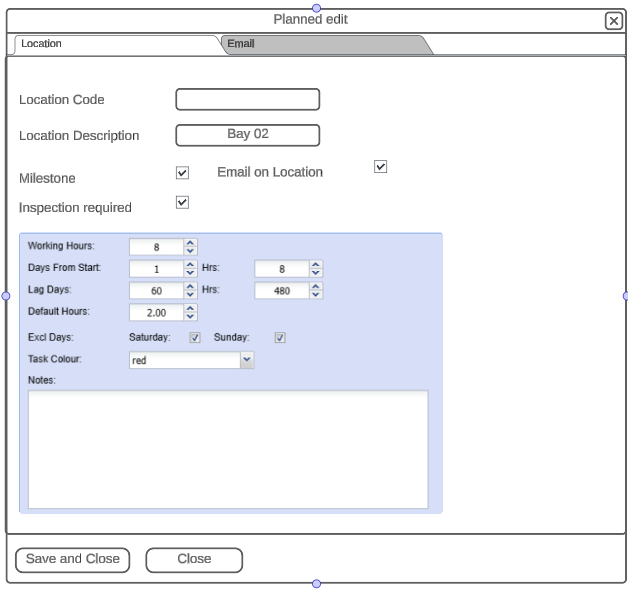
Total Planning