
Xero API Link settings
Create application
Visit this URL App management – Xero
Click the new app button

Application URL should be the web address of the server
Redirect URI should be https://{serverHostName}/csp/sys/oauth2/OAuth2.Response.cls
Click on the app and then select the Configuration menu.

Server Settings
Go to System administration -> Security -> Client, in the management portal for the server.

Click the Create Server Description button.

Issuer endpoint should be
https://login.xero.com/identity/connect
An SSL config will be needed for this, which is selected as the SSL/TLS configuration
Click on Client Configurations for the server description just created


Click on the Create Client Configuration button.

For "Application Name", "Client name" and "Description" enter "xero-{namespance}".
Client type should be "Confidential".
Enter the servers host name into the "Host name" text box.
Click on the "Client Credentials" tab

Enter the details shown here in the configuration section of the Xero app that was created earlier.

API Huge ERP
Add as shown below into the API setup in the SCM module
"xero-hugeerp" should be replaced with "xero-{namepsace}"
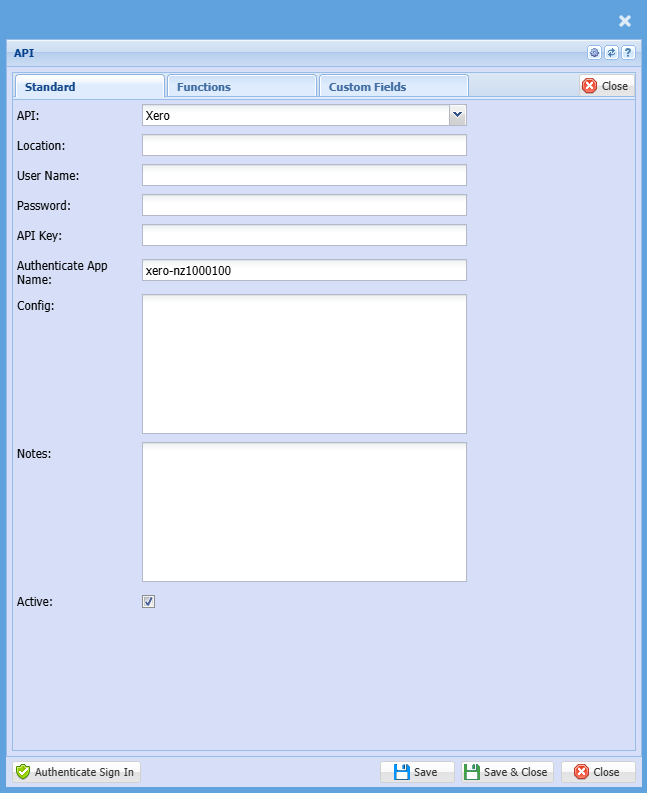
Tick the functions that are needed

Click "save" and then the "Authenticate sign in" button.
Enter the login details for your Xero company into the window that opens.