Wastage
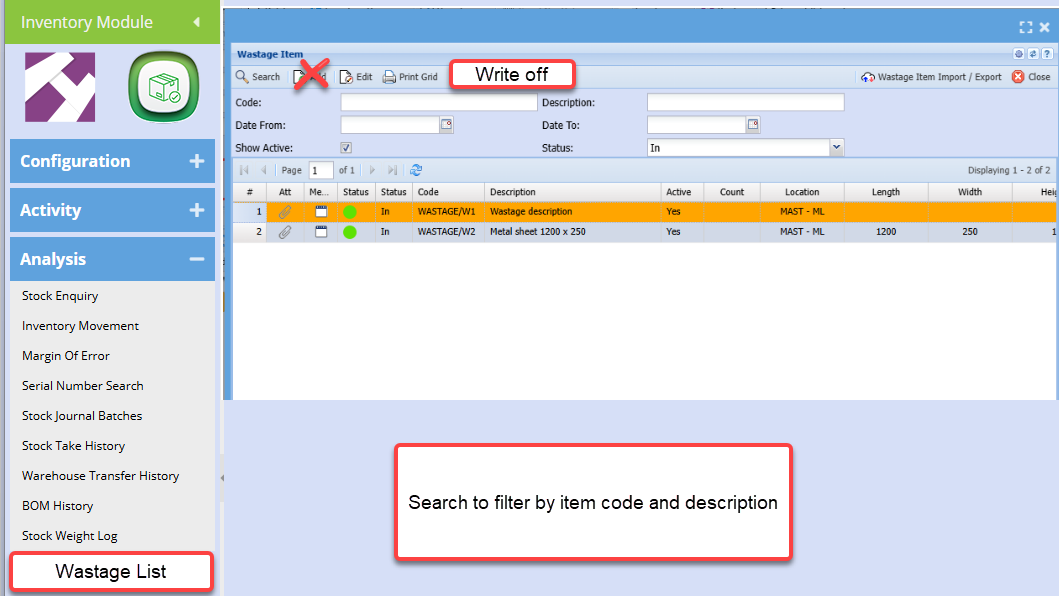
Track wastage items by creating a new wastage item and flagging it a wastage item.
Wastage List
-
In
-
Out
-
Completed

Adding a new wastage item
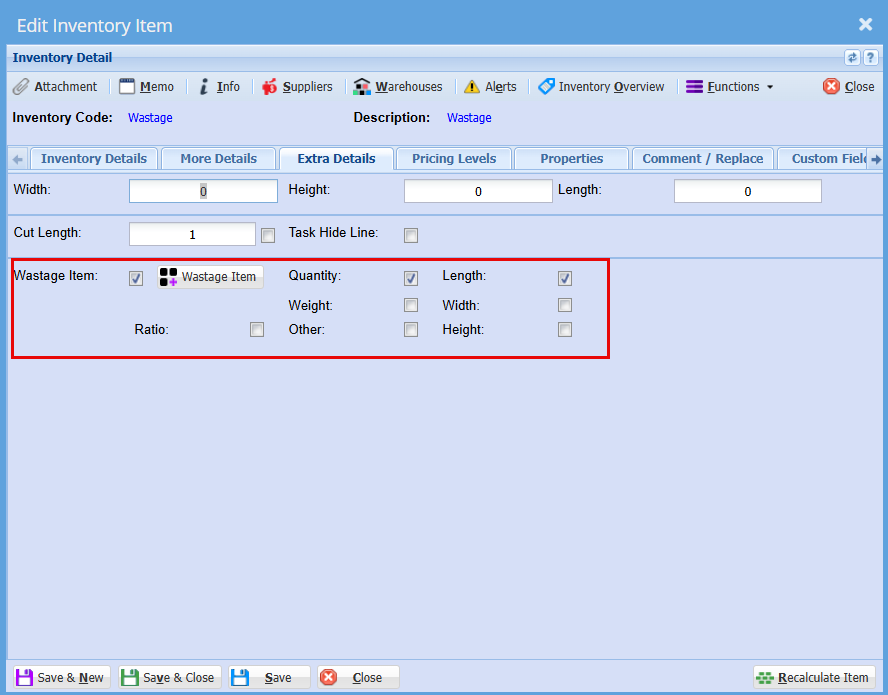
Double click on the new Wastage item you have created
Click the Extra Details Tab
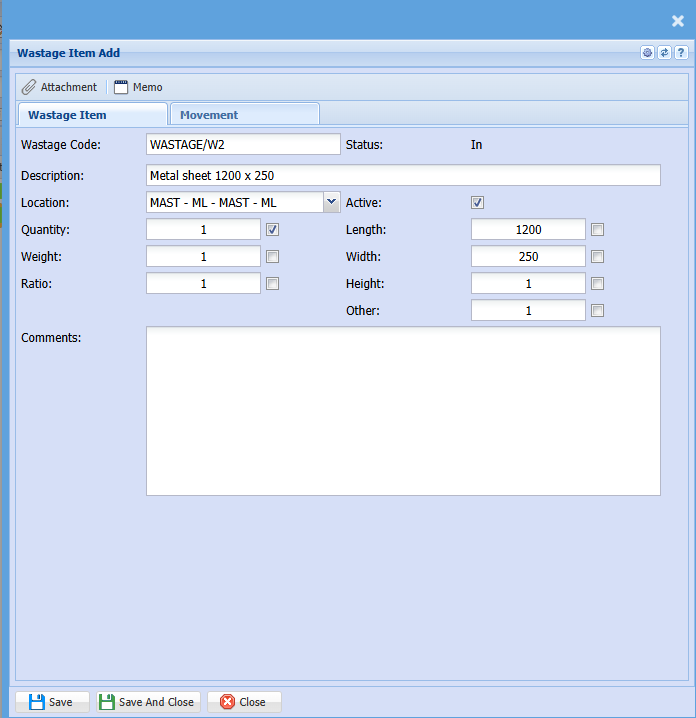
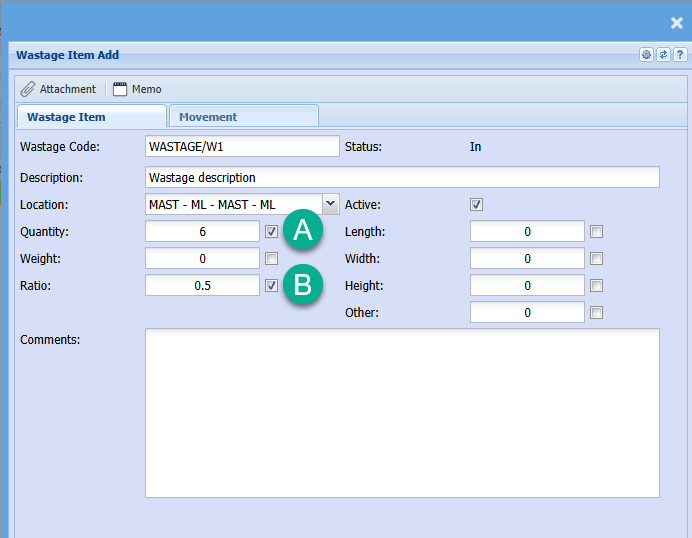
Tick boxes are used to calculate the quantity when moved onto a job or invoice.
Click the Wastage Item button
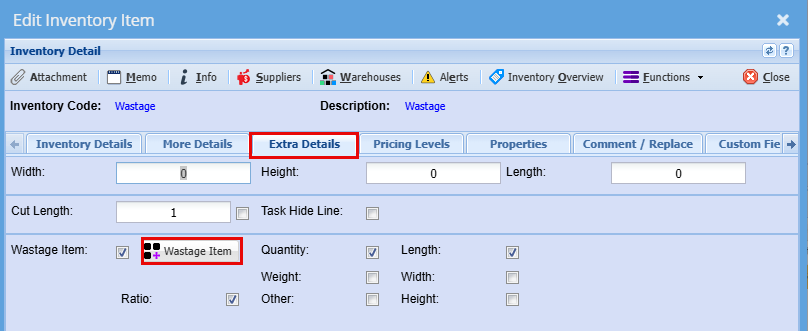
When adding a new wastage item, its status is In
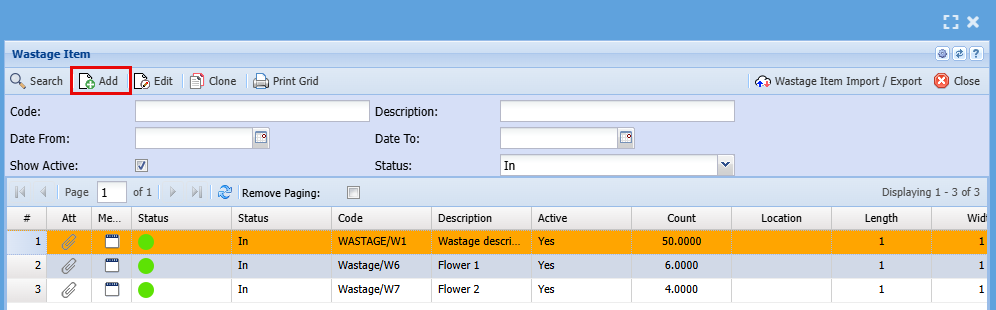
The cost price and sell price comes from the main item that the wastage item is linked.
Photos and memo notes
Take photos of the wastage and make notes on wastage items
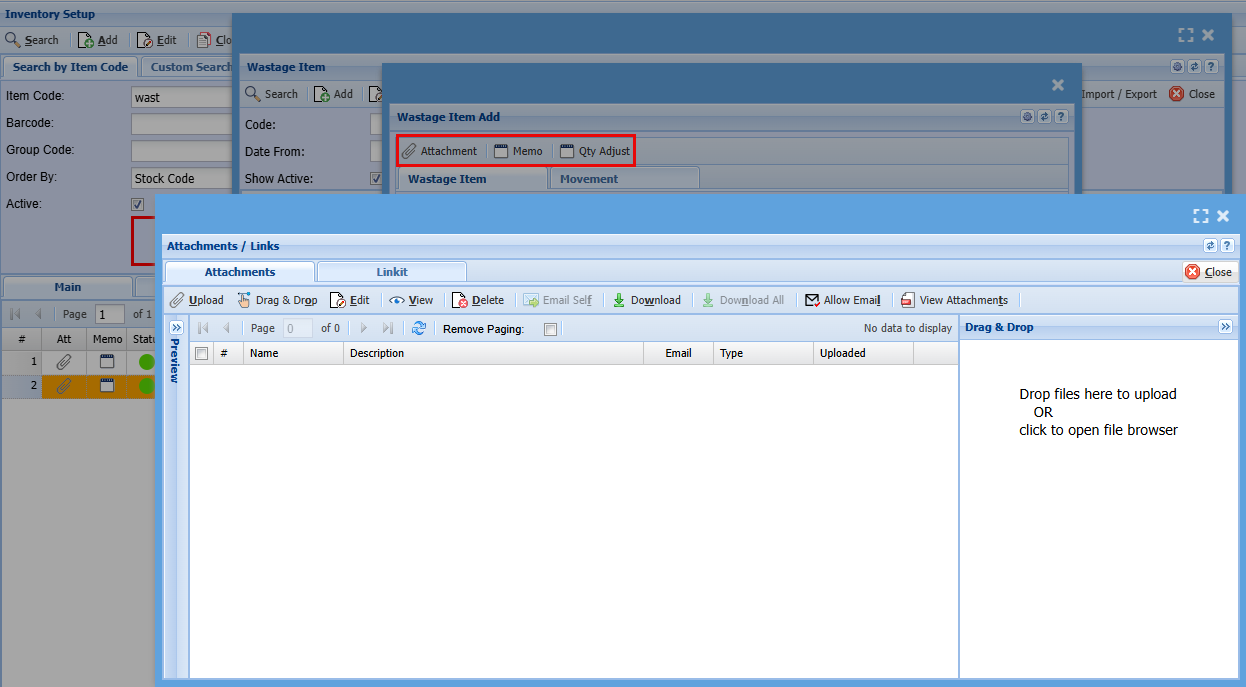
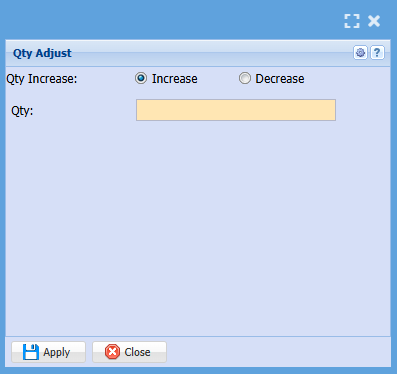
You can manually adjust the quantity of a specific item by clicking Qty Adjustment.
Select whether you are wanting to increase or decrease the quantity, add a quantity you are adjusting and click apply.
Wastage items import
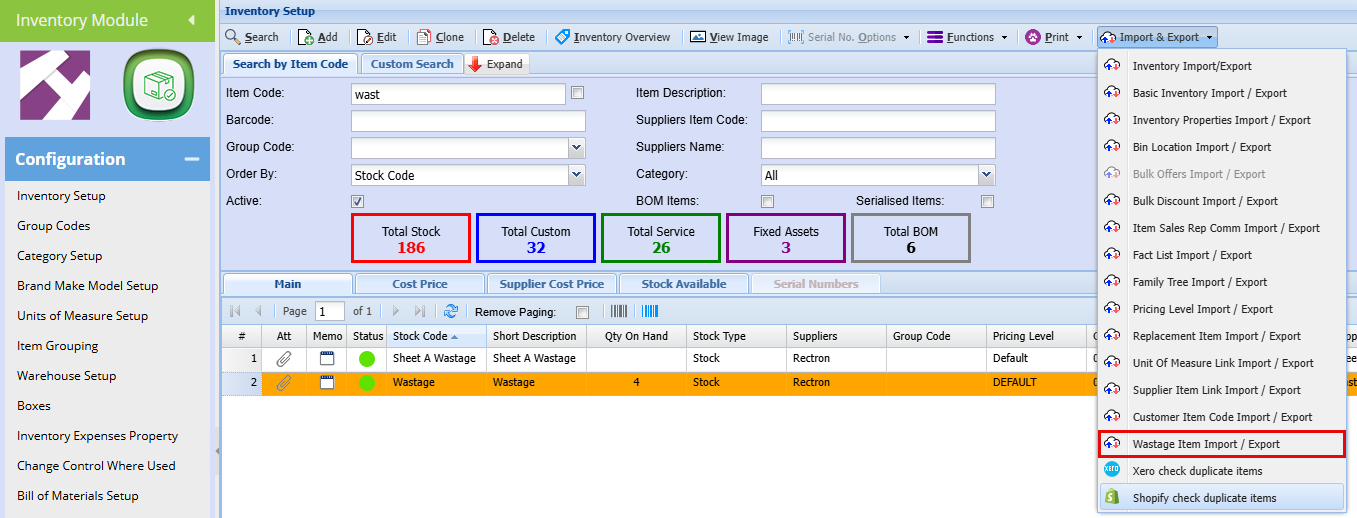
Click Export to get the template for your import, transfer your data to this excel template.
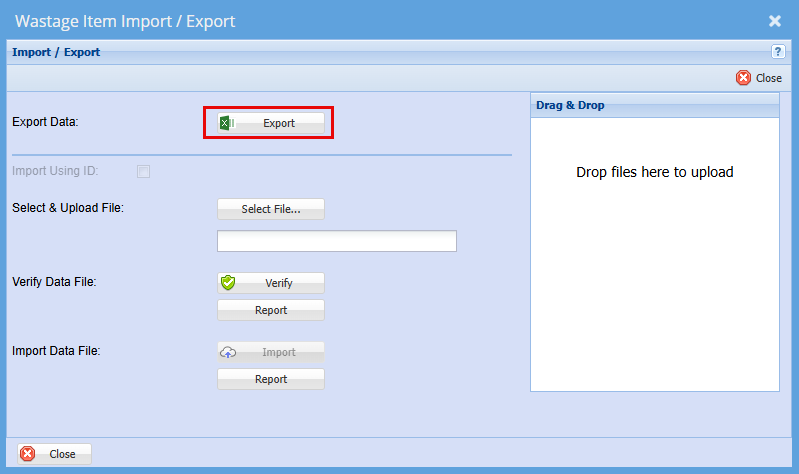
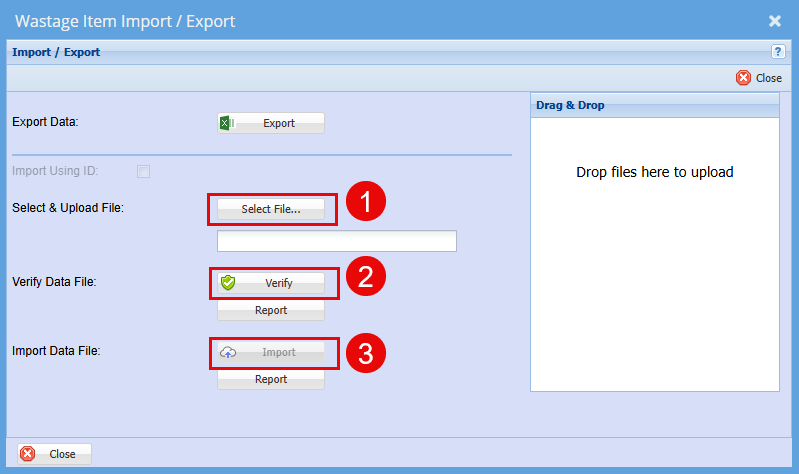
When your data file (Excel Spreadsheet) is ready go back to the Wastage Import/Export Tab, select your File, Click Verify and then Import.
Managing Wastage on documents
Wastage is managed on the following documents
- Invoice out
- Credit notes in
- Manage job Scope Creep and Cost to Company - wastage out
- Item setup - manage new wastage items marked as in
Invoice
Invoice lines activated for Wastage out
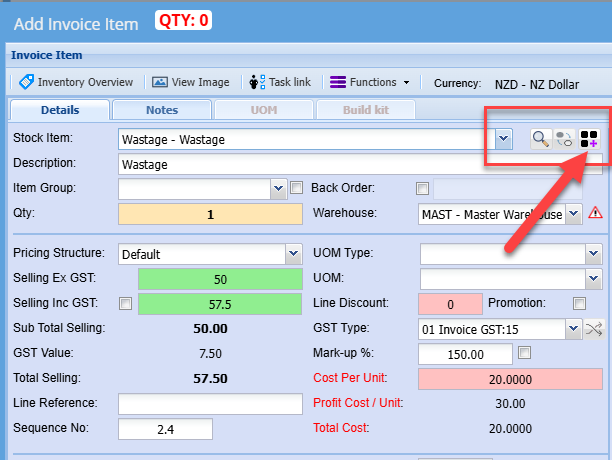
Add an invoice as normal, when you want to add a wastage item, select your wastage item from the Stock Item drop down, then click on the Wastage button as shown below.
Your Quantity will always default to 1
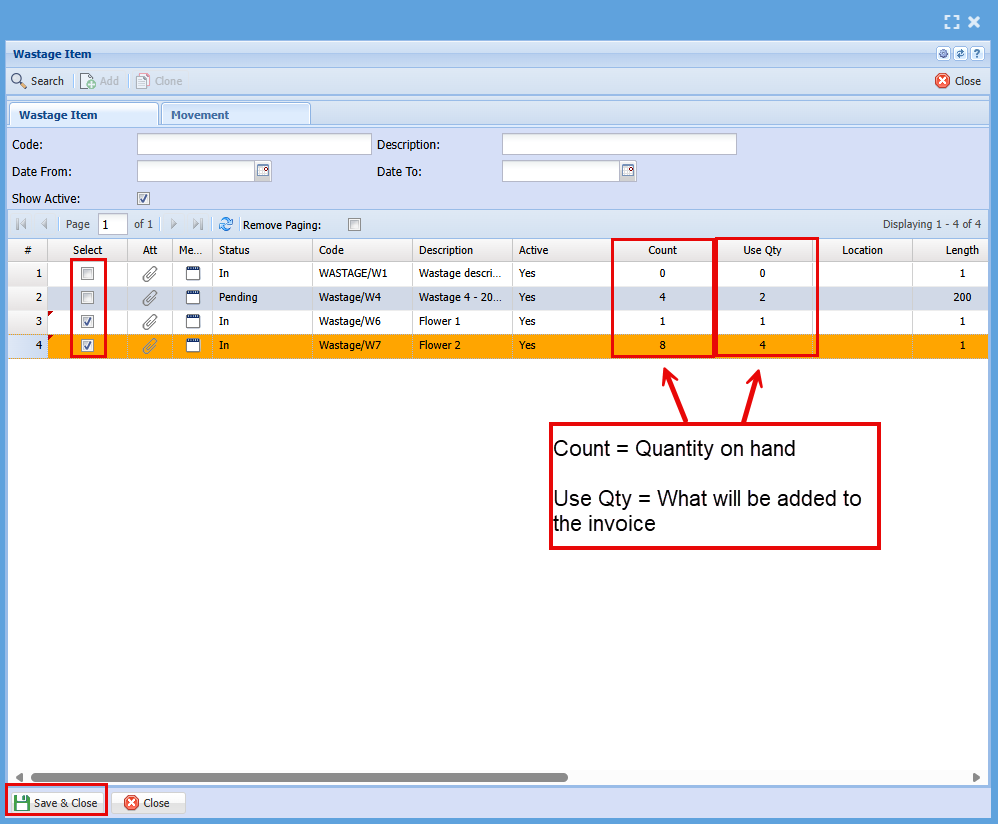
Select the item/Items you want to add to the invoice
You can manually change the quantity in the "Use Qty" column by clicking in the block and clickchanging the quantity you want to add to the invoice.
Click Save & Close,Close
Check your quantity change.ties up to the quantity of items you are adding to your invoice
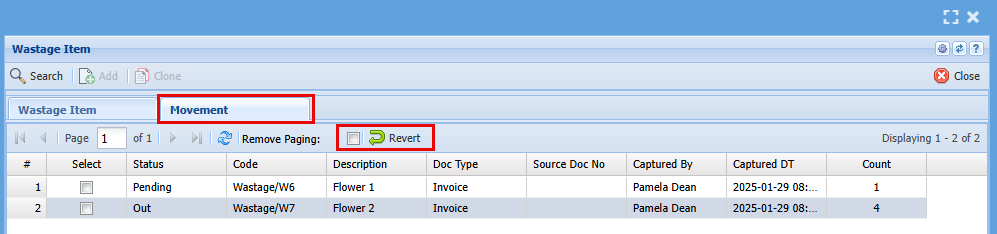
If you would like to see what was added to this invoice, click on the Movement tab
Here you can also remove any items by ticking the box of the specific item and then click Revert.
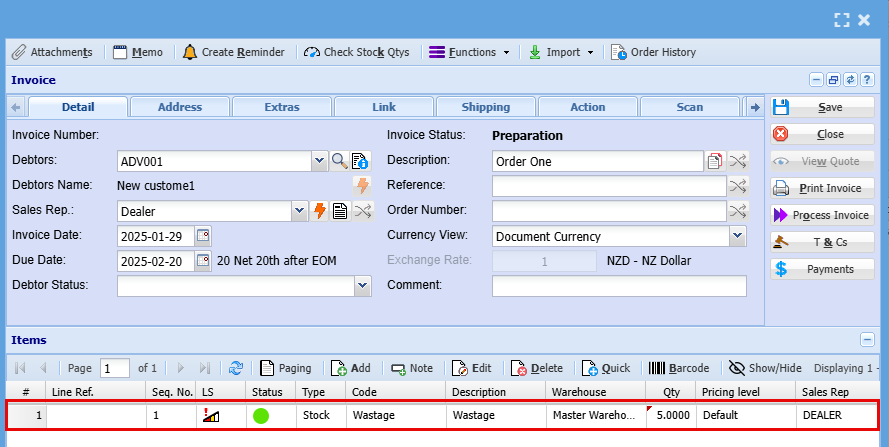
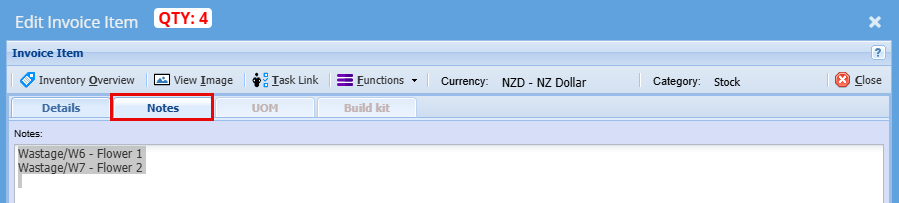
On your invoice you will see an item of wastage and a quantity however if you open the wastage item and go into the Notes tab, a description on the wastage item will be copied there.
Credit Notes
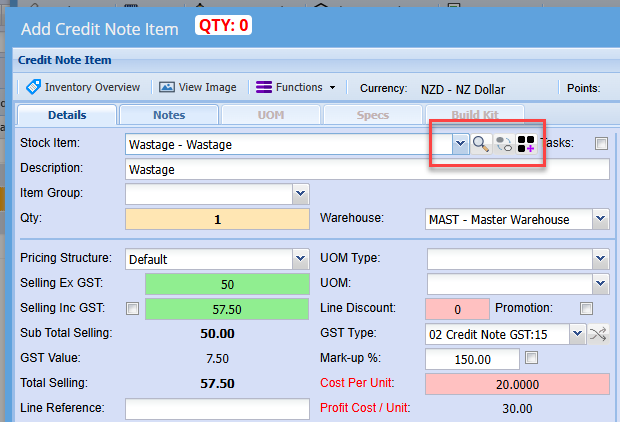
Credit note lines activated for Wastage in
Job lines SC and CTC
Manage wastage usage on jobs
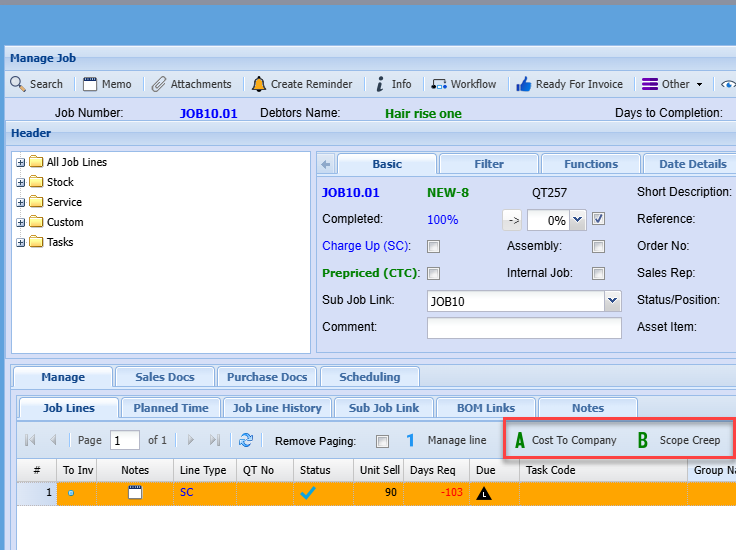
Adding a wastage line to a job
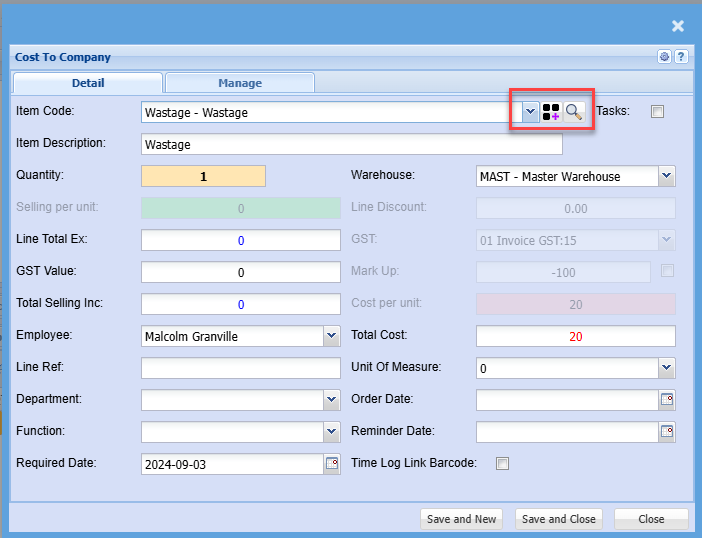
Selecting Wastage onto a document
When selecting wastage onto a document, wastage looks at all wastage marked as In.
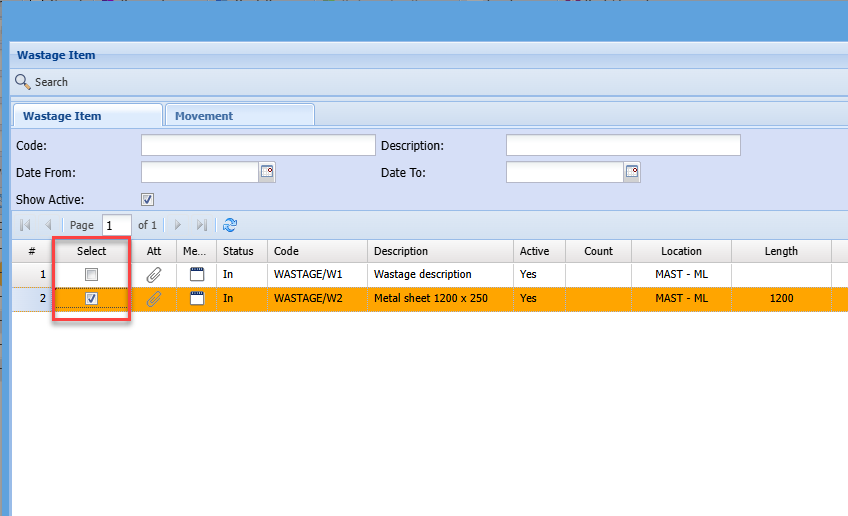
Select the wastage to be used.
On save and close, the wastage will automatically be assigned to the document or job.
The wastage item will be marked as Out and removed from list view.
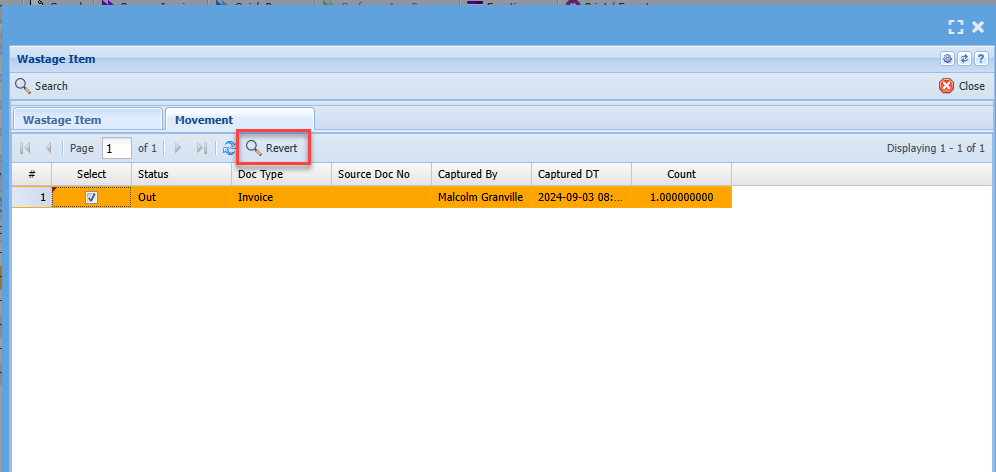
If wrong wastage item selected, then go to the movement tab to revert wastage back to In status.
Highlight the items to move back to In and click on Revert
Quantity of wastage will be updated to quantity on item line based on tick calculations
In the example below, Quantity and Ratio is ticked, this means that A x B will make up the quantity to line item.
Quantity to be updated would be 3 because A- 6 x B- 0.5 = 3
This allows for square meters or linear meters etc to be tracked
Future development
Wastage on quotes to set status to Pending
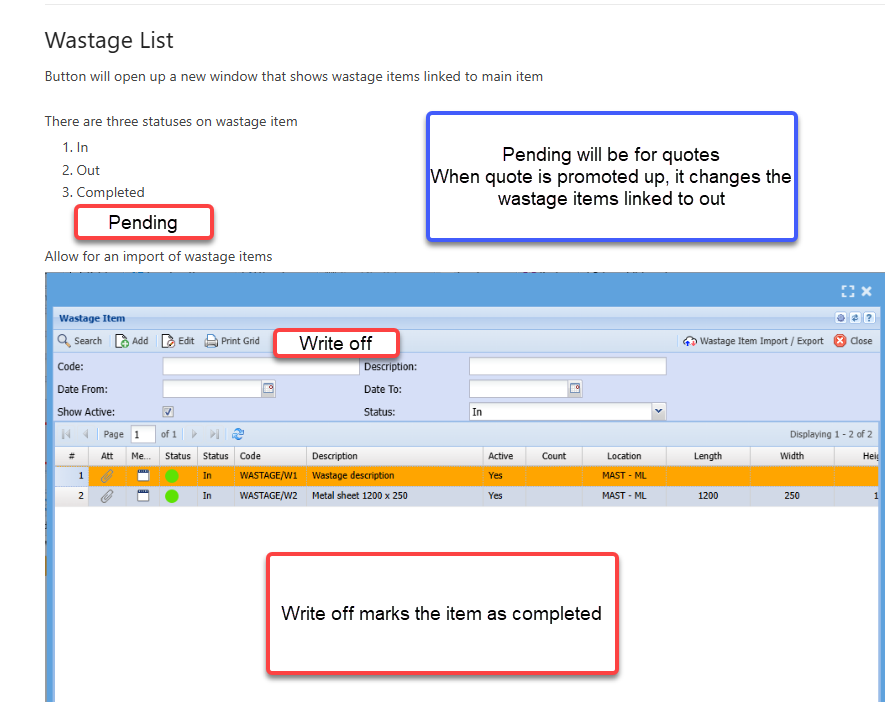
Search list for all wastage items