Wastage
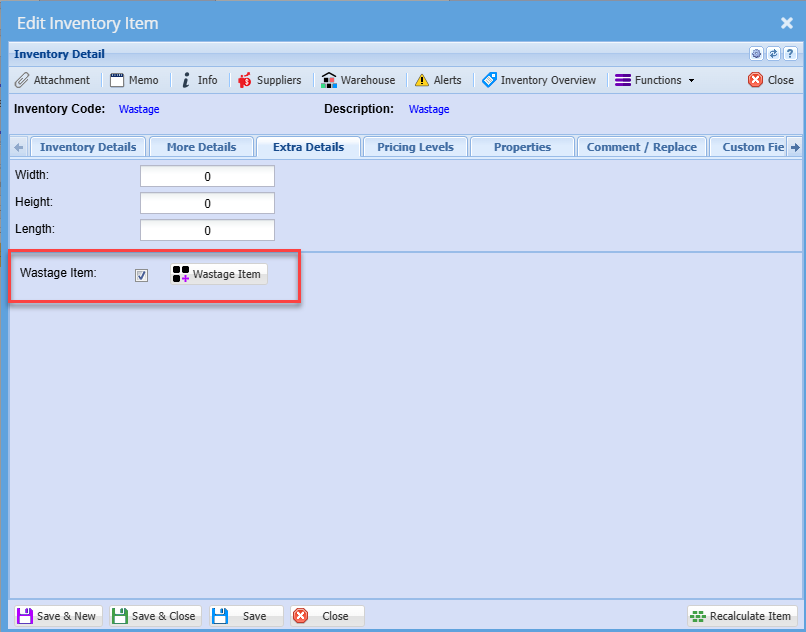
Track wastage items by creating a new wastage item and flagging it a wastage item.
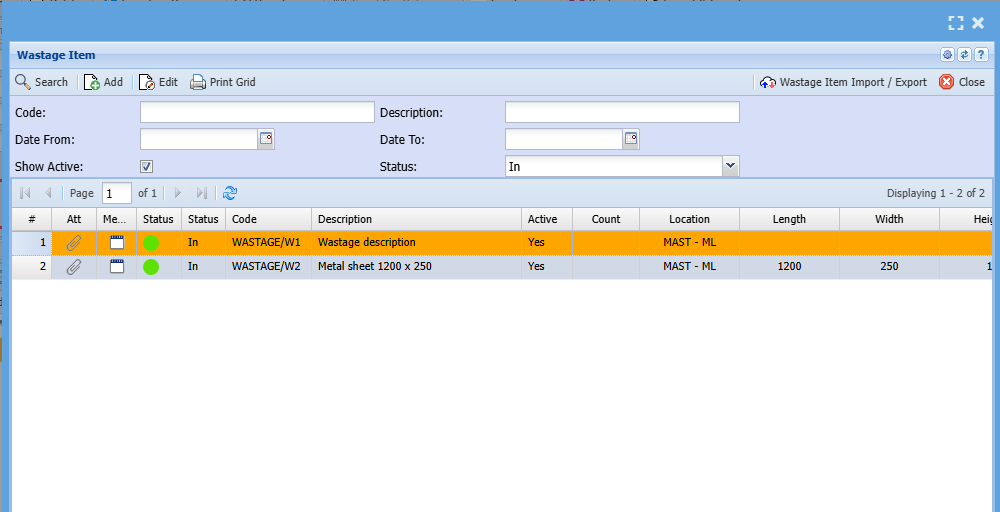
Wastage List
-
In
-
Out
-
Completed
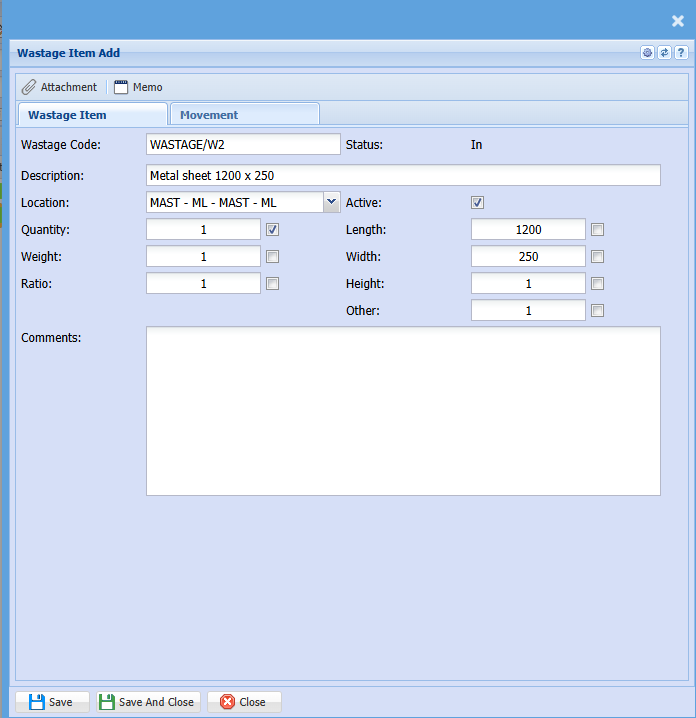
Adding a new wastage item
When adding a new wastage item, its status is In
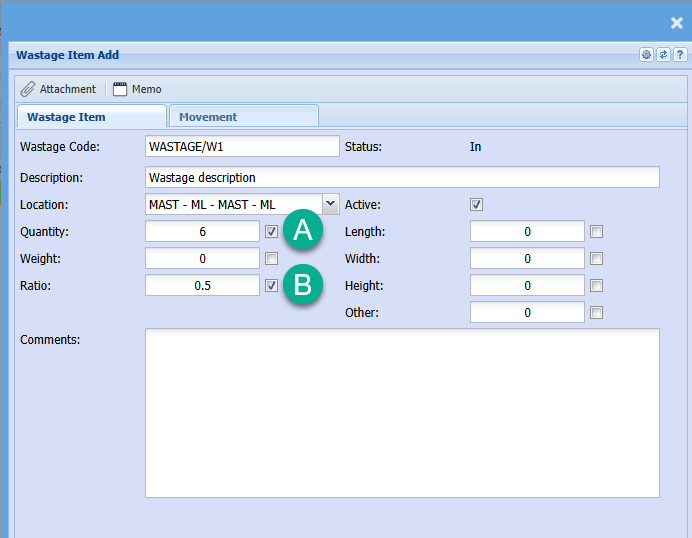
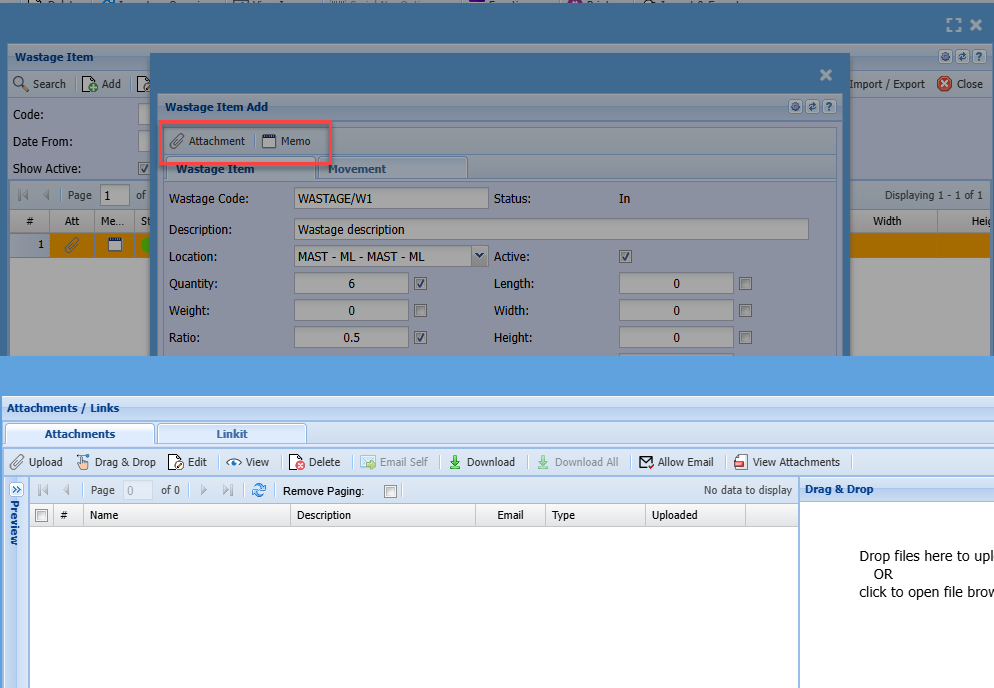
Tick boxes are used to calculate the quantity when moved onto a job or invoice.
The cost price and sell price comes from the main item that the wastage item is linked.
Photos and memo notes
Take photos of the wastage and make notes on wastage items
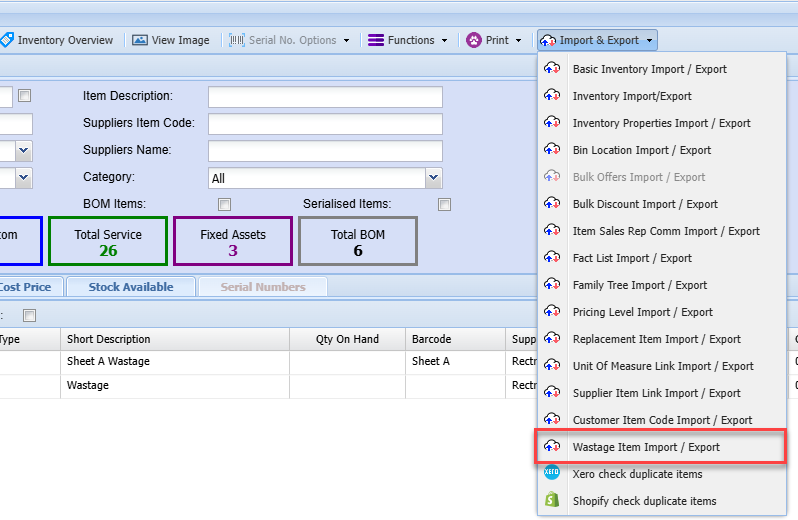
Wastage items import
Managing Wastage on documents
Wastage is managed on the following documents
- Invoice out
- Credit note in
- Manage job Scope Creep and Cost To Company - wastage out
- Item setup - manage new wastage items marked as in
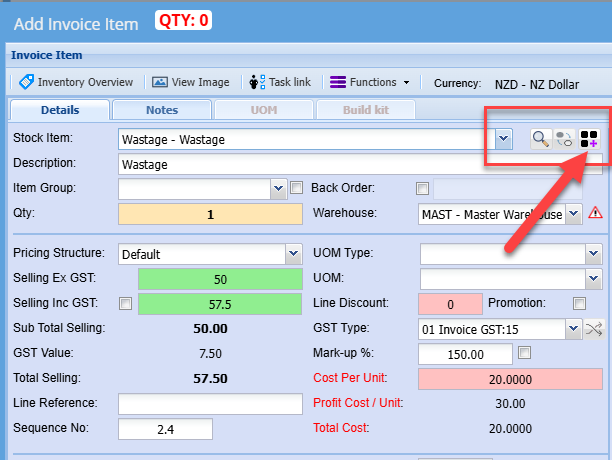
Invoice
Invoice lines activated for Wastage out
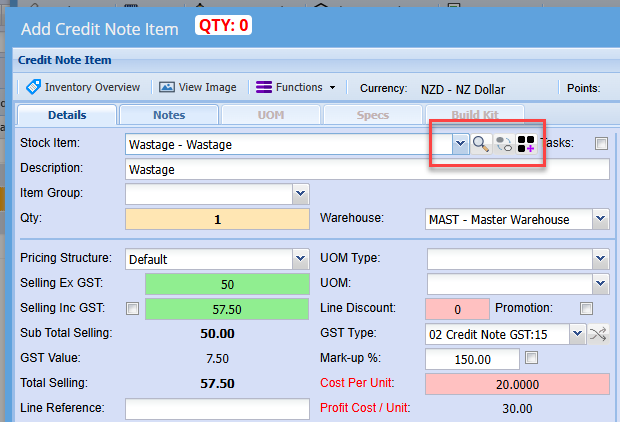
Credit Notes
Credit note lines activated for Wastage in
Job lines SC and CTC
Manage wastage usage on jobs
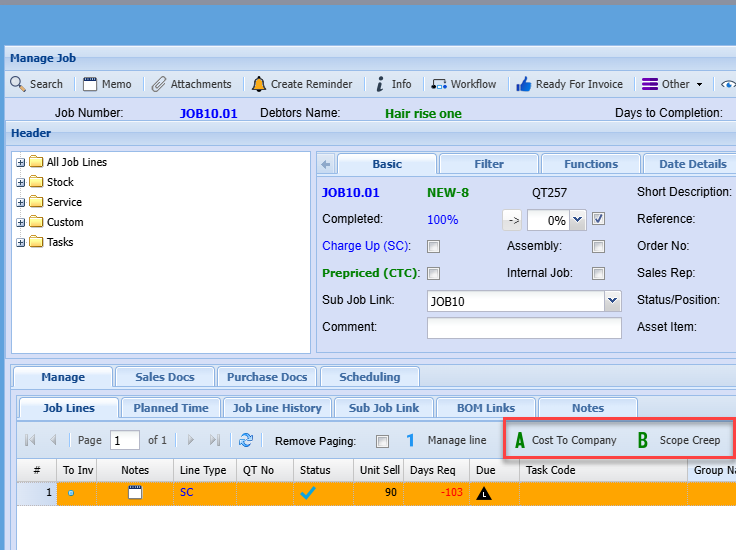
Adding a wastage line to a job
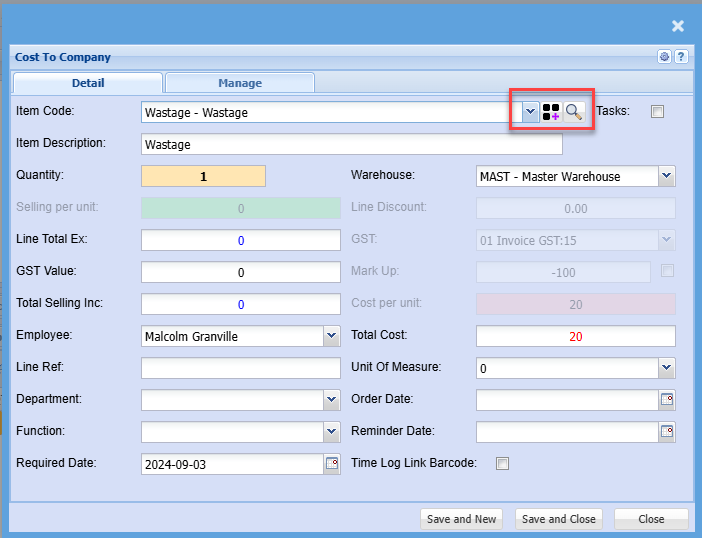
Selecting Wastage onto a document
When selecting wastage onto a document, wastage looks at all wastage marked as In.
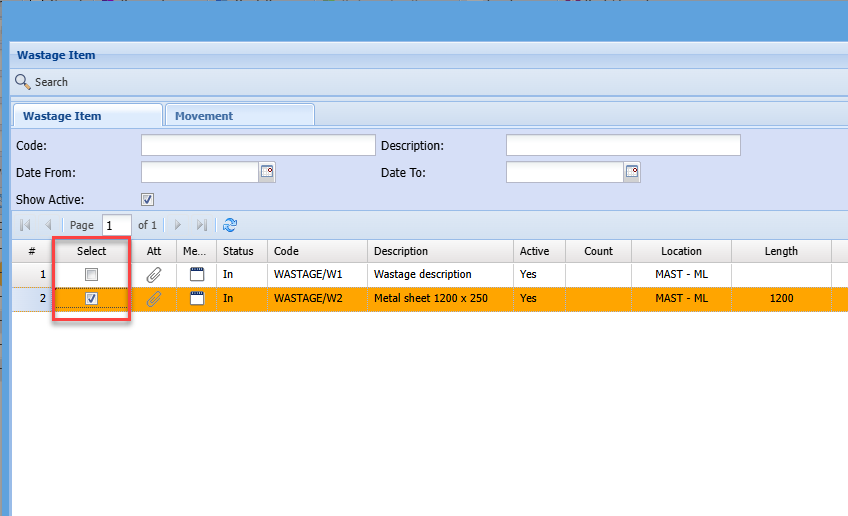
Select the wastage to be used.
On save and close, the wastage will automatically be assigned to the document or job.
The wastage item will be marked as Out and removed from list view.
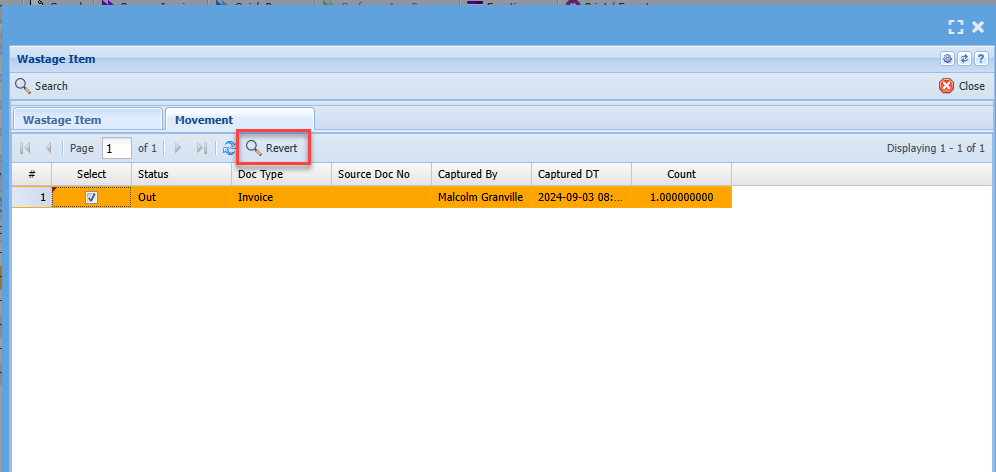
If wrong wastage item selected, then go to the movement tab to revert wastage back to In status.
Highlight the items to move back to In and click on Revert
Quantity of wastage will be updated to quantity on item line based on tick calculations
In the example below, Quantity and Ratio is ticked, this means that A x B will make up the quantity to line item.
Quantity to be updated would be 3 because A- 6 x B- 0.5 = 3
This allows for square meters or linear meters etc to be tracked