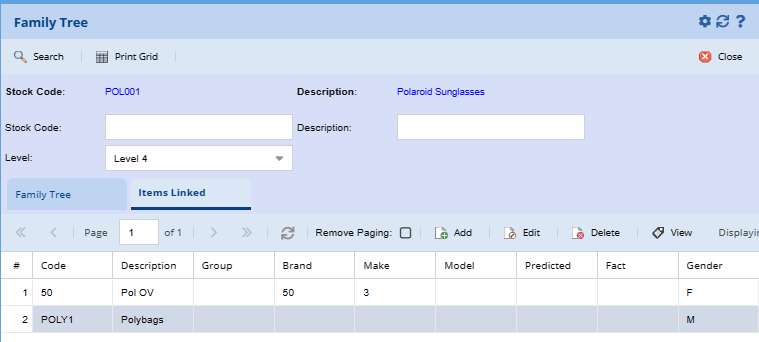
Inventory Functions Drop Down
Linked Items
Inventory Module> Configuration> Inventory Setup> Properties Tab
The primary functionality of this feature is to establish links between items. UsersYou can connect related items, creating a web of relationships within the system. This is particularly beneficial when dealing with interconnected data that requires hierarchical structuring.
To do this you need to go to inventory item setup, and select an item you want to link items to.
Go to properties then linked items.
Select the item you want to link on the drop-down then click save. You can link as many as you want.
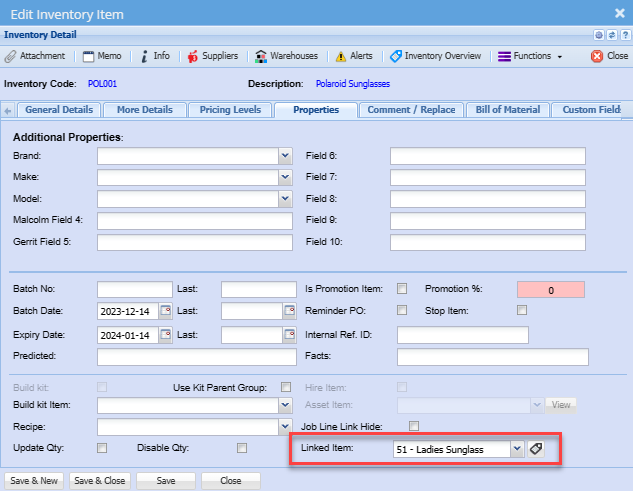
To utilize the Linked Items Hierarchy feature, follow these steps:
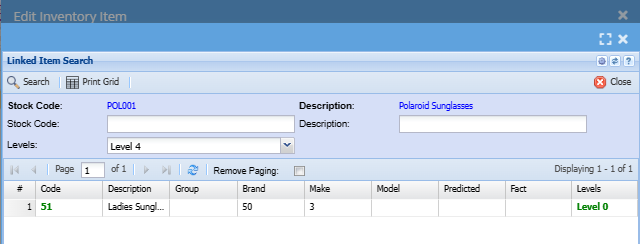
This will lead you to the dedicated section where you can view the linked items and the hierarchical relationships between them.
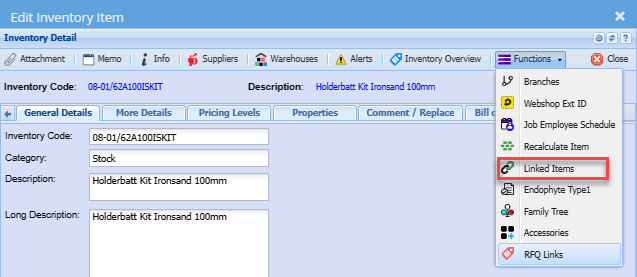
The primary functionality of this feature is to establish links between items. Users can connect related items, creating a web of relationships within the system. This is particularly beneficial when dealing with interconnected data that requires hierarchical structuring.
Endophyte Type1
The Fact List Management feature in HugeERPHuge ERP provides usersyou with the ability to organize and customize fact lists, offering a flexible solution for managing information associated with products. This feature allows usersyou to easily modify and tailor fact lists based on their specific needs.
To add facts to fact groups:
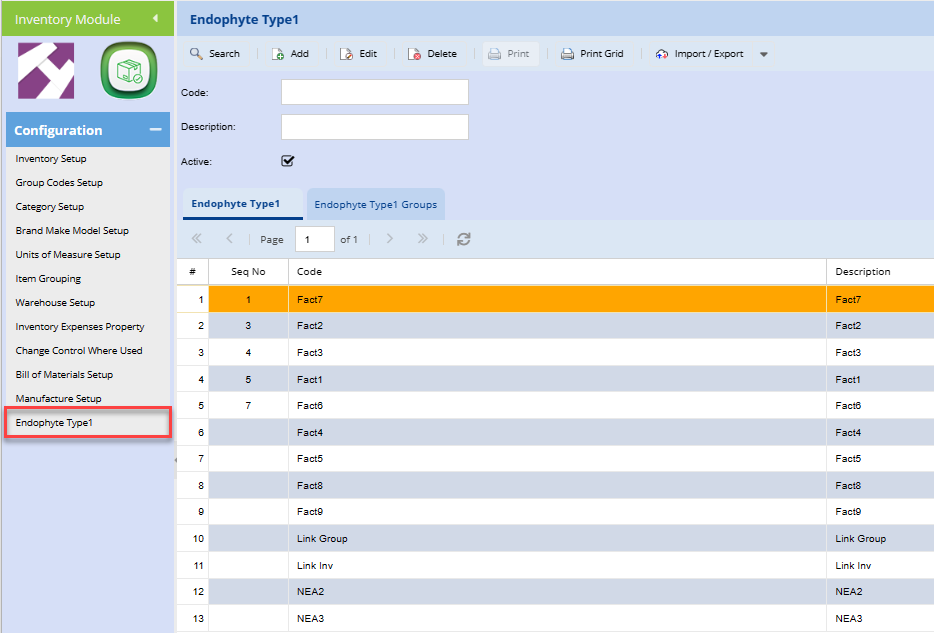
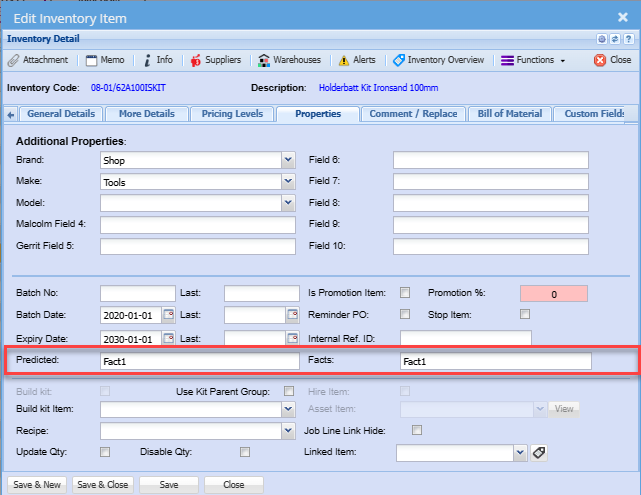
To access Endophyte Type1/ Fact list:
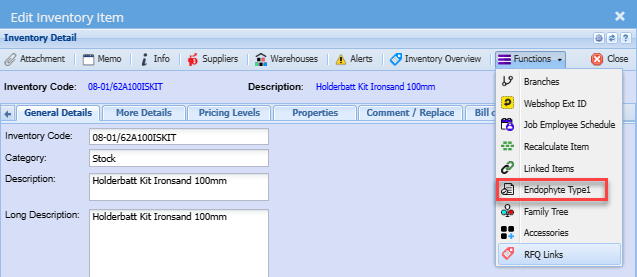
The system processes the information and dynamically categorizes it under "Predicted"Predicted and "Facts."
Access the details to view short information about the marked facts.
The Fact List and Fact Groups Management feature in HugeERP enhances the efficiency of inventory setup by allowing users to create fact groups and add multiple facts seamlessly.
Family Tree
The Family Tree Management feature in HugeERPHuge ERP offers a specialized solution for seed biology, allowing users to create and manage intricate relationships among different items.
Inventory Module > Configuration> Item Setup> Functions Drop Down> Family Tree
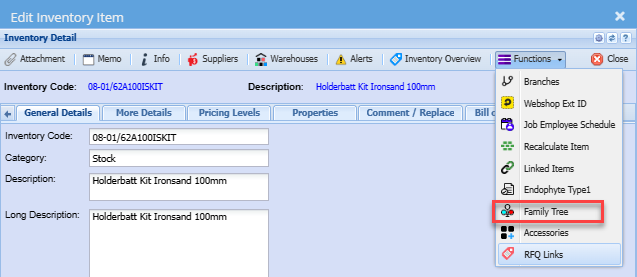
When creating a family tree item, usersyou have the option to specify whether it is male or female. This is crucial for seed biology, enabling usersyou to replicate the natural processes of seed propagation and lineage tracking.
The family tree structure allows users to create multiple levels of relationships.