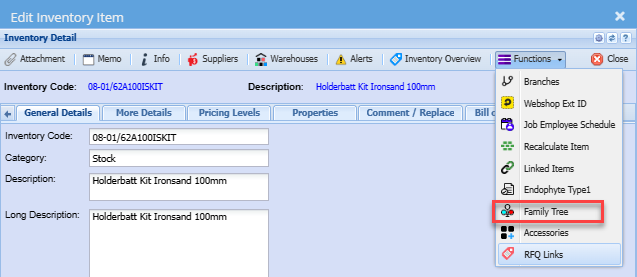
Inventory Functions Drop Down
Linked Items
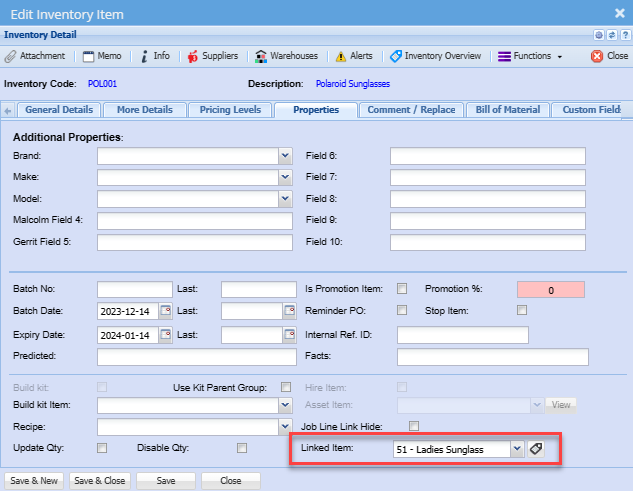
Inventory Module> Configuration> Inventory Setup> Properties Tab
So you can say that this item is actually linked to another item.
And what this does is it it it creates a hierarchy of list of the items, again very specific to something lays linked items.
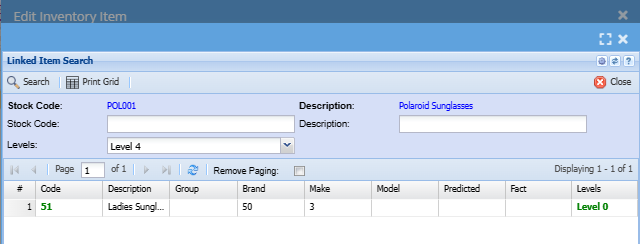
To see linked items or a hierachy click on Linked Items under functions drop down
So if I click on this item, it'll show all the items linked to it and I can go into that item and it it'll if I've got another link to another item, it'll create another level and another level and another level and I'll create all the levels for you.
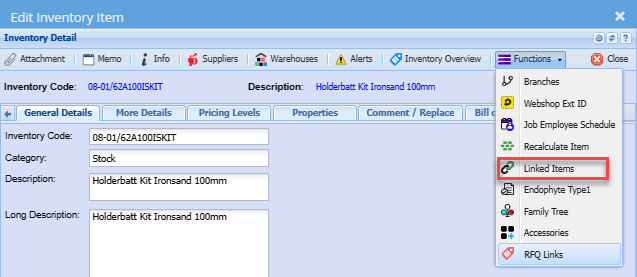
So if I click on this item, it'll show all the items linked to it and I can go into that item and it it'll if I've got another link to another item, it'll create another level and another level and another level and I'll create all the levels for you.
So in some cases it's relevant, but maybe a person wants to know that this item is linked to a whole lot of other items and creates like a like a hierarchy of links.
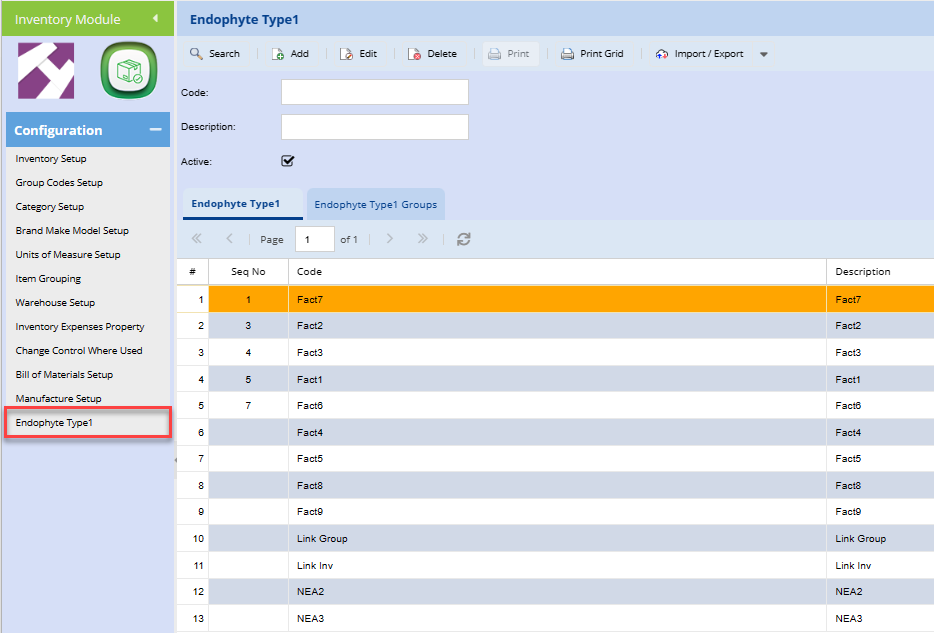
Endophyte Type1
you go under functions over here and you go to Fact list, in actual fact this this is the this is the fact list over here on the left, but it's been populated with the name change.
OK, and you can come in here and and say let's call it fact one.
So fact about product.
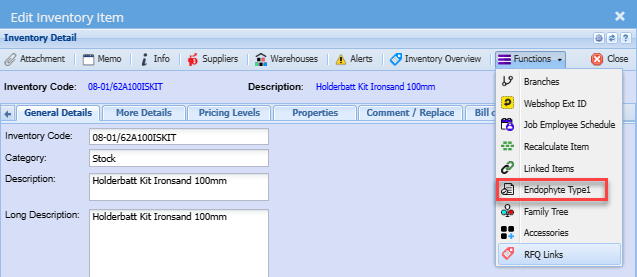
To see a list of facts go to functions drop down then select Endophyte Type 1
I can also create fact groups, which means that sometimes I want a whole lot of facts to be just groups.
So instead of me adding 111111, I can just pull a grouping and it will just Add all of these sub ones.
So we go back to the inventory set up stock here and I come here to effect list.
I can then go and add and I can go and choose that fact and I can say it's predicted or fact and put a value in comments etceteraPut that information in and I can go and add another one in.
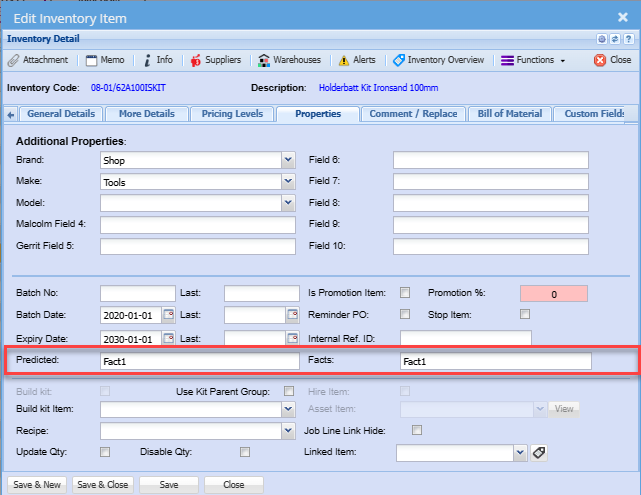
But what it will now do is if I click save here and I open this up, it will actually under process its find it, see this predicted in facts.
If I mark one of these as predicted and let's say in fact and just the one is fact, close that and close reopen it and you see it'll it'll then put the the information in about that.
So it's just telling you what the the short information is on that and it's on the grid as well.
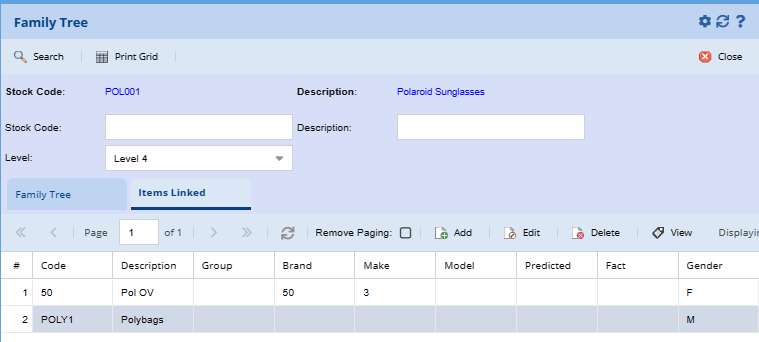
Family Tree