Cloning an Inventory Item (Basic)
When creating a new inventory item that is similar to an existing one, it’s often easier to clone the current item and then make the small adjustments needed to ensure the new item is unique.
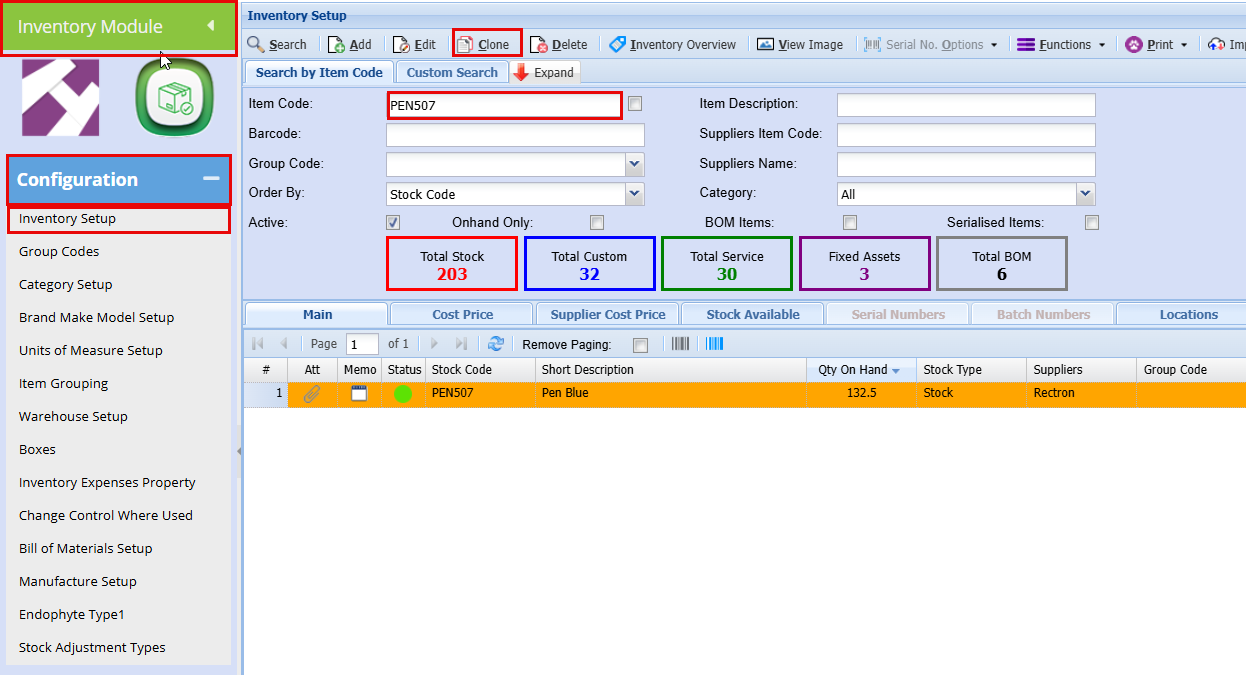
Inventory Module > Configuration > Inventory Setup
- Search for the inventory item you are wanting to clone
- Click on "Clone"
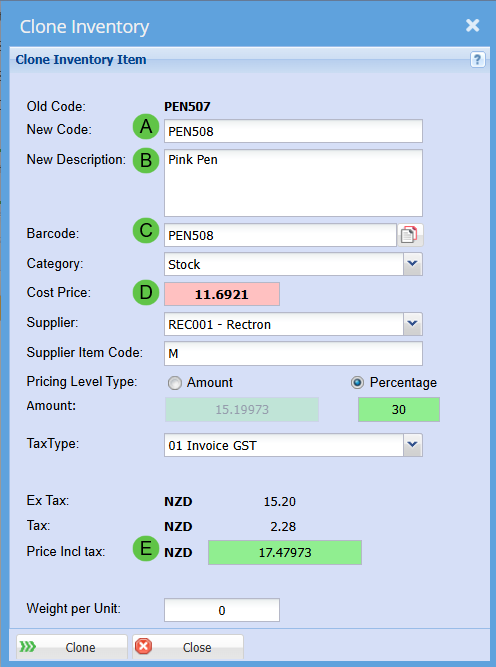
A new window will open to show
- Update A - E as shown below as needed
- Click "Clone"
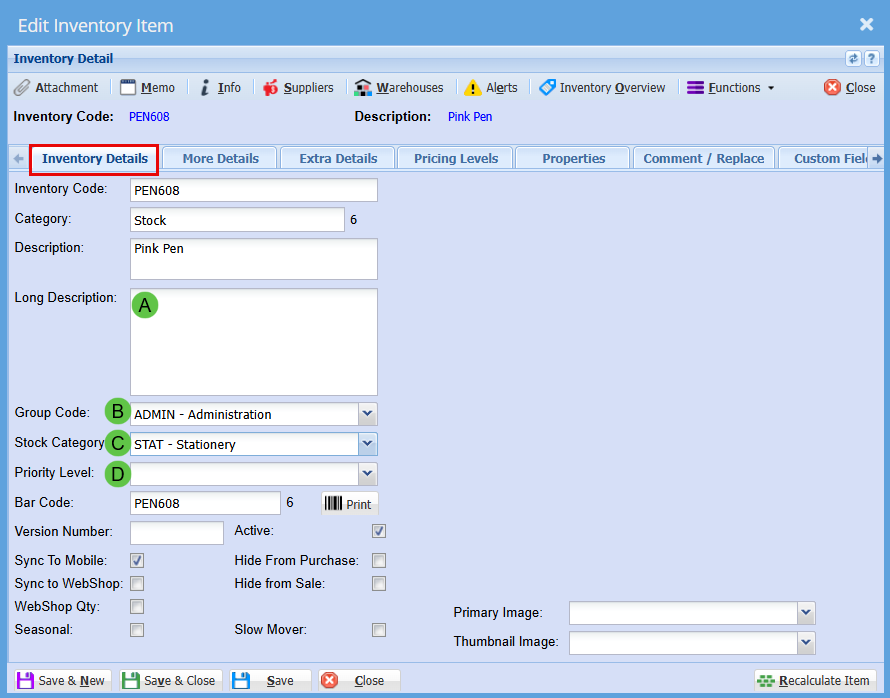
Update Inventory Description
Inventory Module > Configuration > Inventory Setup
Double-click on the item and go to the “Inventory Details” tab.
Update A-D
Updating the Default Supplier
Inventory Module > Configuration > Inventory Setup
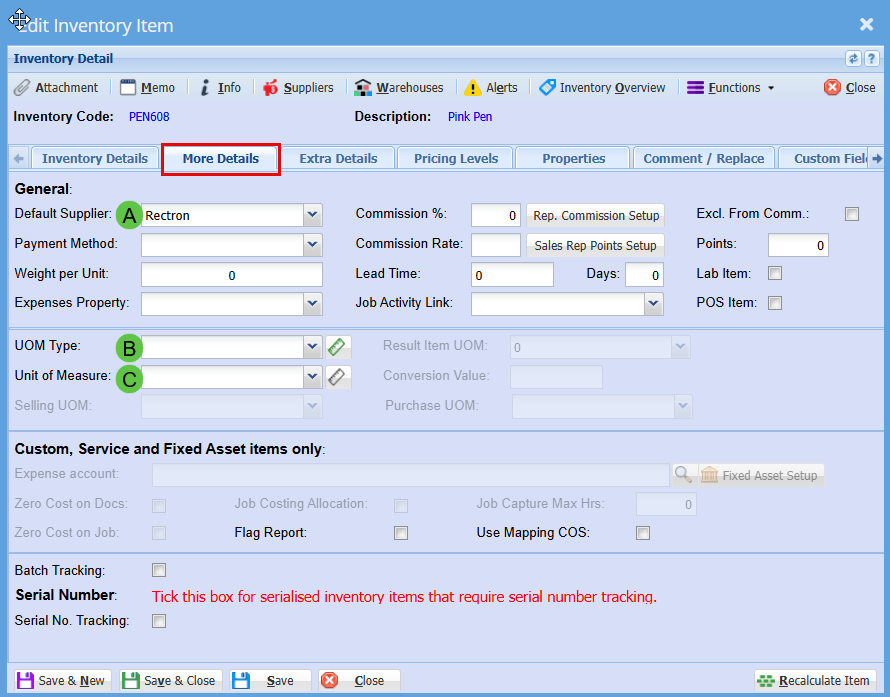
Double-click on the item and go to the “More Details” tab.
- If you need to update details such as the Unit of Measure or Unit of Measure Type, this is where those changes should be made.
- Update your Default Supplier
Inventory Label Description
Inventory Module > Configuration > Inventory Setup
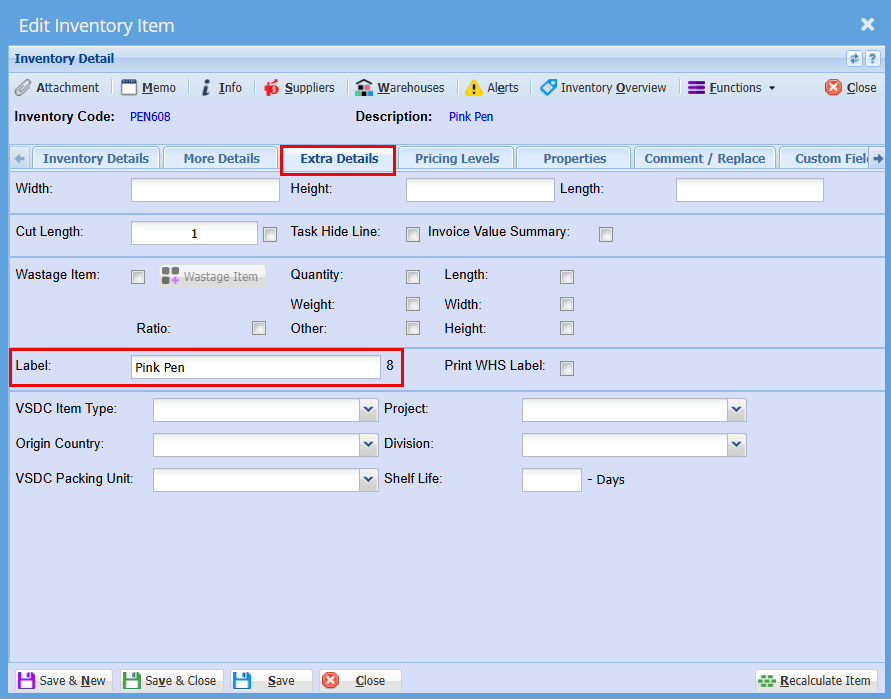
Double-click on the item and go to the “Extra Details” tab.
Update the "Label" Field with what you would like your label to say
Depending on the size of your font you may need to keep this description short by using abbreviations
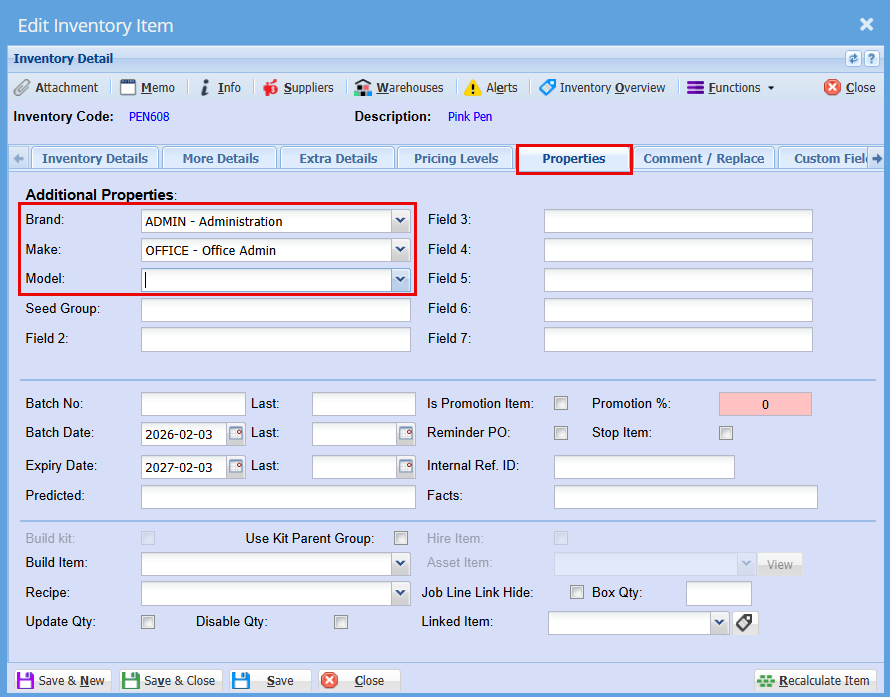
Brand, Make and Model
Inventory Module > Configuration > Inventory Setup
Double-click on the item and go to the “Extra Details” tab.
From the drop-down manus, select your Brand, Make and Model
Click "Save & Close"