
Standard Drop Down
Standard Drop Down
Debtors Module> Configuration> Debtors Setup >Edit Debtor> Standard
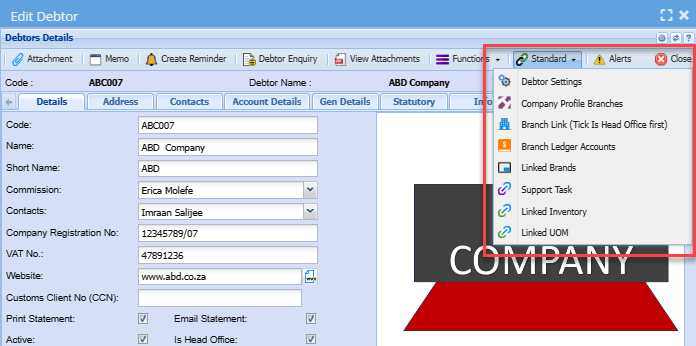
| Debtor Settings | Allows a user to tick a tick to suppress the autoload of allocations line on GL cash book |
| Company Profile Branches | Allows you to select branches to be attached to the debtor/ customer |
| Branch Link (Tick Is Head Office First) | Allows you to group debtors/ customers under their head office company |
| Branch Ledger Accounts | Allows you to manage branch setup |
| Linked Brands | Allows you to link brands to a debtor/ customer |
| Support Task | Allows you to link support tasks to a debtor/ customer |
| Linked Inventory | Allows you to link inventory items to a debtor/ customer |
| Linked UOM | Allows you to link Unit of measure to a debtor/ customer |
Debtor Settings
Company Profile Branches
Debtor Branches Help
Debtors module> Configuration> Standard Button
This part shows debtors branches.
Select which items the customer has access to see by moving the branch from the left column to the right column.
| Add Branch Button | used to move the branch from the left column to the right column. |
| Delete Branch | removes branch from the right column to the left column |
.png)
Branch Link (Tick Is Head Office First)
Debtors module> Configuration> Debtors Setup
Tick on denotes - Head office
Links Branches to the head office
.png)
Branch Ledger Accounts
It’s where debtor’s internal branches are setup for movement of transactions.
| Branch | select a branch |
| Is a Branch | if it’s a branch the box will be ticked |
| Sales Account | Sales account and Cost of Sales account should be selected for the movement of transaction between the branches |
.png)