
Recurring Debtors Invoice Setup
The recurring setup consists of 3 steps
- 1. Create contract
- 2. Create invoice template
- 3. Apply to debtor
1. Creating the contract
Go to system configuration > general menu group > recurring transactions
Enter code
Enter a description
long description can be the same as description but has functionality for additional info.
Select the date you wish the monthly invoice to be created or generated on.
This can be either on the last day/first day or on a specific day of the month
Enter the number of invoices to be created. This is typically the terms of the Contract
Transaction Period Setup
Select the relevant option for the recurring invoice to be generated.
This can either be:
On the 1st or last day of each month
On a specific date of the month
Or a specified number of invoices per week, month or year
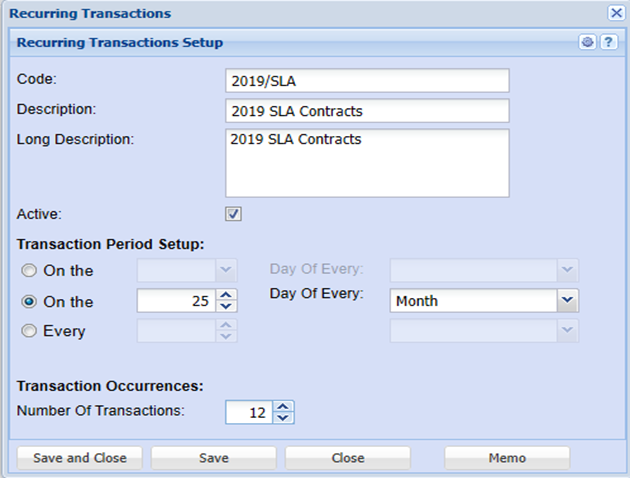
Enter the number of invoices to be created. (usually the contract term, eg. 6. 12, 24
Once These details are entered, Click Save .
This Concludes step number
2. Creating Invoice Template
The Next step will be to Create an invoice template
In order to do this, one needs to capture the invoice to begin with
Capture the invoice as follows:
Debtors Module> Activity> Invoices
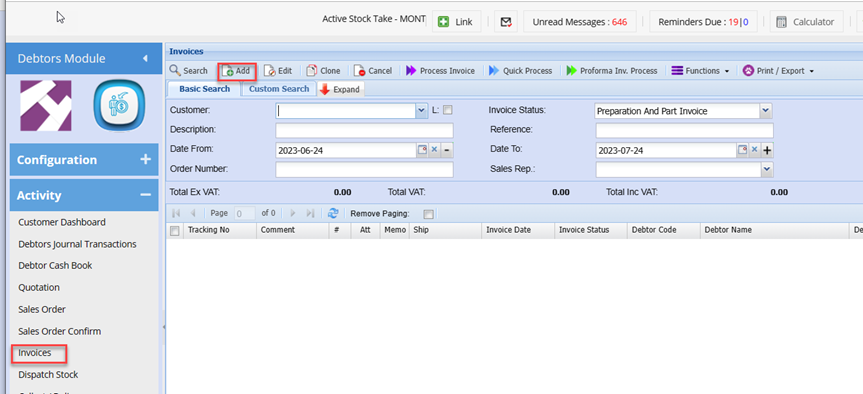
Capture the invoice as normal
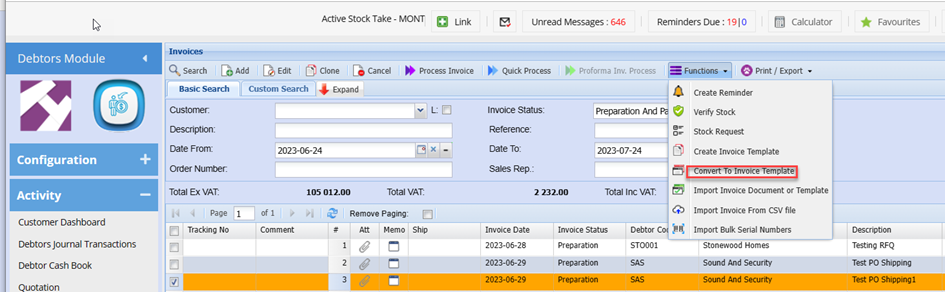
Once the invoice detail has been captured and saved, click the extra Drop Down
Select Convert to invoice template
Enter the code for your template
Enter the description for your template.
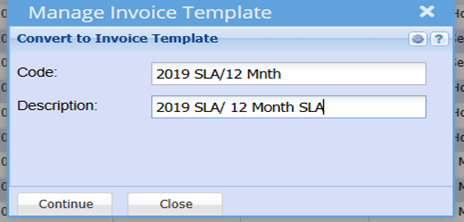
Click continue
This now complete the creation for your invoice Template
3. Apply the contract to the respective Debtor
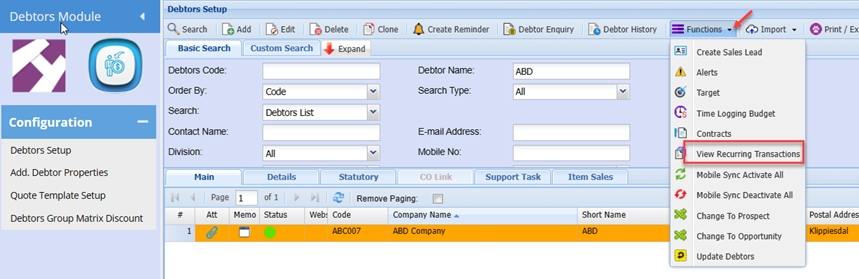
Debtors module> Configuration>Debtors Setup
Search and Highlight the debtor you want to apply the recurring contract to.
Click on Extras Dropdown arrow > View Recurring Transactions
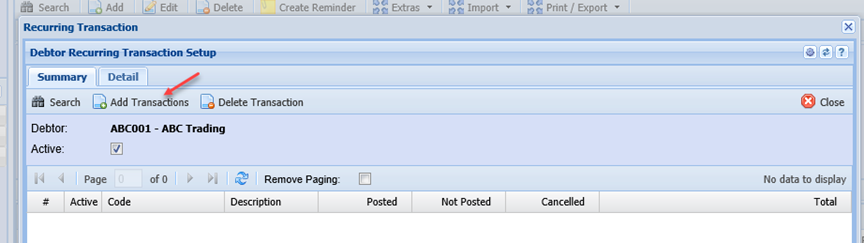
Click on add transactions
Select the recurring transaction you wish to set up
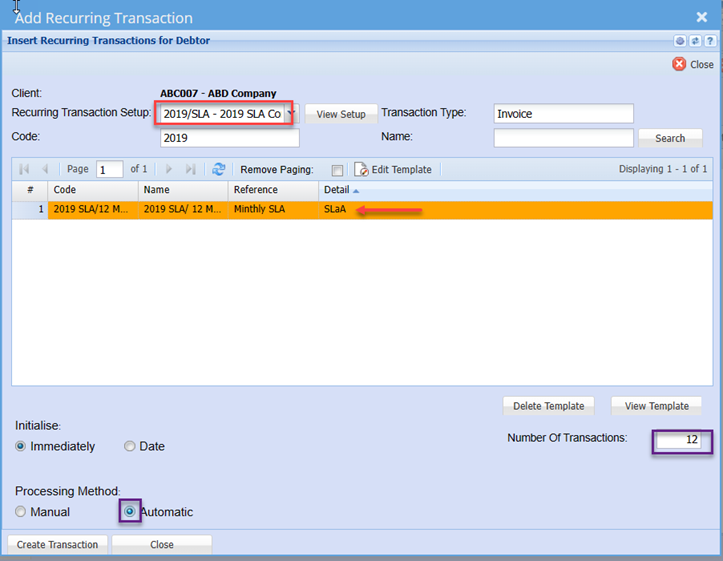
Select the Recurring Transaction Setup: This is the Recurring Contract description you created in step 1 above.
Select the Transaction Type: this will typically be Invoice
Select the required invoice template.
This is the template created in step 2 above.
Enter the code or description and click Search
Click once on the template on the grid to select. (will be highlighted in Orange)
Leave the Initialise setting on immediately
Select whether you wish the monthly invoice to be processed Manually or automatically
Automatic processing will result in the invoice automatically processing and no edits will be able to be made.
Selecting manual processing will result in the monthly recurring invoice status to be changed from recurring status to preparation status automatically on the date the invoice is to be generated each month.
You can then still make changes if required before processing the invoice manually.
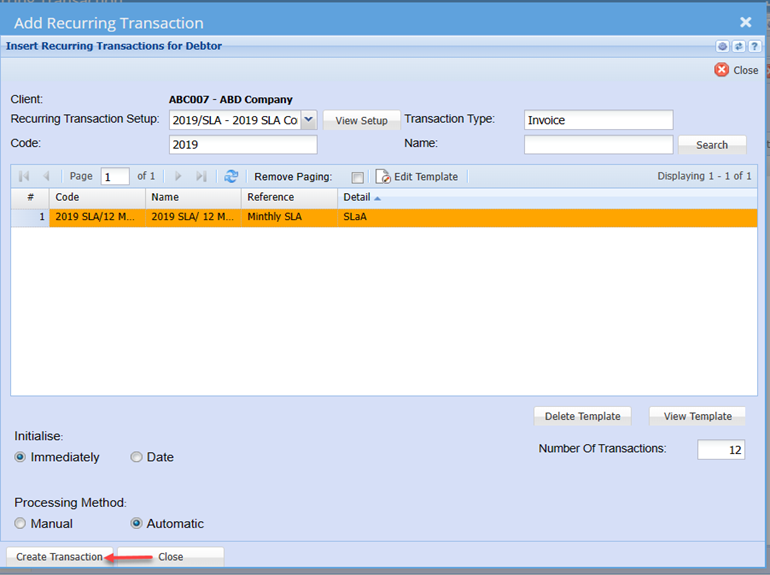
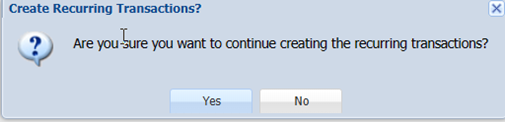
Once the above selections have been entered, click the Create Transactions Button
Then Click Yes
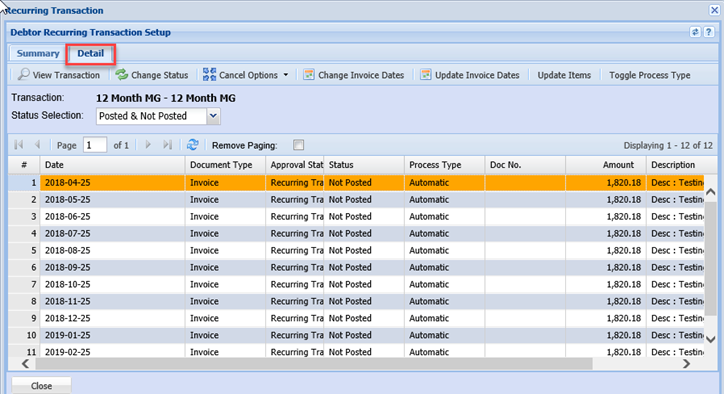
Click on the Detail tab to see all invoice created
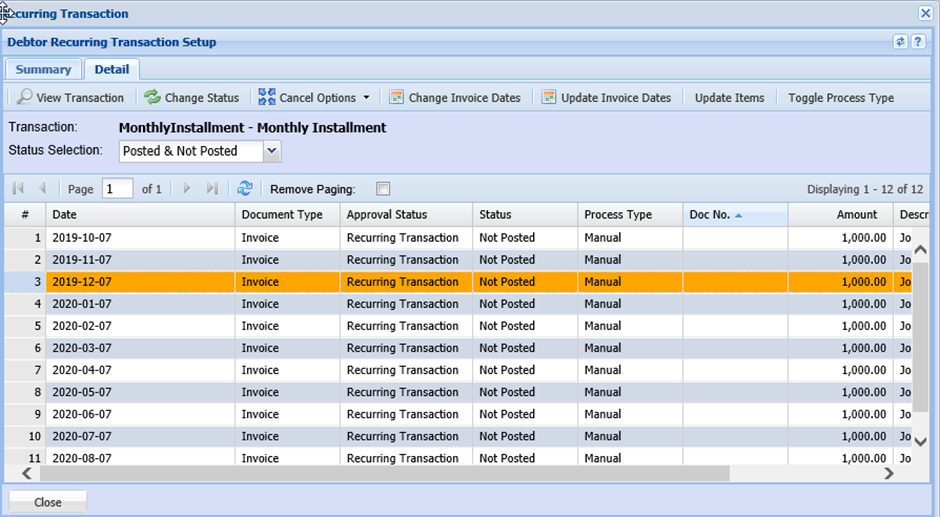
To Apply Automatic Increases (Escalation)
In the event where the recurring contract stipulates an annual increase or needs to be amended, you will then click on the invoice where the amendment needs to start from and edit the invoice detail or value
Double Click to Open the Invoice line
Amend the prices and or details.
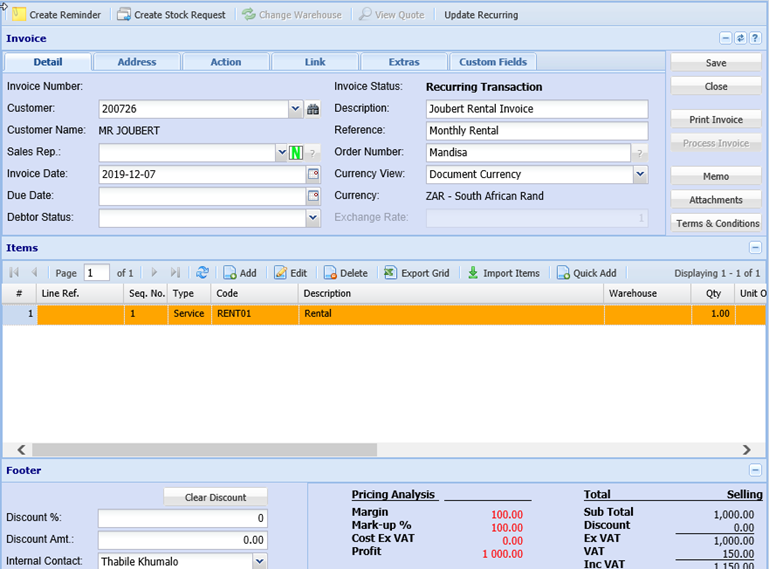
Once the invoice has been adjusted as required, Click Save
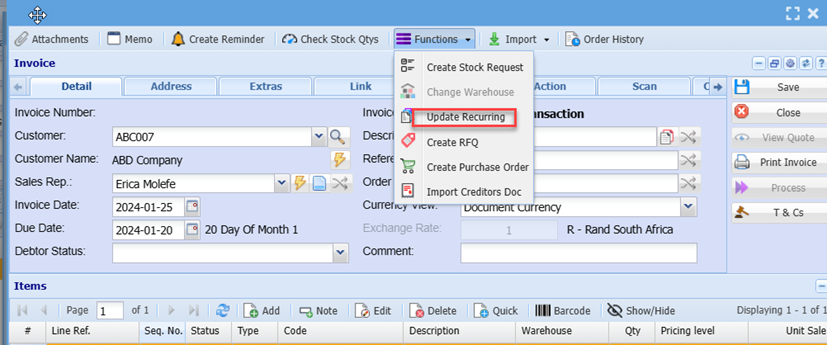
Click on the Functions Dropdown
Click Update Recurring
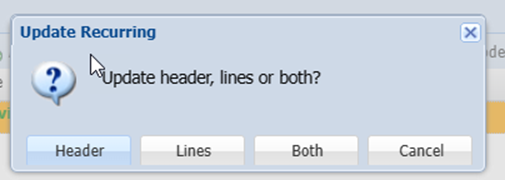
The below window will be displayed, where you can opt to update either the Invoice Header information or the Invoice Iine detail.
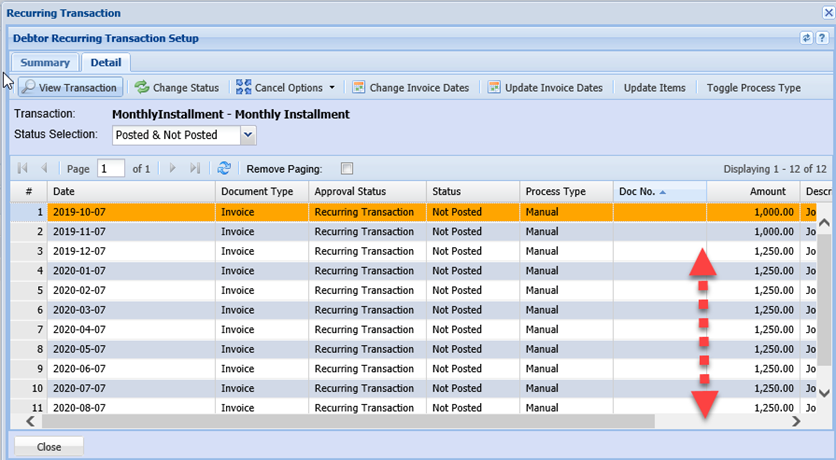
The subsequent invoices will then be adjusted accordingly.
