Debtors Group Discount Matrix Setup
To setup a discount structure for specific debtors by product brand, you can use the Debtor discount Matrix.
This can be setup per specific product group or various product groups that make up a product Brand
Example:
The brand may be: Matrix
And Matrix may then have various groups such as: Perms, Color Sync, Haircare
You can setup the discount Matrix on either on group level or on the entire brand
To set this up:
Setting up the Discount structure: Go to Debtors Module > Configuration> Debtors Group Matrix Discount Select the next Group Code and the required percentage discount Continue until all the discounts have been added for that specific brand Groups Note: If you have an instance where multiple customers receive the same discount structure, you need only setup the matrix once and apply the same discount matrix to the various customer. You may wish to rename the matric description though: Eg. VIP clients instead of a specific customer name. Click Add to add another matrix which will be for a different customer at different discount percentages, or different product groups Select the Required Group codes and enter the respective discount percentage Continue in a similar manner you did above until all the required group codes have been entered with the discount.1.
1
Setup the various discount structures
2.
2
Apply the discount Matrix to the Debtor
Click Add
1.
EnterDebtor/Customer
aGroup code and description for the discount Matrix2. 1Click Save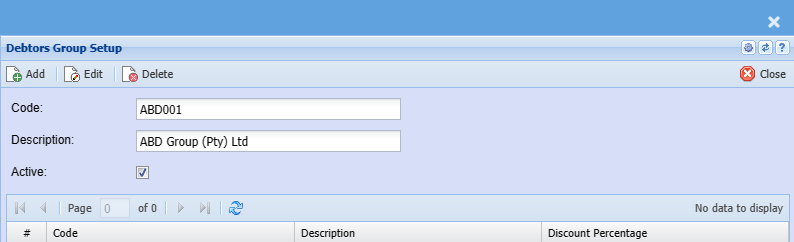
3. Click Add on the same screen
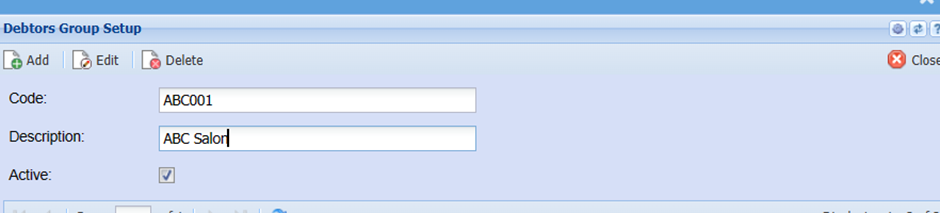
Note: theThe description of the discount matrix is not necessarily the product brand. It is ideally the debtordebtor/ customer name. so if you need to edit the discounts at a later date,stage, it is easy to identify the specific matrix you wish to edit.
Code
Enter a code for discount matrix
Description
Enter description for the discount matrix
Active
Put the tick to activate the discount matrix
Item Group Setup
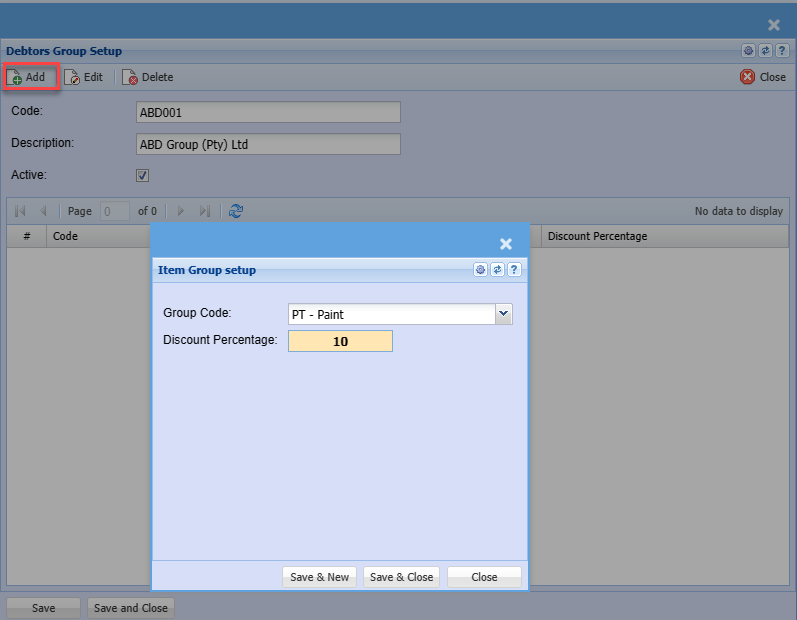
Group Code
Select the required Group code
Discount Percentage
Enter the discount percentage
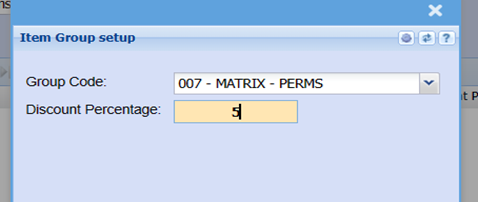
Clickadding Savemultiple anditem New
Click Save and NewyouYou do not have to select the groups that do not have a discount. The system will apply the default prices for these products.ClickBy Savethe andtime CloseYouare done, you should now have all the product groups you added a discount for listed in the grid with the respective discount percentage.
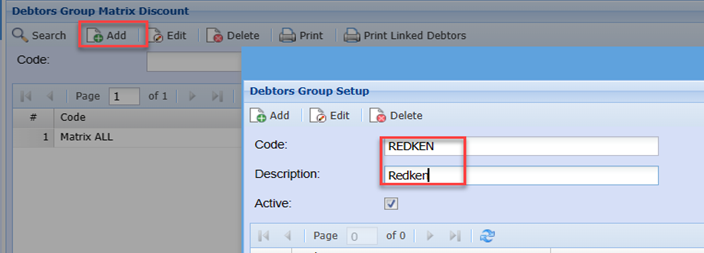
Click Save at the bottom of the screen
Then click Add on the same screen
Click
save and Close
Applying the Matrix to the debtor
Go to Debtors Module > Configuration> Debtor setup
Search for the required debtor
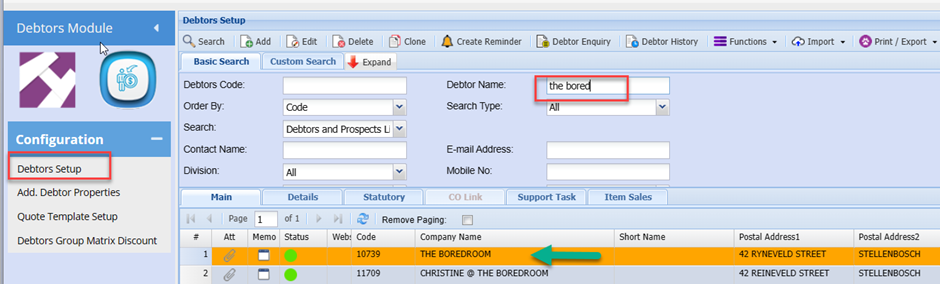
Double Double-click the line on the grid to edit the debtor setup
Click the Accounts Tab
Select the requirerequired discount Matrix from the drop down
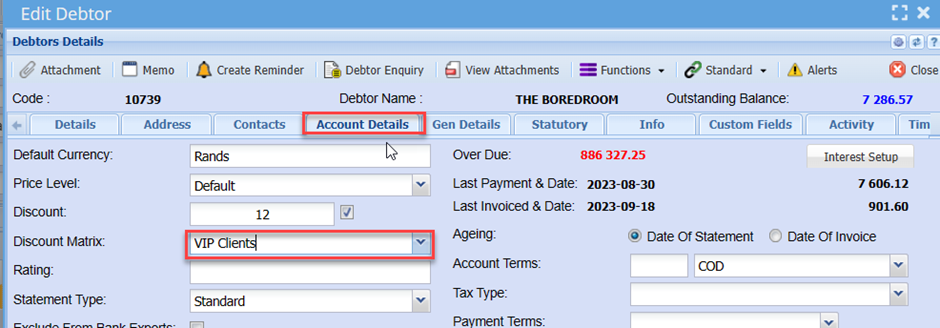
Click Save and Close
Search any other debtor you wishto apply the discount Matrix to and apply in the same manner.
This will conclude the discount Matrix setup.
Any new invoice done for thesethe clientsdebtor/ customer where you added a discount matrix for, will now automatically pull through the respective discounts for the product groups added on the matrix.
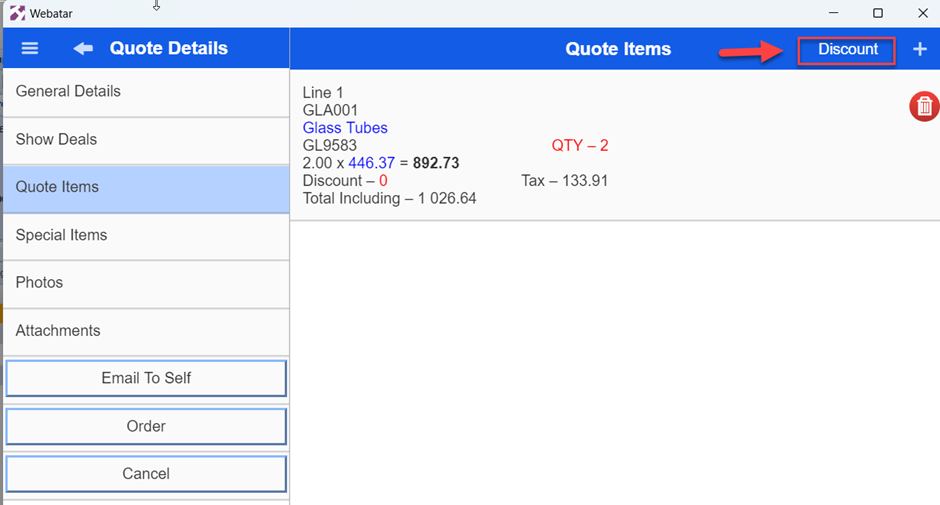
After the setup is compete,complete, request the sales consultants to sync the Webatar Mobile app so that the discounts are available on the APP. This way, when they do order for these clients, the discounts will also pull through automatically.
FNote: foror the discount matrix to pull through from order done by the sales consultants on the APP, they will have to press the “Discount “ Button on their devices before syncing the orders to the main system.