Debtors Additional Properties
The system caters for categorization of master data as well as transactions.
The Additional properties are used for these categorizations.
There are a number of fields in the system that can be used for categorization purposes such as Division, Region, Category, Billing group, etc.
The categories are Company specific as such can be defined by your company.
Should you wish to use these properties, you will need to first decide on t whether you need to use a single category or multiple categories
Once you have decided how many levels of categorization you require, you will then choose which of the properties best suite your requirement.
Eg: if you have different branches, you could use Division as a means to distinguish transaction from one branch versus another
Or if you wish to differentiate your Clients by account terms, you could use billing Group Property
These are setup on :
Debtors Module> Configuration> Add Debtor Properties

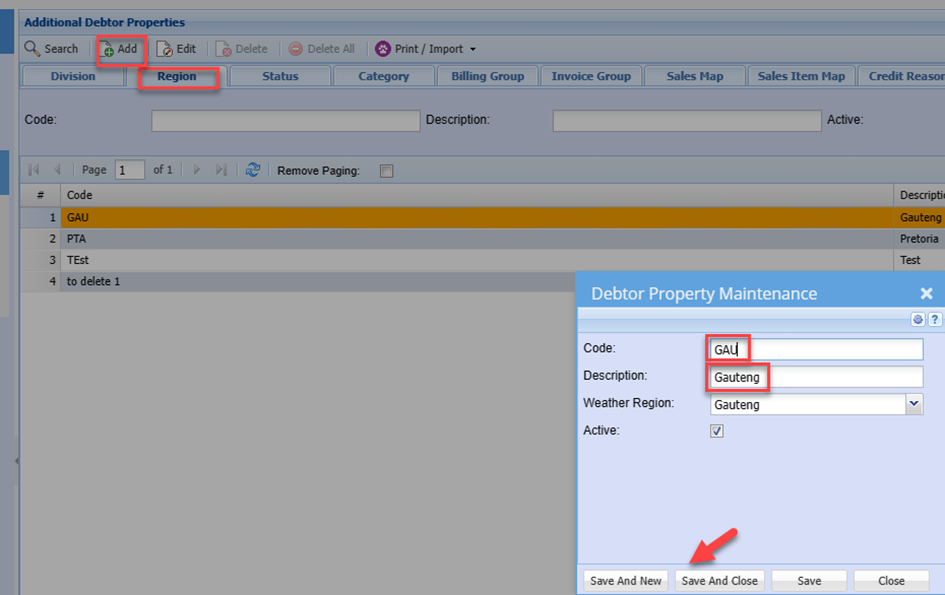
Click on the Tab related to the respective Property you decided to use:
Click Add Button
Enter a Code
Enter a Description
Click Save and Close or
Save and New to add another option
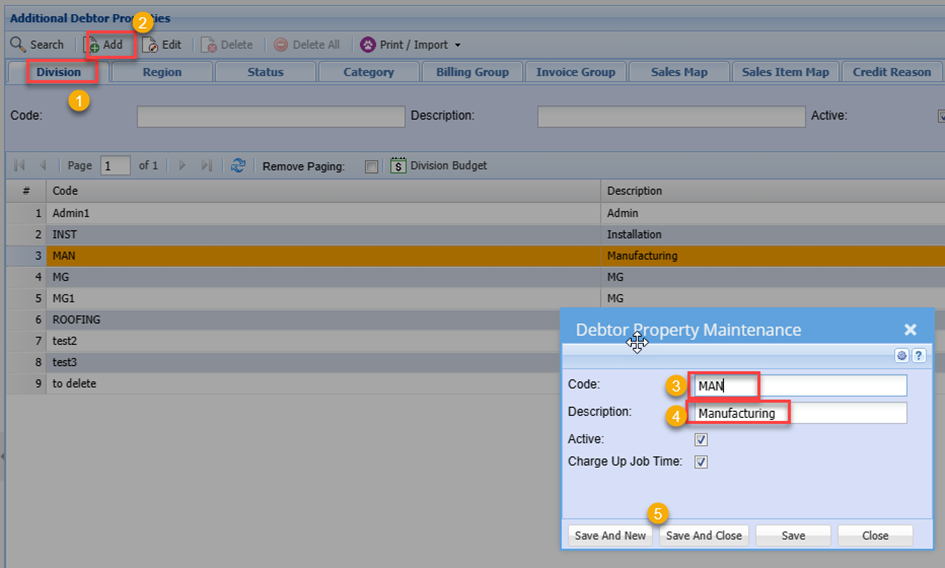
Once you have added all the required option, you can click on another Tab, eg. Region and add the rewequried option in a similar manner
Should you now wish to set default Divisions and Regions against the debtors, you can go to the Debtor Setup and edit the respective Debtor
Configuration> Debtors Setup>
Enter Debtor code or name
Click Search
Edit the Debtor Setup
Click the Division Drop Down Arrow
Select the required Division this debtor is to be allocated to
Do the same with Region..
Note: You do not need to use Multiple of the properties. Should you choose to only use one of the properties, this is fine.
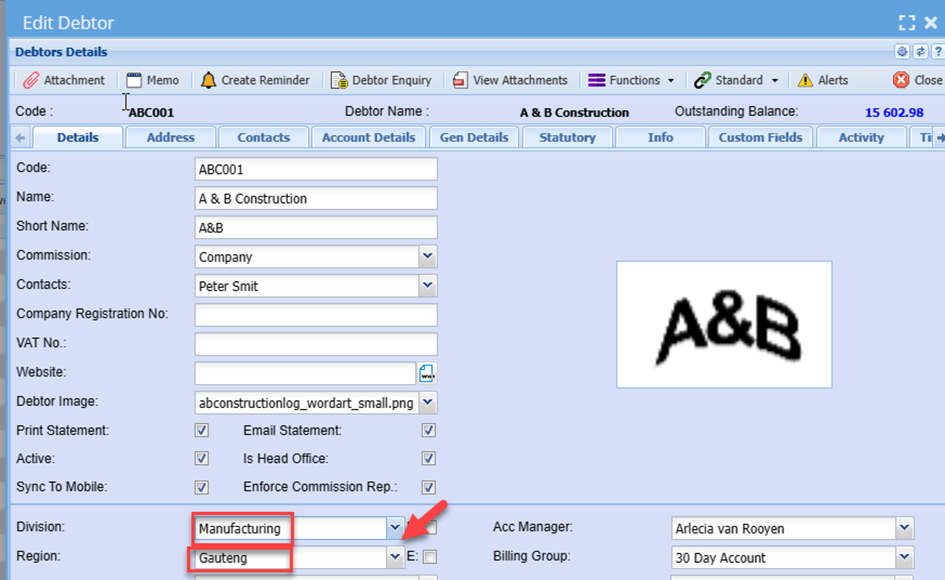
Click Save and Close
This now sets the default properties on this debtor and when capturing transactions, the user do not need remember to select the Divion/ Region selects the in correct Division/ Region
When you capture a transaction, invoice as an example, you will note the Division/ Region automatically is populated

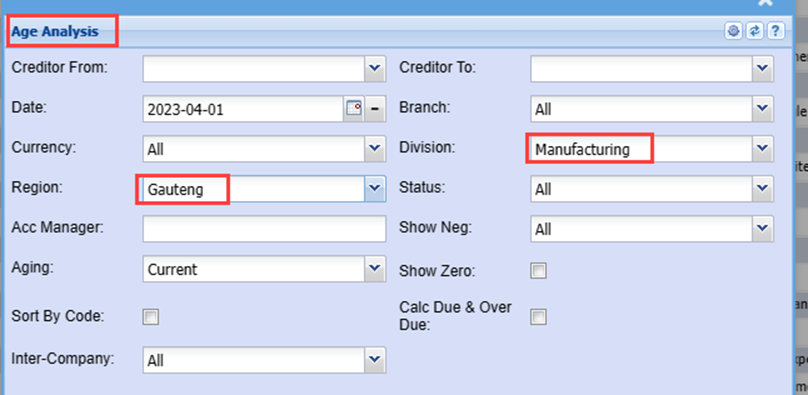
These filtering options can also be used to filter reports
Example:
You can generate the Debtors Age Analysis for only these filters