
Debtor Search
Video Training Manual 2016 - Click Here
Debtors / Customer Module> Configuration> Debtors / Customer Setup
The Debtors or Customer setup is essential and serves as a centralised repository for all relevant debtor or customer data.
In the Debtor setup search, you will see two search tabs
| Basic Search tab | If you know the code of the Debtor or Customer or part of it you can search here |
| Custom Search tab | If you have setup custom fields in your debtor or customer setup, you can search for the items in this area. |
If you leave the basic search blank it will bring up all debtors or customer codes which will be sorted in debtor or customer code order alphabetically.
System Buttons
Basic Search tab, if the debtor’s code in the basic search Tab or debtor’s name is left blank, this will bring back all the debtors listed in the system sorted alphabetically. If the cursor is placed on name at the column head, this will sort the names A-Z or Z-A as preferred.
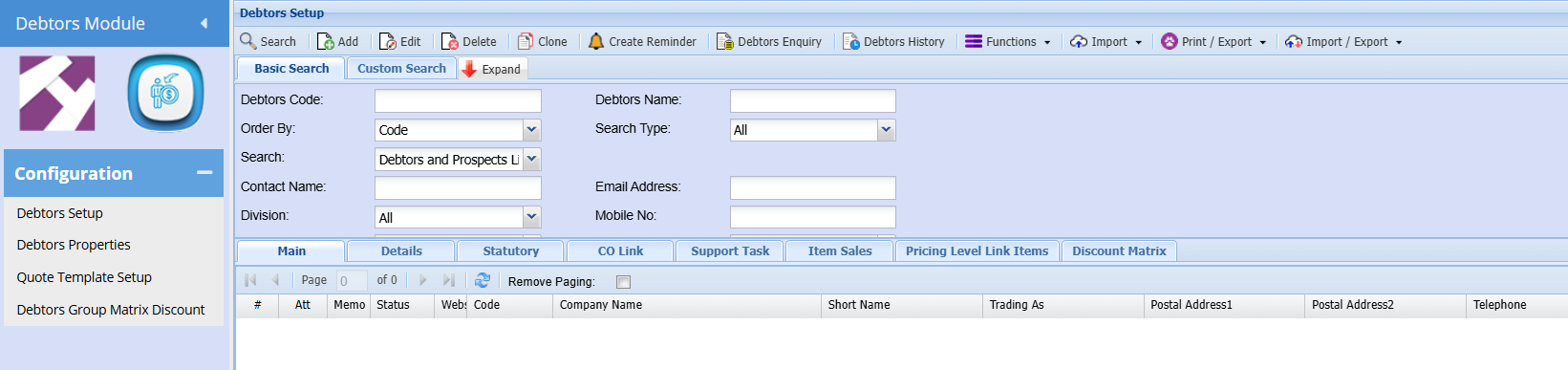
| Search Button | The search function will return Debtors or customer records based on the search criteria entered. |
| Add Button | Allows you to create a Debtor or Customer |
| Edit Button | Allows you to make changes to an existing debtor or customer |
| Delete Button | Allows you to delete an existing debtor or customer |
| Clone | Duplicate an existing debtor or customer |
| Create a Reminder | Allows you to create reminders |
| Debtor Enquiry | Allows you to detailed sales of a customer or debtor |
| Functions Drop Down | Has a list of functions that you can compete against a debtor or customer |
| Import Dropdown | Allows user to import debtor or customer details |
| Print Dropdown | Allows you to print your debtors in PDF or download an excel sheet of customers or debtors details |
| Export/ Export Drop Down | Allows you to import or export debtors or customer details |
Search Tab Option
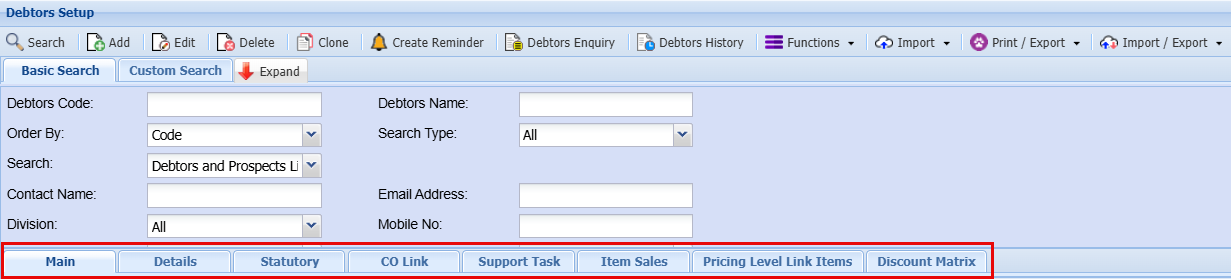
| Main Tab | Show a list of all debtors or customers |
| Details Tab | Shows the main details of a specific debtor or customer that you are searching for |
| Statutory Tab | Shows statutory information of a specific debtor or customer that you are searching for |
| CO Link | |
| Support Task | Shows all support tasks under the specific debtor or customer that you are searching for |
| Sales Item | Shows all invoices against a specific debtor or customer that you are searching for |
| Pricing Level Link Items | |
| Discount Matrix | Shows discount given to this particular Debtor |
Custom Search tab, Custom search searches according to the category selection on the drop-down arrow and the system will bring back all that is selected on the category.
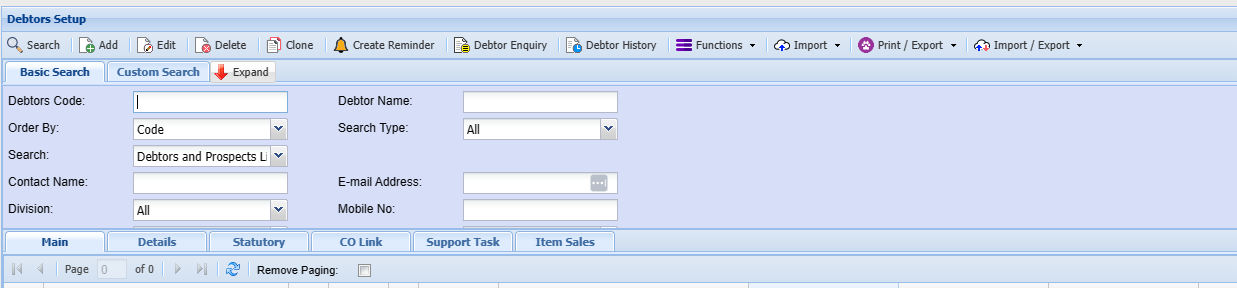
Expand button
To show more search filter criteria or Contract button to show less search filter criteria
Click on Expand button
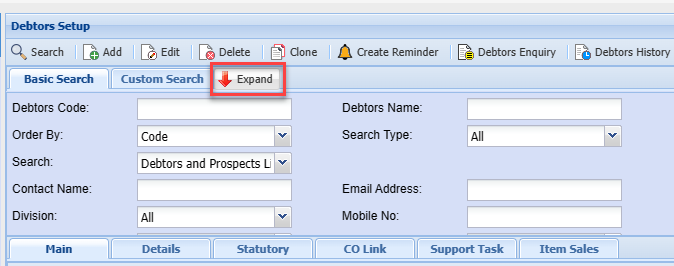
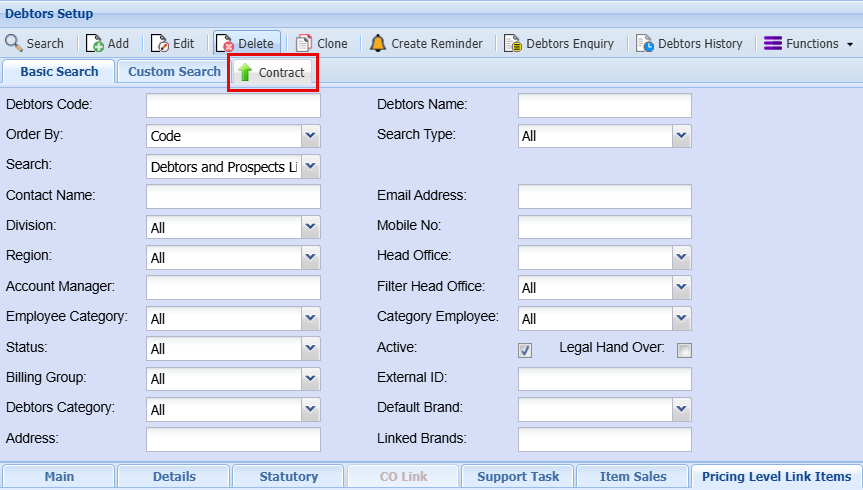
| Debtors Code |
Search on Debtors code or part of the code |
| Order By | Order by Code, Description |
| Search | Filter by Debtors, Prospects or and opportunities |
| Contact name | Debtors main Contact Person |
| Division | Shows which Department they work in |
| Region | Shows which Region they work in |
| Account manager | Shows the person who is responsible for this account |
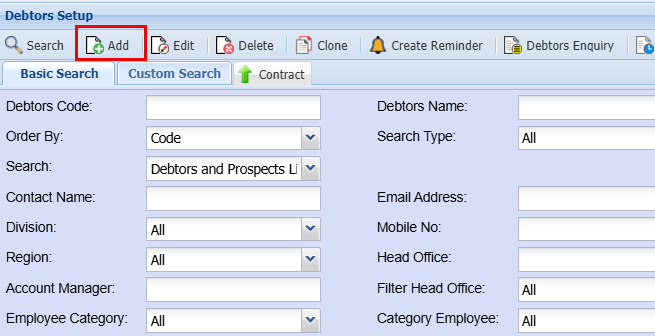
Add Button
To create a new Debtor/ Customer you need to click on the Add Button
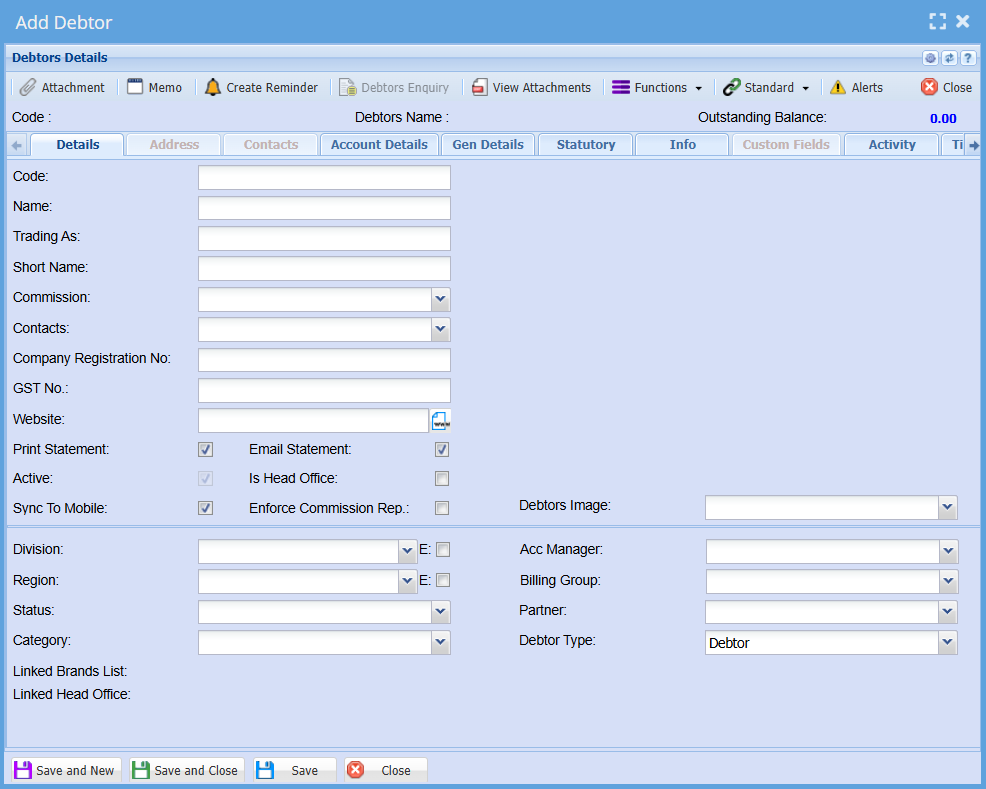
| Code | Create a unique code for this debtor |
| Name | Name of the Company |
| Trading As | Name the company is trading under |
| Short Name | Shortened version of the name |
| Commission | Shows who gets commission on sales for this Debtor |
| Contacts | Shows all Contacts associated with this Debtor |
| Print/Email Statement | Shows if the Debtor would like their statement Emailed or Posted |
| Active | Shows if this Debtor is active or inactive if not ticked |
| Sync to Mobile | Shows on the mobile app if this is part of your package |
| Debtors image | Shows the Company Logo which you will find if added to Attachments |
| Debtor Type | Shows if this Debtor is an Opportunity, Prospect, or can be promoted to an active Debtor |
Keyboard quick keys
Quick keys help access functions using the keyboard
Used with Alt + Letter
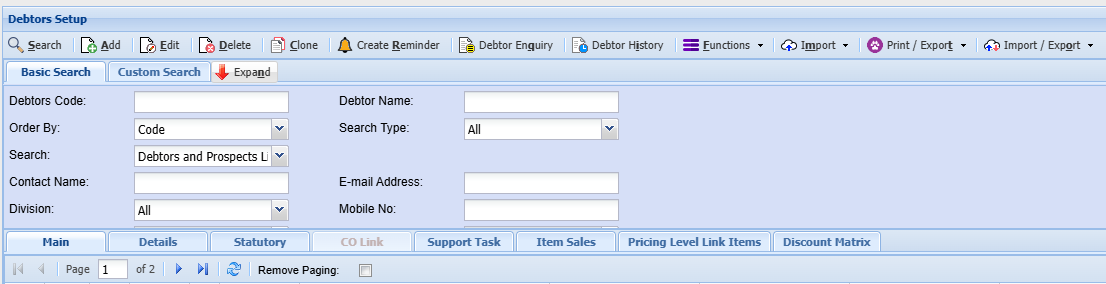
| Search | Alt + s | Search for Debtors |
| Add | Alt + a | Add a new Debtor |
| Edit | Alt + e | Edits the Debtor that is highlighted |
| Delete | Alt + d | Deletes the Debtor that is highlighted |
| Clone | Alt + c | Clones the highlighted Debtor |
| Create Reminder | Alt + r | Creates a reminder to highlighted Debtor |
| Debtor Enquiry | Alt + q | Opens up the Debtor enquiry screen for highlighted Debtor |
| Debtor History | Alt + i | Opens up the Debtor analysis screen for highlighted Debtor |
| Functions | Alt + f | Focus on the button |