
Debtor Setup
The Debtors or Customer setup is essential and serves as a centralised repository for all relevant debtor or customer data.
Debtors module> Configuration> Debtors Setup
Details Tab.
Debtors/ Customer details contain information about the debtor.
The user has to enter all essential information of a debtor or customer on this tab
After adding all information about a debtor or customer always remember to click save.
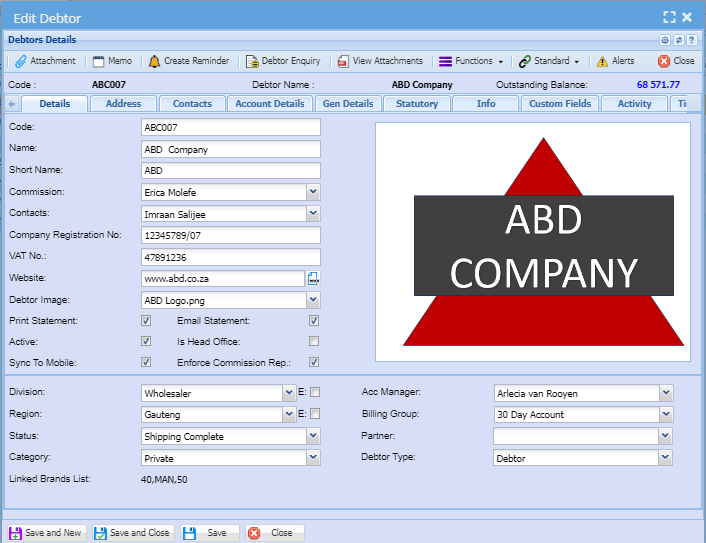
| Debtors Code |
This is a unique code that identifies the debtor This code needs to be filled in or the customers/ debtors information will give you an error when trying to save. The code is also used for exports. |
| Name | Enter a legal customer or debtor name that will appear on all documents. |
| Short Name | Short name that the company uses for a client |
| Commission | This is a dropdown and only shows commission structures set up under System Configuration Module |
| Contacts | This is a drop-down and only shows contact names that have been entered from the contacts tab. |
| Company Registration No | This is the company registration number |
| VAT / GST No | This is the tax number for the customer if the company is VAT / GST vendor |
| Customs Client No (CCN) | The Import / Export code |
| Website | Enter the website of the company |
| Debtor Image | This is the image that has been added under the attachment e.g company logo |
| Division | The down arrow allows a selection according to the division the debtor is categorized into |
| Status | Shows the debtor or customer status |
| Region |
The dropdown arrow facilitates the selection process based on the debtor's categorization within their respective region. |
| Category | This dropdown arrow facilitates the selection process based on the debtor's or customer category based on the categories that that have been added to the dropdown. |
| Acc Manager | The dropdown shows a list of accounts managers and only the account manager for the customer or debtor needs to be selected. |
| Billing Group |
The dropdown shows the types of billing groups within the organization and only the right billing group should be selected for the debtor or customer. For example, billing groups can be categorized as monthly or annually |
| Partner | Select the business partner for the debtor or customer on the dropdown. |
| Debtor type |
The dropdown shows different debtor types whether it is a debtor/ customer or a prospect. Select the correct debtor type on the dropdown. |
Details tab tick boxes explained
Tick boxes are pretty simple to use. If the box is ticked this means yes and if a box is not ticked this means no.
| Print Statement | Put a tick if the statements will be printed |
| Active | Put a tick if a debtor is active |
| Sync to Mobile | Put a tick if you want the customer to be synced to your Webatar App (Mobile App) |
| Email Statement | Put a tick if the email Statement |
| Is Head Office | Put a tick if Consolidate Branch Statements at Head Office Level is required |
| Enforce Commission Rep | Put a tick if you want to enforce sales rep commission against a customer or debtor |
Address Tab
The designated area for debtor address information facilitates the input of data and provides the user with convenient options to replicate the address, including the use of buttons labeled "Same as Physical," "Same as Postal," and "Same as Delivery."
A user can add multiple addresses on the debtor's or customer grid if they have multiple locations.
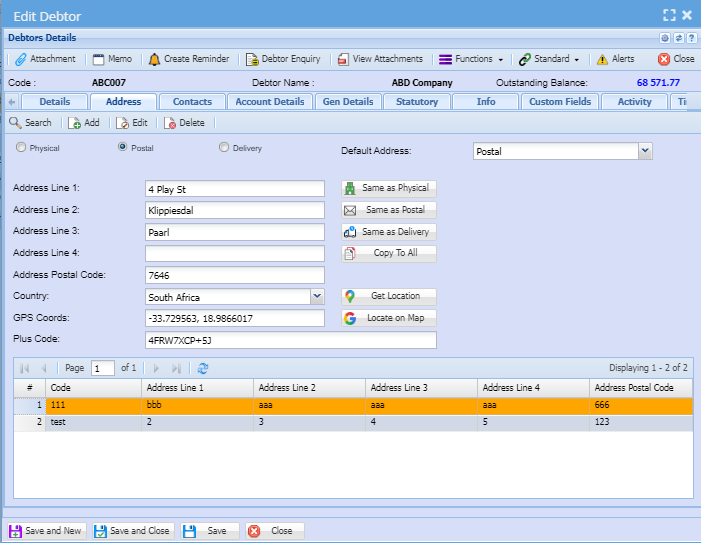
| Add | Used to add a new address on the grid if a customer/ debtor has multiple customers. |
| Edit | Used to edit customer address on the grid debtor/ customer has multiple addresses |
| Delete | Used to delete addresses on the grid if a debtor or customer has multiple addresses |
|
Physical |
Enter the physical address or legal entity address for a debtor/ customer |
| Postal | Enter the postal address for a debtor/customer |
| Delivery | Enter the delivery address for the debtor/ customer |
| Default Address | This is the address that will populate on all debtor/customer documents |
| Address Line 1 | This can be a street name or the name of the business park |
| Address Line 2 | Suburb or street if line 1 consists of a business park name or estate |
| Address Line 3 | Enter the city name for a debtor/customer |
| Address Line 4 | Enter the province name for a debtor/ customer |
| Address Postal Code | Enter the postal code for a debtor/customer |
| Country | Select the country that the debtor or customer is in |
| GPS Coords |
Enter the GPS coordinates for the debtor/customer One can use the button for locate on map, however this needs to be set up first |
| Plus Code | Enter the plus code for the debtor/ customer which can be found on Google map search |
| User defined Address grid | This is where you will a list of addresses if a debtor/customer has multiple addresses |
| Same as Physical Address | When in an address section, use this button to copy the physical address |
| Same as Postal | When in an address section, use this button to copy the postal address |
| Same as Delivery | When in an address section, use this button to copy the delivery address |
| Copy to All | This button is used to copy addresses to be the same as all three addresses (Postal, physical and delivery address) |
| Get Location |
Use this button to get your GPS location and plus code This needs to be set up first |
| Locate on Map | Click on this button to open up Google Maps to view the location of the company |
Contact Tab
Contact details section is dedicated
In this Field you will insert the customers Contact details
these could be the generic company information.
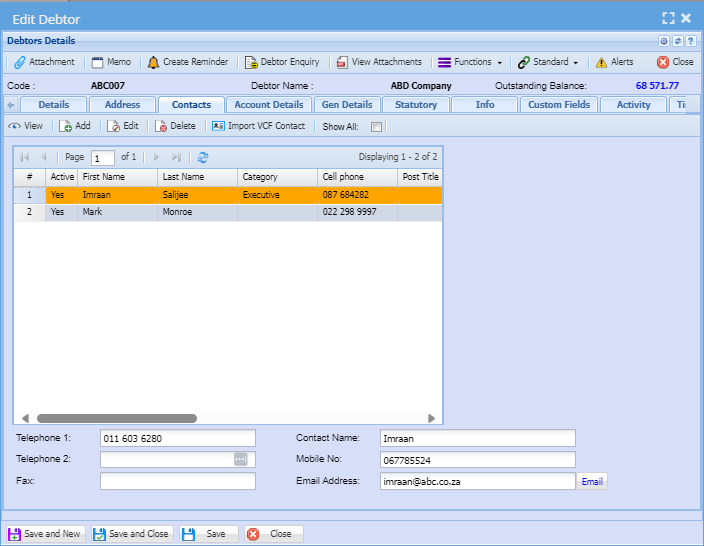
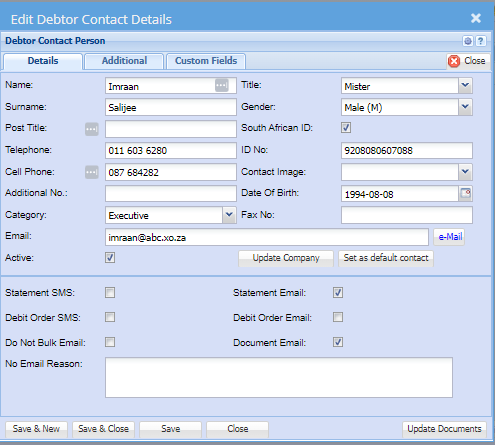
Add or Edit Customer Contact Person Details
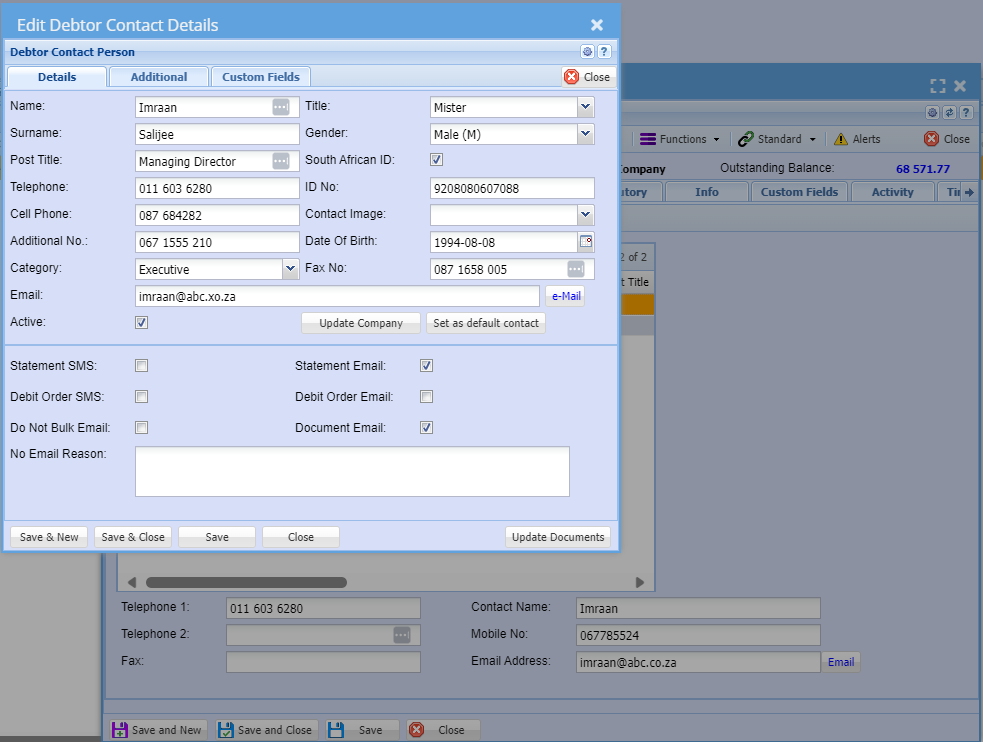
Debtor or Customer Fields
| Name | Enter the contact person's first name |
| Surname | Enter the contact person's surname |
| Post Title | Enter the contact person's work title |
| Telephone | Enter the contact person's work telephone number |
| Cell Phone |
Enter the contact person's work or personal cellphone number. This is optional |
| Additional Number | Enter the contact person's additional telephone number or cellphone number if applicable |
| Category | This dropdown arrow facilitates the selection process based on the contact person's categories that have been added to the dropdown. |
| Email Address |
Enter the contact person's email address. The email address is compulsory to be able to send communication from the system |
| Title | Select the contact person's tile on the dropdown |
| Gender | Select the contact person's gender on the dropdown selection |
| ID Number |
Enter the contact person's identity document if applicable This is optional |
| Contact Image | Select the contact person's image if added to the list of attachments |
| Date of Birth | Enter the contact person's date of birth if applicable |
| Fax Number | Enter the contact person's fax number if applicable |
| No Email Reason | If a contact person has given a reason for not wanting to be included to the mailing list, write down the reason why before clicking on do not bulk email. |
Contact Details Debtor or Customer Tick boxes
Tick boxes are pretty simple to use. If the box is ticked this means yes and if a box is not ticked this means no.
| South African ID | Put a tick if the contact person has provided a South African Identity Number. |
| Active | Put a tick if the contact person is active |
| Statement SMS | Put a tick if a contact person should receive statements via SMS |
| Debit Order SMS | Put a tick if a contact person should receive debit order notifications via SMS |
| Do Not Bulk Email |
Put a tick if the recipient does not want to receive bulk emails. Remember to put a note confirming why the recipient does not want to receive bulk emails. If you do not put a reason then the system will ask for a password. |
| Statement Email | Put a tick on if you want the recipient to receive statements via Email |
| Debit Order Email | Put a tick if the recipient wants to receive debit order notifications via Email |
| Document Email | Put a tick if the recipient would like to receive documents from the system such as invoices and quotes via Email |
Contact Details Debtor or Customer Buttons
|
|
|
| Update Company | |
| Set as default contact | |
| Update Documents |
Edit or Add Contact Details Additional Tab
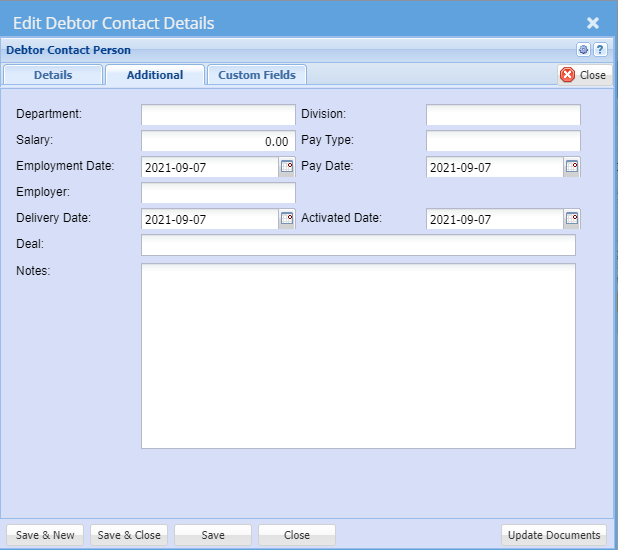
| Department | |
| Salary | |
| Employment Date | |
| Employer | |
| Delivery Date | |
| Deal | |
| Note | |
| Division | |
| Pay Type | |
| Pay Date | |
| Activated Date |
Account Details Tab
This is the account details information of the Debtor Because of our security you may want to lock down this tab to users if they do not have security access to the debtor.
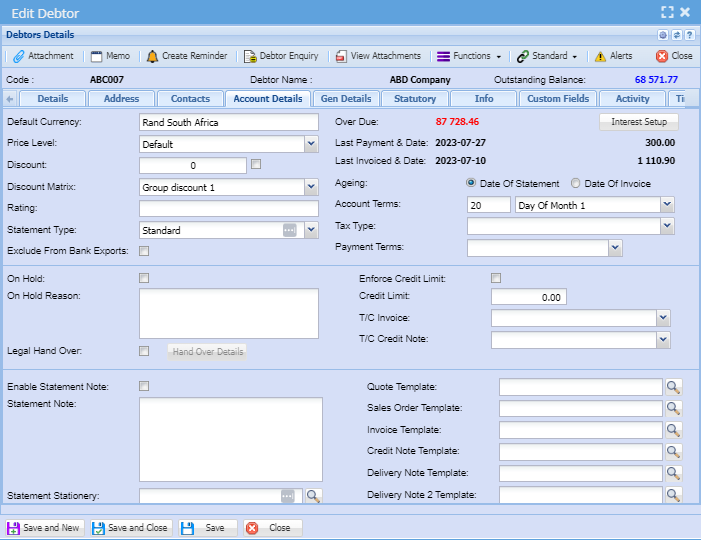
| Default Currency | If you are working with multi-currency customers, this allows you to select the default currency to work with on that customer. Note: Once the first transaction has being posted against the currency you cannot change the currency |
| Pricing Level | this is a drop-down and only shows pricing structures setup under System Configuration Module |
| Account terms | Select the terms of your customer in the drop-down |
| Discount | this field is only used as an information indicator of what discount rate you would discount the customer for |
| Ageing | this is selecting on date of statement or date of invoice |
| Exclude from Bank Exports | If the box is ticked |
| Interest Setup button | where the interest against the customer is setup |
| Statement type | the user selects from the drop-down arrow as to when the statement will be |
| Credit Limit | this is a field to enter the credit limit of a customer.. This field is only used as an information indicator of what interest rate you would charge the customer for overdue accounts |
| Enforce Credit Limit | by putting a tick in, will be enforcing a credit limit or it could be just an indicator |
| On Hold Reason | it’s the reason the customer is put on hold. |
| On Hold Tick | to put the customer account on hold |
| Enable Statement Note | This will allow a user to put a note by putting a tick in a box |
| Statement Note | this is a note that a user can add onto the debtors statement |
| Invoice Template | it’s a copy of a completed invoice |
| Credit Note Template | Its copy of a completed credit note |
| Quote Template | It’s a copy of a completed quote |
General Details Tab
This is a designated area for debtor or customer banking details.
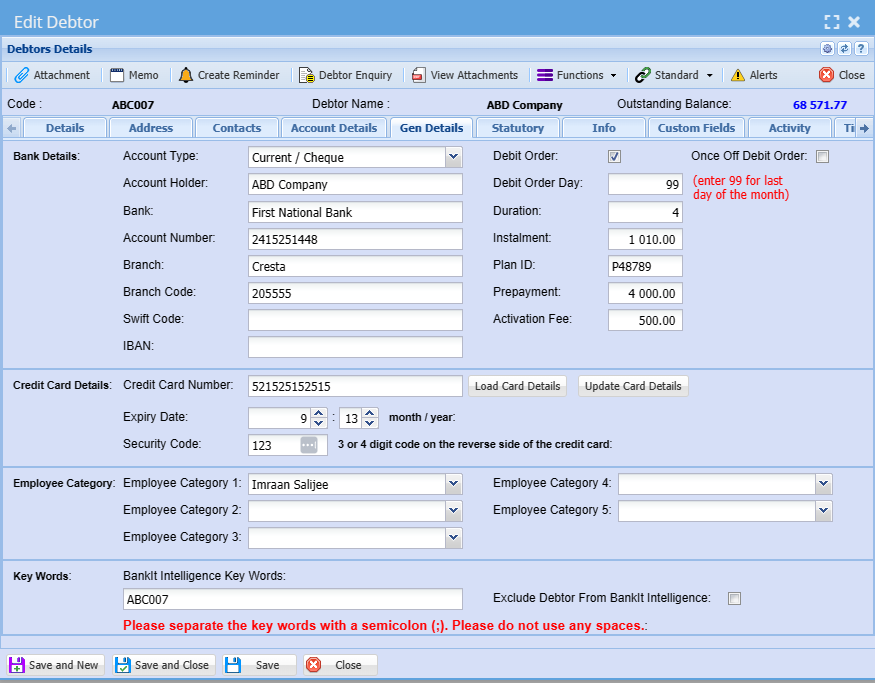
| Account Type |
|
| Account Holder |
|
| Bank | |
| Account Number |
Debtors account number Account Type of account that the debtor holds i.e. Current account |
| Branch | Name of the bank |
| Branch Code | Branch code of that particular bank |
| Swift Code | |
| IBAN | |
| Debit Order | When putting a tick in the box, allows a debit order |
| Debit order Day |
The day the money will be debited from a customer’s account Once Off Debit Order the debit order can be done once or by putting the tick in the box or continuously without a tick |
| Duration |
|
|
Instalment |
|
| Plan ID |
|
| Repayment |
|
| Activation Fee |
|
| Credit Card Number | passwords for different documents |
| Expiry Date | |
| Security Code | |
| Employee Category | |
| Keywords |
Tickboxes
| Debit Order | |
| Once Off Debit Order | |
| Exclude from BankIT |
| Load Card Details | |
| Update Card Details |
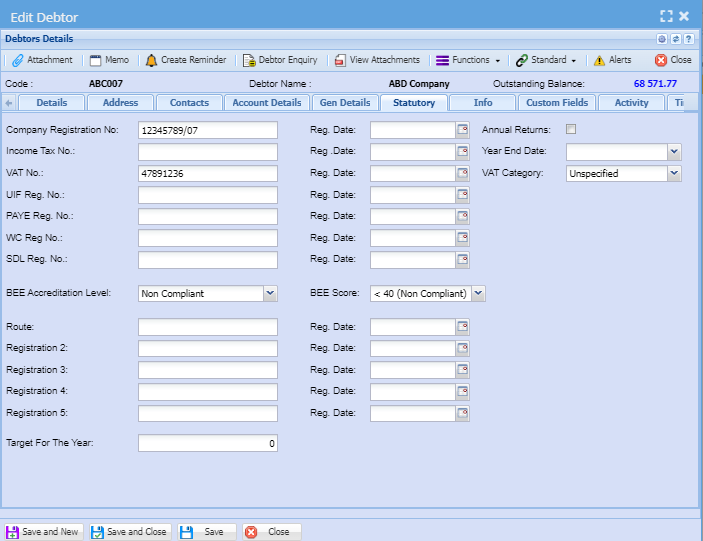
Statutory Tab
Info Tab

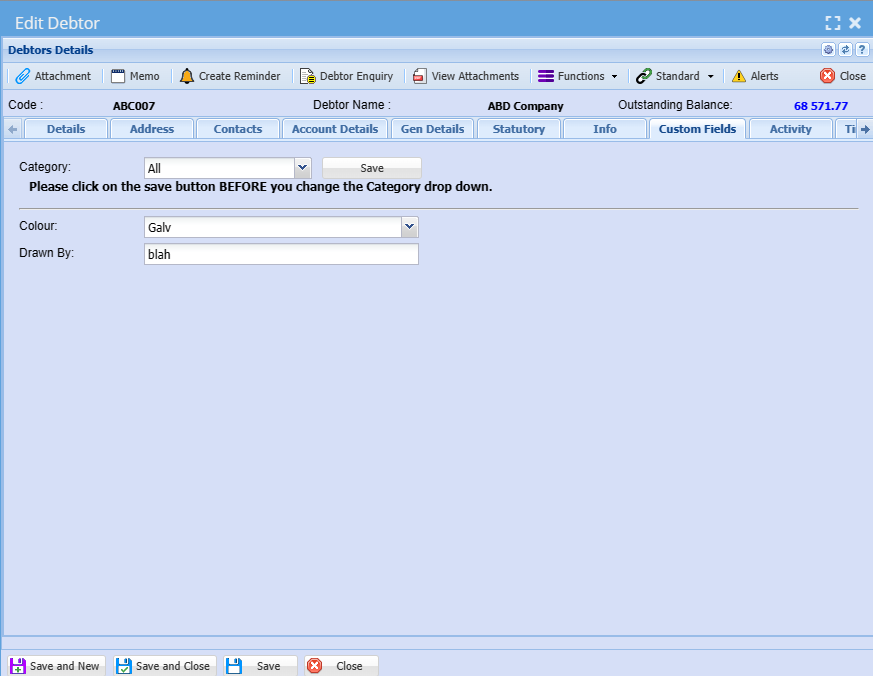
Custom Fields Tab
This tab is a versatile and fully customizable feature within the debtor or customer setup. It is designed to empower businesses with the flexibility to tailor their debtor or customer setup according to their unique needs. This tab offers a dynamic interface that allows users to configure and display debtor data, metrics, and insights in a way that best serves the debtor or customer's needs.
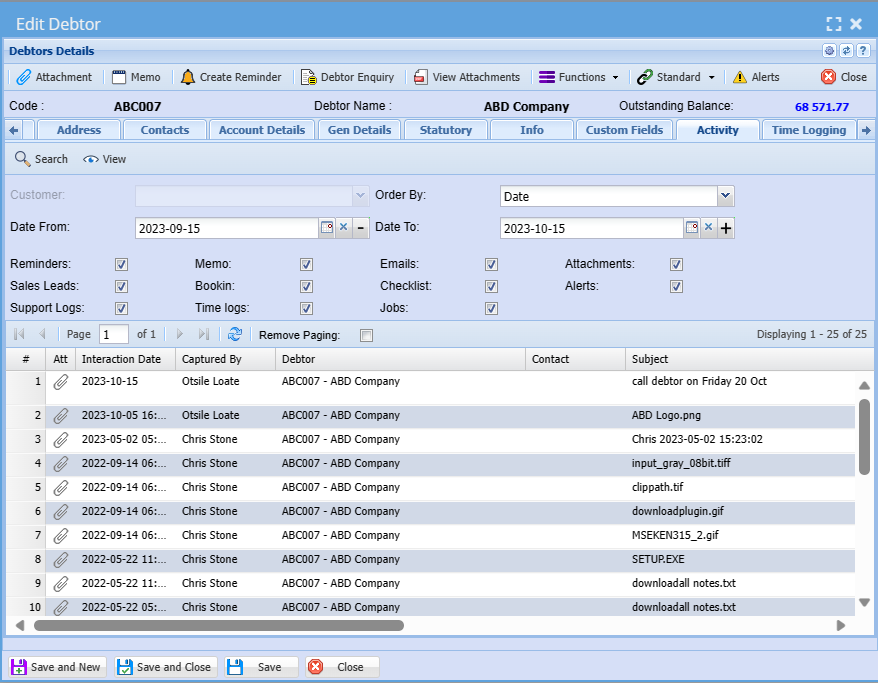
Activity Tab
Time Logging Tab
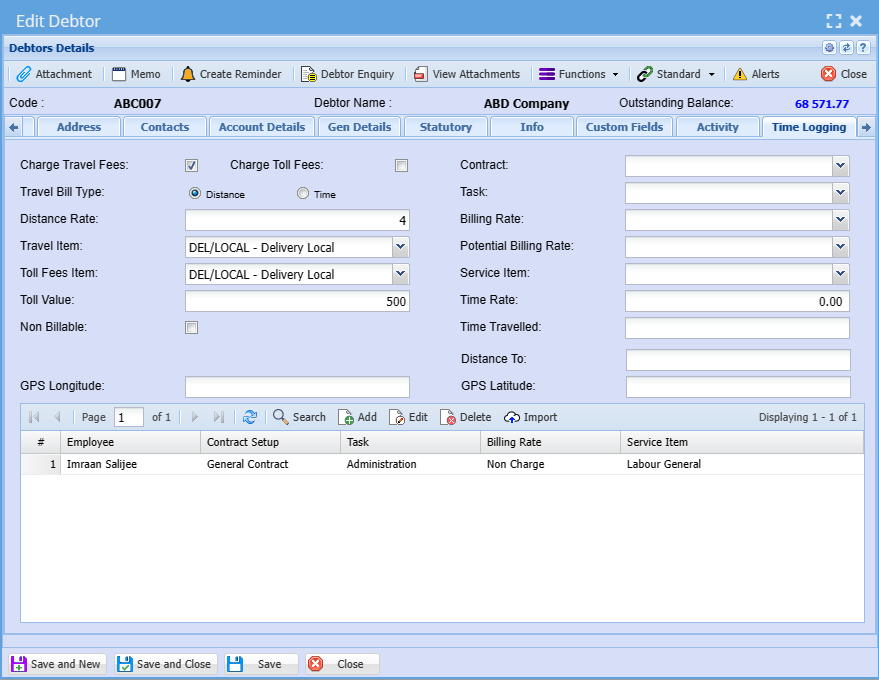
| Charge Travel Fees | |
| Charge Toll Fees | |
| Travel Bill Type | |
| Distance Rate | |
| Travel Item | |
| Toll Fees Item | |
| Toll Value | |
| Non Billable | |
| GPS Longitude | |
| Contract | |
| Task | |
| Billing Rate | |