
Debtor Setup
The Debtors or Customer setup is essential and serves as a centralised repository for all relevant debtor or customer data.
Debtors module> Configuration> Debtors Setup
Details Tab.
The user has to enter all essential information of a debtor or customer on this tab
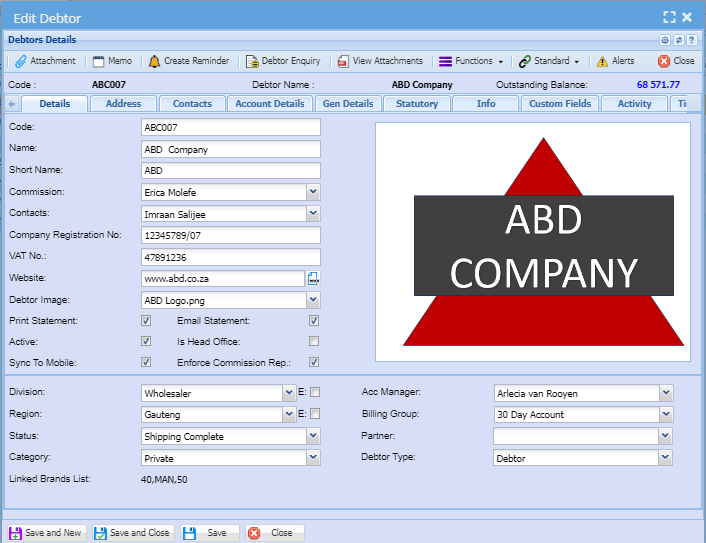
| Debtors Code |
This is a unique code that identifies the Customer. This code needs to be filled in or the customers/ debtors information will give you an error when trying to save. |
| Name | Full name of the company |
| Short Name | Shortname that the company uses for a client |
| Commission | This is a drop down and only shows commission structures setup under System Configuration Module |
| Contacts | This is a drop down and only shows contact Names which have being entered from the Contact Persons tab. |
| Company Registration No | This is the company registration number |
| VAT No | This is the tax number for the customer if the company is VAT vendor |
| Website | |
| Debtor Image | It’s the image that has been added under attachment which could be Logo |
| Division | The down arrow allows a selection according to the division the debtor is categorized into |
| Status | shows the debtors status, |
| Region | the drop down arrow allows the selection according to the region the debtor is categorized into |
| Category | The box |
| Acc Manager | |
| Billing Group | |
| Partner | |
| Debtory type |
Tick Boxes
Tick boxes are pretty simple to use. If the box is ticked this means yes and if a box is not ticked this means no.
| Print Statement | Put a tick if the statements will be printed |
| Active | Put a tick if a debtor is active |
| Sync to Mobile | Put a tick if you want the customer to be synced to your Webatar App. |
| Email Statement | Put a tick if the email Statement |
| Is Head Office | Put a tick if Consolidate Branch Statements at Head Office Level is required |
| Enforce Commission Rep | Put a tick if you want to enforce sales rep commission against a customer or debtor |
Address Tab
It’s where the debtors address. is filled in and allows a user to use buttons to copy the address if it’s the same. “Same as Physical, Same as Postal and Same as Delivery button
When a user is adding a Postal address and the postal address is the same as physical, instead of typing it again, clicking on same as physical button copies all the details from the Physical Address to the Postal address so is the delivery address.
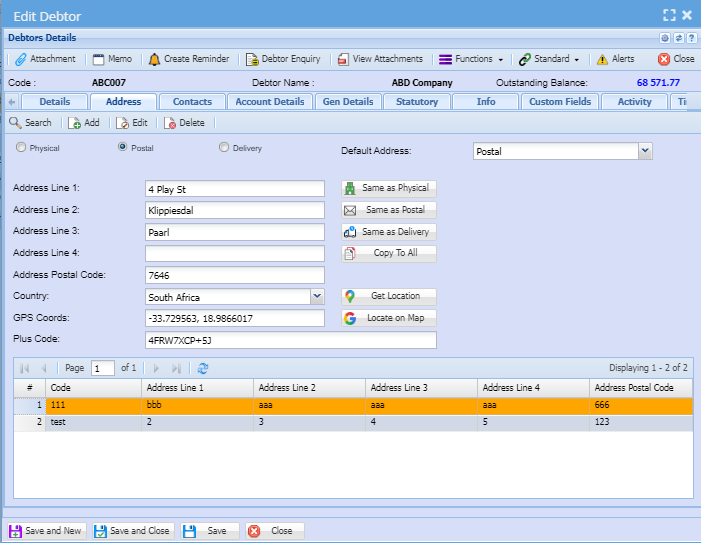
| Insert Address button | to add a new address |
| Amend Address button | to make changes onto existing address |
Contact Tab
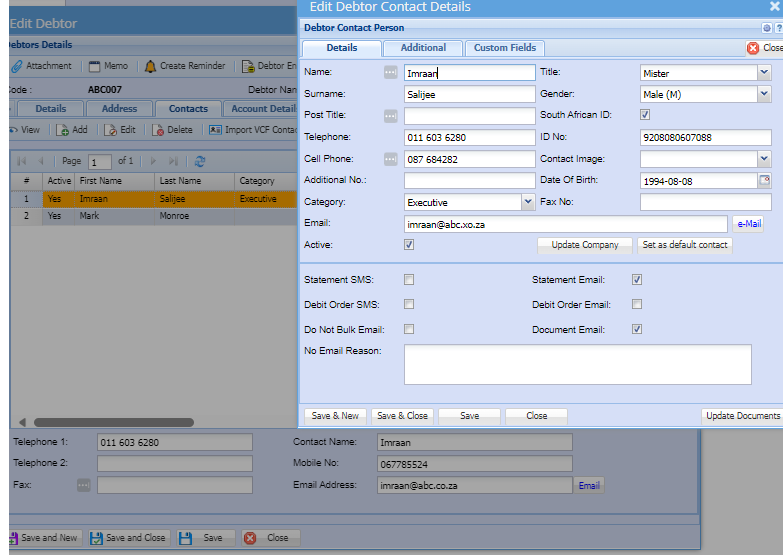
In this Field you will insert the customers Contact details
these could be the generic company information.
| Telephones | debtors telephone numbers, fax, and mobile number |
| Statement | email address of the person the statements will be emailed to |
| Website | Debtor’s website |