Email Template Letter Setup
Email templates are set up and maintained by the customer. The system does not provide pre‑configured content. Customers are responsible for creating, updating, and approving all email wording, layout, using the appropriate placeholders.
There are Five email template options, each used for a different part of the system.
CRM > Configuration > Email Template
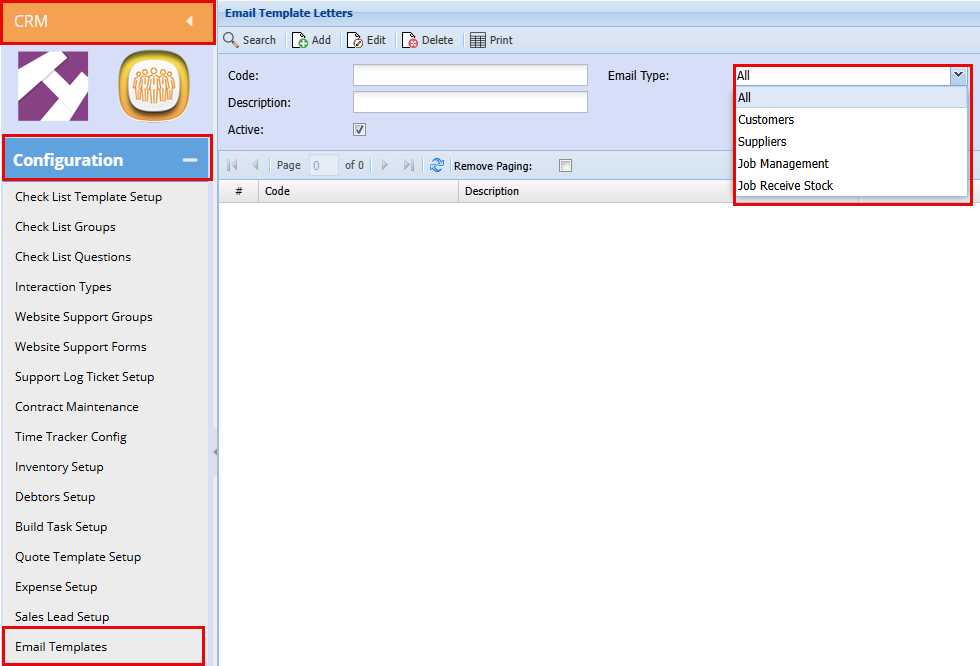
1: Customers:
This option is used for Customer Batch Email Out.
Email templates for Customer mail‑outs are designed, created, and managed in the CRM Module
- Customer mail‑outs uses a customer contact list that can also be customized.
2: Suppliers
This option controls emails sent to suppliers.
Email Template Setup
Email templates for Supplier mail‑outs are designed, created, and managed in the same location as customer Emails within the system and for email type you will select Suppliers.
Uses a separate template specific to supplier communication
3: Job Management
This option is used for emails generated through the Job Management and are designed, created, and managed in the CRM Module.
Key points:
4: Job Receive Stock
Key points:
- Triggered when stock is received against a job
- Template content must be set up by the customer
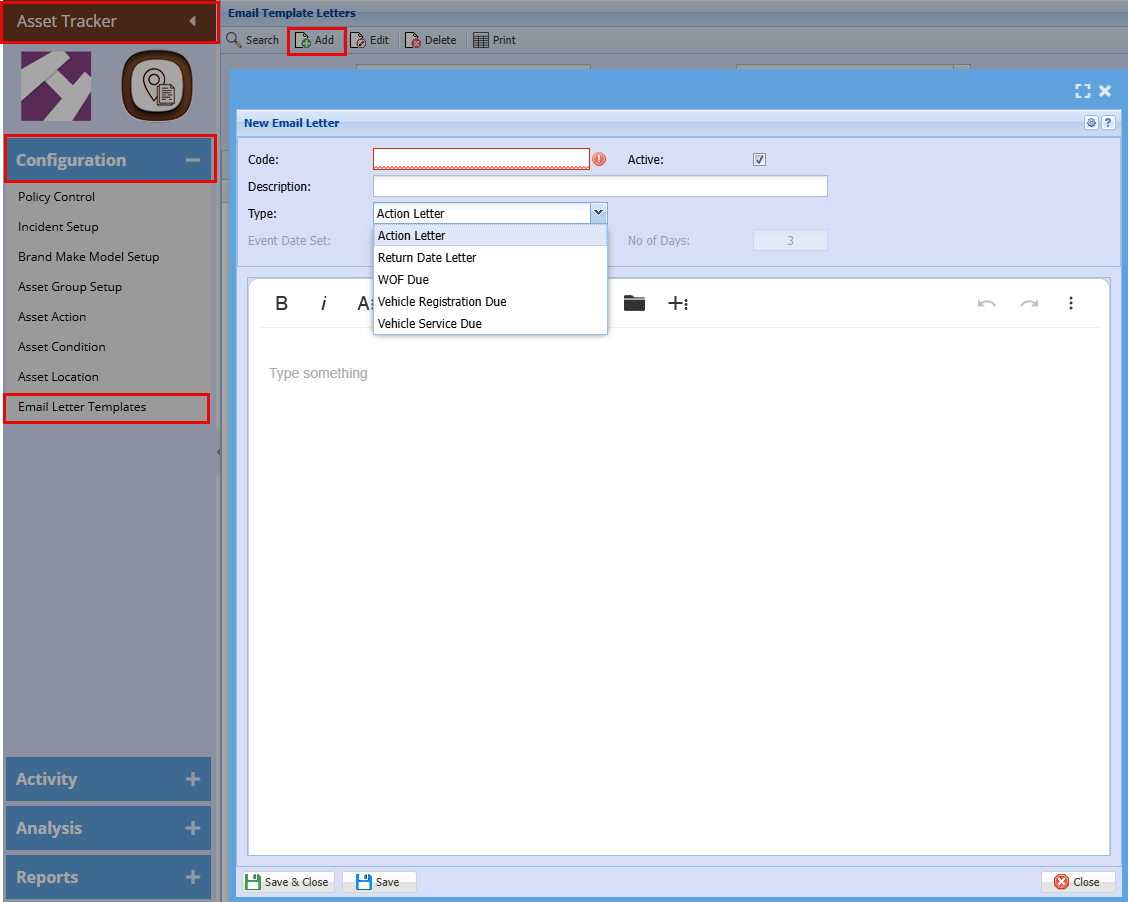
5: Asset Email Out:
This option is used for Asset Email Out via the Webatar App
Asset Tracker > Configuration > Email Letter Template
These emails can be Scheduled as needed for Asset Allocation, Service dates, Return dates etc.
-
Asset mail out are sent to the specific staff member being allocated the asset through the Webatar App.
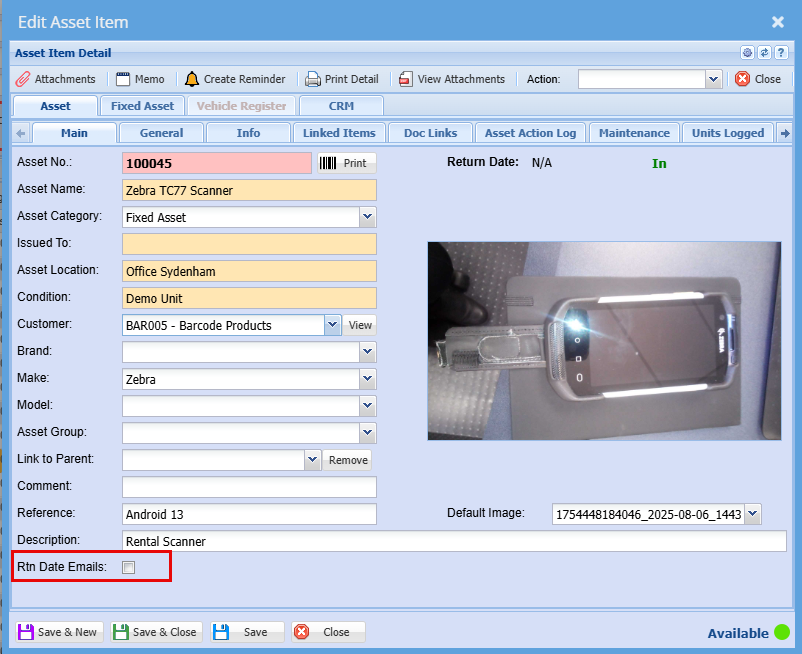
- To activate the Mail out for each item the “Return Date Email” checkbox needs to be ticked at bottom of the Asset Information page, tick the “Return Date Email” checkbox to activate this mail‑out.