
Add Edit Creditor
Adding or Editing a new Creditor / Supplier.
This has many tabs and sections to be filled in.
Details Tab
In this section add the basic information for the Creditor
Minimum details are Creditor Code and Name
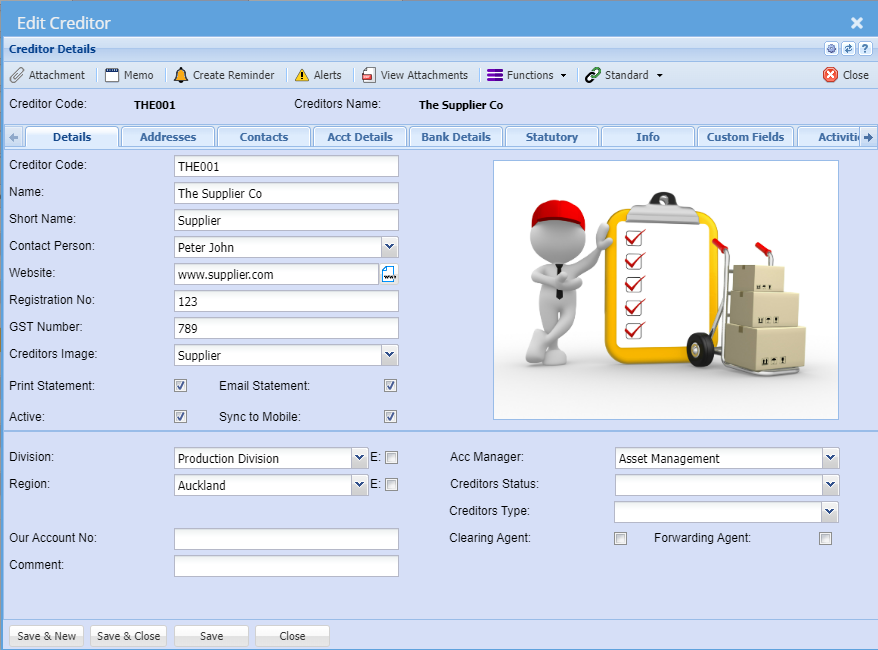
| Creditors Code |
Create a unique code that identifies the supplier/creditor. The Code field can be Alfa Numeric and over 200 Characters long |
| Name |
Enter the name of the supplier/creditor. The Name field can be Alfa Numeric and over 500 Characters long |
| Contact Person | This is a drop down and only shows contact Names which has being entered from the Contact Persons tab: A default contact person can be added against the Supplier |
| Tax Number | Enter the tax number for the Supplier |
| Registration No | Enter the registration number for the Supplier |
| Creditor Image |
This drop down will only shows Images which have being uploaded as attachments. Select an image for the creditor to show on the right |
Address Tab
Fill in the Physical, Postal and Delivery addresses in the Address Tab. There are buttons called “Same as Physical” etc., once the Postal area button is clicked, it will copy all the details from the Physical Address to the Postal address.
The system also allows the entering of multiple Delivery addresses. All addresses created can be selected at the time of the documents i.e. Purchase Orders.
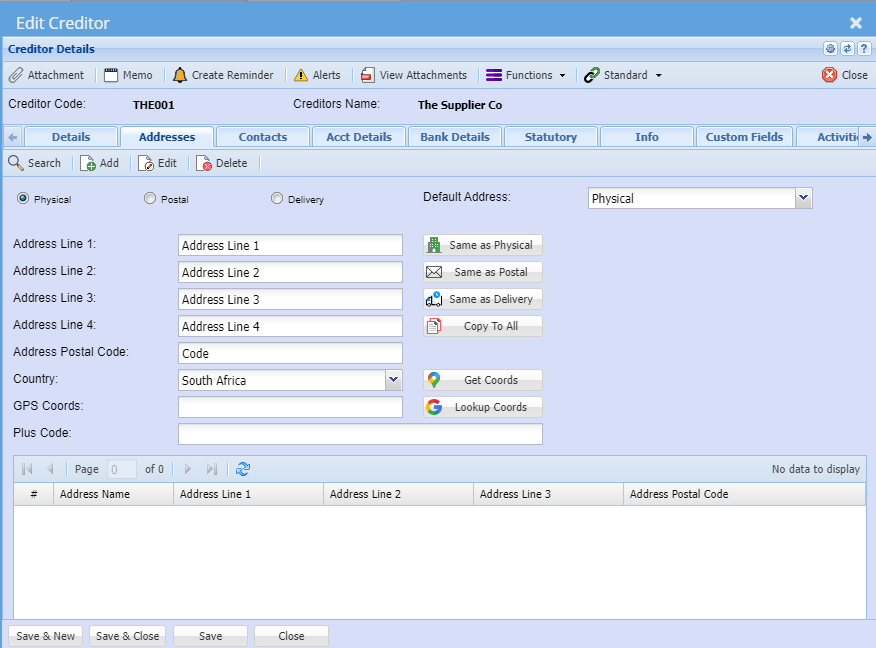
| Physical | Physical address default setting |
| Postal | |
| Delivery | |
| Default Address | This can be selected to be used whenever a document is created, you can override the address selection at the document level. |
| Address Line 1 | |
| Address Line 2 | |
| Address Line 3 | |
| Address Line 4 | |
| Address Postal Code | |
| Country | |
| GPS Coords | |
| Plus Code | |
| User defined address grid |
| Same as Physical | |
| Same as Postal | |
| Same as Delivery | |
| Copy to All | |
| Get Coords | |
| Lookup Coords |
Contacts Tab
In this tab you can create all the relevant people who work for this company, including all their details.
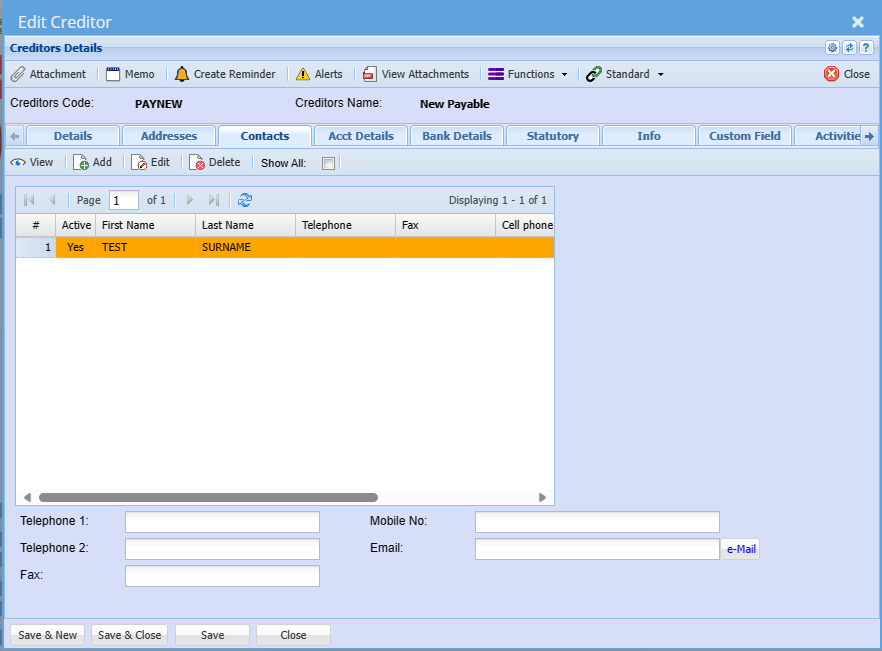
| View button | to view the contact |
| Add button | to add a new contact |
| Edit button | to edit the contact |
| Delete button | to delete the contact person |
| Show All Tick |
| Telephone 1 | |
| Telephone 2 | |
| Fax | |
| Mobile No | |
Account Details Tab
Important information about the Creditor can be added in the Account Details. For purposes of security, lock down this tab as a precaution against users who should not have access to these details.
When doing a Goods Received Note for example a message will appear to the user that the account is on hold and will give the reason for it.
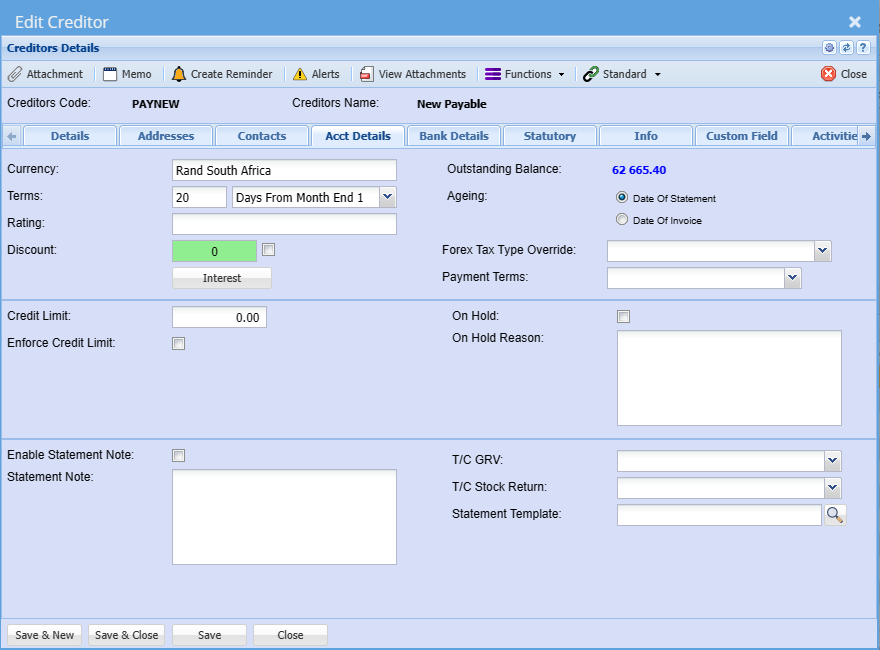
| Interest Rate | Used as an indication of the interest rate charged by the Supplier. |
| Active | This Supplier is active and will show on all searches. A Creditor can only be made inactive if the balance on the account is zero. You can make the account active again by searching for Non-active Suppliers in the Advance Search tab in Creditors Setup by unticking “Active” box. |
| Currency | When working with multi-currency Suppliers, you can select the default currency to work with on that Supplier. Note - Once the first transaction has been posted against the currency you cannot change the currency. |
| Account Terms | Select the terms of your Supplier in the drop down. |
| Rating | |
| Discount | Used as an indication of discount rates received from the Supplier. |
| Outstanding Balance | This is the running balance of the Supplier irrespective of transaction dates. |
| Aging | We allow for aging of Date of Statement and Date of Invoice per Creditor. |
| Forex Tax Type Override | |
| Payment Terms | |
| Credit Limit | This field is used to enter the purchasing limit from a Supplier. This could be enforced or used as an indicator. |
| Enforce Credit limit | Tick this check box if you want to enforce the credit limit indicated in the Credit limit box. |
| On Hold | Tick this box to put the Supplier account on hold. |
| On Hold Reason | Put in a reason for putting the Supplier on hold. |
| Enable Statement Note | |
| Statement Note | If you tick the box and put a message in the Statement text box, this message will appear on this Supplier’s statement only. If you have added a global message under System Configuration Module – Administration Company Profiles both messages will appear on the statement |
|
T/C GRV |
|
| T/C Stock Return | |
| Statement Template |
Bank Details Tab
Put in all the information of the Creditor’s bank details.
