
Email Letter Templates
Setup multiple letters to be sent out
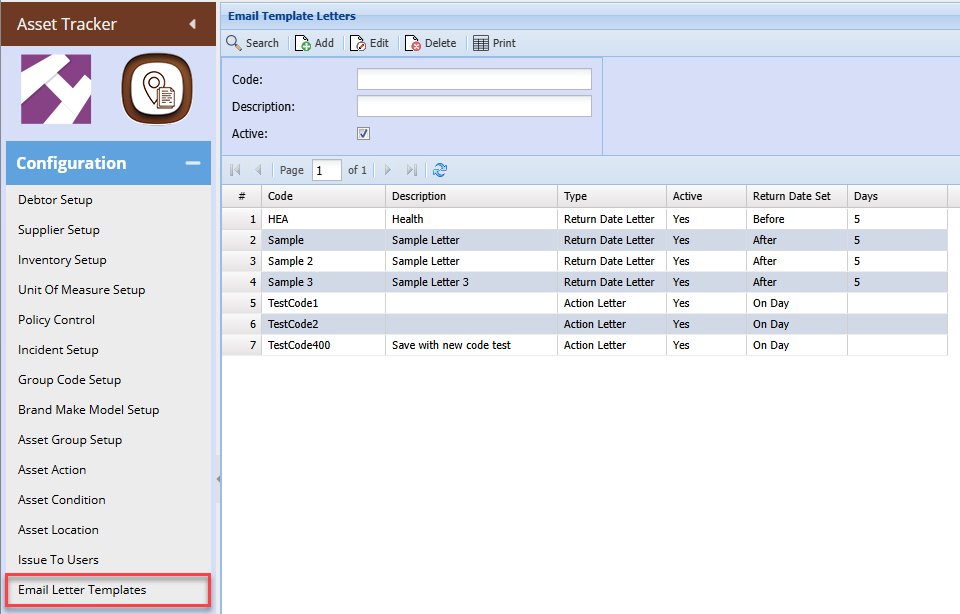
Add / Edit Email Letter
The Email that is sent out must be embedded into the email with the Description of the Letter for the Header of the email.
Sencha latest version makes use of a text editor, see if we can use that to make up the letters.
This allows formatting and pictures to be embedded.
Placeholders
Placeholders can be added to the templates to be substituted with the values they reference when the email is sent.
For a piece of text to be identified as a valid placeholder and substitued it needs to be:
- On the same line
- Enclosed in square brackets
- Not contain embedded square brackets
- Less than 100 characters, including spaces and punctuation and excluding the square brackets, in length
- Match one of the placeholders in the table below. Spaces, punctuation and letter case are ignored. For example
[CustomerContactFullName]or[CUSTOMER_CONTACT_FULL_NAME]will match theCustomer Contact (Full Name)placeholder. The spaces and punctuation are optional and for readability only.
| Placeholders |
Substitution |
Notes |
|
|
The first and last name of the Customer Contact separated by a space. |
1, 2 |
|
|
The first name of the Customer Contact. | 1, 2 |
|
|
The description of the Action completed for the Action. For example "Check Out" | |
|
|
The code of the Action completed for the Action. May match the description. For example "Check Out" | |
|
|
A list of Assets for which the action is completed for. Each item in the list is the Asset Number, followed by a dash and then the Asset Name. |
|
|
|
A list of the names of the Assets for which the action is completed for. | |
|
|
The number of assets for which the action is completed for. | |
|
|
The total count of all the assets for which the action is completed for. | |
|
|
The company name of the customer | 1 |
|
|
The Return or Due Date of the asset in YYYY-MM-DD format. If there is more than one asset in the email then the first is selected. |
WIP |
|
|
The Return or Due Date of the Asset in D/M/YYY or D/MM/YYYY format (New Zealand) If there is more than one asset in the email then the first is selected. |
WIP |
|
|
The number of days before or after the return or due date If there is more than one asset in the email then the first is selected. |
WIP |
|
|
The warrant of fitness date if the email template type is selected as "WOF Due". This should be the same as "Asset Due Date". If there is more than one vehicle in the email then the first is selected. |
3 |
|
|
The vehicle registration date if the email template is selected as "Vehicle Registration Due". This should be the same as "Asset Due Date". If there is more than one vehicle in the email then the first is selected. |
3 |
|
|
If the asset is a vehicle then the Vehicle registration number as set in the Vehicle Register form for the asset. |
3 |
|
|
If the asset is a vehicle the Description as set in the Vehicle Register form for the asset. If there is more than one vehicle in the email then then each subsequent item is preceded by a comma or "and" for the last item. |
3 |
|
|
The number of vehicle assets in the email | 3 |
Notes
- Used in CRM Email Templates also [WIP]
- For CRM Email Template this placeholder can be substituted by value for the Company Branch contact person depending on the mailing list set up. [TBD]
- Requires the asset to be marked as a vehicle.