CIM - Analysis
Analysis
- Location Transfer History
- Inventory Enquiry Menu
- Inventory Movement
- Margin Percentage Menu
- Serial Number History Menu
- Stock Journal History Menu
- Stock Take History Menu
- Warehouse Transfer History Menu
- Bill of Materials (BOM) History Menu
- Document Management
- Stock Weight Change Menu
- Inventory Overview
- Fixed Asset Audit History Menu
Location Transfer History
Location Transfer History Search

| Search | |
| View | |
| Transfer Number | |
| Doc Type | |
| Reference | |
| Transfer Status | |
| Doc No. | |
| Description | |
| Date From and To |
Inventory Enquiry Menu
Inventory Enquiry Help
Webaccounting has a number of reports that a user can run for inventory evaluation
but this function helps to analyse a whole lot more in just one window.
.png)
The following Webaccounting Inventory functions have been grouped into a single new function Inventory Enquiry:
•Price Inquiry
•Inventory Inquiry
•Inventory Overview
Search button: This search grid result is based on the pricing structure of the inventory item.
Therefore the result set back onto the grid might be different to the inventory setup search.
Inventory Overview button: will display all static information for the Inventory Code selected.
To view a summary of the movement types you need to select the Load Totals button
If the user is flagged as a Sales Rep in the User Setup; you will only be able to view WIP details.
All other view details buttons will be inactive.
View Image button: will display an image of the Inventory Code item selected if one has been loaded into Web accounting
Note:
Show All Prices: when this option is ticked all Pricing Types linked to the Inventory Code selected will be displayed
Verify Stock Levels
Inventory module> Analysis> Inventory enquiry
Enter Inventory item
Highlight the item
Click the Stock available tab
.png)
Click Search to search for an item selected under item code
Click the Movement Tab - Movement tab will display the transaction movement of the selected item throughout the system.
.png)
Click Search in order to see the movement of the item.
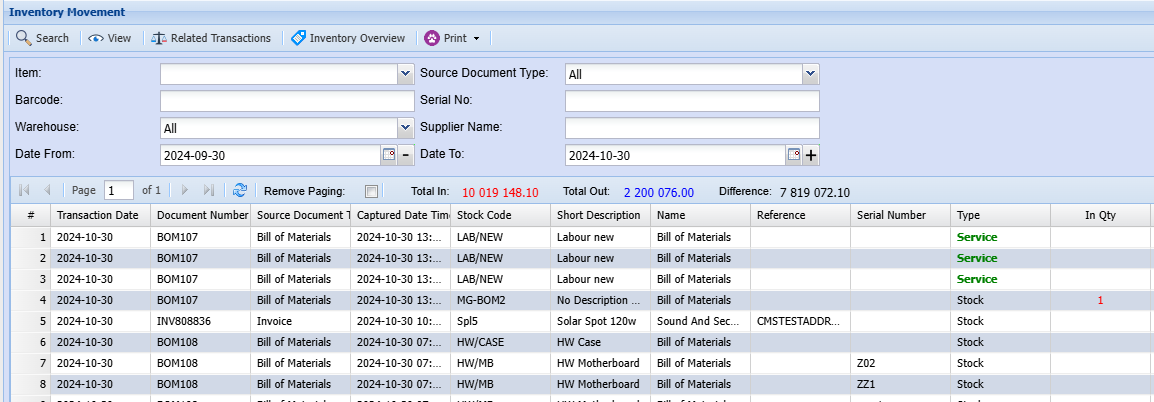
Inventory Movement
Inventory Movement Search
Margin Percentage Menu
Margin Percentage
Inventory > Analysis > Margin Percentage
The margin expresses profit as a percentage over the stock items.
Margin percentage is a direct reflection on how well the business is performing
.png)
Search - the user must select the either the Supplier or Item Code when searching for margin percentage,
otherwise the system will take long to search all the items on the system if nothing has been selected.
Date From – search by selecting the date from and the date to, in order to avoid long search
GRV – search by entering GRV number
Order By – search by selecting from the drop down arrow the desired Criteria.
.png)
Supplier Cost Tab shows a list of posted supplier cost details according to the selection made on Basic Tab
System Cost Tab shows a list of posted system cost details according to the selection made on Basic Tab
User Cost Tab shows a list of posted user cost details according to the selection made on Basic Tab
Export – to export the current margin percentage item into an xcel spread sheet
.png)
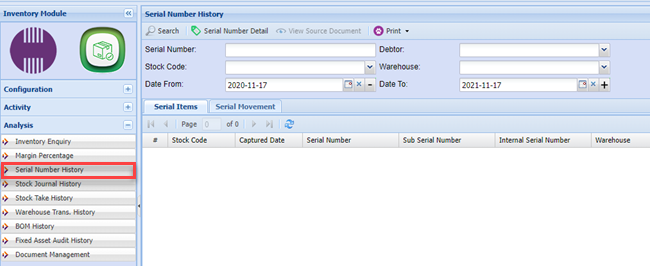
Serial Number History Menu
Serial Number History
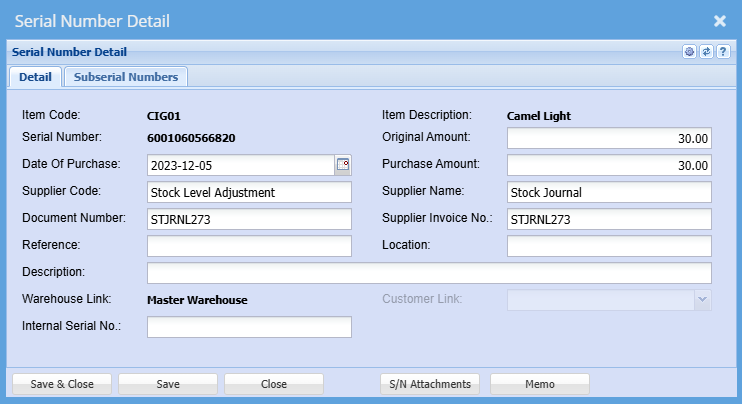
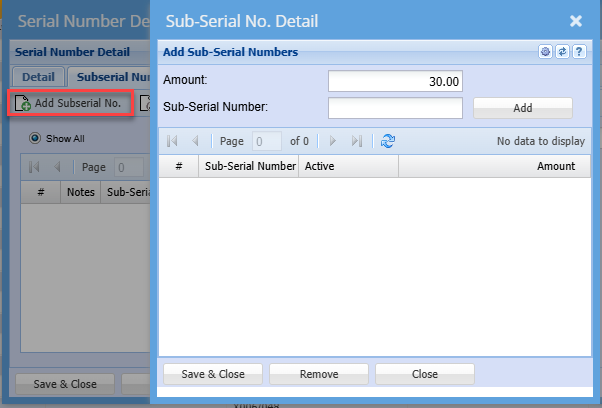
Serial Number Detail
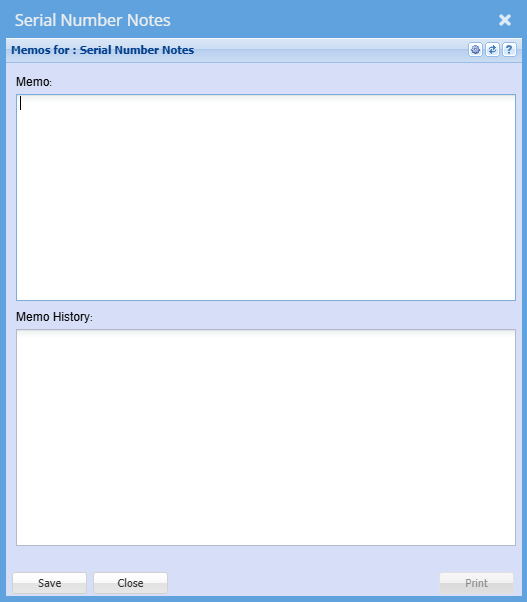
Memo
Subserial Numbers Tab
Add Subserial No.
Stock Journal History Menu
Stock Journal History
Inventory module>Analysis > Stock Journal History
Stock journal history displays a list of posted journals
The adjustment journals being Stock Value Adjustment Journal and the Stock Level Adjustment
.png)
Webaccounting provides users with various search criteria’s
Governed by the date range the system will search for every Journal within the displayed date.
when searching for a specific document - take note of the transaction date it falls under to be able to see it on the grid.
Stock Journal Number – The user has an option to search by a given stock journal number.
Date From and the Date To -The user can backdate or forward date to find journal entries at a specific date.
Action – Gives the user a criteria to search all journals or you can search for a specific type.
.png)
Description – search by entering brief description for stock journal
Job No – search by selecting the job number .
View Button - When a journal is selected the user can click on the view button to see the details of the Journal capture.
Print button – The print button will print the currently selected Stock Journal Report.
The report will show the details of the journal, it can be exported to excel, e-mailed and printed as a hard copy.
and you can see where movements on this Stock Journal affected which General Ledger Accounts.
.png)
Or view T- Accounts.
.png)
Stock Take History Menu
Stock Take History
Inventory>Analysis>Stock Take History
Stock take history displays a list of processed stock take at a certain time.
.png)
Webaccounting provides users with various search criteria’s
Governed by the date range the system will search for every stock Take within the displayed date.
when searching for a specific entry - take note of the transaction date it falls under to be able to see it on the grid.
Stock Take Number – The user has an option to search by a given stock take number.
Warehouse - The user has an option to select a specific warehouse or serach for stock takes relating to all warehouses
Date From and the Date To -The user can backdate or forward date to find stock take entries at a specific date.
Status– Gives the user an option a to search per specific status or all.
View Button - When a stock take line is selected the user can click on the view button to see the details.
besides only viewing option you can export the stock take information , Print or add a memo note only.
Print button – The print button will print the currently selected Stock Take Report.
The report will show the details of the stock take , it can be exported to excel, e-mailed and printed as a hard copy.
.png)
and you can see where movements on this Stock take affected which General Ledger Accounts.
.png)
Warehouse Transfer History Menu
Warehouse Transaction
Inventory module>Analysis >Warehouse Transfer History
Warehouse transaction history shows a
list of transactions transferred from one warehouse to another according to the date selected.
.png)
Webaccounting provides users with various search criteria’s
Governed by the date range the system will search for every transaction entry within the displayed date.
when searching for a specific entry - take note of the transaction date it falls under to be able to see it on the grid.
Warehouse Sending – The user has an option to select the warehouse that is transferring stock
Warehouse Receiving – The user utilises the option to select which warehouse is receiving the stock
Transfer No – The user can search by given transfer number
Stock Item – search by selecting the stock item
Status – an optin to search using a status criteria of all or cancelled or received.
Date Sent From – search by selecting the date from and the date to that this transfer took place
View button– View only the currently selected Warehouse Transaction Item
other available option in this field is to export to excel , add attachment , memo note and print.
Print button – The print button will print the currently selected Warehouse Transaction Item.
.png)
We also have a Consignment Print Option
.png)
.png)
Bill of Materials (BOM) History Menu
Bill Of Materials
.png)
Basic Search Tab allows the user to search by selecting from the following
BOM No – search by entering the BOM No
BOM Desc – search by selecting the job description
Order By – search by selecting the order by, from the drop down arrow
Result Item – search by selecting result item from the drop down arrow
Status – search by selecting the status from the drop down arrow
Show Part BOM – put it to activate part of BOM when searching
Date From – search by selecting the date from and the date to
Advanced Search Tab allows the user to search by selecting from the following
BOM No – search by entering the BOM No
BOM Desc – search by selecting the job description
Order By – search by selecting the order by, from the drop down arrow
Warehouse – search by selecting the warehouse from the drop down arrow
Status – search by selecting the status from the drop down arrow
Show Part BOM – put it to activate part of BOM when searching
Date From – search by selecting the date from and the date to
Standard Tab
View – View the currently selected BOM item to either view or change the information.
Print – The print button will print the currently selected BOM Item.
Picking Slip –
Document Management
Stock Weight Change Menu
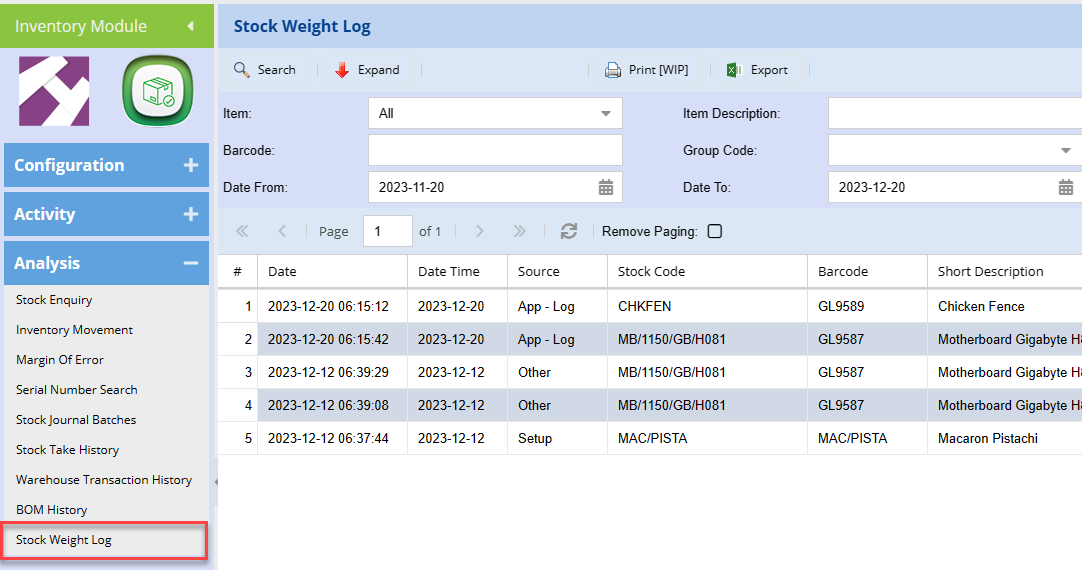
Stock weight log
View all stock with weight changes
Found in Inventory Module > Analysis > Stock Weight Log
Setting up Webatar app - Webatar Stock weight change
Search for all logs and Export data to Excel to analysis
Source definitions
Weight can be changed in multiple places, the source tells the user where the change occurred
| Setup |
Weight changed on Setup New item created with weight |
| App - Setup | Webatar App inventory enquiry weight change |
| App - Log | Webatar App menu item called Weight change |
| Other | Any other weight changed that is not defined as above |
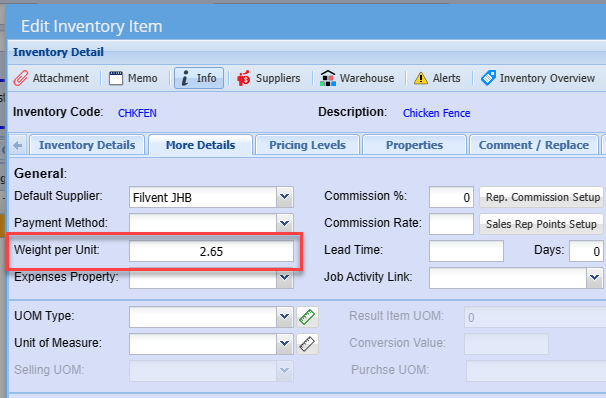
Weight is kept against the inventory item
Weight change is logged with previous weight, current weight change and difference.
If the weight is below the previous weight, the weight is logged in red with a negative figure
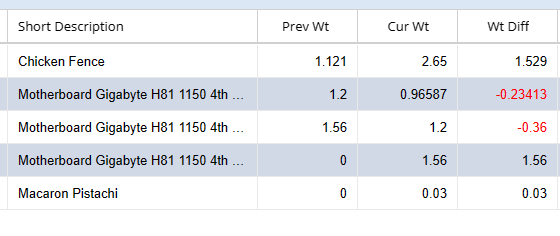
| Prev Wt | Previous Weight |
| Cur Wt | Current Weight |
| Wt Diff | Weight Difference |
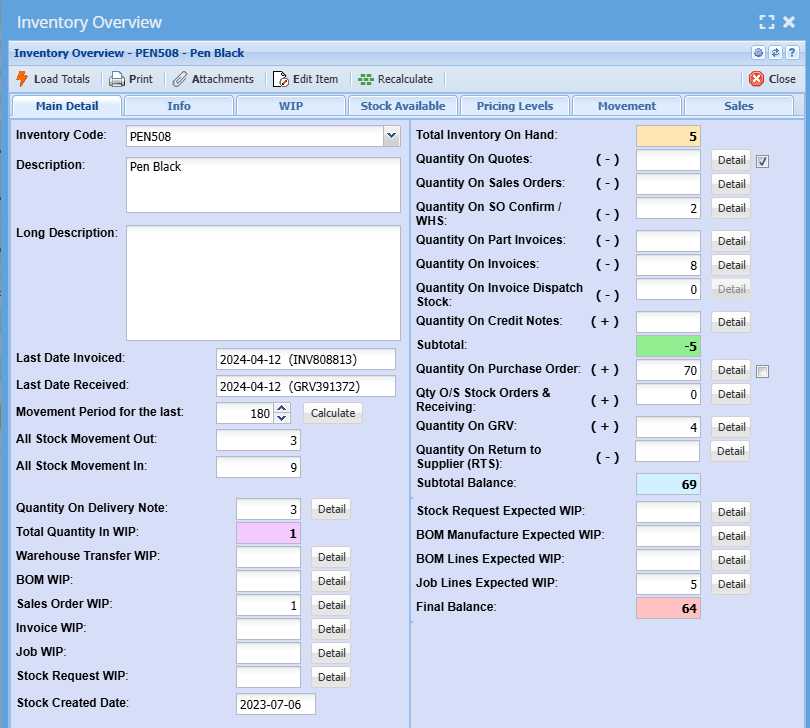
Inventory Overview
Inventory Overview popup
Inventory Overview
The inventory overview window allows a quick access to view information on an item.
It is accessed in most windows where stock items are present
The icon that represents it is a blue item.
|
|
Inventory Overview icon |

Fixed Asset Audit History Menu
Fixed Audit History
.png)
Fixed assets represent all tangible assets owned or held under finance that are used
Search Tab allows the user to search by selecting from the following:
Fixed Asset Audit No – search by entering asses audit number
Debtor – search by selecting the debtor
Operator/Employee – search by selecting operator from the drop down arrow
Date From – search by selecting the date from which the audit search will run from
Warehouse – search by selecting the warehouse
Audit Status – search by selecting an audit status
Date To – search by selecting the date to, in order to limit the
Standard Tab
Audit Assets button –
Cancel –
Manual Import FAA Files –
Extras Tab
Upload – Upload a fixed asset of your choice.
Import – Import an already created Fixed Asset.
Print Tab
Print – The print button will print the currently selected Fixed Asset