# Shortcut on Desktop

<span class="ts0">Right Click on your desktop, click on New and then onto Short cut.</span>

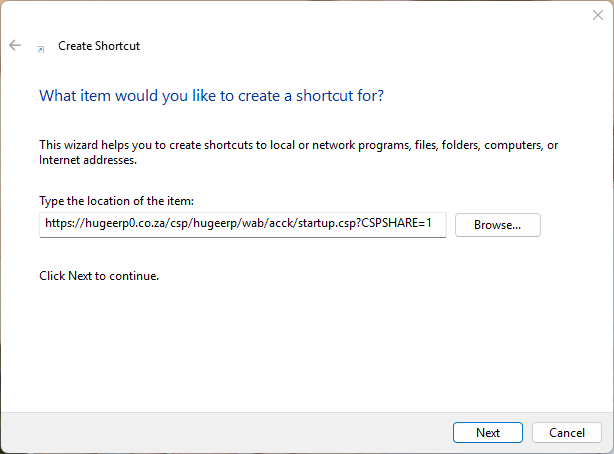
<span class="ts0">Enter the path to the Web Accounting System.</span>

<span class="ts0">[http://servername/csp/namespace/wab/index.csp](http://servername/csp/namespace/wab/index.csp)</span>

<table border="1" id="bkmrk-servername-path-of-y" style="border-collapse: collapse; width: 100%; height: 59.5938px;"><colgroup><col style="width: 19.0459%;"></col><col style="width: 80.9541%;"></col></colgroup><tbody><tr style="height: 29.7969px;"><td style="height: 29.7969px;"><span class="ts0">servername</span></td><td style="height: 29.7969px;"><span class="ts0">Path of your server either by name or IP Address (your IT person should be able to give this to you)</span></td></tr><tr style="height: 29.7969px;"><td style="height: 29.7969px;"><span class="ts0">namespace </span></td><td style="height: 29.7969px;"><span class="ts0">Name of the data base created on the server for the company</span></td></tr></tbody></table>

<span class="ts0">Type in the address in this space</span>

<span class="ts0"> </span>![](https://hugeerp0.co.za/csp/webhelp/topics/images/image(2436).png)

<span class="ts0"> </span><span class="ts0">Enter the path for the server</span>

[![image.png](https://hugeerp10.co.za/hsofmanual/uploads/images/gallery/2026-07/scaled-1680-/yZFimage.png)](https://hugeerp10.co.za/hsofmanual/uploads/images/gallery/2026-07/yZFimage.png)

<span class="ts0"> </span>

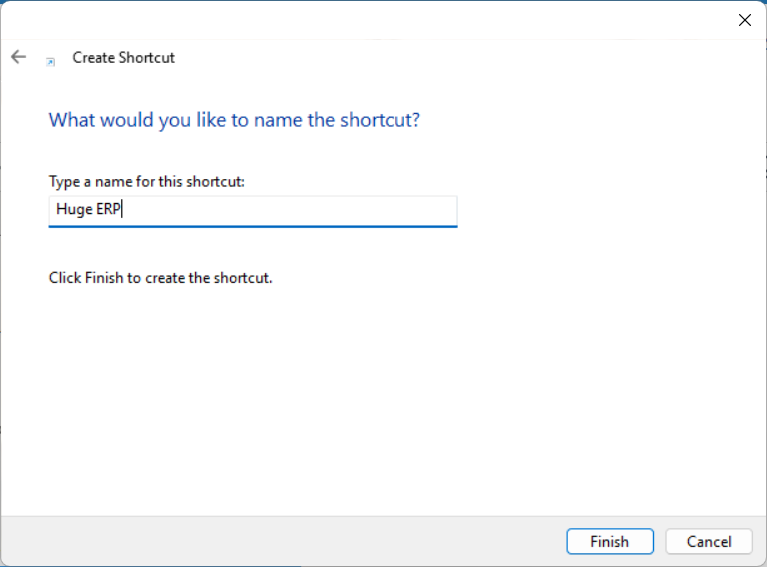
<span class="ts0"> </span><span class="ts0">Click on next and rename the shortcut</span>

[![image.png](https://hugeerp10.co.za/hsofmanual/uploads/images/gallery/2026-07/scaled-1680-/tMLimage.png)](https://hugeerp10.co.za/hsofmanual/uploads/images/gallery/2026-07/tMLimage.png)

<span class="ts0"> </span><span class="ts0"> </span>

[![image.png](https://hugeerp10.co.za/hsofmanual/uploads/images/gallery/2026-07/scaled-1680-/ts4image.png)](https://hugeerp10.co.za/hsofmanual/uploads/images/gallery/2026-07/ts4image.png)