Expense Capture
Expense Capture
Capture an expense
Log into the expense app
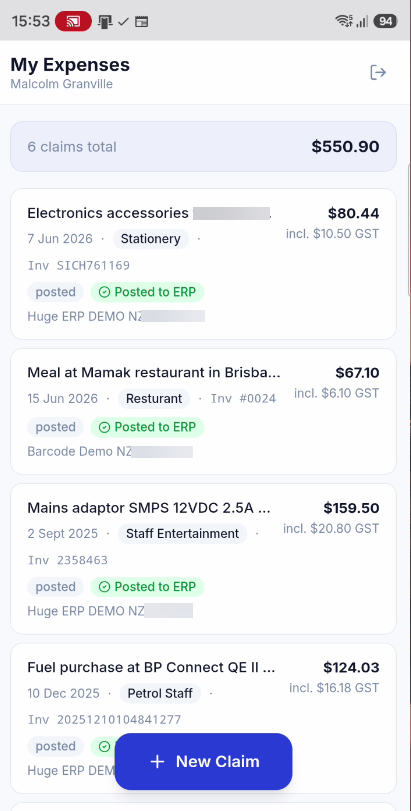
Click on New Claim
Take a Photo or select from Library
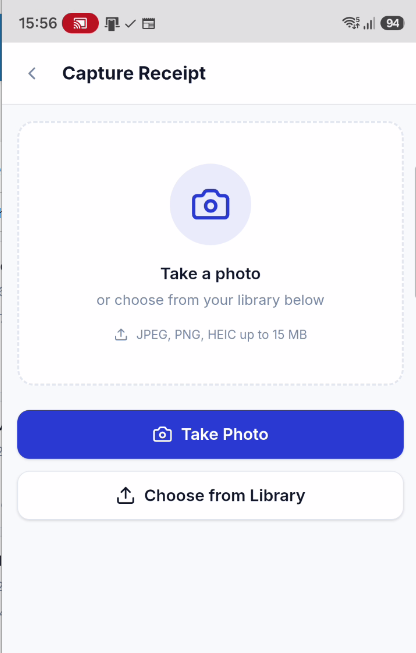
After photo or selection, image will display for expense
Click on Analysis Receipt
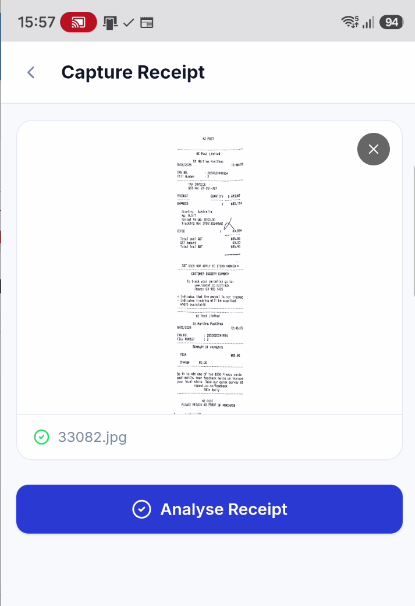
AI checks receipt and populates the expense
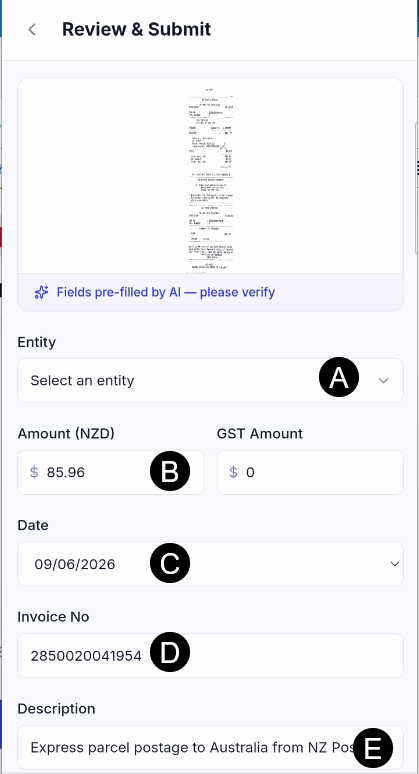
Select the Expense category and click on Submit claim
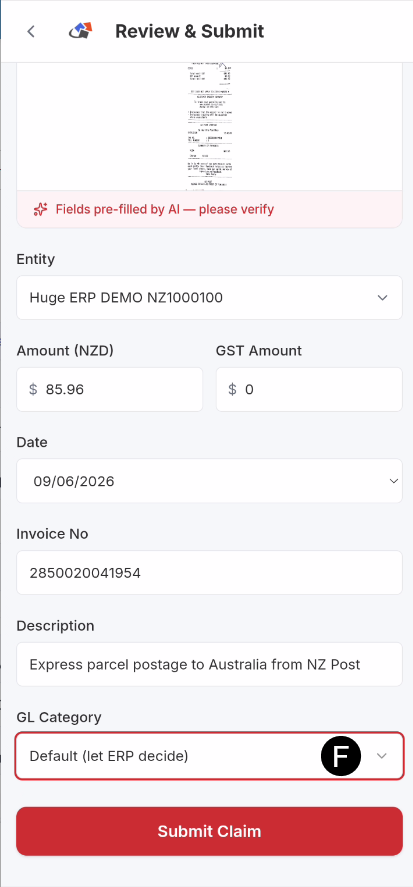
Expense claims pick up from the Huge ERP system
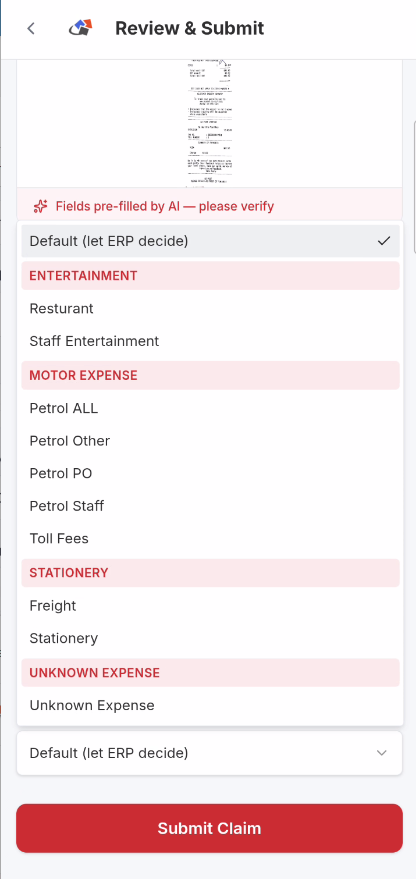
Expense preparation
In order to setup the Expense app to work, there are some setups in the system to be setup.
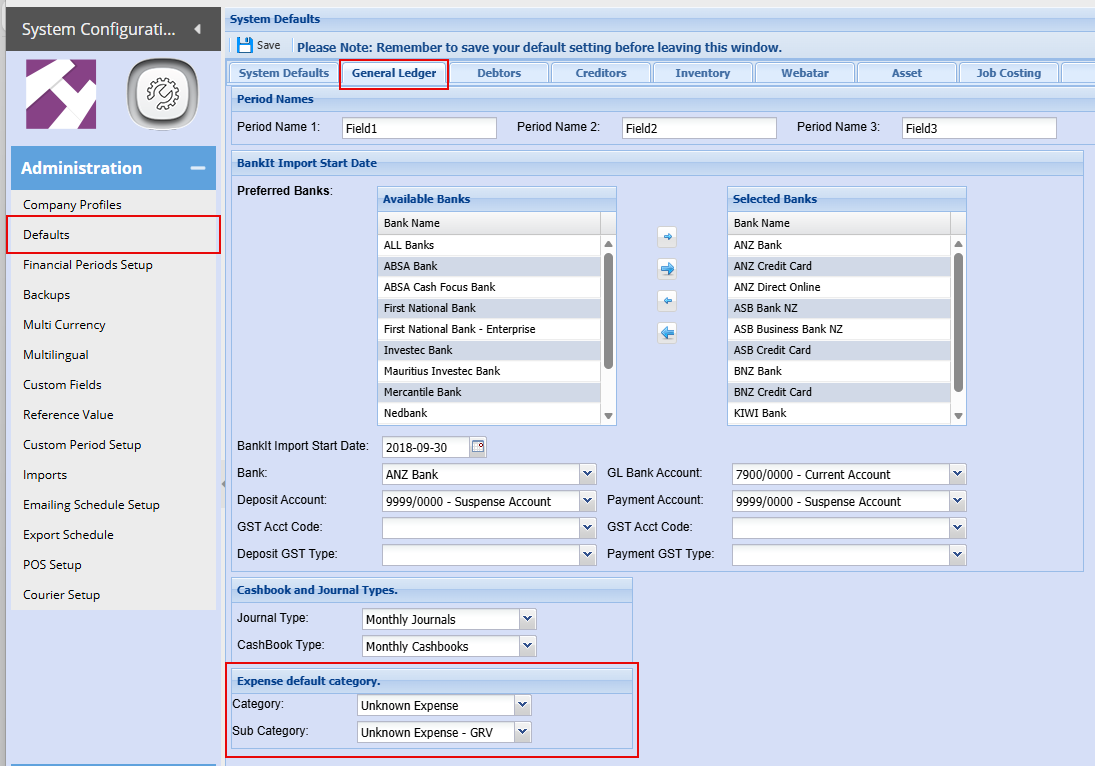
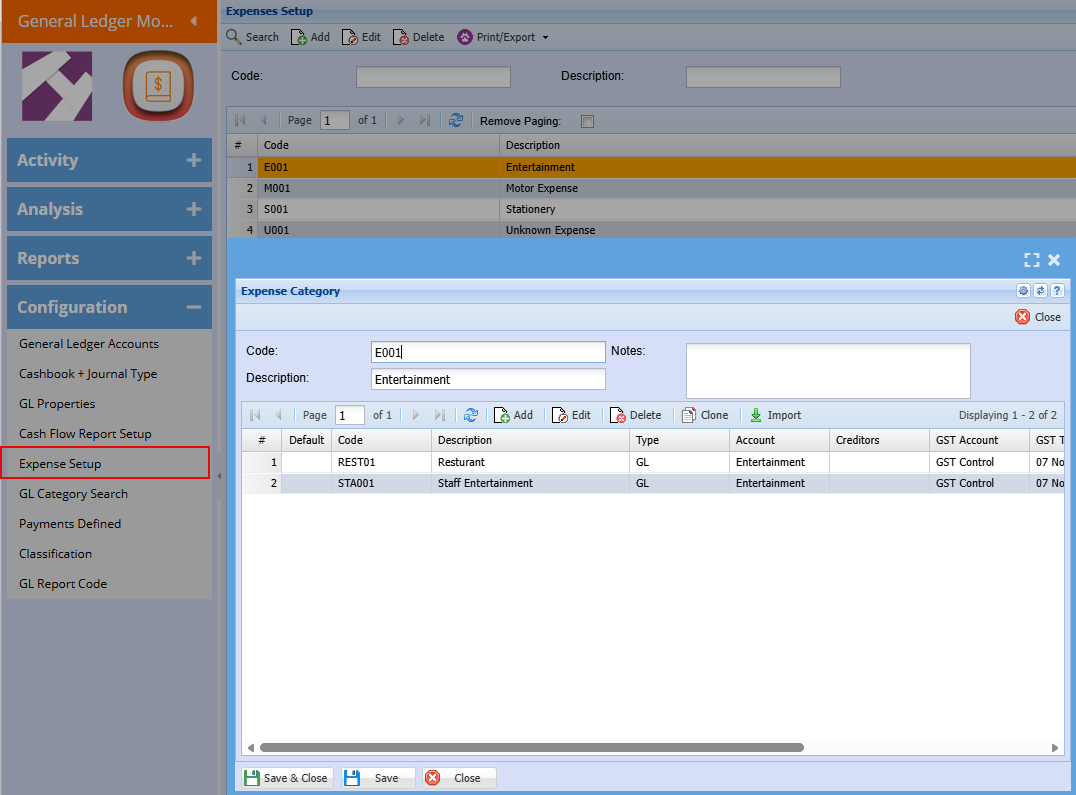
Create Unknown custom item and Unknown expense category.
This is used where the user does not know where to allocate expense, the system will default to this expense.
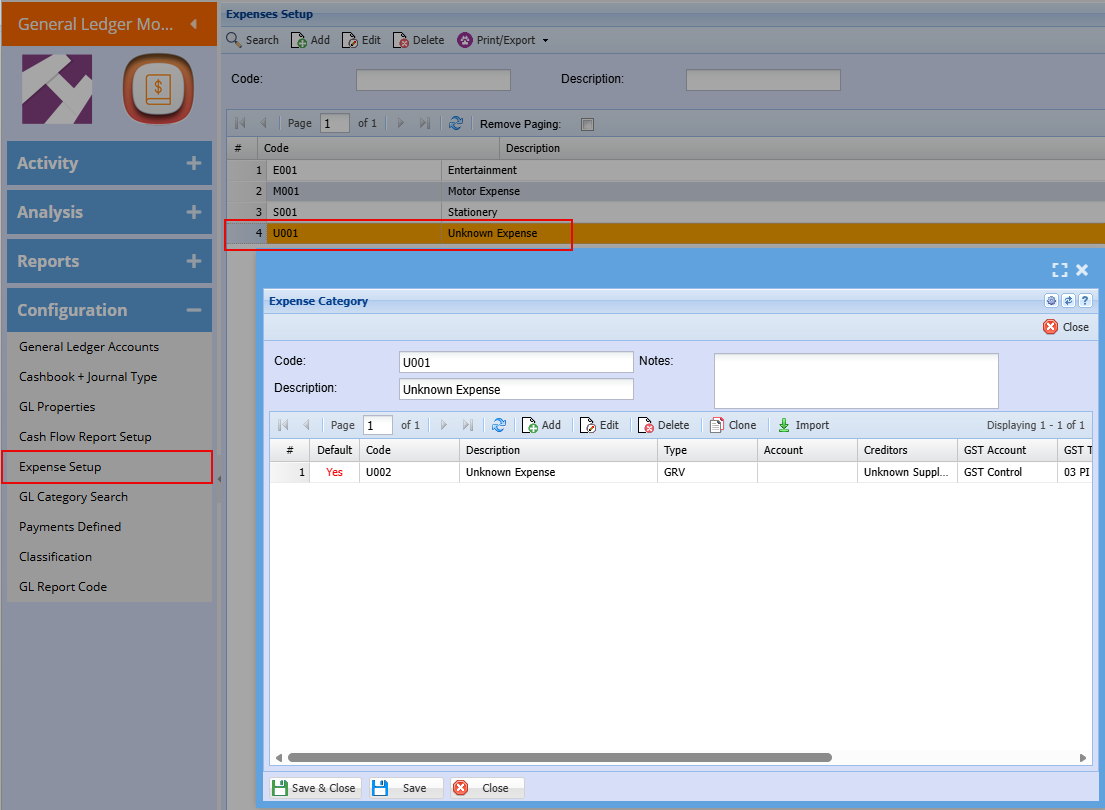
Set the default unknown category and subcategory
Create all your expenses
Expense setup in Payables Hub
Initial setup of Expense setup in Payables Hub
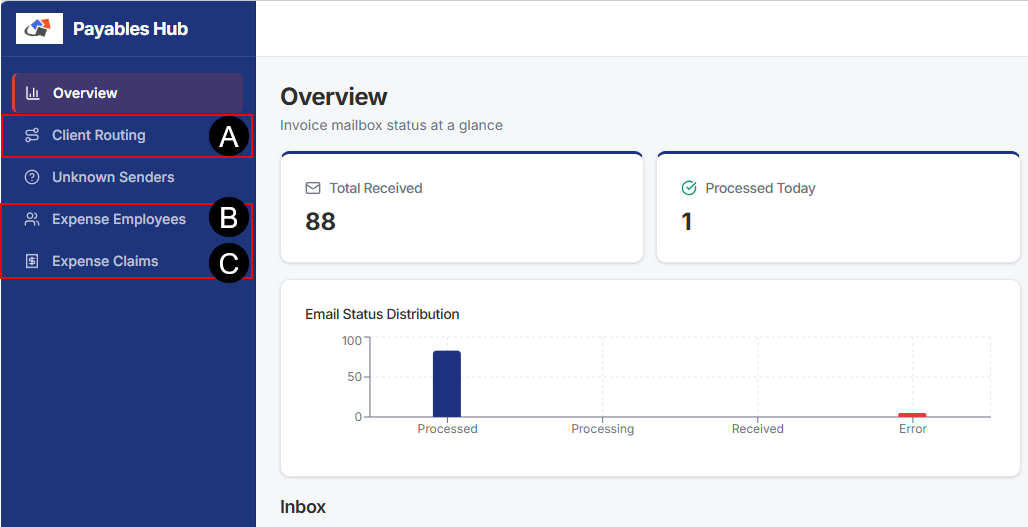
| Client Routing | Setup the company for expense module |
|
Expense Employees |
Setup the various employees that will be allowed to use expense app |
| Expense Claims | Management of claims, successful and not successful |
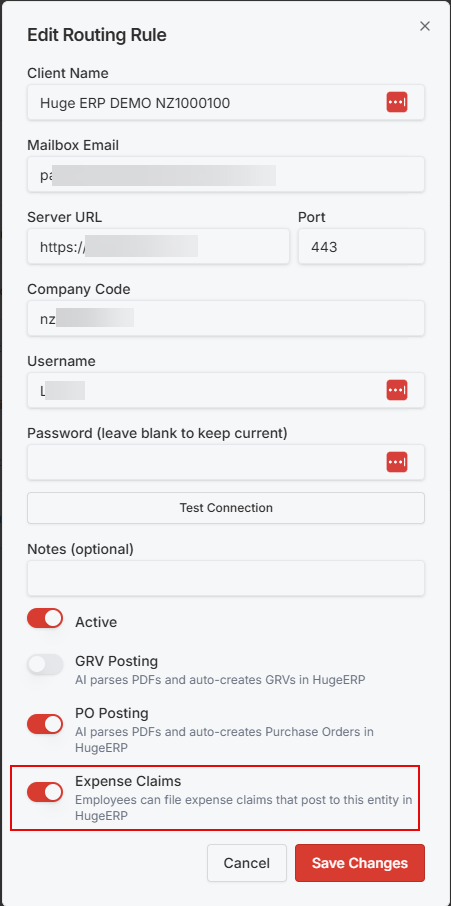
Client Routing setup for Expense Module
Active Expense Module for Company
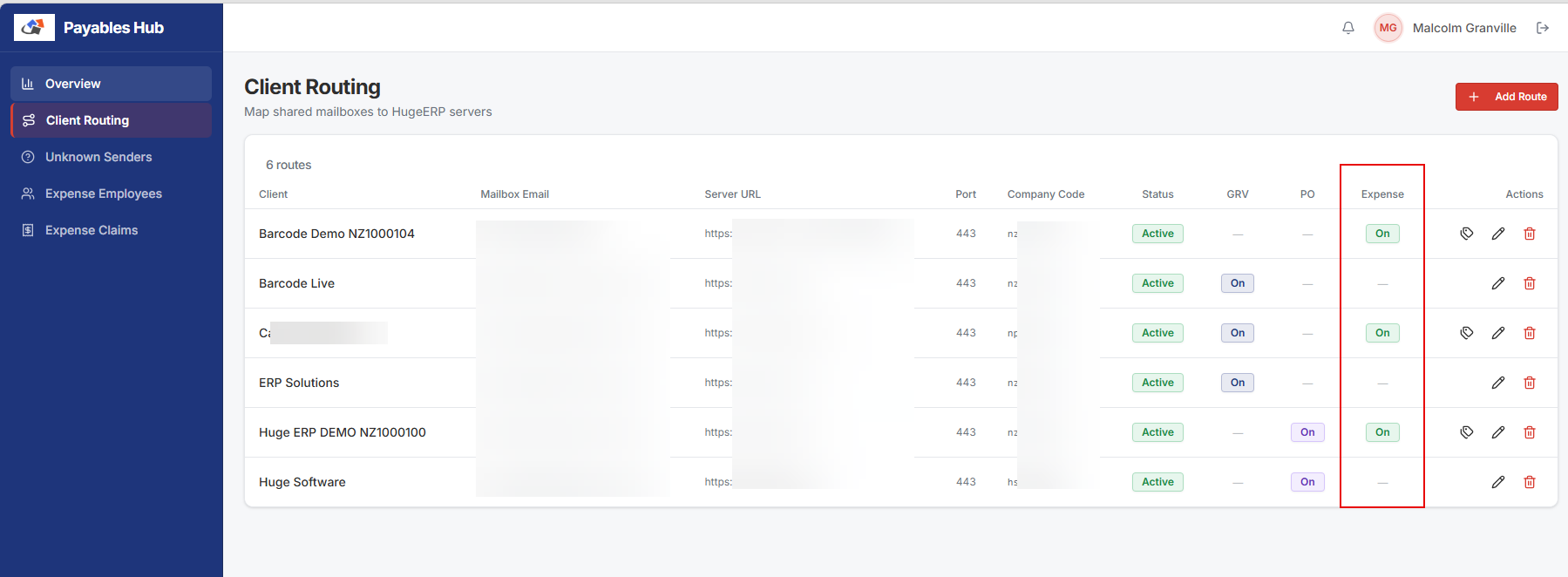
Enable Expense module
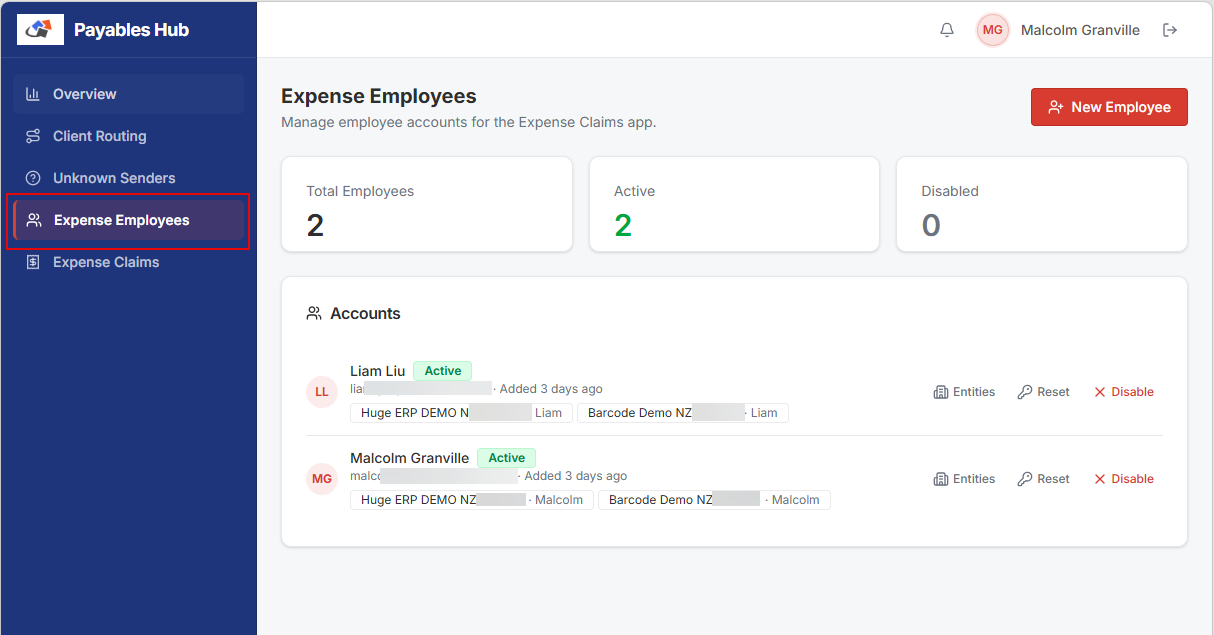
Setup Expense employee
An employee can be linked to multiple companies.
For each company, the employee code needs to be set in order for the system to link the user in the company
Expense Claims
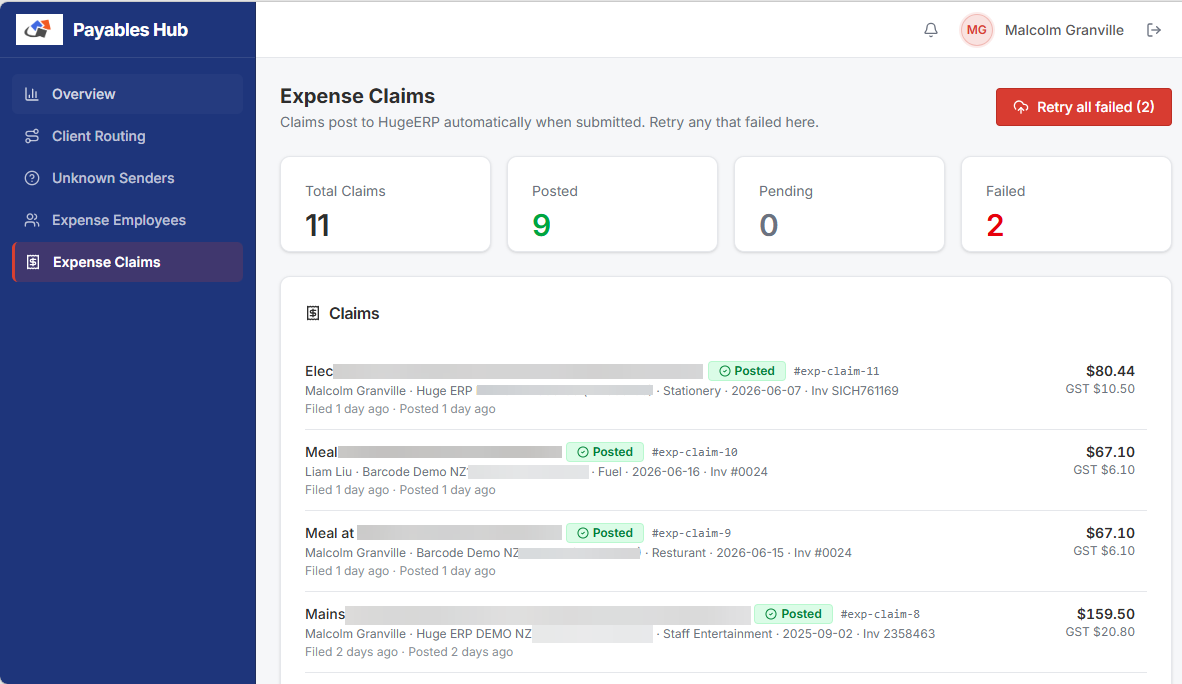
Allow admin to handle any errors to expense claims