Email to Supplier document
Email to Huge ERP setup
When the email is sent to the default email address. It will create a Purchase Order or GRV based on the setup.
The application will try to identify the supplier, but if it cannot, it will use the default supplier
Same goes for the line items, if the app cannot find the supplier item code, it will use the default Custom item.
The Payables Hub email utility will handle the following:
- Multiple attachments, will create multiple documents
- Only processes PDF documents
- Ignores statements
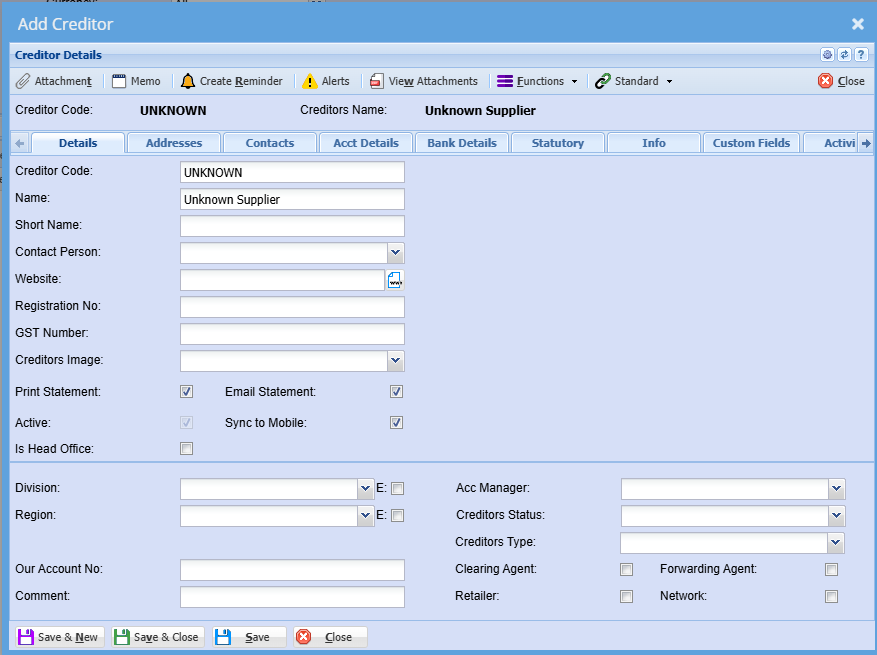
Unknown Supplier
Create an unknown Supplier
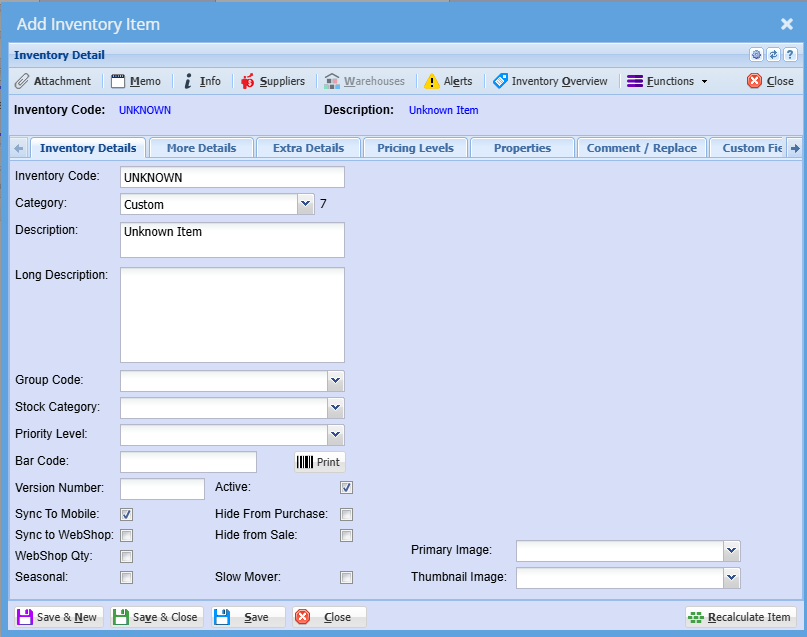
Unknown Item setup
Setup a custom type item called Unknown.
Make the sell price zero and set to amount
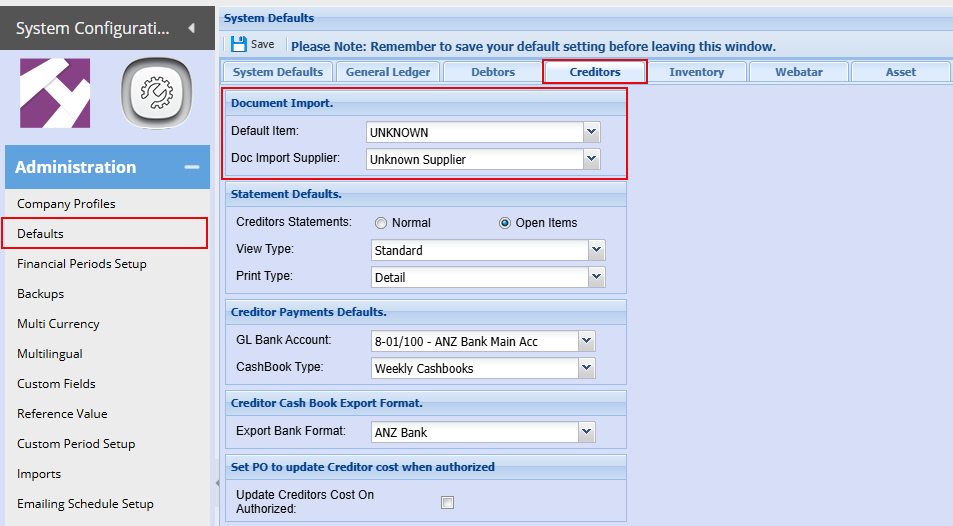
Setting default Supplier and Custom item
a. Setup a default custom type item
b. Setup a default supplier
User Setup in Huge ERP
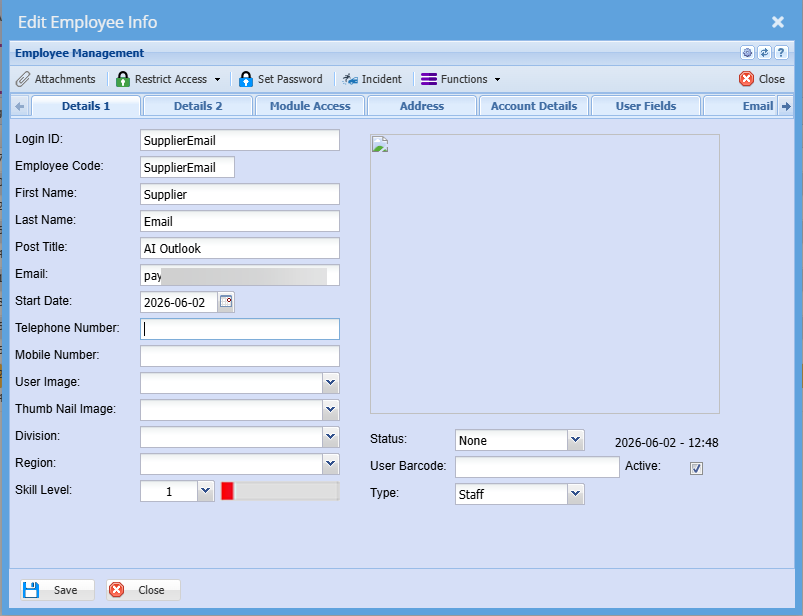
Setup a User for reading of emails - SupplierEmail
This creates a log against the user that we know has had an automatic document created from the Payable Email Hub
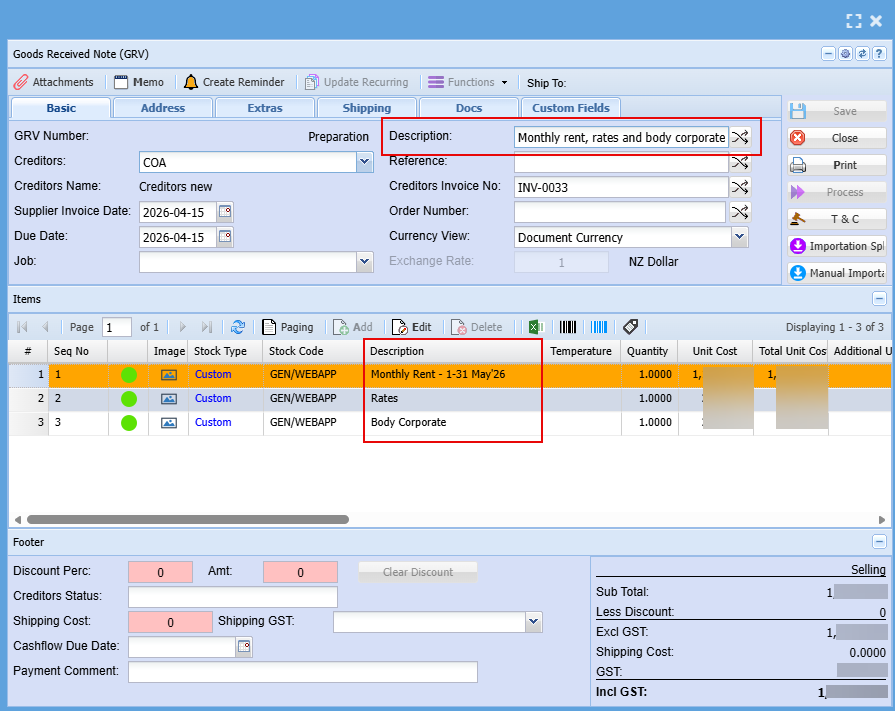
Creation of the supplier invoice as GRV
- The AI will summarize the invoice and put in as the Description
- The AI will create each line with the description, quantity and value
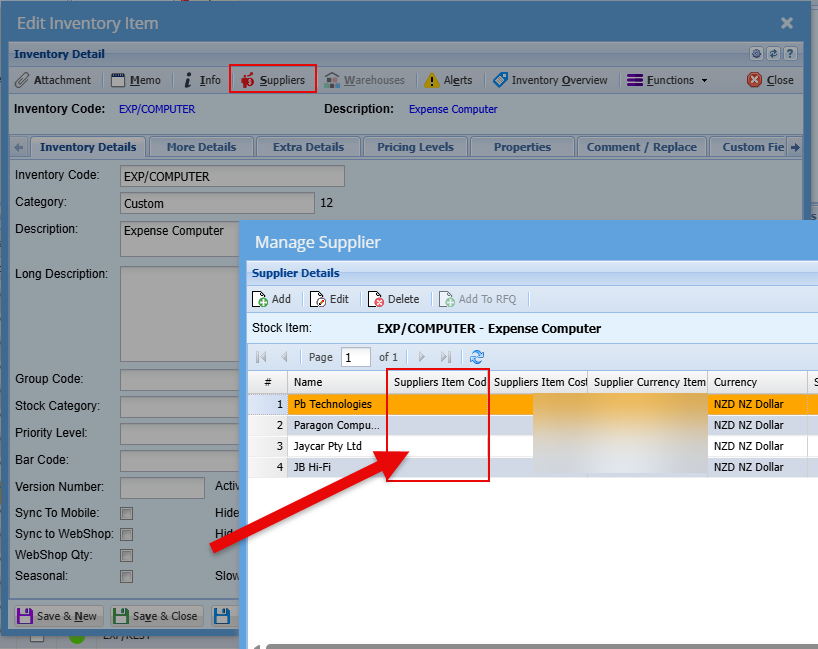
Supplier item code
For successful item allocation, ensure that one updates the item code against the supplier related to the stock item you want AI to assign.
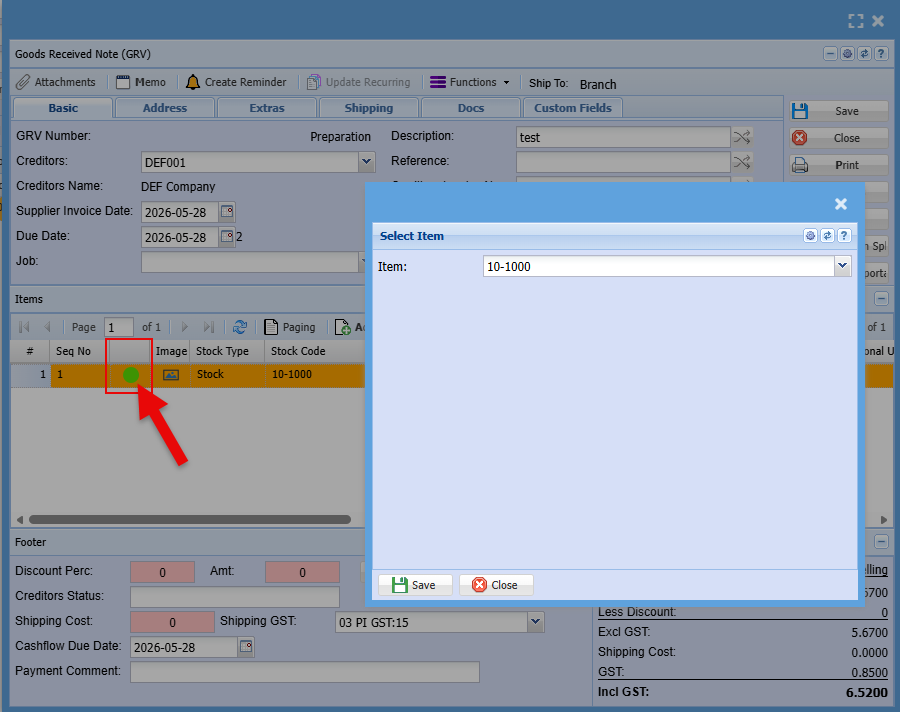
Change Item code on PO and GRV
This special function allows one to change an item code only without the selection changing all the details on the item to the new item code.
Mainly used for the email to PO and GRV function where the line item has been set to the default item.
This option is only available on the Purchase Order and GRV function.
The description, quantity and price are correct, but the item code is incorrect.
To only change the item code there are two ways to change:
- Click on the icon on the grid
- Click on the replace item code button
Click on the icon on the grid
Item edited with replace button
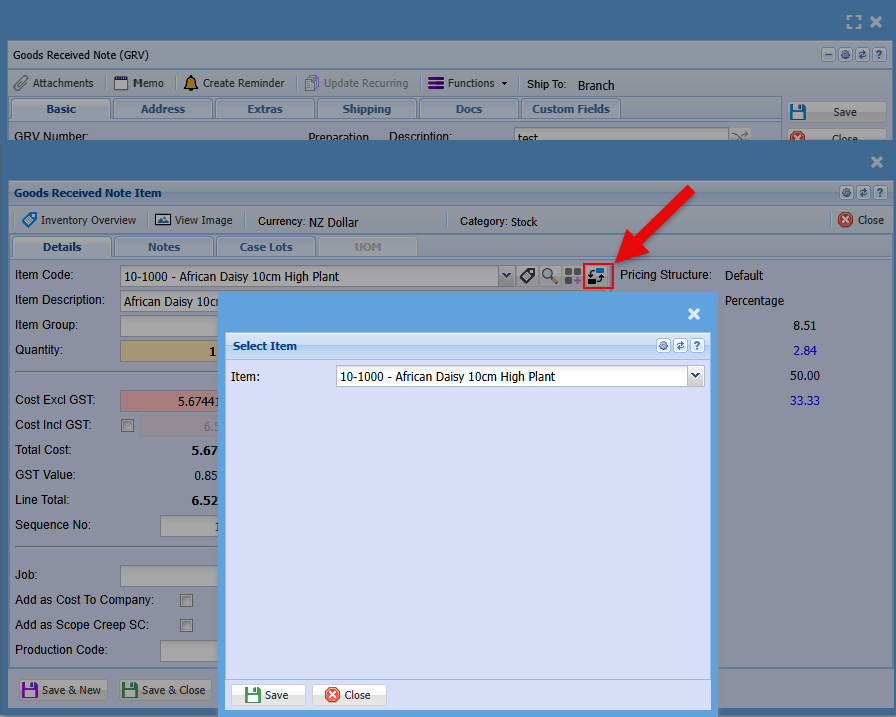
Rules:
- Cannot have a blank item code
- If document is completed or processed, one cannot change
Shared Email Box
Outlook shared mailbox
Customer email addresses are setup as shared email boxes.
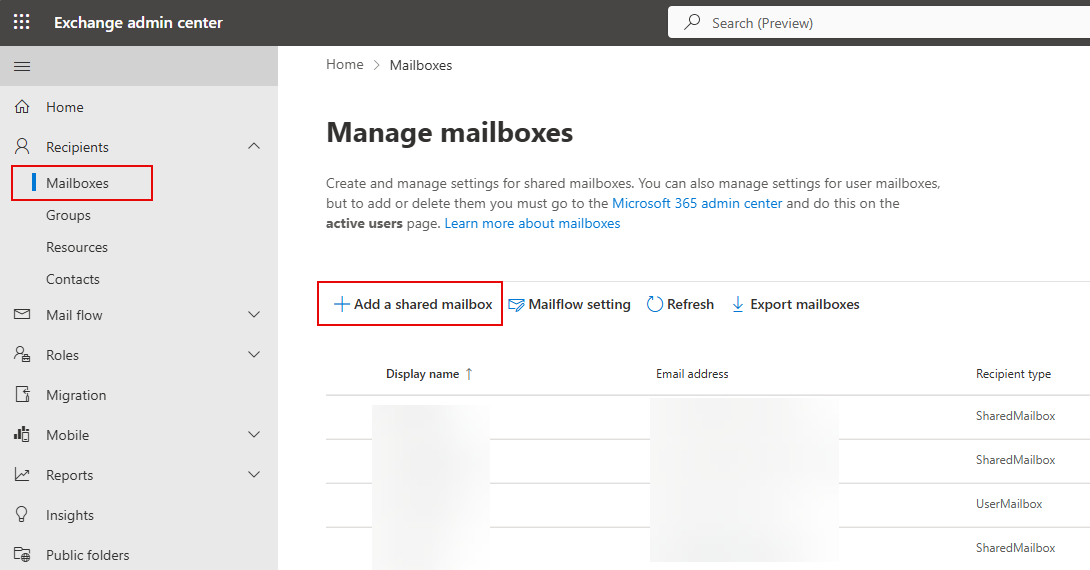
Mail box setup, then link to a user
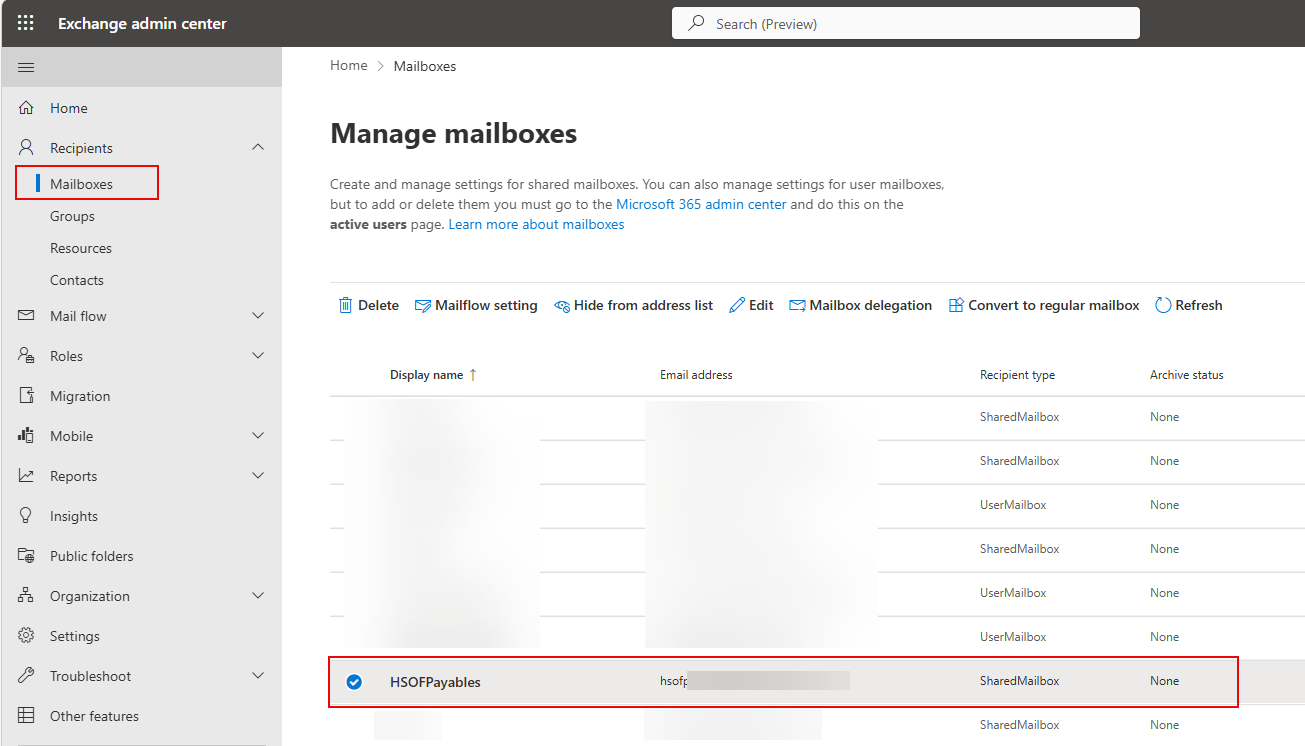
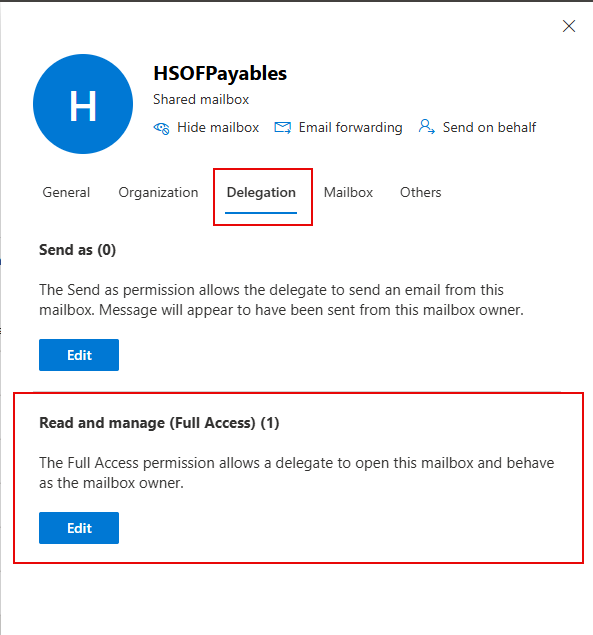
Email utility setup
The online AI email utility allows emails of supplier invoices to be created as Purchase Orders or GRVs in the Huge ERP system.
Setting up Company utility
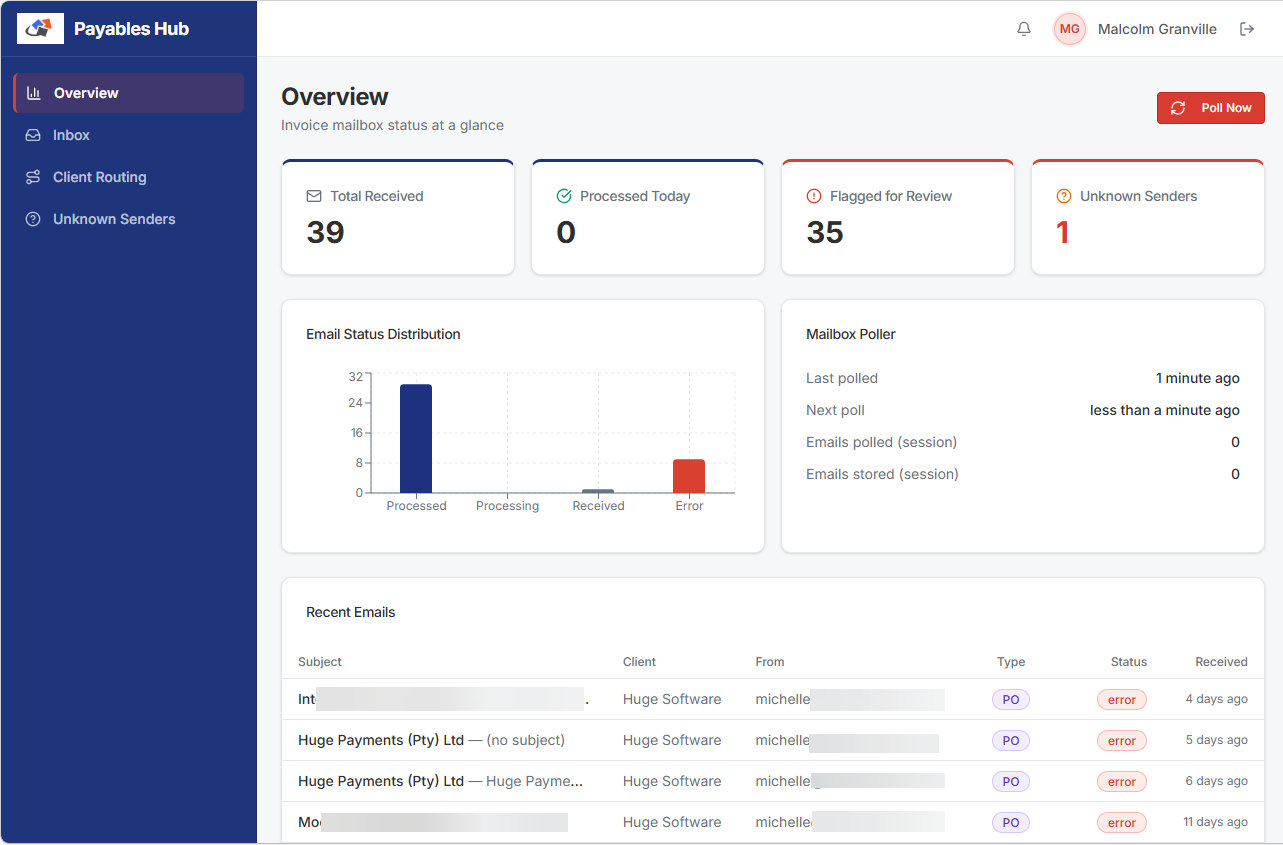
Overview menu
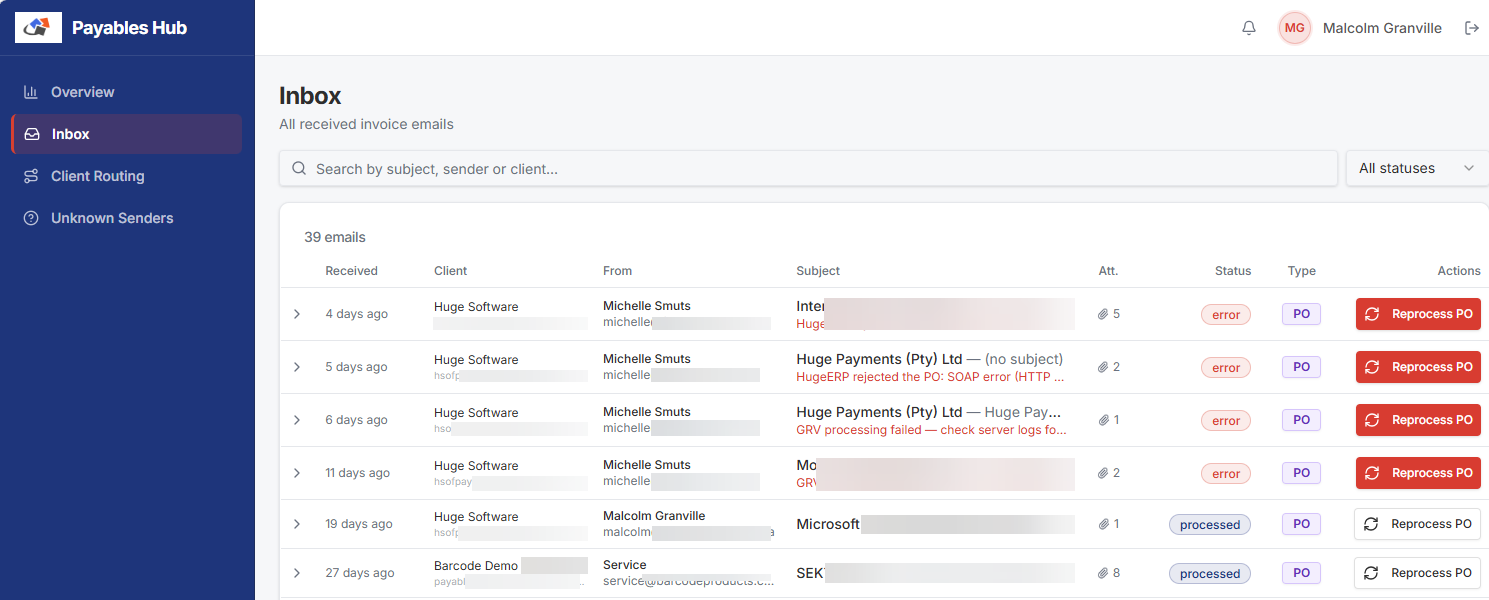
Inbox
Allows one to check any issues with failed emails
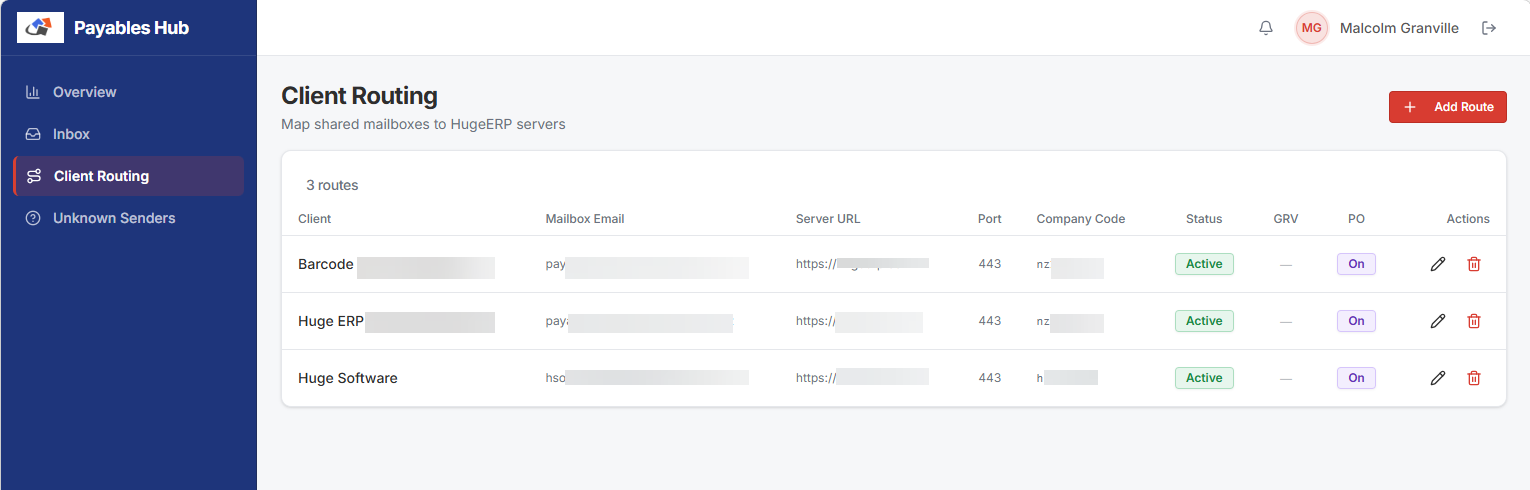
Client Routing
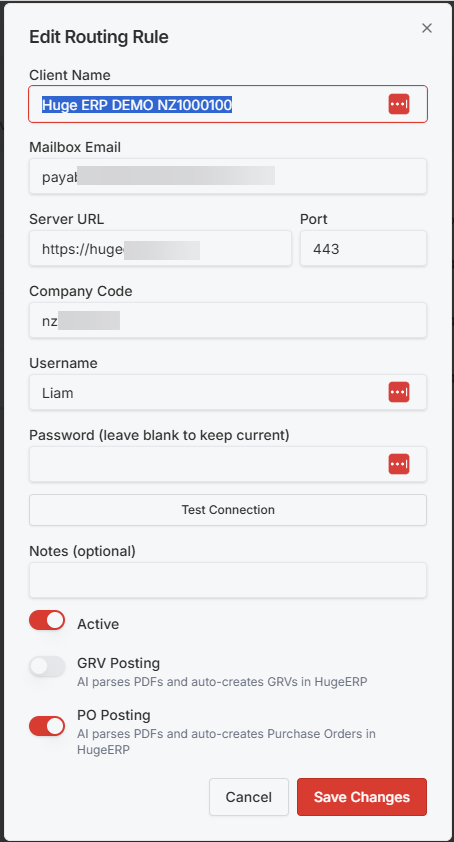
This is where we setup new client routing to ERP namespaces
Setup the new client and link to the server and namespace
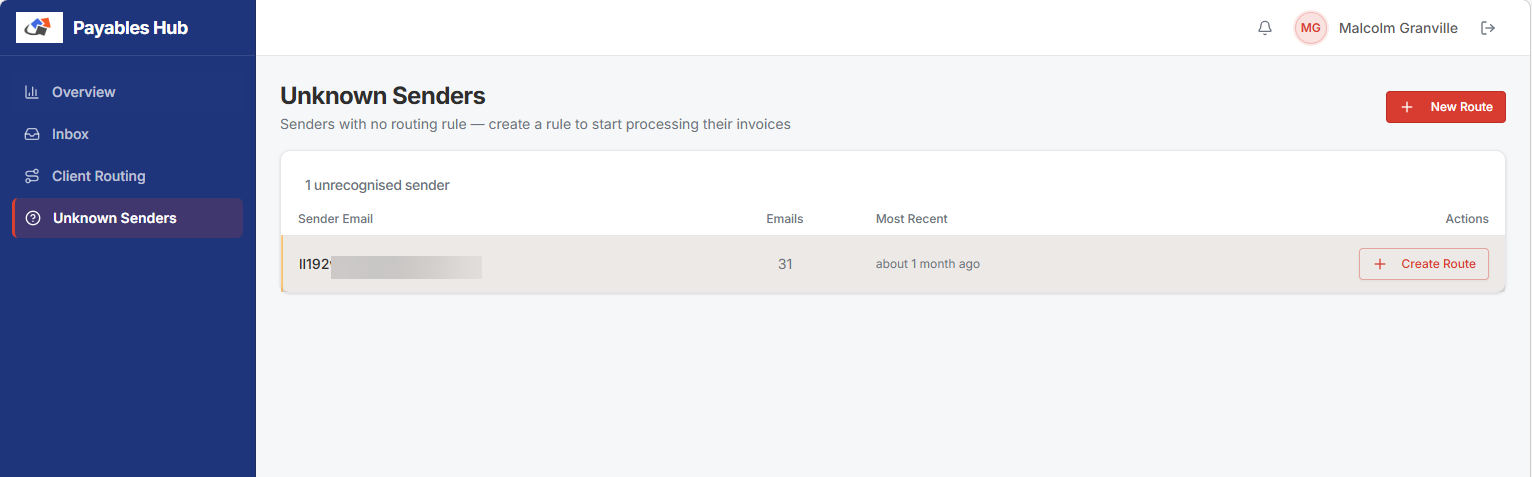
Unknown Senders
Setup rules for unknow emails