System Recalculations
- System Recalculations
- Posting queue reset
- Merge Customers
- Change Customer on Job
- Due Date
- Last Payment
- Change Transaction Dates
- Invoice Open
System Recalculations
System Configuration> Security> System Recalculations
We run recalculations to eliminate errors or to include additional data.
.png)
|
Scheduled System Recalculations |
|
|
2. Recalculate Balance Sheet |
01:00 am |
|
3. Recalculate Creditor Balances |
01:15 am |
|
4. Recalculate Debtor Balances |
01:30 am |
|
6. Recalculate Summary Income |
01:45 am |
|
7. Update Account Balances |
02:00 am |
The recalculation can be run whenever the balance is out.
Activate schedule
Deactivate schedule
Reset posting queue
Posting queue reset
Video training manual 2016 - Click Here
.png)
Merge Customers
This utility allows you to merge customers.
When somebody has duplicated a customer and has put transactions against it, you can merge the transactions of the customer to the new customer.
Once you have completed the merge, it is recommended thank you delete the duplicated customer.
.png)
Source Customer
Find the customer that is duplicated, enter the customer in this section.
This will be the customer that you will delete after you have merged it.
Merge to customer
This is the customer that you want as the main customer.
Enter both the source and the merge to customer and then click on confirm to reassign all customer transactions.
.png)
Change Customer on Job
Use this utility to change a wrong customer on a job to the correct customer .
This will change all the quotes and job to the new customer
.png)
Find the job number that has the wrong customer.
Select a new customer that you want the job to go to and click on the button called change.
This will change any invoices against the job.
Note that this will not allow you to change the customer if there are any invoices that are allocated.
Unallocated payment to invoice before running this utility.
.png)
Due Date
Use this utility to update all the debtors and creditors transaction with the due date.
This will help to update past transactions to have a due date against them.
You can also use this utility to update the transactions for due date if you have changed the terms of the customer or supplier .
.png)
This will run automatically when you click Run Utility
.png)
Last Payment
Use this utility to update Debtors and Creditors last payment date.
This will update the tables so that when you run the age analysis report for the last payment date , this will appear there.
.png)
Change Transaction Dates
Change transaction dates of processed documents.
Helps to not have to do a credit note and reissue invoice.
WARNING
Use this new feature with care.
It allows one to change the transaction date of posted documents.
This will update the document, general ledger transactions and tax tables.
Not recommended if you have submitted Taxes (VAT or GST) to government organizations.
Balances recalculations to be run after changes
If you are changing transactions in different periods, run the system recalculations to update balances in those periods.
Go to System Utilities (system recalculations)

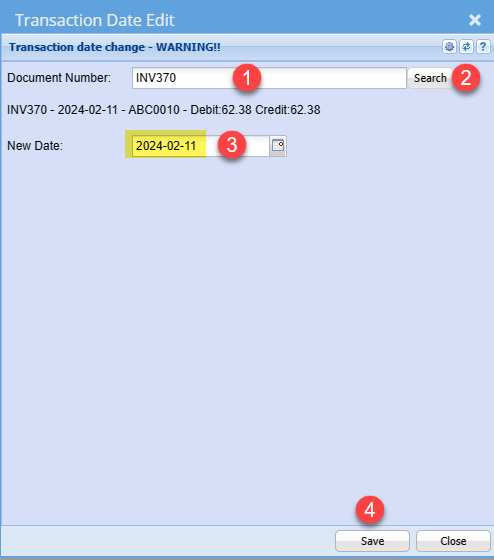
Enter the exact document number, it must include full document number - INV370
- Enter the document number
- Click on Search to find document
- Change to new date
- Click on Save to update transaction
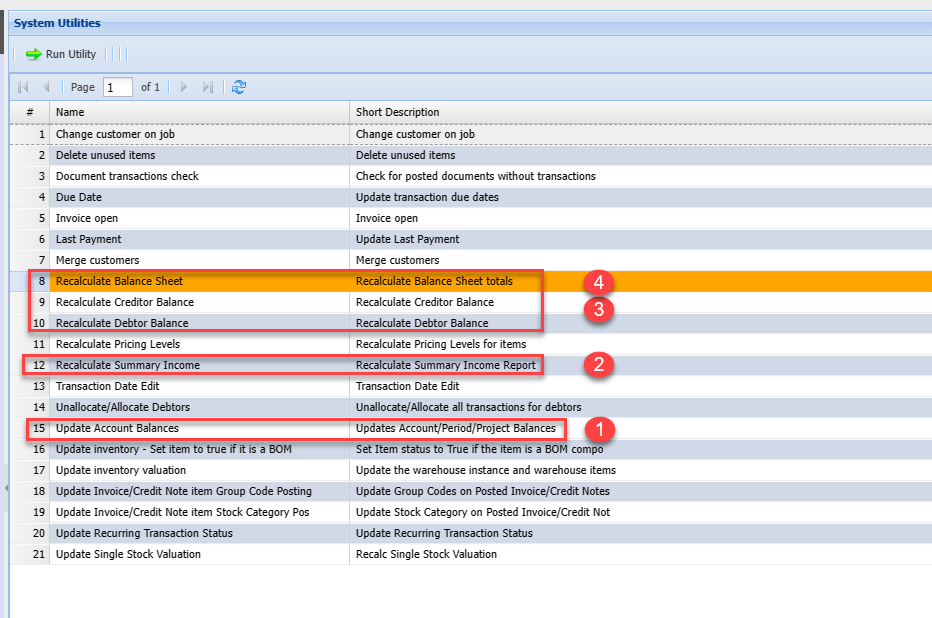
Recalculate balances
After updating a date of a transaction, run recalculations to update balances.
There is a possibility that your reports will be out of sync
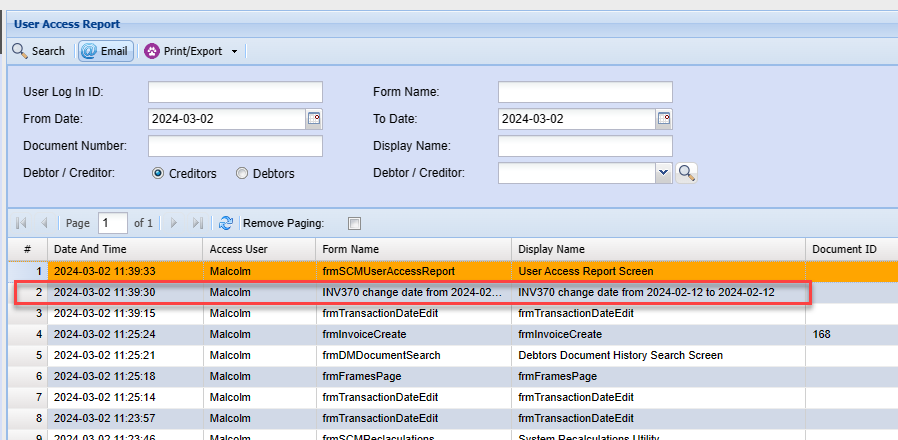
User log
The change will be logged in the user log as proof a user changed a date on a document
Invoice Open
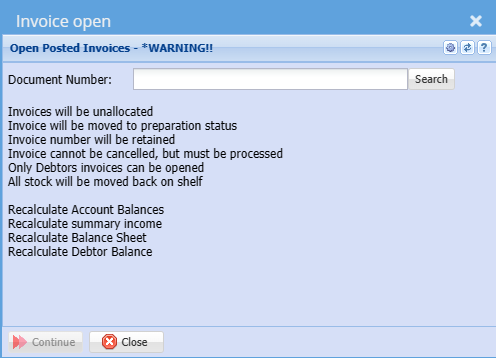
This is a utility that allows a posted invoice to be reopened and edited.
Warning
The utility will do the following
- Make a PDF invoice and store in folder
- Un allocate the invoice
- Delete General Ledger transactions
- Delete VAT / GST tables
- Delete mirror table
- Delete allocations table
- Delete stock movement
- Recalculate each stock item
- Make a user log entry
This utility is specific to Debtors invoices only, no job invoices and no other documents.
Recommended to do the following after invoice re opened.
This can be done at the end of the day
Reports maybe out of sync if the following utilities are not run before running reports
- Recalculate Account Balances
- Recalculate summary income
- Recalculate Balance Sheet
- Recalculate Debtor Balance
Access the system via the System Utilities (System Recalculations)
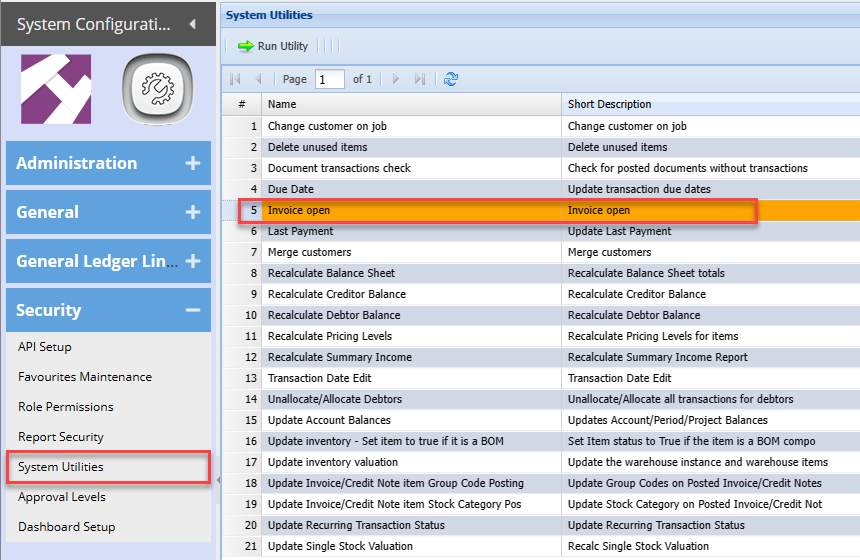
Enter your invoice number in full
Click on Search
Click on Continue to complete
After the invoice has been re opened, find it in the Debtors Module > Activity > Invoice
This will be displayed as a preparation invoice, which can be edited and reprocessed.
The Invoice cannot be cancelled as it has reserved the invoice number. it must be processed
A copy of the invoice is kept in the back ground folders for audit purposes.
A user log is created to log who re opened an invoice and which invoice was re opened.
New transactions and stock movements will take place when processing the invoice.