# RFID Scan App

RFID Scan App

# RFID Scan

RFID Scan

# RFID Scan Program

The RFID Scan App Program is used to capture RFID Tag IDs.

The App is called RFID Scan

Program works with Android RFID scanners and readers

[![image.png](https://hugeerp10.co.za/hsofmanual/uploads/images/gallery/2025-11/scaled-1680-/RHyimage.png)](https://hugeerp10.co.za/hsofmanual/uploads/images/gallery/2025-11/RHyimage.png)
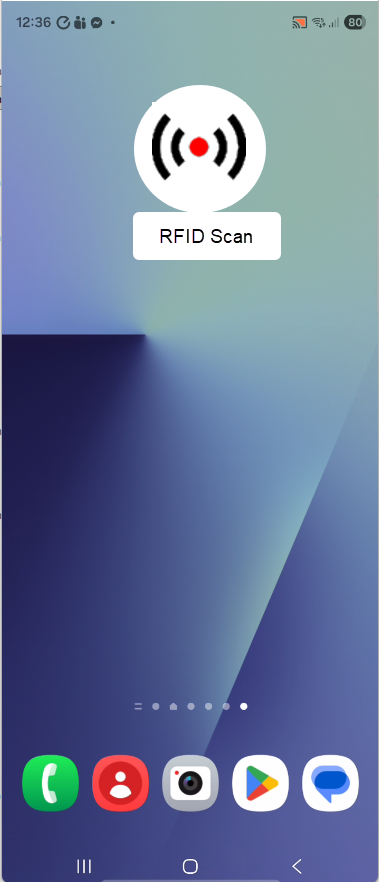
When clicking on the app, it goes to the Home page

[![image.png](https://hugeerp10.co.za/hsofmanual/uploads/images/gallery/2025-11/scaled-1680-/w2Pimage.png)](https://hugeerp10.co.za/hsofmanual/uploads/images/gallery/2025-11/w2Pimage.png)
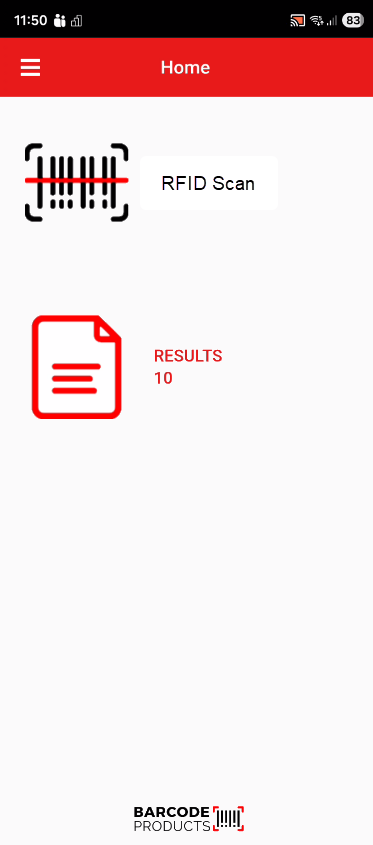
The app will contain the following

<table border="1" id="bkmrk-burger-menu-where-se" style="border-collapse: collapse; width: 76.1905%;"><colgroup><col style="width: 33.8462%;"></col><col style="width: 66.143%;"></col></colgroup><tbody><tr><td>Burger Menu</td><td>Where settings and other menus are accessed</td></tr><tr><td>RFID Scan</td><td>Where scanning of RFID Tags will take place</td></tr><tr><td>Results</td><td>System will keep a record of all scans</td></tr><tr><td>Logo</td><td>Barcode Products logo</td></tr></tbody></table>

---

#### RFID Scan

This section is where scanning of the RFID will take place.

[![image.png](https://hugeerp10.co.za/hsofmanual/uploads/images/gallery/2025-11/scaled-1680-/Unzimage.png)](https://hugeerp10.co.za/hsofmanual/uploads/images/gallery/2025-11/Unzimage.png)
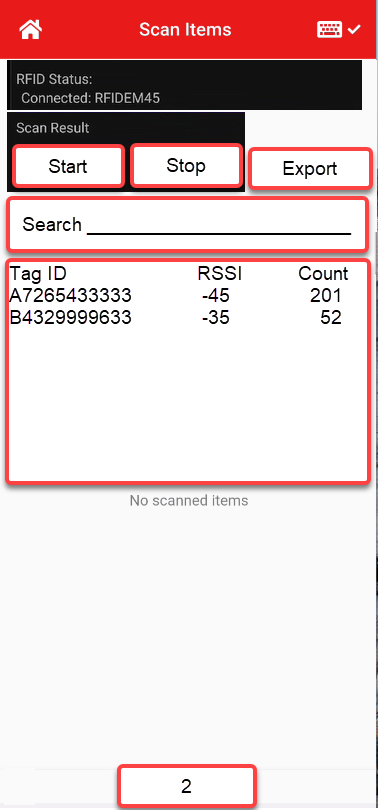
<table border="1" id="bkmrk-rfid-status-informs-" style="border-collapse: collapse; width: 100%;"><colgroup><col style="width: 30.2923%;"></col><col style="width: 69.8161%;"></col></colgroup><tbody><tr><td>RFID Status</td><td>Informs us which device is connected</td></tr><tr><td>Start</td><td>Will clear the list

Start scanning the Tag IDs

</td></tr><tr><td>Stop</td><td>Will stop the Scanning

Save this to a database with unique name

</td></tr><tr><td>Export</td><td>Will export based on the setup of the app eg. Clipboard, Export file, API etc</td></tr><tr><td>Search</td><td>Quick search for Tag IDs,

Highlights the Tags which contain those numbers

</td></tr><tr><td>Result Table</td><td>Shows the Tag ID, RSSI and Count

RSSI will display the last scanned strength

Count will display a number based on the number of times the Tag ID is scanned

</td></tr><tr><td>Count</td><td>The number of unique Tag IDs scanned

</td></tr></tbody></table>

---

#### Results

This section shows the saved results from each scan

[![image.png](https://hugeerp10.co.za/hsofmanual/uploads/images/gallery/2025-11/scaled-1680-/E97image.png)](https://hugeerp10.co.za/hsofmanual/uploads/images/gallery/2025-11/E97image.png)
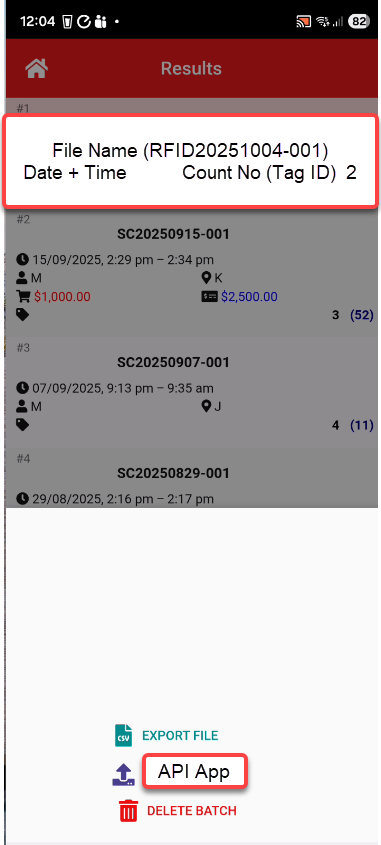
<table border="1" id="bkmrk-file-information-fil" style="border-collapse: collapse; width: 100%;"><colgroup><col style="width: 36.0066%;"></col><col style="width: 64.1018%;"></col></colgroup><tbody><tr><td>File Information</td><td>File name - RFID20251105-001

Date and Time Scan started

Number of unique Tag IDs scanned

</td></tr><tr><td>Functions</td><td>File can be Exported or sent to another program via the API App

File can be Deleted

</td></tr></tbody></table>

---

#### The burger menu

The menu will contain various sections of the system

[![image.png](https://hugeerp10.co.za/hsofmanual/uploads/images/gallery/2025-11/scaled-1680-/5ABimage.png)](https://hugeerp10.co.za/hsofmanual/uploads/images/gallery/2025-11/5ABimage.png)
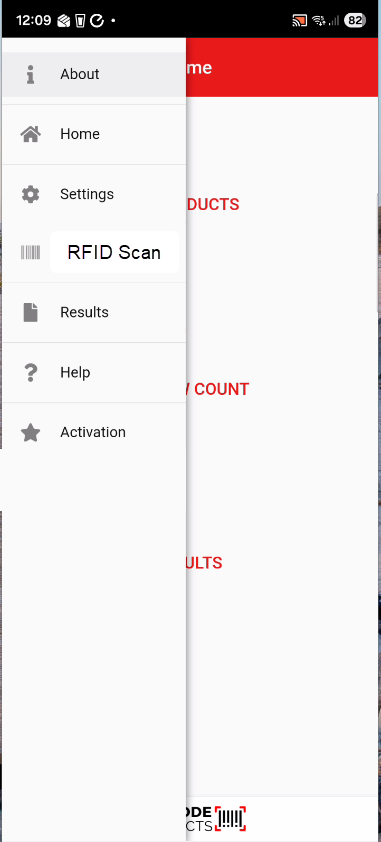
<table border="1" id="bkmrk-about-gives-informat" style="border-collapse: collapse; width: 100%;"><colgroup><col style="width: 34.697%;"></col><col style="width: 65.4113%;"></col></colgroup><tbody><tr><td>About</td><td>Gives information on the app</td></tr><tr><td>Home</td><td>Takes the user back to the Home page</td></tr><tr><td>Settings</td><td>Some basic settings to define functions within the app</td></tr><tr><td>RFID Scan</td><td>Scanning the RFID tags</td></tr><tr><td>Results</td><td>See previous scanned results</td></tr><tr><td>Help</td><td>Takes one to the help menu</td></tr><tr><td>Activation</td><td>Activate this program</td></tr></tbody></table>

---

#### Settings

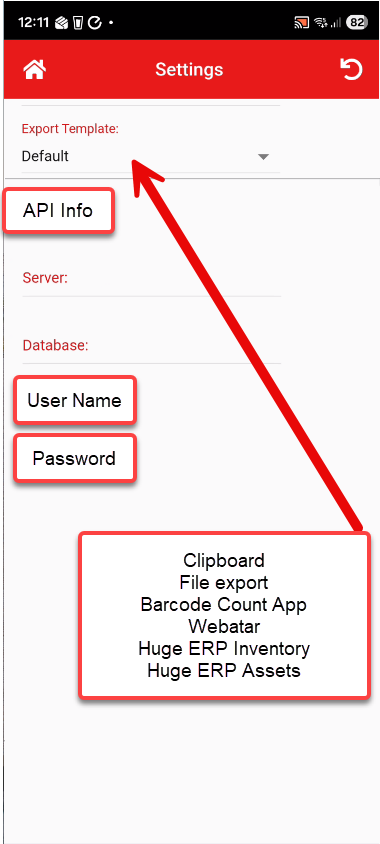
View the basic settings for the app

This defines the Export function within the app

[![image.png](https://hugeerp10.co.za/hsofmanual/uploads/images/gallery/2025-11/scaled-1680-/pQkimage.png)](https://hugeerp10.co.za/hsofmanual/uploads/images/gallery/2025-11/pQkimage.png)
---

#### About

Shows what the program is all about

[![image.png](https://hugeerp10.co.za/hsofmanual/uploads/images/gallery/2025-11/scaled-1680-/kiLimage.png)](https://hugeerp10.co.za/hsofmanual/uploads/images/gallery/2025-11/kiLimage.png)
# RFID - Settings

##### RFID Serialized Tagging in the Inventory Module

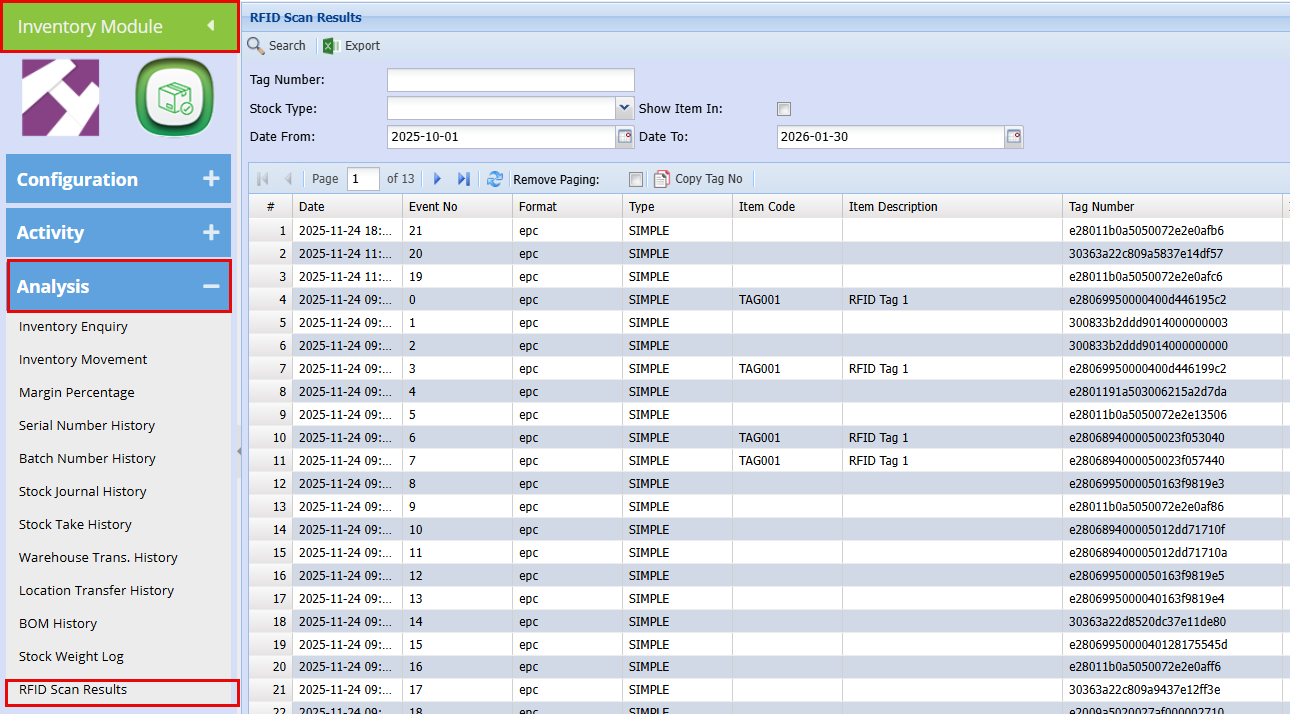
<div id="bkmrk-this-system-uses-rfi">This system uses RFID technology to track individual items through serialized tagging. Each product is assigned a unique RFID tag number, allowing it to be identified and recorded as it moves through the detection gate. As items pass through the gate, the system logs their movement, helping maintain accurate stock records and improving visibility across the inventory lifecycle.</div><div id="bkmrk-"></div>[![image.png](https://hugeerp10.co.za/hsofmanual/uploads/images/gallery/2026-01/scaled-1680-/Cvyimage.png)](https://hugeerp10.co.za/hsofmanual/uploads/images/gallery/2026-01/Cvyimage.png)

<span style="color: rgb(45, 194, 107);"> **Inventory Module &gt; Analysis &gt; RFID Scan Results**</span>

At the top right-hand corner are the settings:

[![image.png](https://hugeerp10.co.za/hsofmanual/uploads/images/gallery/2026-01/scaled-1680-/ntLimage.png)](https://hugeerp10.co.za/hsofmanual/uploads/images/gallery/2026-01/ntLimage.png)
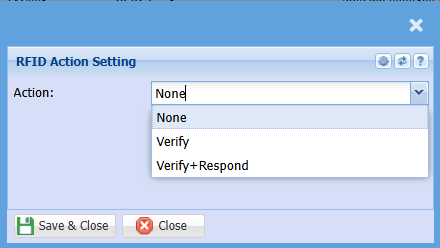
<table border="1" id="bkmrk-none-no-action-will-" style="border-collapse: collapse; width: 100%;"><colgroup><col style="width: 50%;"></col><col style="width: 50%;"></col></colgroup><tbody><tr><td>None</td><td>No Action will be taken, it will just log the results</td></tr><tr><td>Verify</td><td><div>When they walk through the scanners, the system will capture the scan result, log it, and verify that the detected tag matches the correct product in the system. It will then record the corresponding product name in the log.</div></td></tr><tr><td>Verify + Respond</td><td><div>When they walk through the scanners, the system will capture and log the result. If the scan shows that the item has not been sold, a siren and/or light will activate.</div></td></tr></tbody></table>