Memo Notes
Memo Notes
About Memo Notes
Memo Notes is situated across the system.
It is on grids and documents
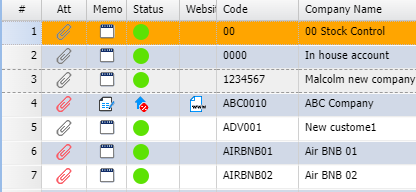
Grids
The memo note has two icons, one indicating that there is no note and one indicating a note is present.
|
|
No Note |
|
|
Note has been added |


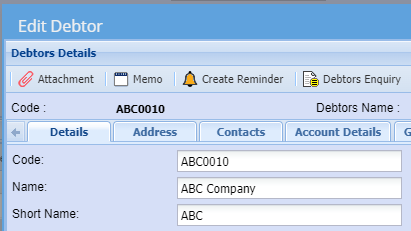
Documents
This is indicated with a button on the top left
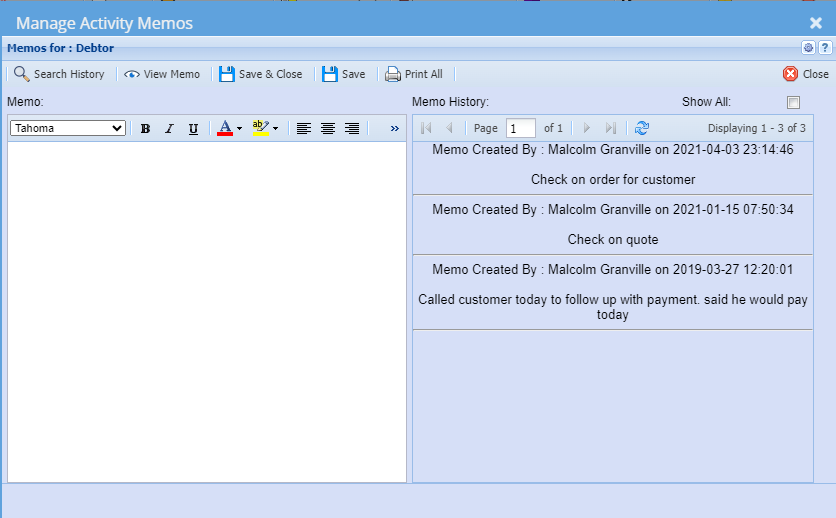
Memo notes log Date and time and user who added the note
A note cannot be edited
Notes allow a text area to add in a new note and an area to view logged notes
View All Debtors Notes
View all Notes across the system against one debtor
Go to Debtors setup, edit the debtor
Under the Activity tab, you can view all activities and actions against the debtor
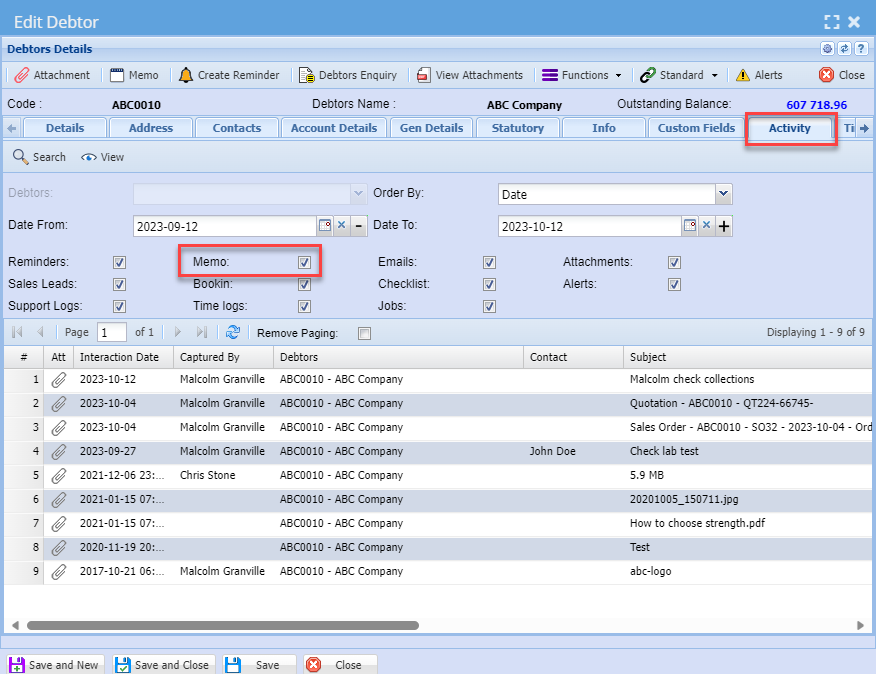
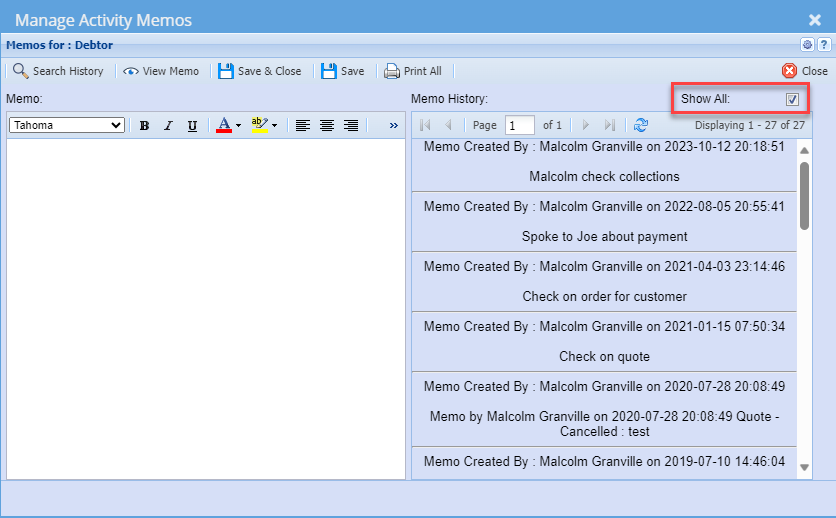
Show All memos
When adding in a new memo, one can view all memos logged
Click on the Show all tick box to view all memos logged against the Debtor
By clicking on the Show All tick box, one views all memos against this debtor
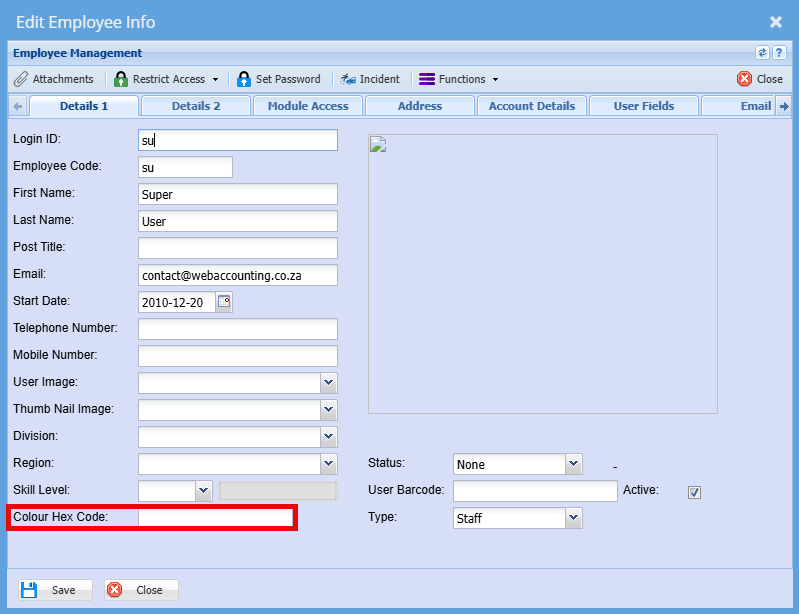
Memo Notes - Colour Hex Code
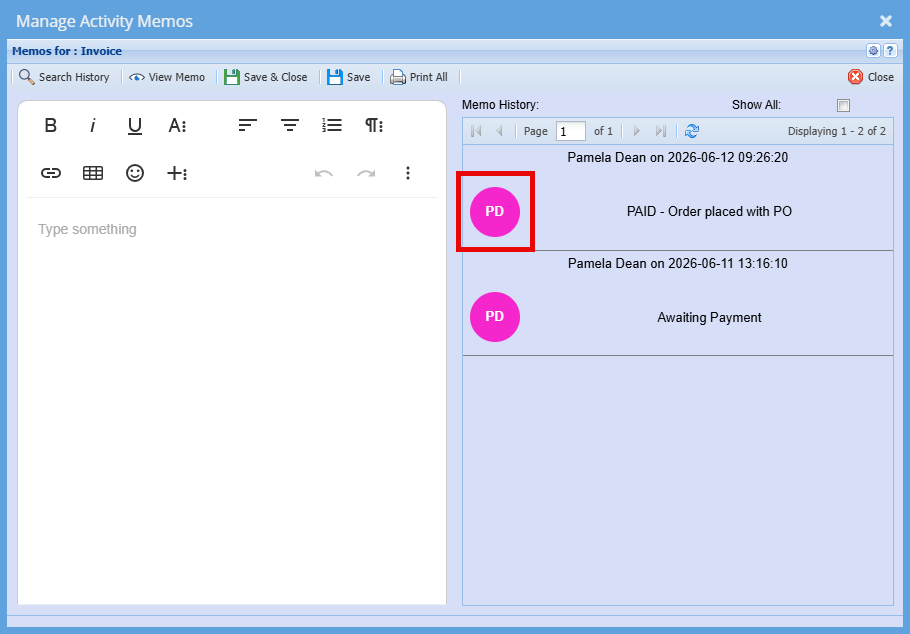
Setup:
Click on the below link to find the colour of your choice
Copy the Hex Number
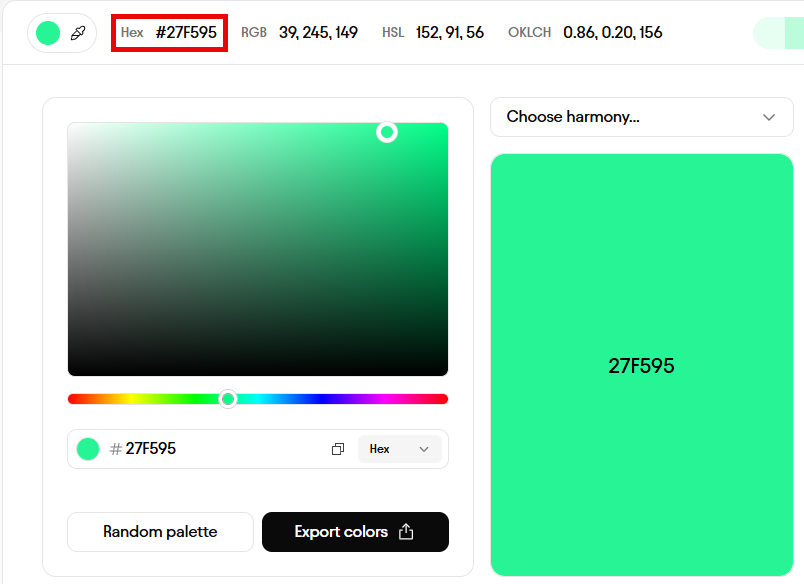
In Huge ERP:
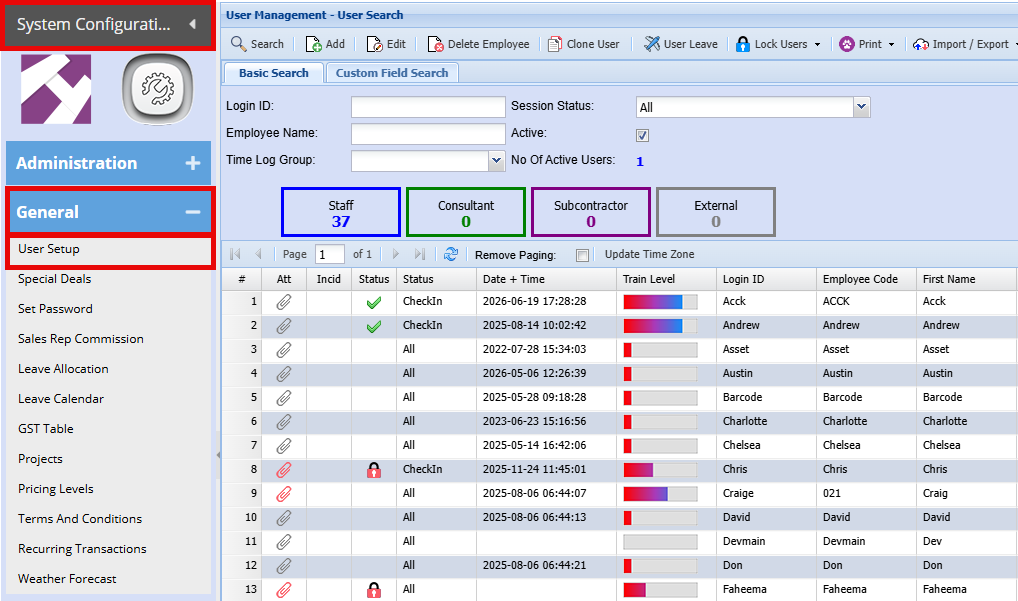
System Configuration > General > User Setup
- Double click on the username of the person you want to set a colour for
- Paste the colour code into the "Colour Hex Code" field
- Click "Save"