Samples
Samples Search
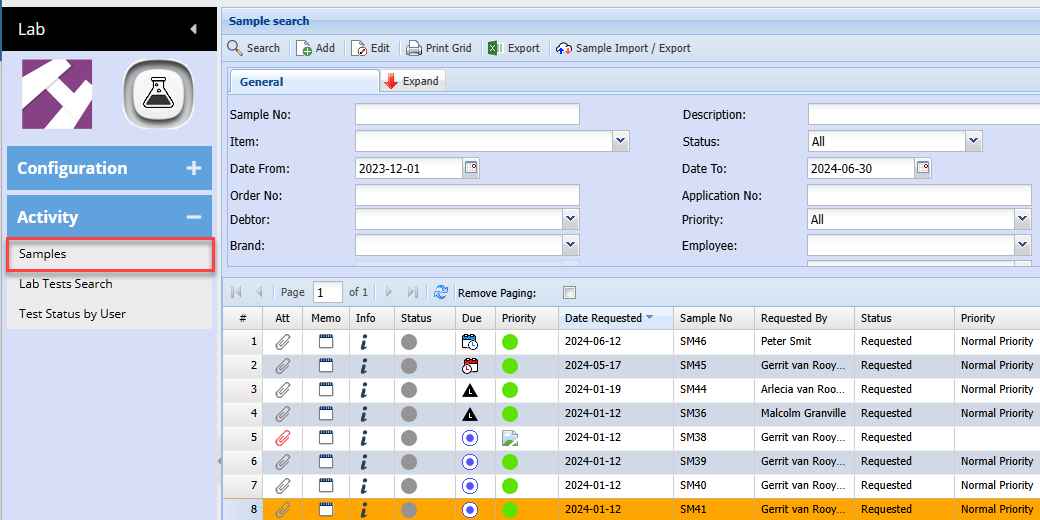
This window is the main window to search for open Sample Tests.
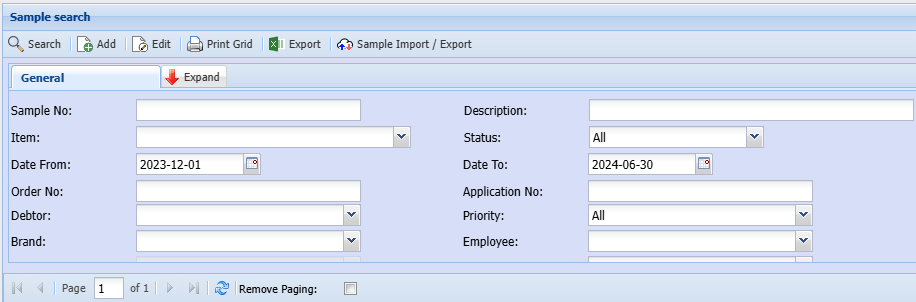
The Main visible menu will be
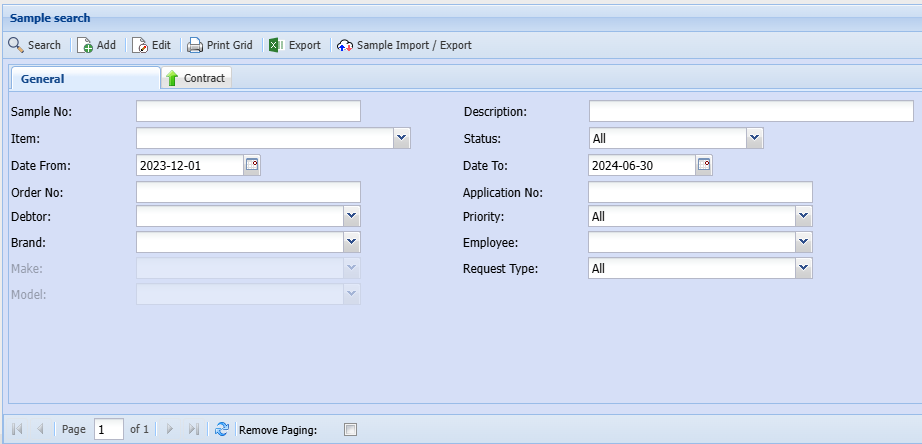
The grid results are as follows:
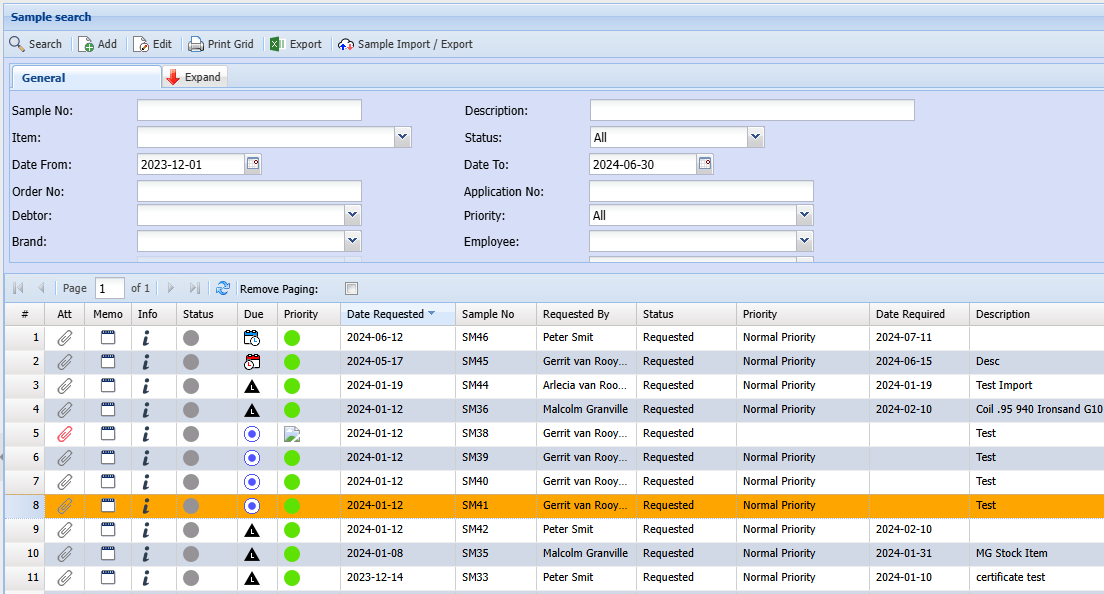
| ATT | Attachment |
| Info | Information window for more details |
| Memo | Memo note against the Lab test |
| Status | Icons indicating the status of the Lab test |
| Sample No | Sample unique number |
| Date | Date of the Lab Test created |
| Priority | Priority selected |
| Description | Description given to Lab Test submission |
| Order No | A text field where user can enter Order number |
| Lot No | A text field where user can enter Lot number |
| Application No | A text field where user can enter Application number |
| Requested By | The person who requested the Lab test |
| Customer | Customer Name |
| Status Name | The status of the Lab test but in words instead of icons |
| Item Code | The item code selected for testing |
| Item Description | The item description selected for testing |
| Brand | The Brand of the item |
| Make | The Make of the item |
| Model | The Model of the item |
| Comment | An open field where a user can enter a comment in the grid |
Sample window
This is the window that holds all the information on the sample submitted
There are a couple of tabs
Tab Explanation
| Tab Name | Description |
| General | Displays the main information of the Lab test required |
| Address | Gives the information on the customer and cost center information |
| Tests | Displays all the required tests |
| Results | Displays all the tests that are have been published to the requester |
| Logs | Displays all the logs and actions that have occurred on the lab test |
| Charges |
Shows what is charged for on the Lab test This can be converted to an invoice |
| Time Logs |
View all time logs against Lab tests |
General Tab
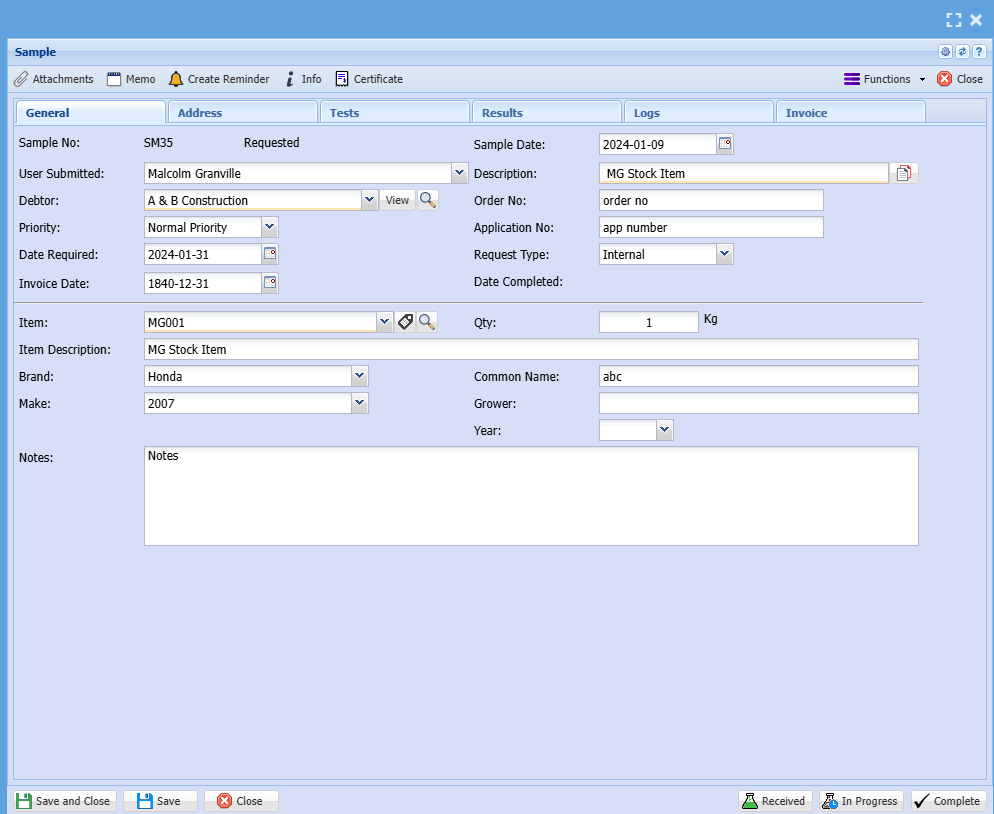
| General Tab | Details |
| Sample No | Displays the Lab unique test number |
| Barcode button | Button of barcode to allow for barcode printing of Lab test number |
| Application number | The application number the user entered |
| Requested by | The name of the user who requested the lab test |
| Status |
The status of the lab test Requested (Gray), Received (Yellow), In progress (Green), Completed (Blue), Cancelled (Red), Closed (Red) |
| Customer | Customer requesting Lab test |
| Order Number | The Order number the user entered |
| Request Type |
Internal or External (default to Internal) |
| Description | Description of Lab test to be done |
| Date |
Date the request was created Date + time will be logged when Lab test was created |
| Date Required By | Date the test is required, will default to 14 dates from issue |
| Date Completed |
Date the Lab test was completed Date + time will be logged when Lab test was Completed |
| Lot/Line | Lot / Line information entered by the user |
| Priority |
Priority levels (defaulted to Normal) Low, Normal, Urgent, Very Urgent |
| Item to test | Item search on inventory list |
| Item Description | Description of item, can be changed |
| Brand | Brand of item selected |
| Make | Make of item selected |
| Model | Model of item selected |
| Quantity | The quantity to be tested |
| UOM | Unit of Measure of selected item |
| Kind | Enter the kind of item |
| Cultivar |
Enter the cultivar |
| Test Type | Enter Test Type |
| Comment | Enter a comment which will show on the grid |
Address Tab
The address information of the customer entered
The cost centre information of the Lab test
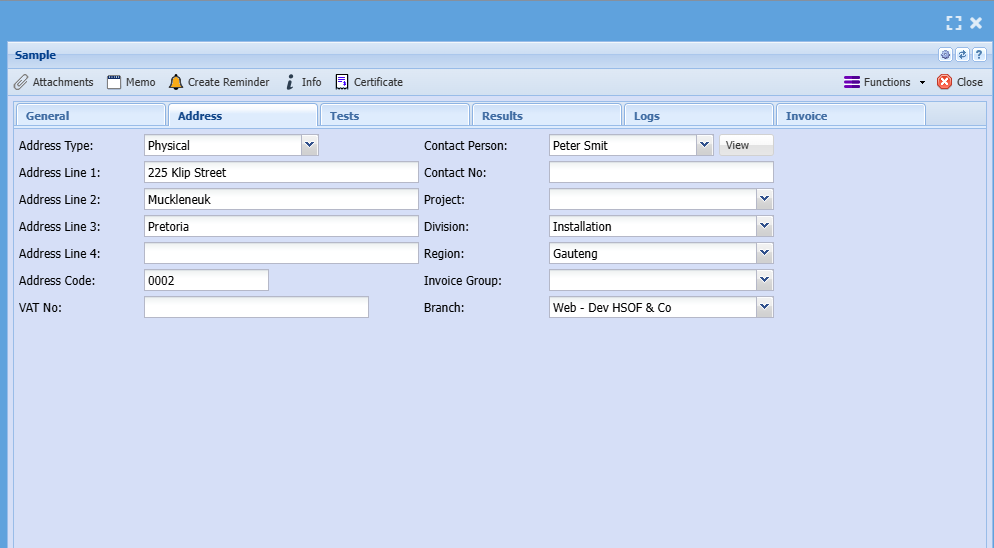
| Address Tab | Details |
| Address Type |
Select the address type (will populate from customer setup) Physical, Postal, Delivery Address |
| Address lines 1 to 4 and code |
Address details from customer Can change here |
| GST No | The GST number of the client for GST invoice |
| Contact Person |
The contact person from the customer setup The default contact person will be populated here |
| Project | Assign this Lab test to a Project |
| Division | Assign this Lab test to a Division |
| Region | Assign this Lab test to a Region |
| Invoice group | Assign this Lab test to an Invoice group for invoice |
| Branch |
Assign this Lab test to a Branch Defaulted to user who submitted the Lab test |
| Notes |
Notes on Lab Test |
Tests Tab
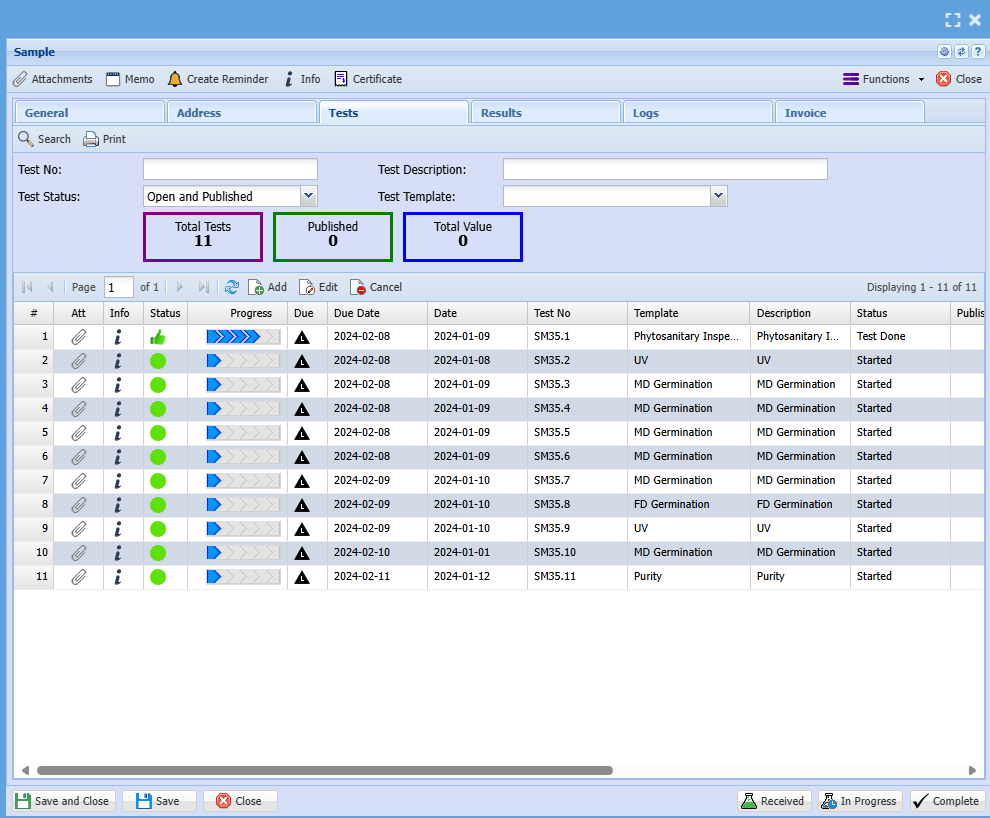
| Tests Tab | Details |
| Search Button | Searches the tests |
| Print out the test | |
| Certificate | Print the certificate if the test is complete and authorised |
| Test No | Search for Test number, sub tests are followed with .01 after the Lab test Number |
| Test Description | Search for Test Description |
| Status |
Filter status of tests Created (Gray), In progress (Green), Signed Off (Blue), Completed (Certificate Issued)(Blue), Cancelled (Red), Closed (Red) |
| Test Type | Type of Test filter |
| Total Tests | Count of number of tests in Lab test |
| Published Tests | Number of tests marked to be published |
| Total Value | Total value of invoiced tests |
| Grid | Details |
| Seq | Sequence Number of test |
| Icon status | Icon indicating status |
| Published | Yes / No (default is clear) |
| Status | Status of test in words |
| Date | Date created of test |
| Test No | Test Number allocated to Lab test |
| Test Type | Name of test |
| Test Description | Test description |
| Lab Tech | Lab Technician allocated to test |
| Lab Manager | Lab Manager assigned to test |
| % Complete | Percentage test indicator |
| Authorised By |
Authorised by Name Date and time logged |
| Invoiced | Yes / No to Invoice |
| Invoice No | Invoice number when invoiced |
| Value | Value of invoice |
Results Tab
Each test will have its own tile
Tiles can be coloured
Tiles are ordered according to Sequence number of the test
View Published tests only
A filter to include other status
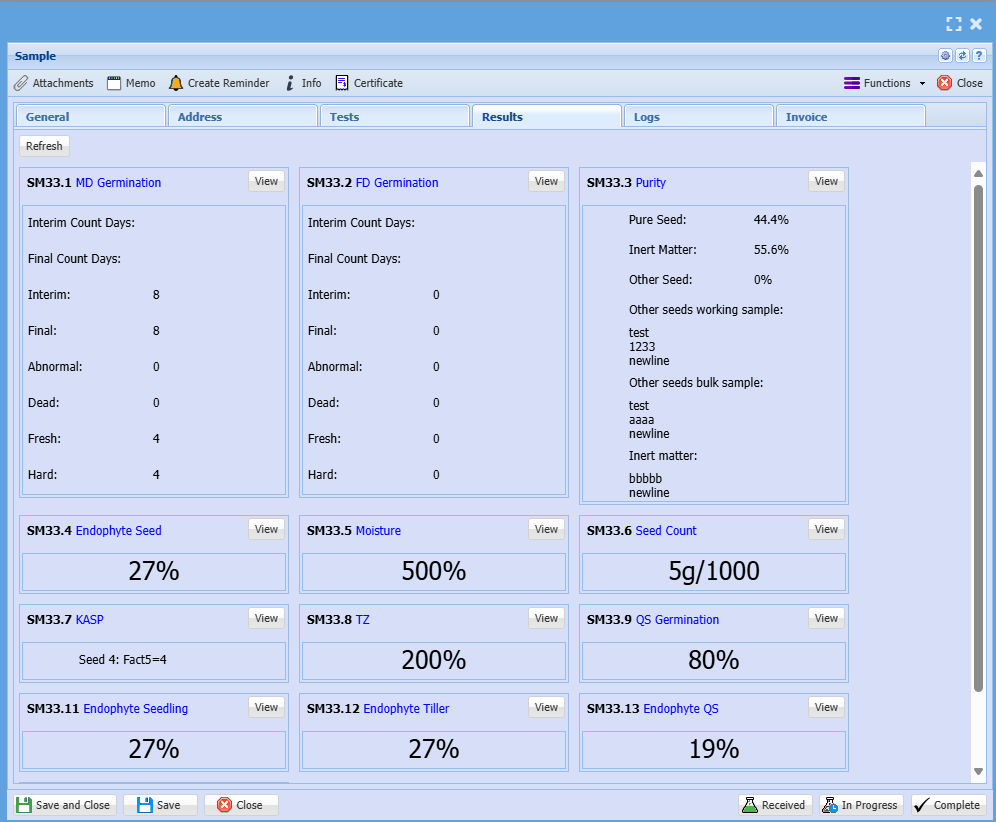
| Results Tab | Details |
| Refresh button | Button to update tiles |
| View Type |
View Published, Non published tests All can be selected |
| Seq 1 | Makes the tile be first on the list |
| Test Name | Test Name |
| Test No | Test Number |
| View Button | View the test |
Logs Tab
This area logs all the status changes on the lab test
This tracks the tests created, authorised etc on this lab test side
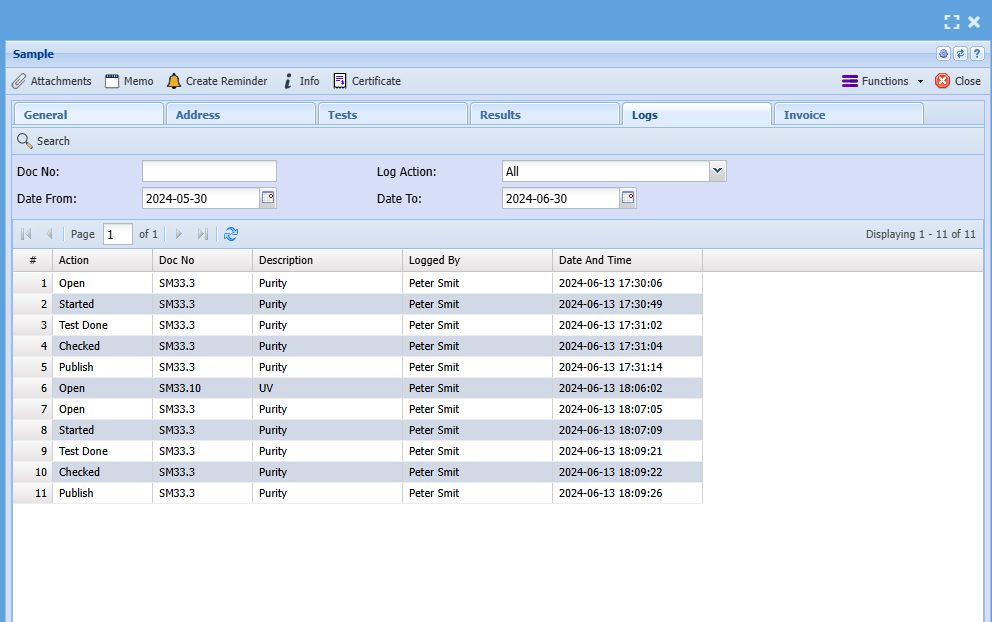
| Logs Tab | Details |
| Search button | Searches the logs |
| Print Grid | Prints the grid and allows to export |
| Action | Filter by Action |
| Doc No | Search by Document No |
| Date From and To | Searches logs by date from and to |
| Grid | Details |
| Action |
Type of action logged Status change of Lab test, Status change on tests, Authorised By, Percentage update on tests, Publish notice, invoice created |
| Doc No | Indicates which test is been logged, main Lab test or test |
| Date | Date of log |
| Description | Description of action |
| Logged by | User name logged of change |
| Date and Time | Date and time logged |
Invoice Tab
For each test that is done, a tick can be put on for charging which creates an entry for list of items to be invoiced
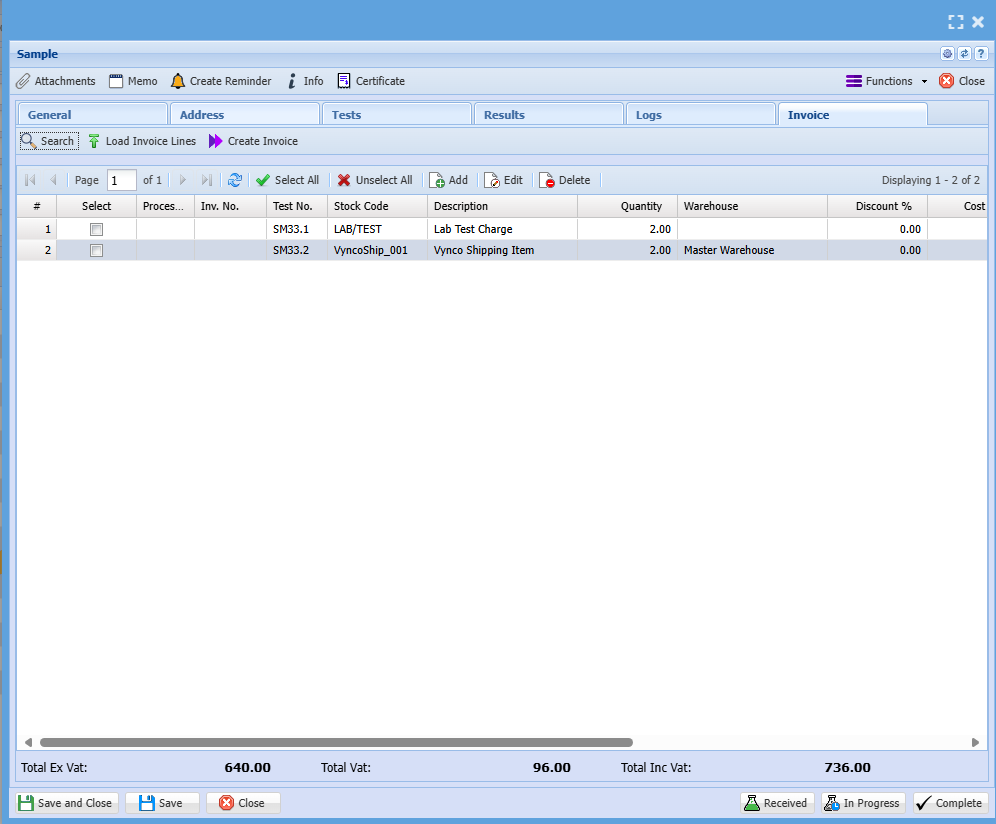
| Charges Tab | Details |
| Search button | Search invoiced tests |
| Create Invoice button | Create an invoice |
| Print invoice | |
| Add | Add an item to be invoiced |
| Edit | Edit the line |
| Delete |
Delete the line to be invoiced Cannot be deleted if invoiced |
| Grid | Details |
| Select | Select multiple lines to be invoiced |
| Item Code | Displays the inventory item code |
| Item Description | Displays the inventory item Description |
| Item Type |
Indicates the type of inventory item to be invoiced Service, Custom or Stock |
| Qty | Displays quantity to be invoiced |
| Selling | Displays the selling value ex GST |
| Line Discount | Displays the line discount |
| GST Type | Indicates whether this is GST chargeable |
| Selling ex GST | Unit selling x Qty = Selling Value |
| Selling GST | Shows GST amount |
| Selling Inc GST | Total Selling ex GST + Selling GST = Selling Inc GST |
| Job No | Indicates whether linked to a job |
| Job Type |
Type of Job invoice Percentage or Usage |
| Invoice No | Invoice number of processed invoice |
Time Logs (Potential New addition)
View all time logs against Lab tests
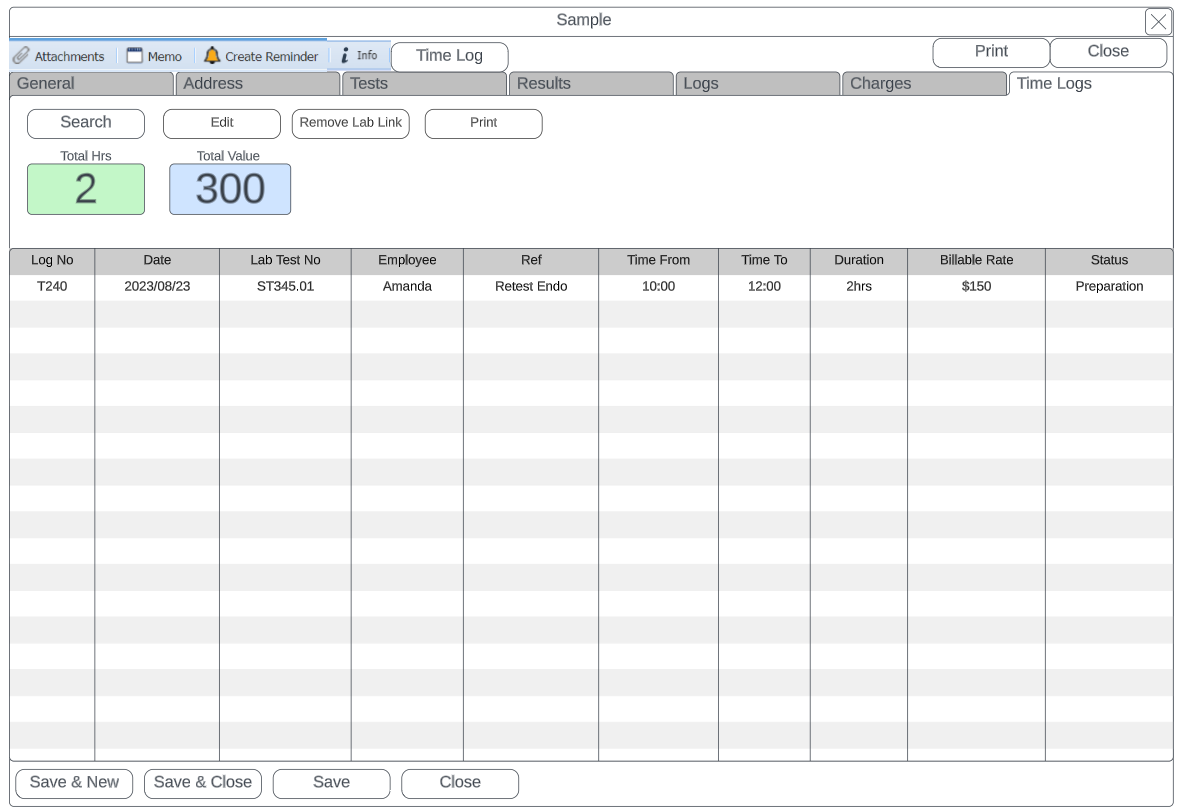
| Time Logs Tab | Details |
| Search | Search all time logs linked to Lab tests |
| Edit | Edit an existing time log |
| Remove Lab Link | Remove the lab link from time log |
| Print time log | |
| Total Hrs | Shows total hours logged against Lab test |
| Total Value |
View total billable value Hours x Billable Rate = Total Value |
| Grid | Details |
| Log No | Displays log number of Time log |
| Date | Date of time log |
| Lab Test No | Shows the Lab test number that the time log is linked to |
| Employee | Employee that created the time log |
| Ref | Reference description of time log |
| Time from and time to | Time started and time ended |
| Duration | Duration in hours |
| Billable Rate | Bill rate on time log |
| Status | Status of time log |
Test Add
Adding a new test on the Sample form
There are four tabs each holding information on each test
| Tabs | Details |
| General Tab | This holds the basic information of the test |
| Guide Tab | Shows Parameters, Treatments for test |
| Test Tab | The test result |
| Checklist | Viewing multiple checklists against a test |
| Logs |
Shows the logs for this test Status change, % Complete change, Checked by, Retest by, Invoice By, Certificate Issue, Published by |
| Button | Details |
| Attachment | Add in attachments specific to the test |
| Authorise | Authorise the Test to before publishing |
| Complete | Complete the test and issue certificate |
| Print the test | |
| Print Certificate | Print the Certificate |
| Info | A word like document information |
Lab Test Status changes
| Icon | Status | % complete | Rules |
 |
Created | 0% | On creation of lab test |
 |
Started | 10% |
Click on the Start button which updates status and percentage to 10% Opens up In Progress button and Test Done button |
 |
In Progress | 50% | Changes to In Progress when any test results are entered and saved |
 |
Test Done | 80% |
Click on the Test Done button which updates status and percentage to 80% Opens up In Checked button and Retest Button
Checked status save | save and close is only active to users that are authorised users in approved levels otherwise the Save | Save and Close buttons are disabled |
 |
Checked | 90% |
Click on the Checked button which updates status and percentage to 90% Opens up Published button, Open button
Checked status save | save and close is only active to users that are authorised users in approved levels otherwise the Save | Save and Close buttons are disabled |
 |
Retest | 100% |
Click on Retest button which updates status and percentage to 100% Clones the test with a new test Closes the test and locks Disables all the other status buttons |
 |
Published | 100% |
Click on the Publish button which updates status and percentage to 100% Closes the test and locks Disables all other status buttons Disables Save and Close and Save buttons |
 |
Cancelled | 0% |
Cancels the test Closes the test and locks Disables all other status buttons |
 |
Closed | 0% |
Closes the test Closes the test and locks Disables all other status buttons |
|
Open | 50% |
Opens up the test from Checked, Published, Cancelled or Close Is only active when status of test is Checked, Published, Cancelled or Close Changes the test to In Progress status and percentage to 50% |
Test General Tab
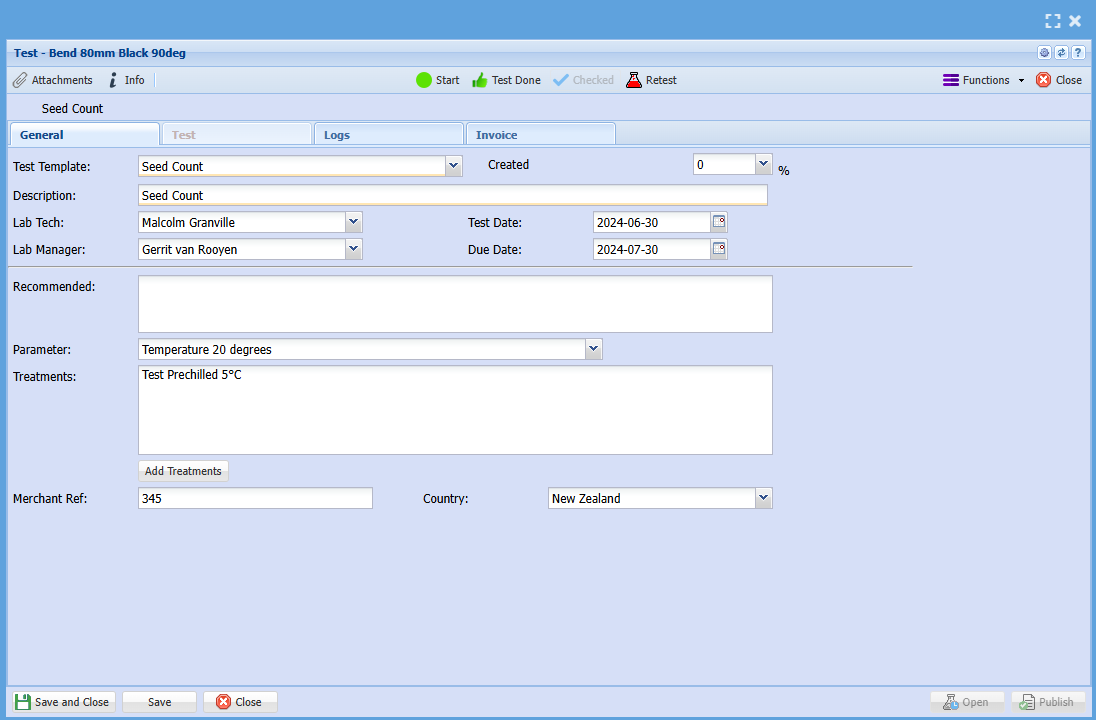
| General Tab | Details |
| Test No | The test number with the decimal points after |
| Percentage complete |
the percentage complete The percentage complete will automatically be set a certain status changes |
| Status |
Changes the status of the sub test Created, Started, In Progress, Checked, Retest, Certificate Issued, Publish, Completed |
| Test Type | The type of test done |
| Test Description | The description of the test |
| Date created | Date test is created |
| Lab Tech | Lab Tech assigned |
| Lab Manager | Lab Manager assigned |
| Invoice | Tick for invoice |
| Item Code |
Item code becomes active when invoice tick box is activated This item will be added to the Lab test chargers window |
| Certificate Issue | Certificate tick box with who by |
| Publish | Publish tick box with who by |
| Recommended | Shows recommended information from Test setup |
| Parameters | Select Parameter from dropdown |
| Treatments | Shows recommended information from Test setup |
Test Results tab
Add information on the test
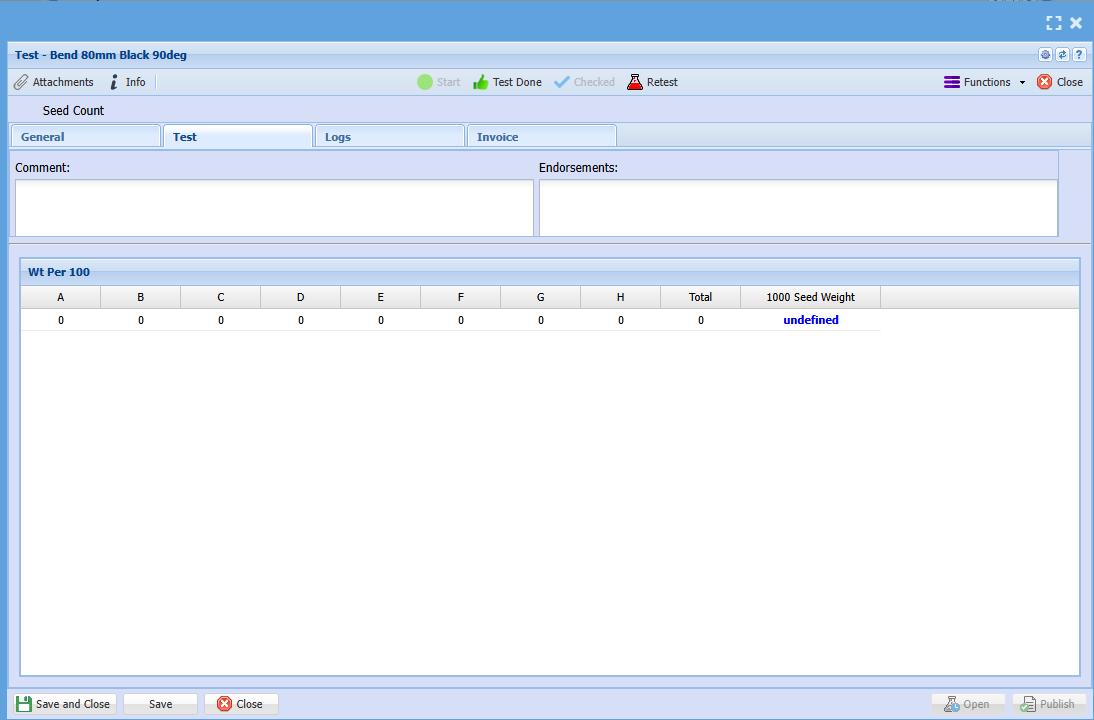
| Test Tab | Details |
| Checked | Checked tick box with checked by |
| Retest | Retest tick box with Retested by |
| Comments | Make comments |
| Test | Test results enter |
Logs Tab
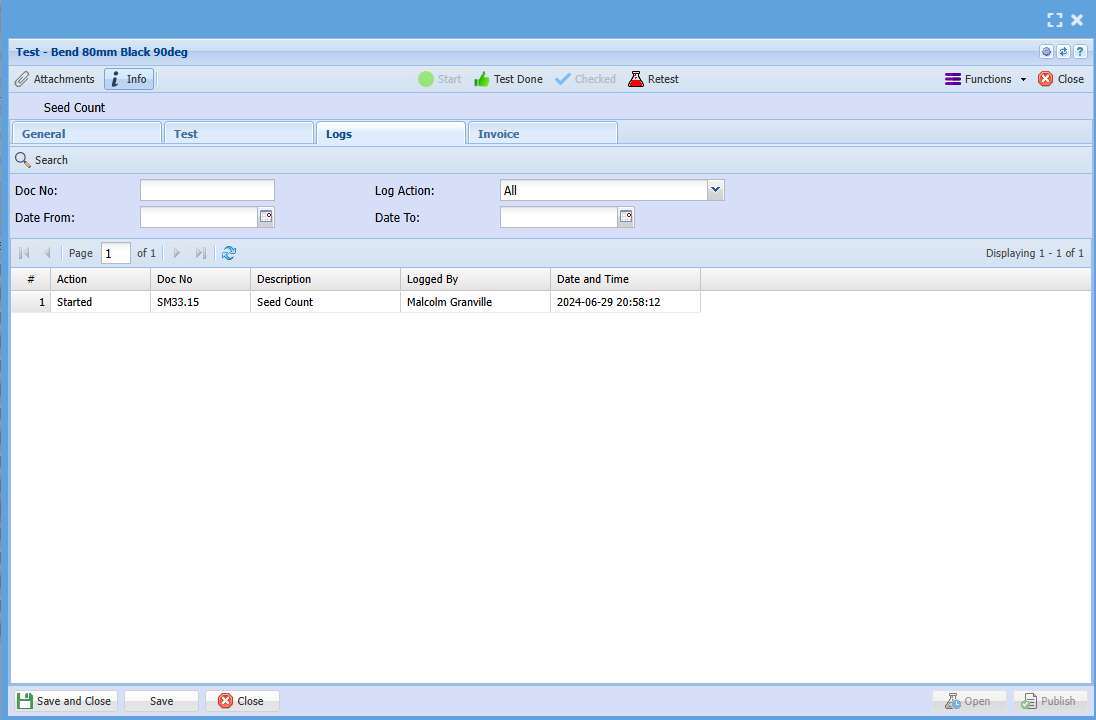
| Logs Tab | Details |
| Search button | Searches the logs |
| Print Grid | Prints the grid and allows to export |
| Action | Filter by Action |
| Doc No | Search by Document No |
| Date From and To | Searches logs by date from and to |
| Grid | Details |
| Action |
Type of action logged Status change of Lab test, Status change on tests, Authorised By, Percentage update on tests, Publish notice, invoice created |
| Doc No | Indicates which test is been logged, main Lab test or test |
| Date | Date of log |
| Description | Description of action |
| Logged by | User name logged of change |
| Date and Time | Date and time logged |
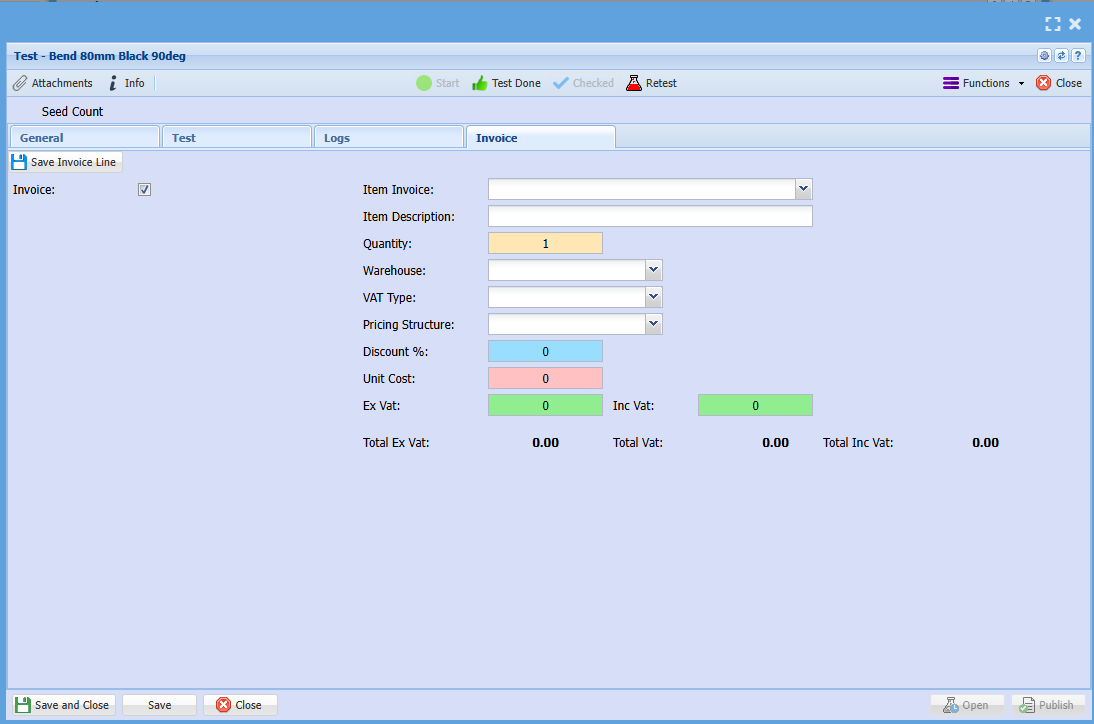
Invoice Tab
Tick Invoice box to activate certificate billing
Checklist Tab (Potential future development)
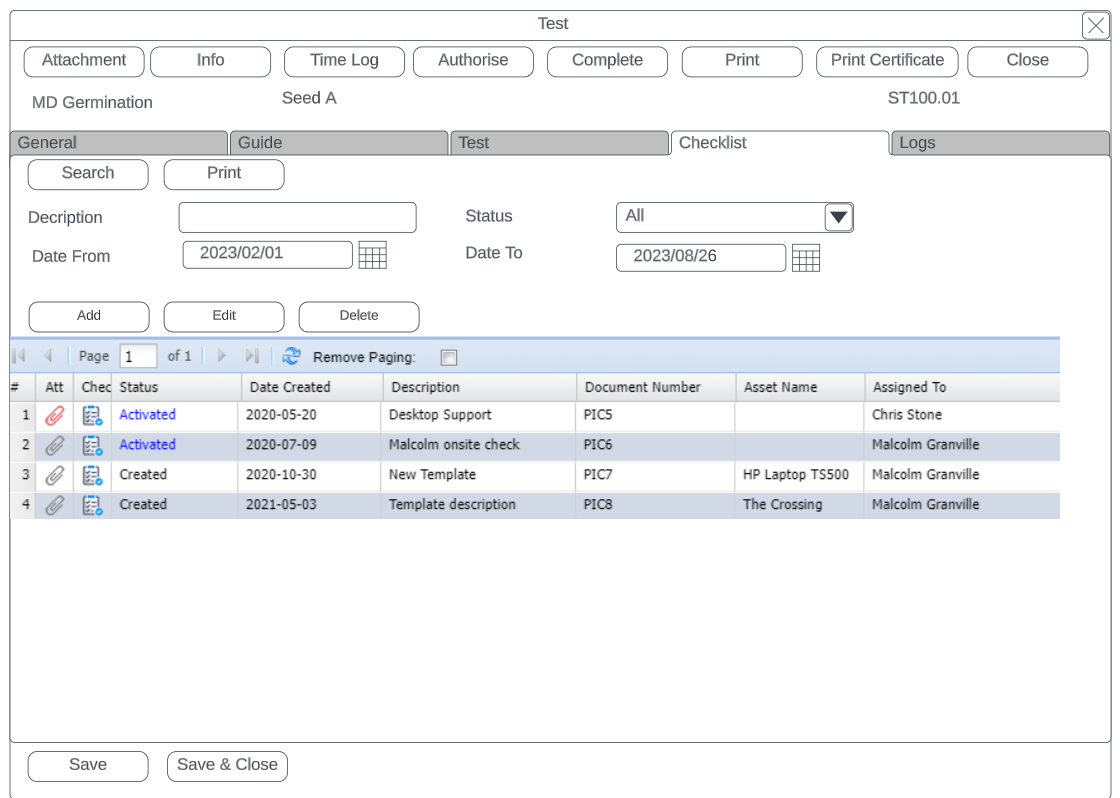
| Checklist Tab | Details |
| Search Button | Searches all checklists against lab test |
| Print Button | Print checklist out |
| Description | Description of checklist |
| Status | Status of checklist |
| Date from and to | Filter by date of checklists |
| Add, Edit and Delete | Add, edit or Remove checklists against lab test |