Job
Job Costing Module
Staff Jobs
Staff Jobs
View all jobs linked to a staff member
Allow one to create time sheets from the linked job line

Staff Schedule
Staff Schedules
View Staff schedules on jobs for staff member
Turn a schedule into an actual time log
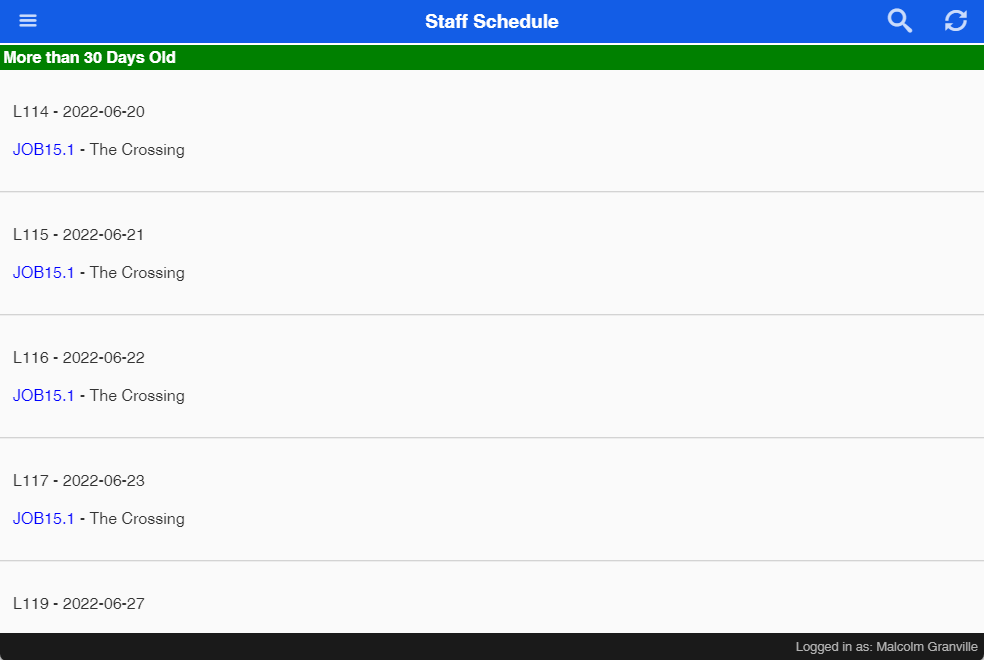
View and edit a schedule line
Add details in for a scheduled time log line
Promote schedule line to a time log

| Timelog button | Turn a schedule line into a time log |
| In Progress button | Mark the scheduled line as In Progress |
| Complete | Complete the schedule line |
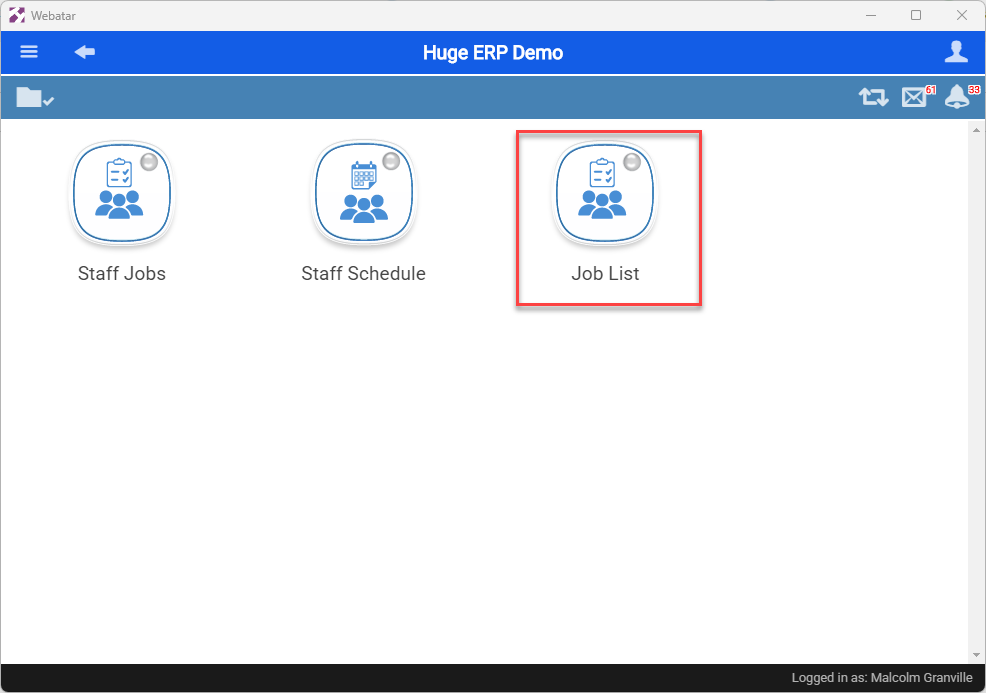
Job List
List of Jobs active
Job List
Job list gives the user view of open jobs and view of job lines.
It is part of the Job Group
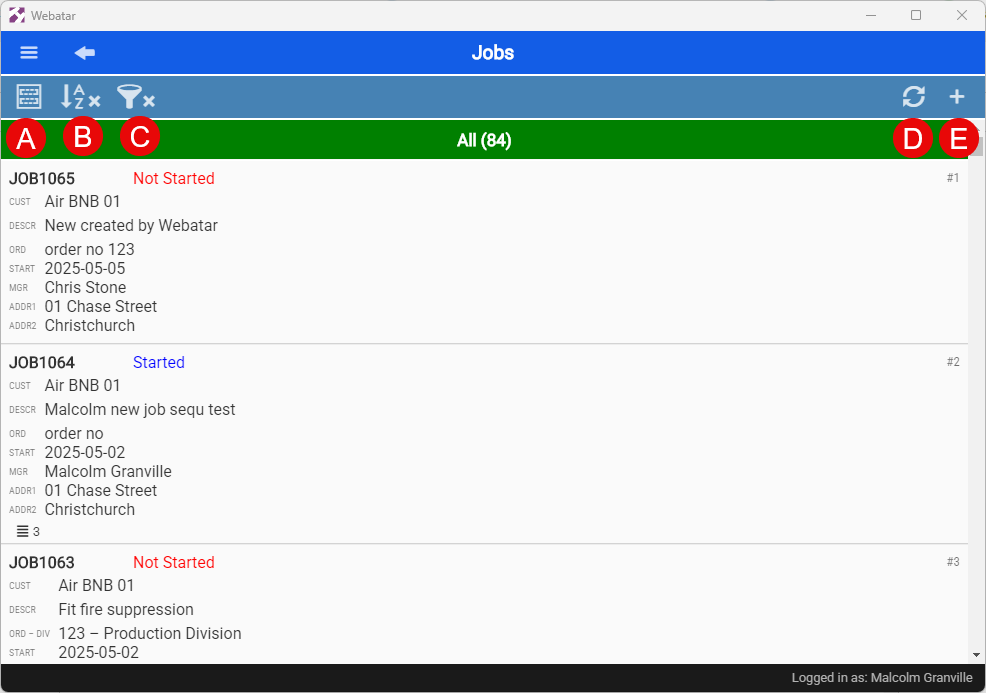
Searching for Jobs
| A | Compac view or detail view |
| B | Grouping and sorting |
| C | Searching and filtering data |
| D | Refresh grid |
| E | Add new job (this is govern by security) |
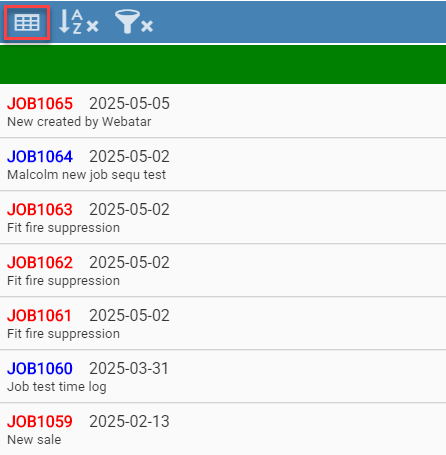
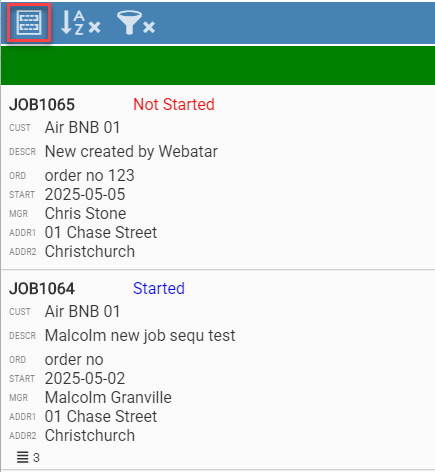
Compac View or detail view
| Compac View | Detail View |
|
|
|
Grouping and sorting
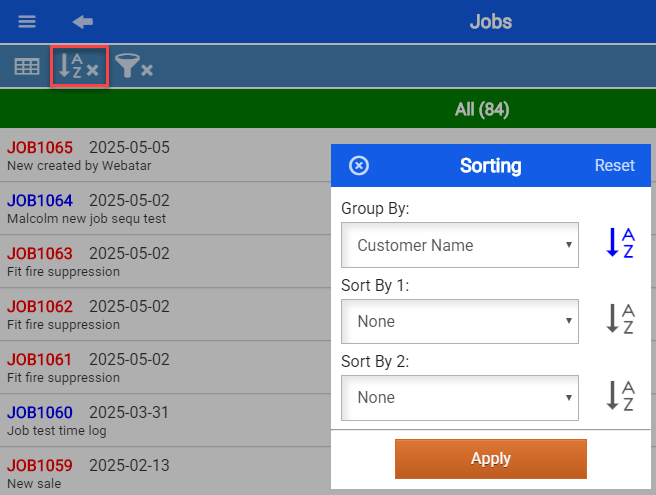
When applying grouping, this will remember when next accessing the Job list.
This will be indicated with a tick if the grouping is active.
| Group By | None, Date Started, Job Status, Customer Name, Job Manager, Asset |
| Sort By 1 | None, Date Started, Job Status, Order No, Customer Name, Job Manager, Asset Name |
| Sort By 2 | None, Date Started, Job Status, Order No, Customer Name, Job Manager, Asset Name |
Searching and filtering data
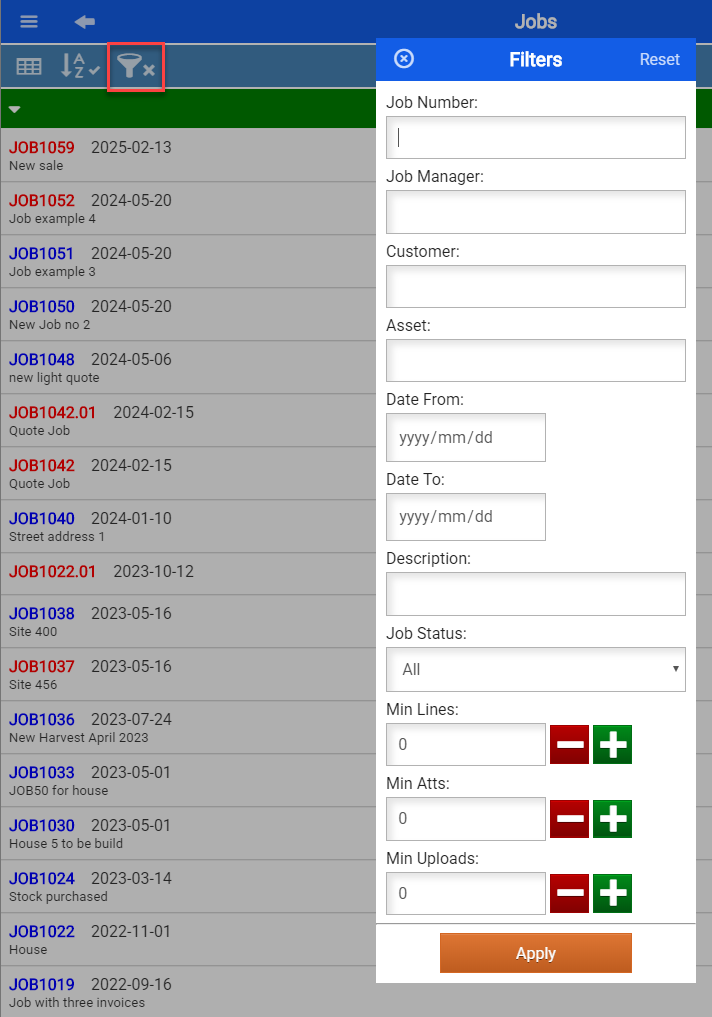
When applying searching and filtering, this will remember when next accessing the Job list.
This will be indicated with a tick if the filter is active.
| Job Number | Search by a Job number |
| Job Manager | Filter by Job Manager |
| Customer | Search by customer name |
| Asset | Filter by Asset Name |
| Date from and Date to | Search by job date started |
| Description | Search by Description |
| Job Status | Filter by All, Started and Not Started Jobs |
| Min Lines | Search for jobs with minimum job lines |
| Min Atts | Search for jobs with minimum attachments |
| Min Uploads | Search for jobs with minimum uploads |
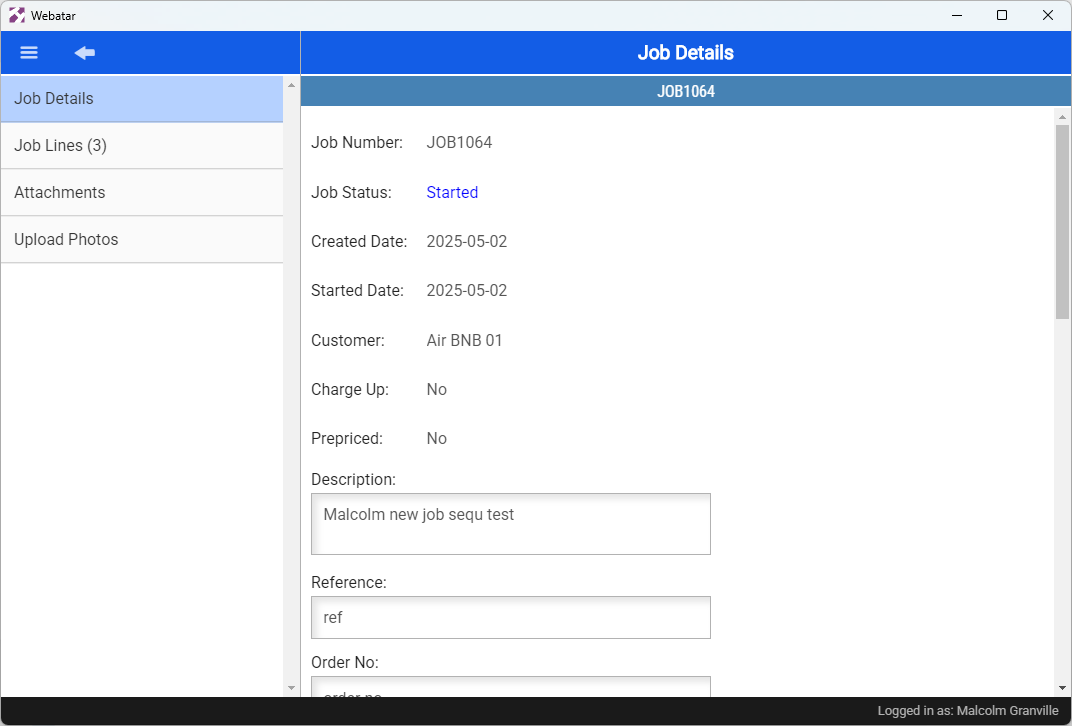
Job Detail
Viewing Job details
Webatar Stock Request
Create and Process Stock Request
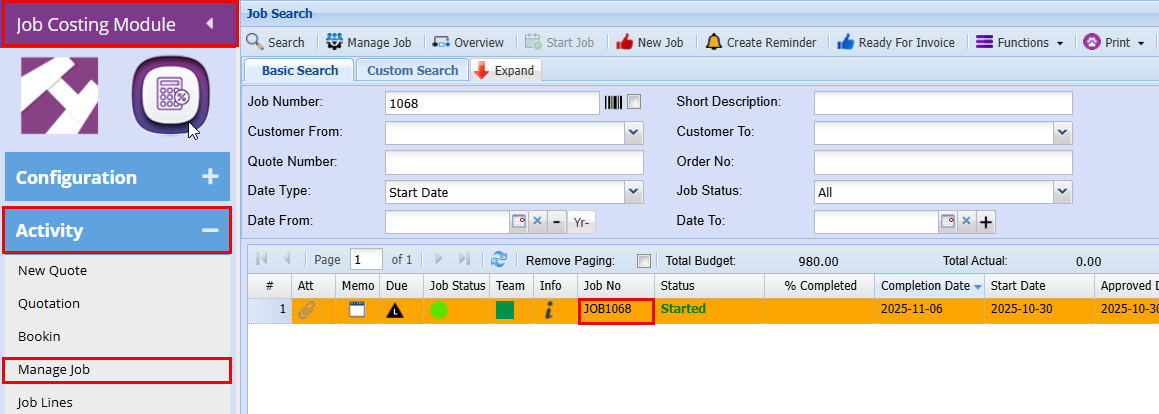
Before you start you will need to know your Job number
Job Costing Module > Activity > Manage Job
Log in to the Webatar app using your usual credentials. Once logged in, check that your profile is correctly set up and has the required permissions to submit a stock request.
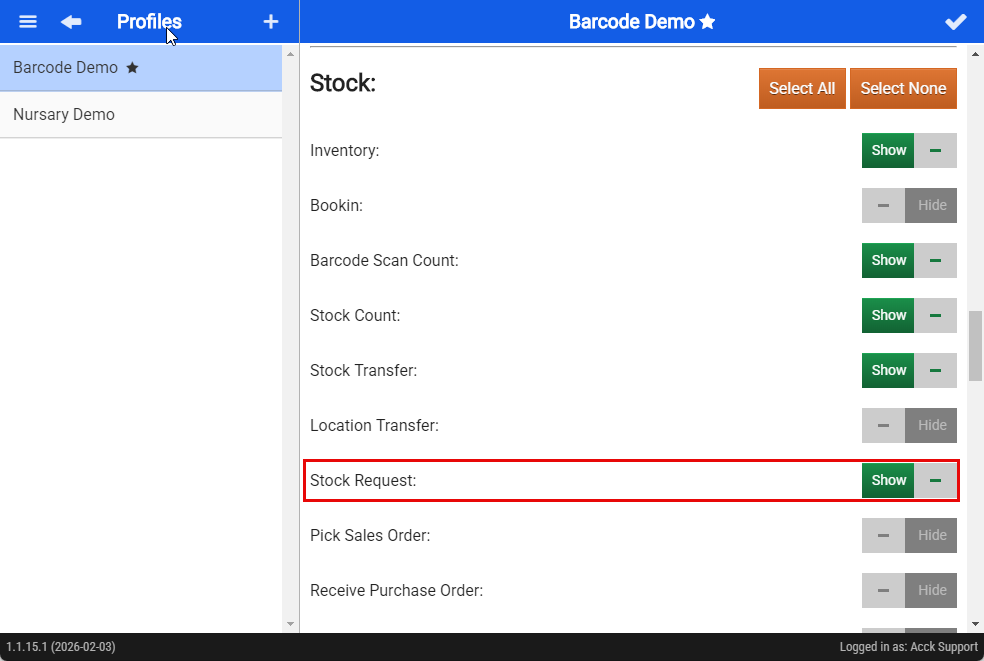
- In your profile scroll down to Stock
- Toggle on the Stock Request
- Save the setting by clicking the Tick at the top right of the screen
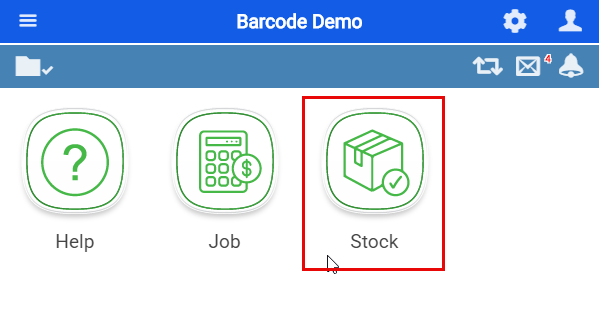
- Click on Stock Request
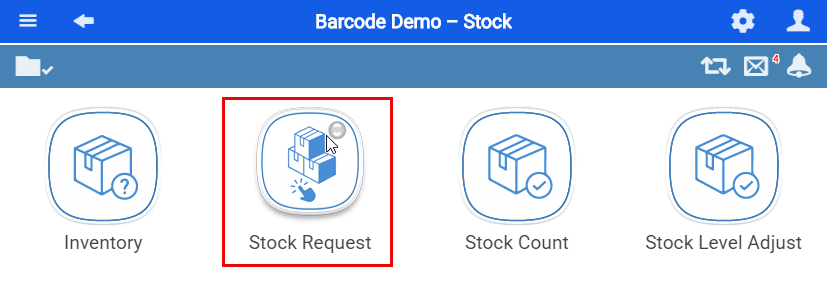
There are two ways to add a Stock Request either via quick add or Add
| Quick Add | Use to add just using the job number |
| Add | Use to add using more detail like Reference, Description, Storeman etc. |
Quick Add
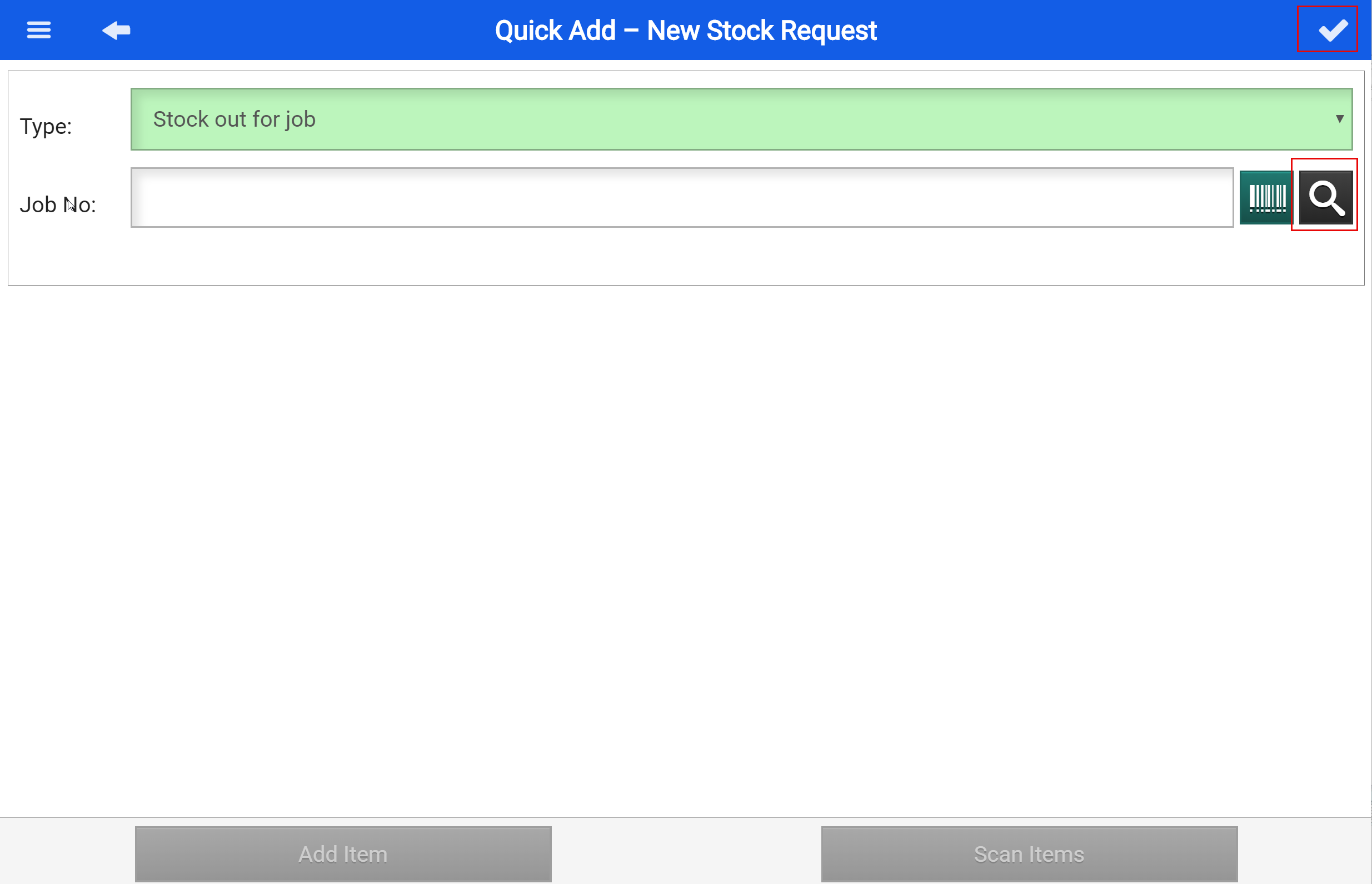
- Add by typing in the job number or searching for your job number by tapping the magnifying glass icon.
- Save your entry by tapping the tick at the top right of the screen.
- Add the stock item you need by either scanning the barcode (if available) or manually searching for the item using the magnifying glass icon.
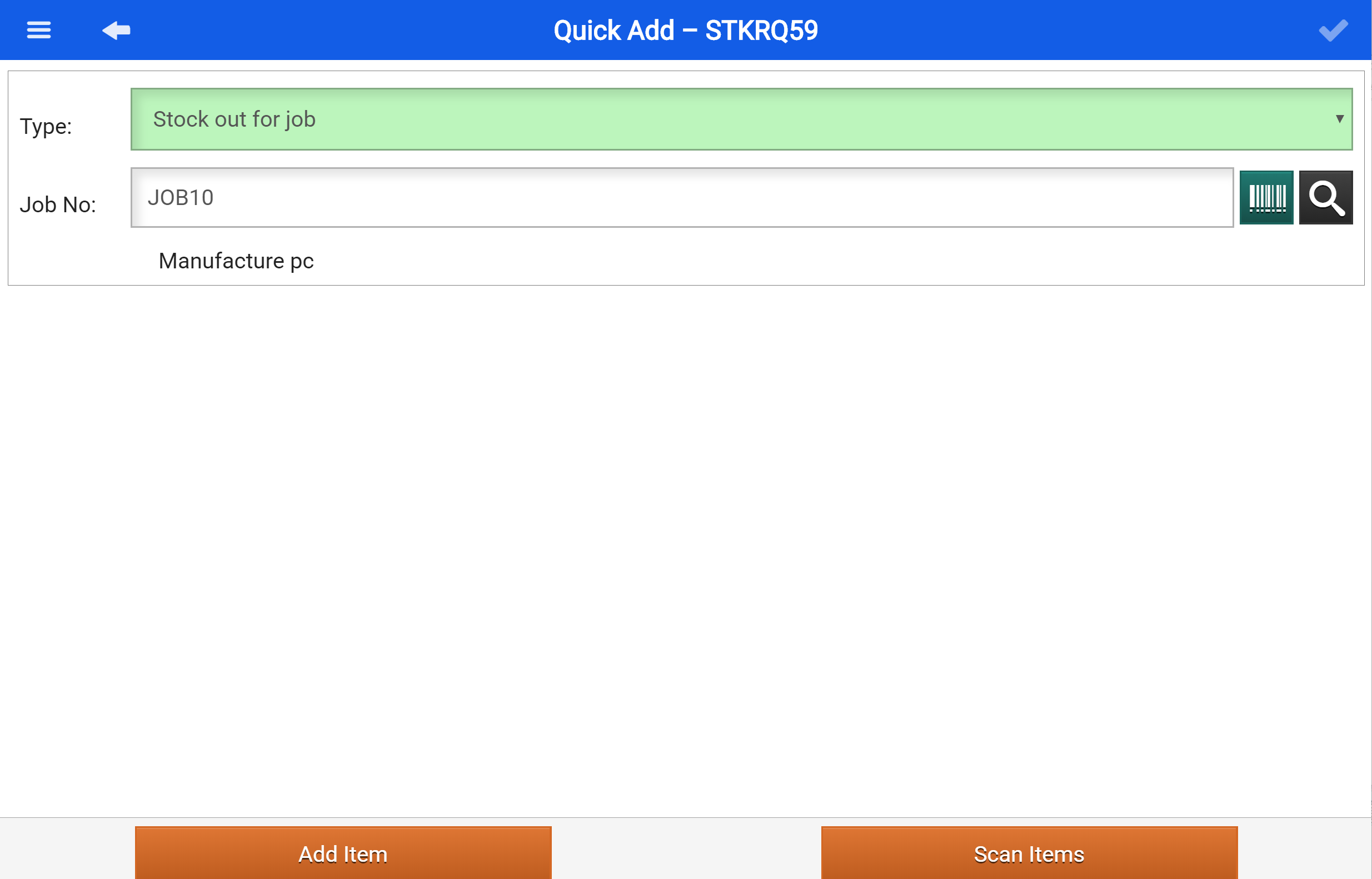
Add Item by Searching
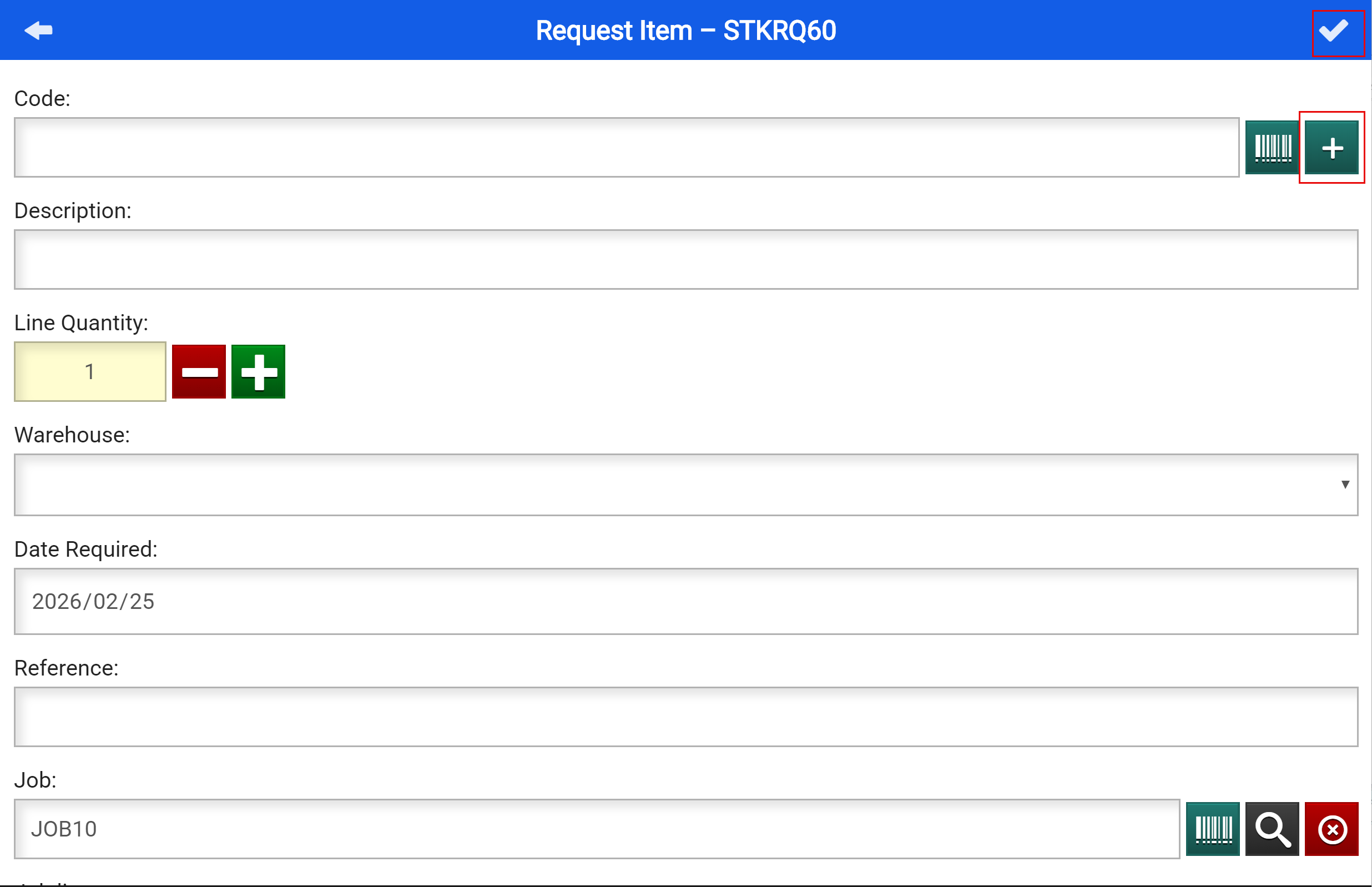
- Search by clicking the + (Add) button
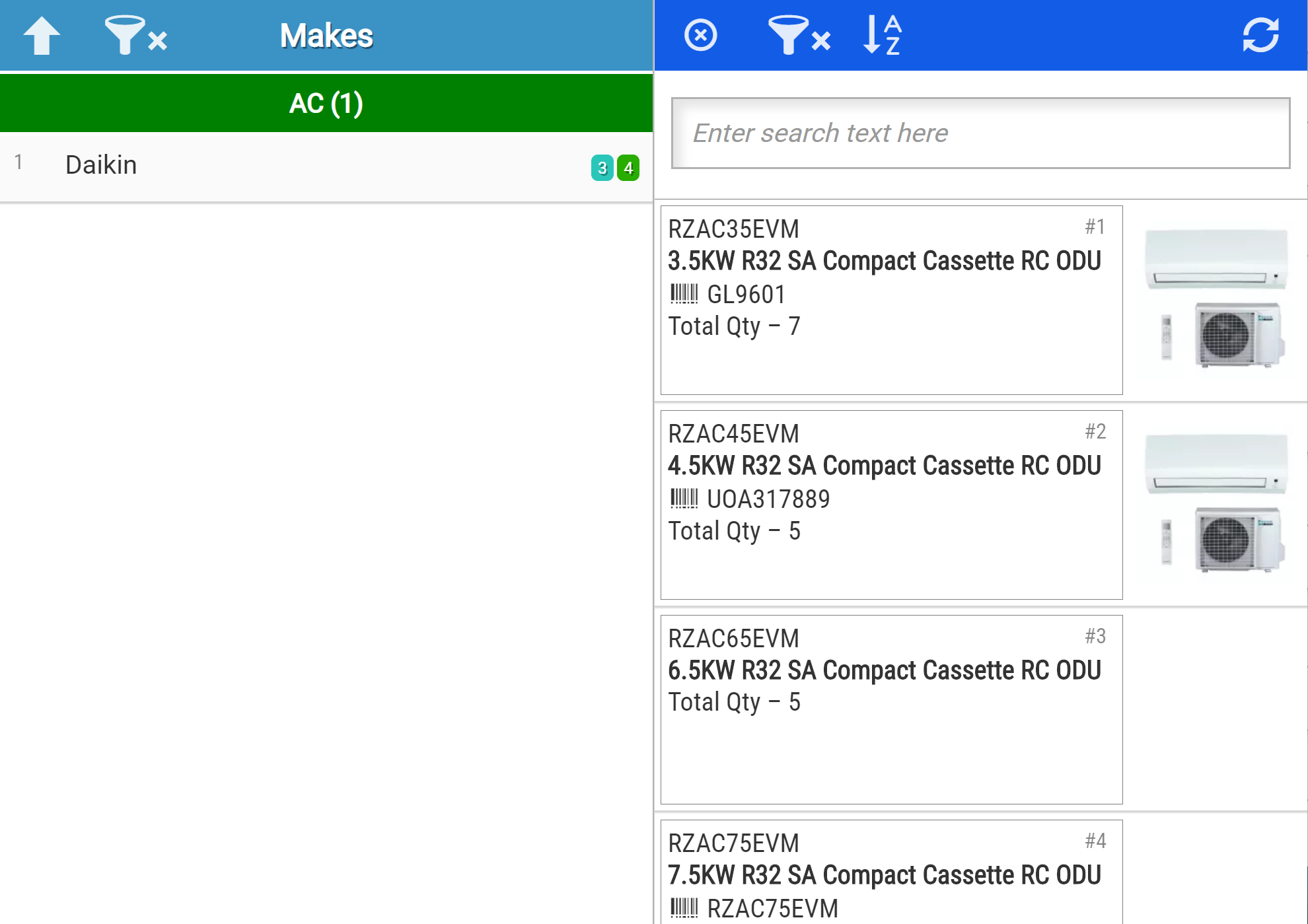
- Search using the filters to find the Stock item you are requesting
- Tap on the item needed
If no items appear on the right, tap the refresh button in the top right corner 
- Update Quantity and Date required if necessary and confirm Job number is correct
- Save your entry by tapping the tick at the top right of the screen.
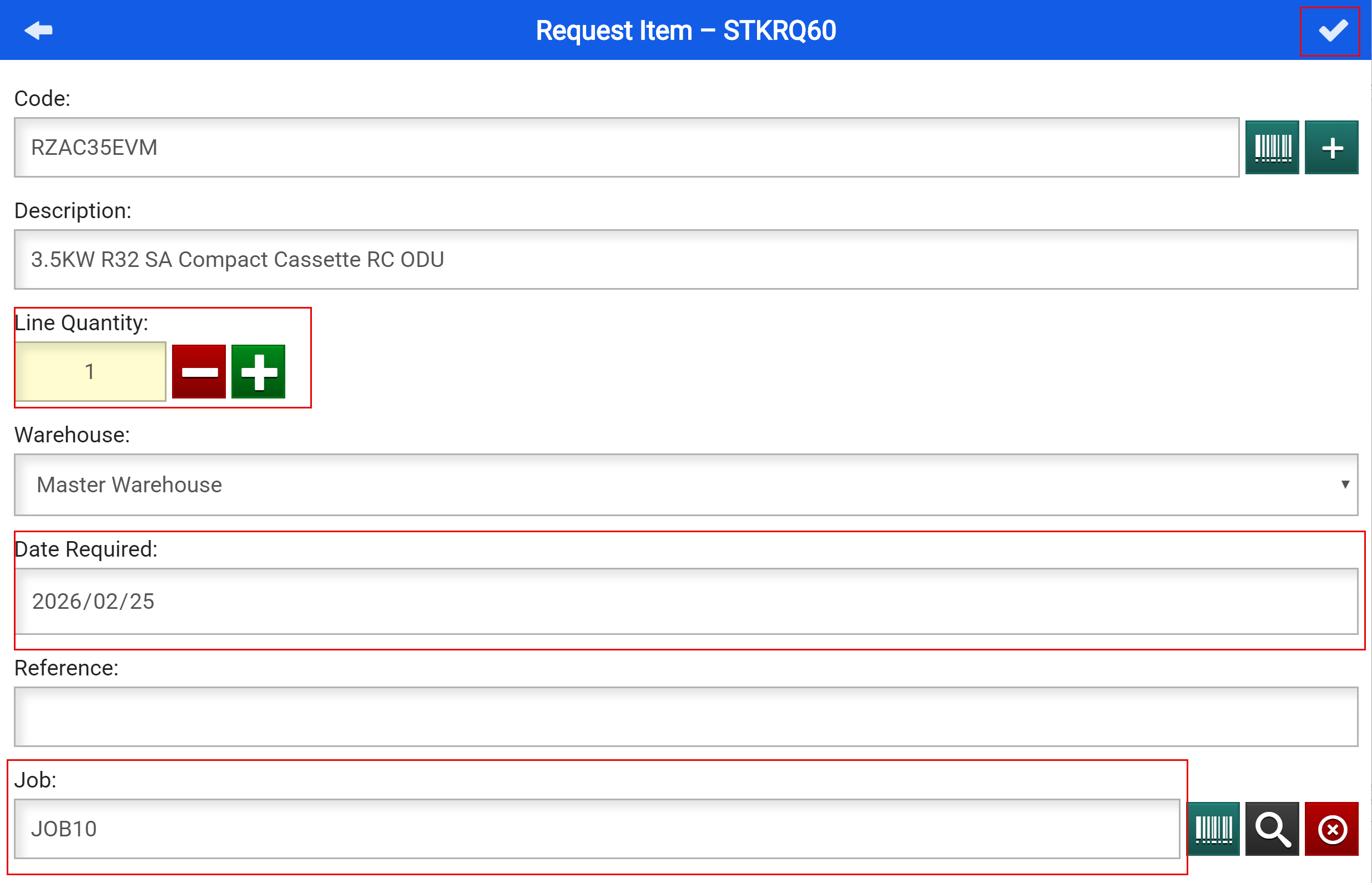
Add
Add Item by Scanning the Barcode
- Scan the Barcodes of the inventory items needed by using a barcode scanner
- When you have added all your items, Tap "Add"
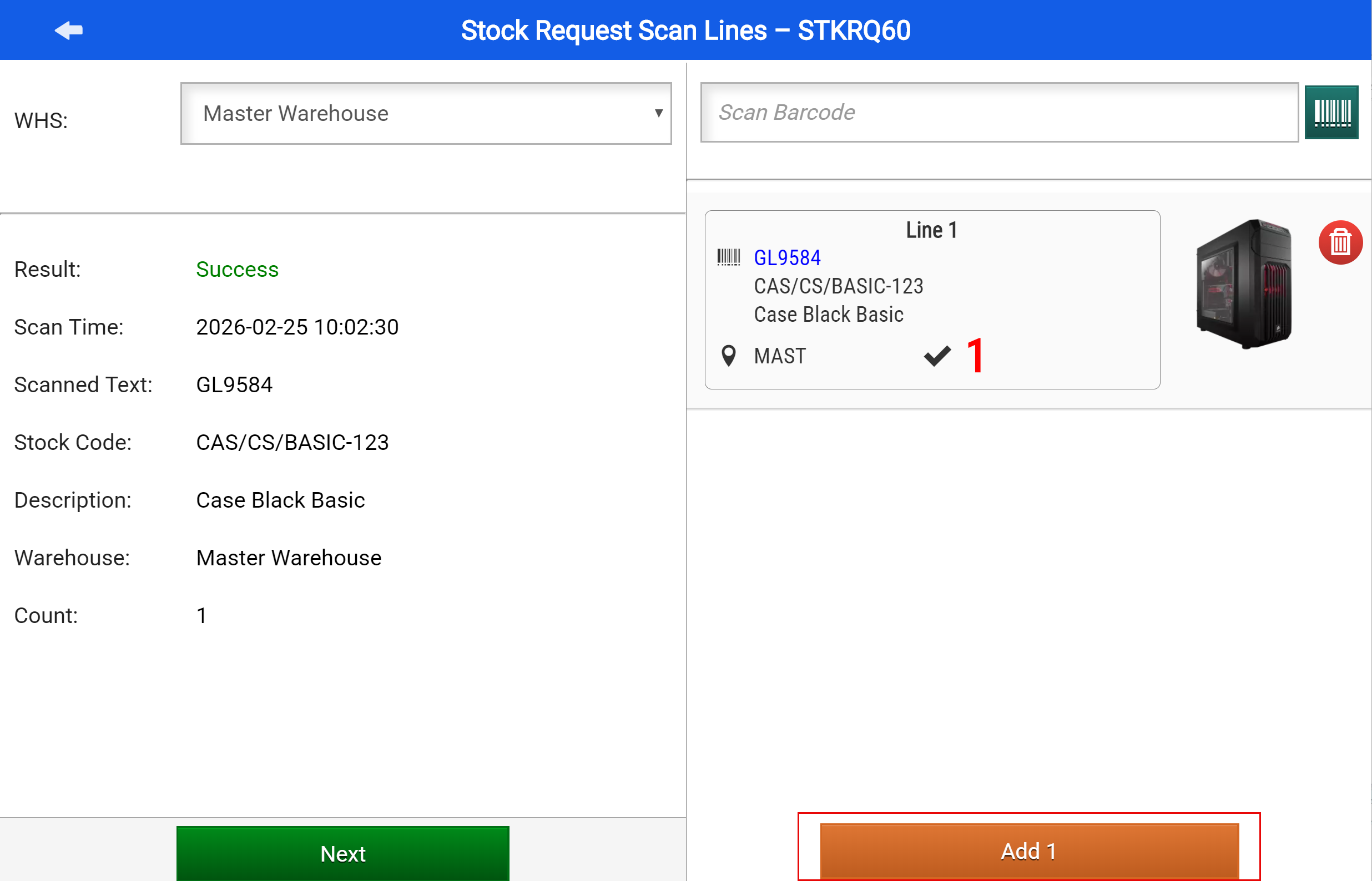
Once you have added all your required items, Click on the back Arrow
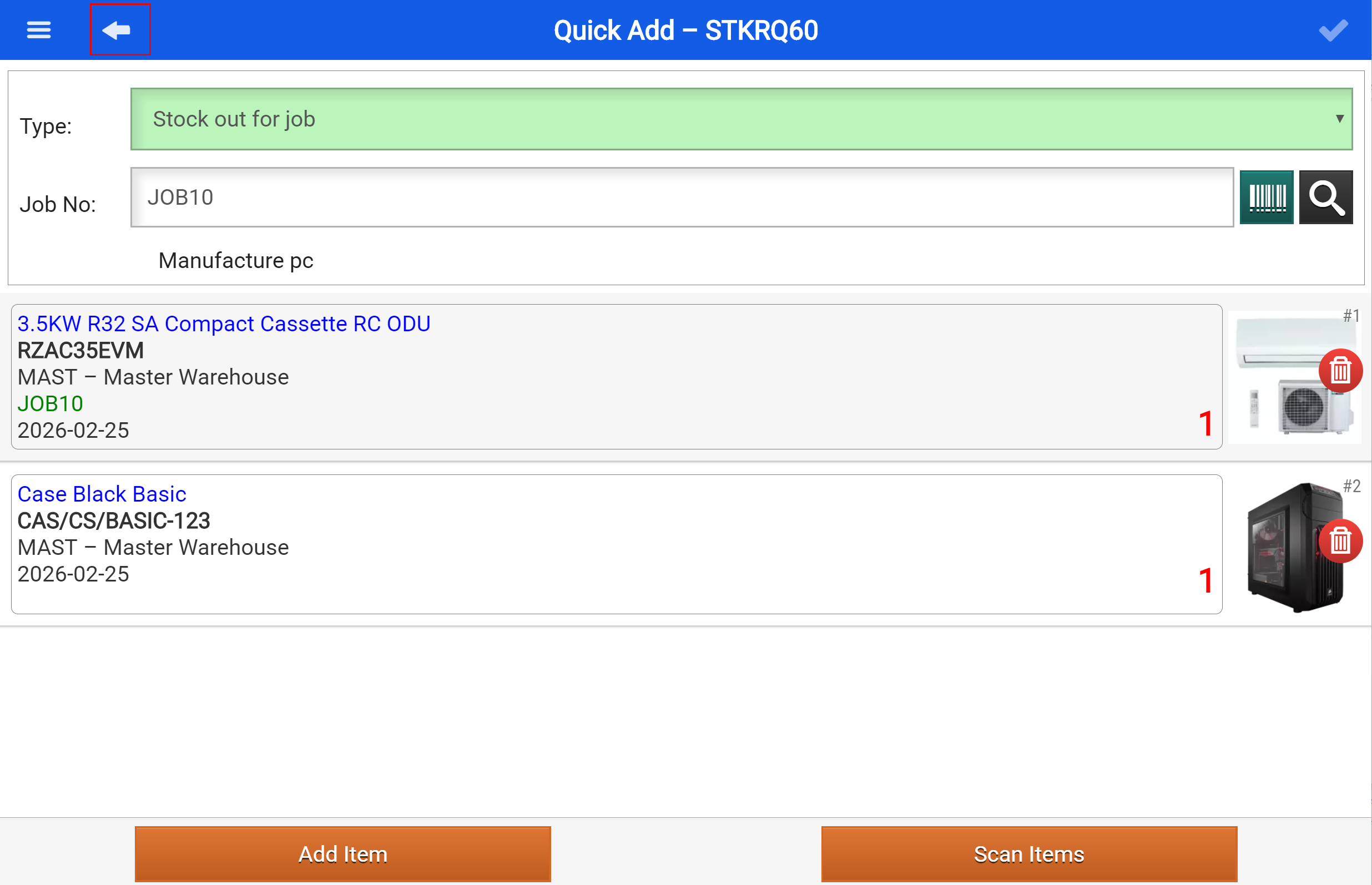
Here you will be able to see your Stock Request Created
- Tap on your Stock Request
At this stage your stock request has only been created and not yet sent to the storeman.
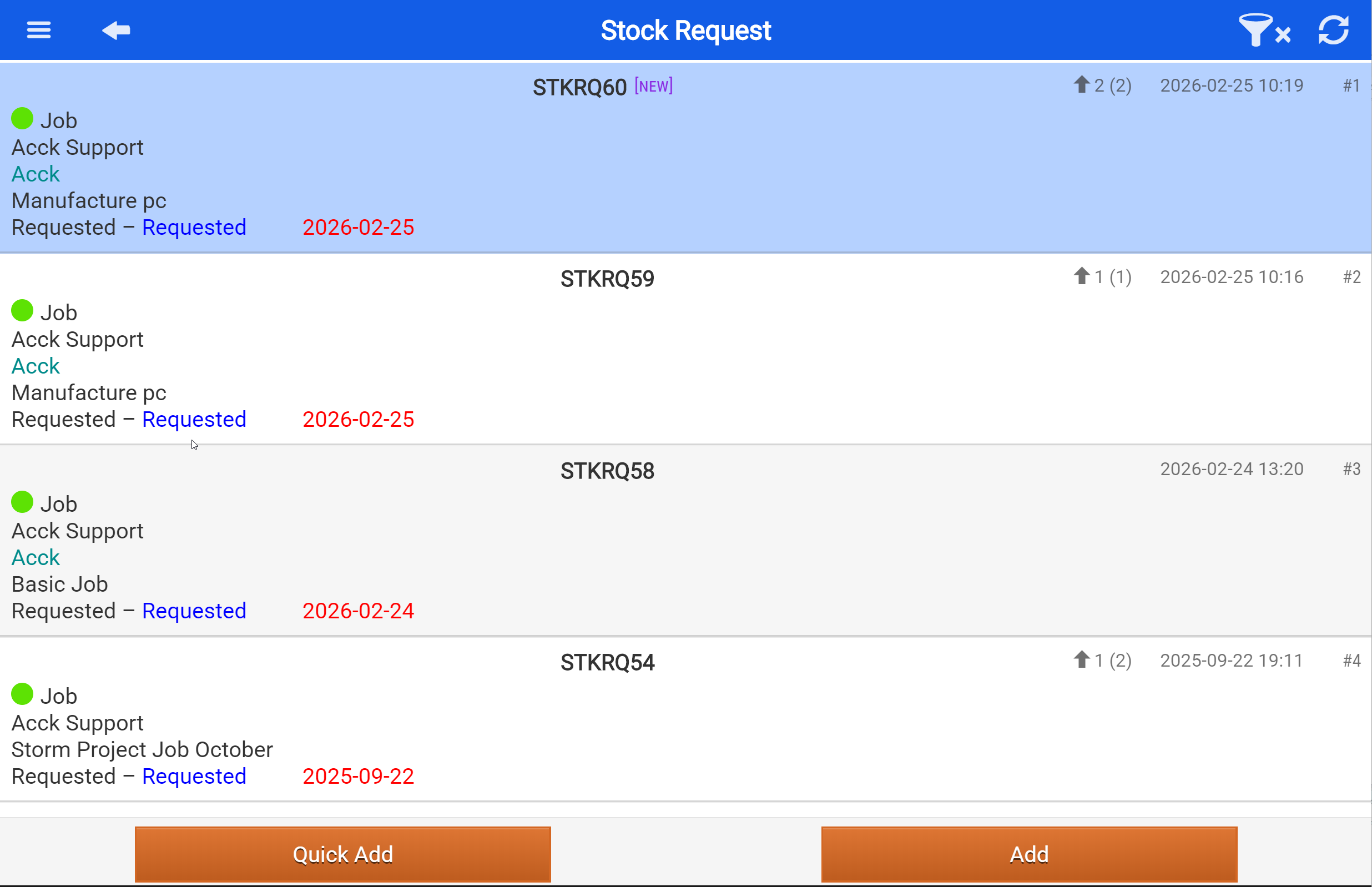
Here you will finalise the details before submitting your request to the Storeman.
General Details:
- Check that the details are correct:
- Job Number
- Client
- Description
- Storman
- Requested by
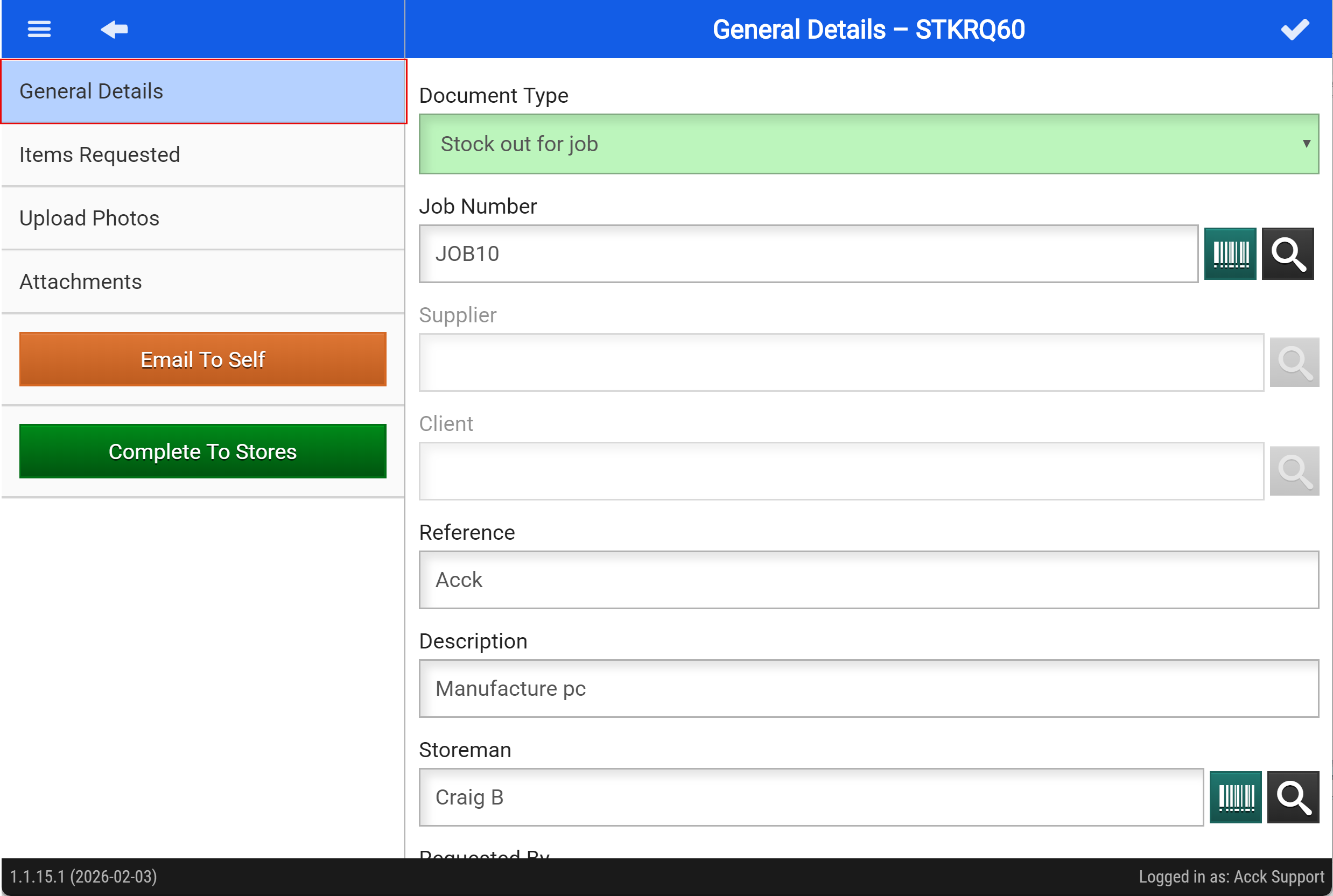
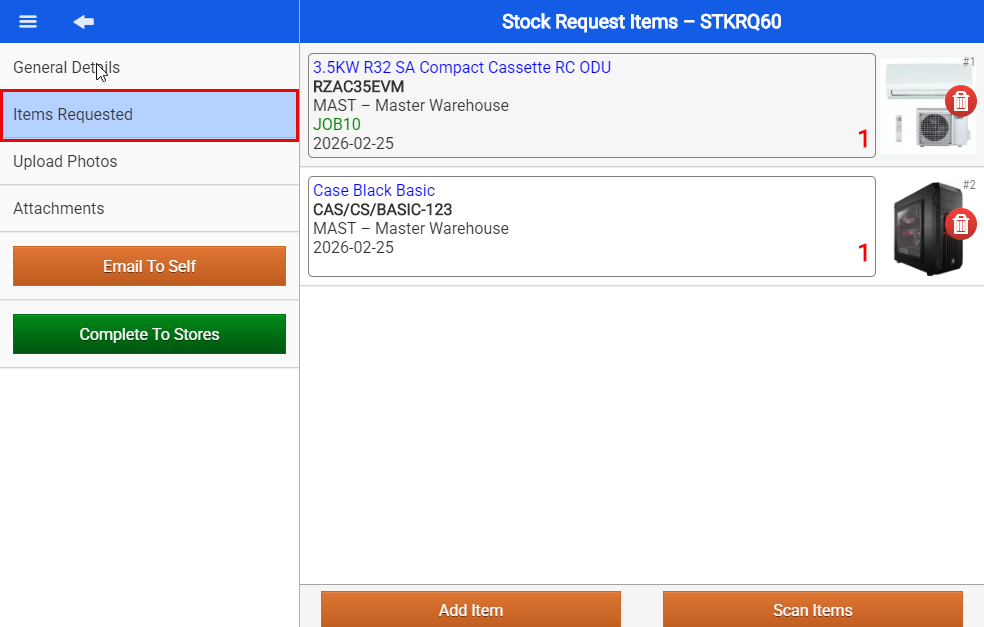
Items Requested:
- Confirm the item and quantities are correct
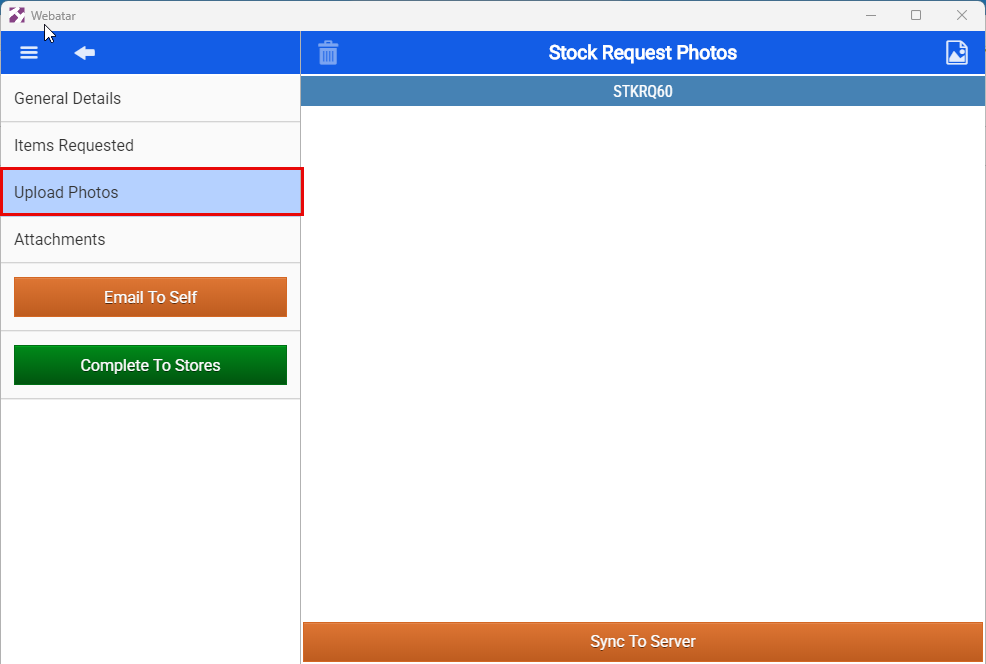
Upload Photos:
- Upload photos if needed
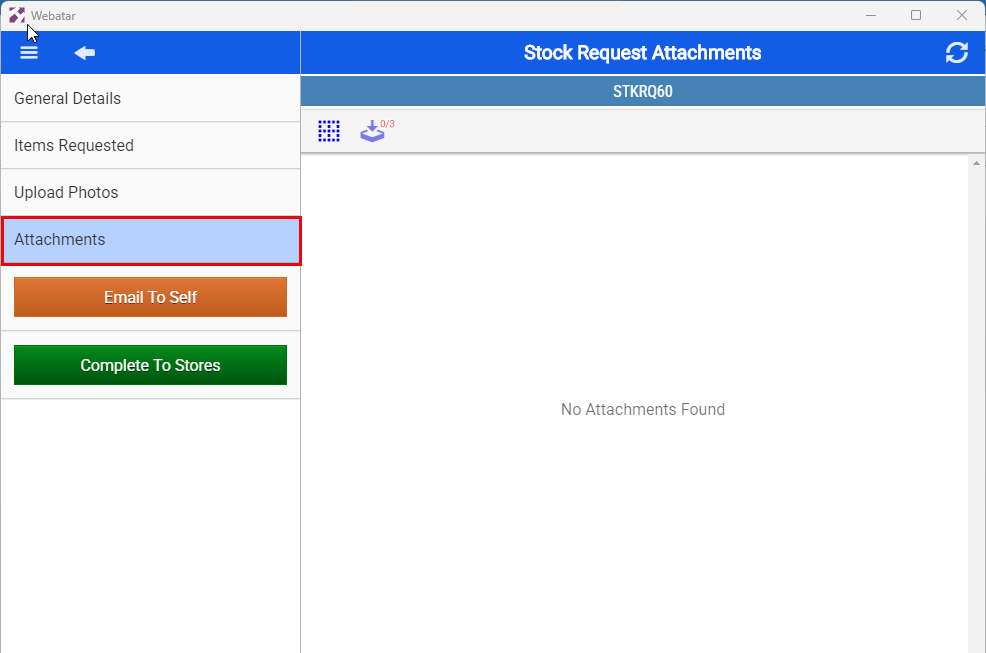
Attachments:
- Upload supporting documents if needed
Complete To Stores
Tap on the "Complete to Stores" button to submit your request
