Icons Defined
Icons defined
- Icons defined
- Due Date Colours
- Debtors / Customers Setup
- Creditors / Suppliers Setup
- Invoice grid icons
- Sales Document Line items icons
- Sale Leads Icons
- Purchase Document item line icons
- Supplier Invoice Line Status
- Supplier Payment Status Icons
- Inventory Setup Icons
- Stock Request Status Icons
- Cashbook Allocation Colours
- Job Costing Status Icons
- Job Line Status Indicators
- Job lines Item Status
- Time Log Icons
- User Icon
- Lab Samples Search Icons defined
- Lab Tests search Icons defined
- Inventory Lab Status Icons
Icons defined
The system has various icons which allow one to understand what the button function will do.
|
Name |
Icon |
Display |
Name |
Definition |
|
Print Menu drop down |
|
|
print_menu.png |
This defines our print drop down, which includes both, the printing and exporting button functions. When printing or exporting, you leave a footprint behind, which is why we selected this image to illustrate this |
|
Process or Complete |
|
|
process_arrow.png |
Processing of any document into the system where it will allocate ledger and document numbers. This can be used in various places to show a complete of that stage. |
|
Stock |
|
|
stock.png |
This icon shows stock and can be linked to inventory enquires |
|
Search or Find |
|
|
find.png |
This button allows you to search. It can also indicate the presence of another window for more advanced searching |
|
Manage tasks |
|
|
jobmanage.png |
The manage tasks icon indicates that the user needs to further manage this document. Examples include job costing or Bill of Materials (BOM) |
|
Workflow |
|
|
worflow.png |
Allows one to bring up the workflow window to drag and drop tasks |
|
Menu list expand |
|
|
expand.png |
The menu indicates that there are multiple other functions below this. When you click on the small downward arrow, it will open up more functions |
|
Reminder create |
|
|
reminder.png |
Create a reminder for a task |
|
Budget, Retentions |
|
|
budget.png |
Used for Budgets, progress invoices and retentions |
|
Upload or Import |
|
|
cloudupload.png |
Indicates to upload a file to a database and in some cases import |
|
Branches |
|
|
branch.png |
The branches icon shows that you can link branches to this area |
|
Target |
|
|
target.png |
Setting up targets against a customer or supplier |
|
Alerts |
|
|
alert.png |
Set up an alert against an area in the system |
|
Contact |
|
|
vcf_card.png |
Create a sales lead, view a contact or import a VCF card |
|
Approval option menu |
|
|
approval.png |
This icon indicates that there is an approval required or next step |
|
Note header line |
|
|
addnote.png |
Adding a header line or note on a document |
|
View a document |
|
|
magnifier.png |
Viewing the document or information |
|
Serial number |
|
|
serialno.png |
View, import or add a serial number |
|
Create a template |
|
|
arrow_repeat |
Create or convert to a template |
|
Image view |
|
|
image.png |
View an image |
|
Next Action |
|
|
lightning.png |
This indicates an action that will happen when the button is pushed |
|
Warehouse |
|
|
warehouse.png |
An item is linked to a warehouse and min or max levels can be updated |
|
Supplier |
|
|
icon-suppliers.png |
Shows something is linked to suppliers |
|
Costs |
|
|
cost.png |
Indicates that a cost function is available |
|
Change |
|
|
cog_edit.png |
When active allows one to change the value of the processed document |
|
Close document |
|
|
page_white_code_red.png |
This icon indicates that one is closing the document |
|
Support log |
|
|
support.png |
Create a support log |
|
Sales lead |
|
|
funnel.png |
Create a sales lead |
|
Status |
|
|
status.png |
Check the status of the printing and email |
|
Barcode |
|
|
barcode.png |
Indicates that a barcode can be used |
|
Percentage job invoice |
|
|
percentage.png |
Used in Job costing to indicate a percentage job invoice |
|
Statistics |
|
|
stats.png |
An indicator to run statistics |
|
Task to do |
|
|
task.png |
Requires a task for a user to do, can be used in reminders |
|
Memo Notes |
|
|
|
Memo note - there is no memo entered Pen and writing - there is a memo note entered |
|
Paging and No Paging |
|
|
This is used to remove paging to read 1 of 2 for example and to have a list of all invoices or any customer or supplier documents you are paging through.
It is better used for viewing data or just paging through data in case you want to view it in alphabetical order
If processing data, it is better done in 100 or you better not remove the paging so you can process your data fast. If you remove the paging and try to process this may cause the system to be slow |

.png)

.png)

.png)

.png)

.png)

.png)

.png)

.png)

.png)

.png)

.png)

.png)

.png)

.png)

.png)

.png)

.png)

.png)

.png)

.png)

.png)

.png)

.png)

.png)

.png)

.png)

.png)

.png)

.png)


.png)


.png)


Due Date Colours
In various areas of the system, there are colour codes indicating over due or future dated transactions.
Or this can be an icon
|
Icon |
Details |
|
|
Past 30 days from Due date based on current date |
|
|
Before 30 days from due date based on current date |
|
|
Past 7 days from the Due date based on current date |
|
|
Due date is on today’s date |
|
|
Future 7 days from current date to due date |
|
|
Anything after 7 days up to 30 days in the future |
|
|
After 30 days in the future |
.png)
.png)
.png)
.png)
.png)
.png)
.png)
|
Colour |
Colour |
Details |
|
|
Black |
Past 30 days from Due date based on current date |
|
|
Red |
Before 30 days from due date based on current date |
|
|
Yellow tag |
Past 7 days from the Due date based on current date |
|
|
Blue |
Due date is on today’s date |
|
|
Green |
Future 7 days from current date to due date |
|
|
Purple |
Anything after 7 days up to 30 days in the future |
|
|
Grey |
After 30 days in the future |
Indicated on the grid with due circle colours
.png)
Debtors / Customers Setup
When searching in the Debtors / Customer setup, the grid will display items with icons
|
Icon |
Details |
|
|
Customer Debtor is active |
|
|
Customer is marked as a Head Office |
|
|
The legal tick box is on where you are engaged with the client in a legal action |
|
|
Client is put on hold |
|
|
Credit limit is ticked and enforced |
|
|
Customer is marked as an intercompany client |
|
|
Customer is marked for interest charging |
|
|
Customer / Debtor is inactive |
|
|
This is a prospect |
|
|
The customer has a web address entered, clicking on this icon will open up a new window to the url |
.png)
.png)
.png)
.png)
.png)


.png)
.png)

.png)
Creditors / Suppliers Setup
When searching in the Creditors / Supplier setup, the grid will display items with icons
|
Icon |
Details |
|
|
Supplier is active |
|
|
The supplier is marked as a head office |
|
|
Clearing or Forwarding Agent |
|
|
Enforce Credit Limit |
|
|
The supplier is marked as an intercompany supplier |
|
|
The supplier is activated to charge interest |
|
|
On Hold |
|
|
Supplier is inactive |

.png)


.png)
Invoice grid icons
Invoice grid displays the type of invoice is shown in the search grid
The following icons appear on sales documents
|
Icon |
Details |
|
|
Recurring Invoice |
|
|
Part invoice ticked but not processed as Proforma Invoice |
|
|
Proforma Invoice |
|
|
On Hold |
|
|
Is Open (an invoice which was reopened) |
|
|
Preparation |


There are two status columns
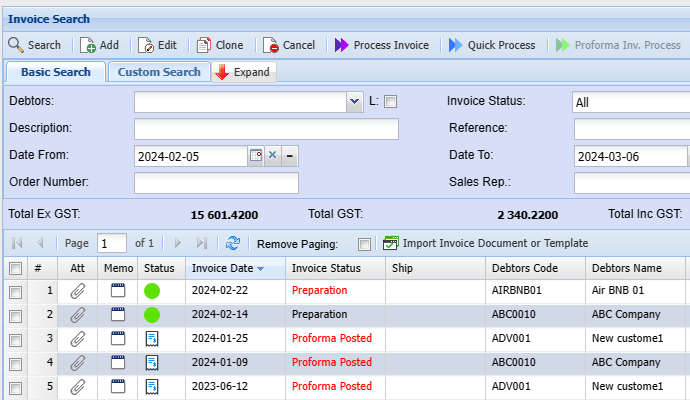
Sales Document Line items icons
The following icons appear on sales documents
|
Icon |
Details |
|
|
Item is on special linked to a deal (Only shows in quotes) |
|
|
RFQ and Drop Ship ticks are both activated |
|
|
RFQ is active |
|
|
Drop Ship is active |
|
|
Item has a line discount on it |
|
|
Item is selling below cost value |
|
|
Line item OK |
|
|
No stock |


There are two status columns
LS = Line Status (this column only shows if the item does not have stock, there is no other icon status)
Status = Line status of item
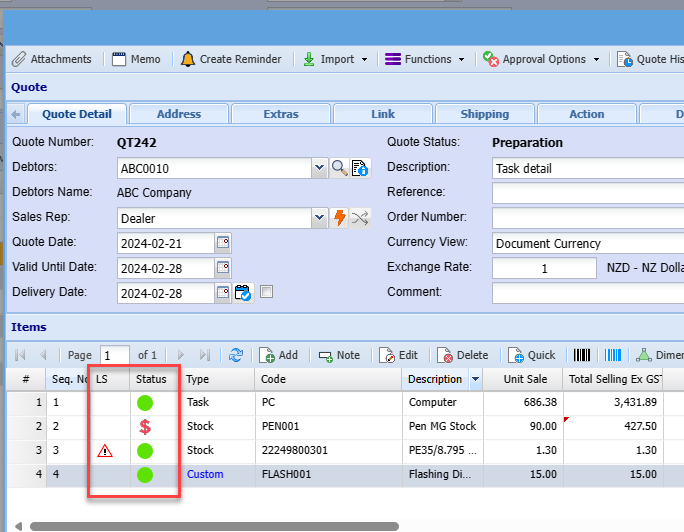
Sale Leads Icons
The sales leads icons are based on the stages of the sales lead
|
Icon |
Details |
|
|
Stage0 - Account Management |
|
|
Stage1 - New Lead |
|
|
Stage2 - Identify and Qualify |
|
|
Stage3 - Analyse, Influence and Develop |
|
|
Stage4 - Proposal and Tender |
|
|
Stage5 - Negotiate and Win |
.png)
.png)
.png)
.png)
.png)
.png)
Purchase Document item line icons
Purchase documents icons
The following icons appear on purchase documents
|
Icon |
Details |
|
|
Item has a line discount |
|
|
Line has Job CTC (Cost to Company) activated |
|
|
Line has Job SC (Scope Creep) activated |
|
|
Line item OK |


Supplier Invoice Line Status
The supplier invoice and purchase order lines status
.png)
Green Circle = Standard lines on Supplier invoice and purchase order
Red percentage = A percentage has been put against a line
Red Gear and Dollar = CTC (Cost To Company) tick allocated to line
Blue Gear and Dollar = SC (Scope Creep) tick allocated to line
Supplier Payment Status Icons
The icons are based on the supplier payment status
.png)
Inventory Setup Icons
When searching in the inventory setup, the grid will display items with icons
|
Icon |
Details |
|
|
Inventory item is active |
|
|
The item is marked as a Unit of Measure |
|
|
The item is a Unit of Measure with Sales and Purchases UOM selected |
|
|
The item is flagged as a serialised item |
|
|
The item is flagged as batch tracking |
|
|
The item is marked as a bill of materials |
|
|
The item is marked for Tag Tracking (RFID Tags) |
|
|
The item is marked as a bill of materials and serial number tracking |
|
|
The item is marked as a kit |
|
|
The item is a wastage item |
|
|
The item has a family tree structure |
|
|
The item is inactive |
|
|
The item is on an active lab test |
|
|
The item is on multiple lab tests |
|
|
The item is a fixed asset item |
.png)

.png)

.png)


.png)


.png)
Stock Request Status Icons
The stock request icons in Stores allows the user to see at which stage the stock request is at in the stores.
.png)
|
Icon |
Details |
|
|
Print Picking Slip |
|
|
Start Picking |
|
|
Collection Ready |
|
|
Confirm Quantity |
|
|
Partially Completed |
|
|
Completed |
.png)
.png)
.png)
.png)
.png)
.png)
Cashbook Allocation Colours
In the cashbook when selecting allocate, the system will show the allocation type
|
Icon |
Details |
|
|
No allocation has been applied to this cash book line |
|
|
The system was unable to allocate this line |
|
|
Line allocated - Match Payments |
|
|
Allocate Oldest amounts i.e. documents |
|
|
A balance remains on the cash book amount e.g. not all the money on the cash book has been allocated |
|
|
Manual allocation have been carried out on this cash book line. If Blue, Green or Yellow lines are manually allocated the button will change to purple |
.png)
.png)
.png)
.png)
Indicated on the grid with due circle colours
|
Colour |
Colour |
Details |
|
|
Red |
Unable to auto allocate |
|
|
Blue |
Matched a payment amount with payment invoice |
|
|
Green |
Allocated oldest to newest |
|
|
Purple |
Manual allocation applied |
|
|
Grey |
No allocations applied |
|
|
Yellow |
Partially allocated |
Match payments tick box which is on by default –
This will try and match an exact payment with an exact invoice amount.
If not it will try and match a payment with invoices to balance exact. (will work if all allocations are up to date) meaning payment matches exactly the invoices outstanding and makes the balance equal zero.
Allocate oldest – (not everyone will use this option) so it is set as off by default
After the first run of trying to allocate the first option, what ever is left can auto allocate oldest to newest (similar to our currently allocate all button)
The Flag indicator will then allow the user to go into that transaction and then fix the allocation manually
.png)
Job Costing Status Icons
Job costing has various job status icons to define where the job is
|
Icon |
Details |
|
|
Not started job |
|
|
Start job - Items on the job are active and been managed Job has been forced to start without any lines been managed |
|
|
Started job which has been reopened |
|
|
Ready for invoice has been set for job |
|
|
Invoice is created and in preparation status |
|
|
Final invoice is created and in preparation status |
.png)
.png)
.png)
Job costing grid
.png)
Job Line Status Indicators
Job Costing > Activity > Manage Job
|
Icon |
|
Details |
|
|
Not Started |
No lines allocated or no marked is complete |
|
|
In Progress |
Line managed - Budget is greater than Actual |
|
|
Qty Reached |
The line quantity balance has reached the budget versus actual and is equal |
|
|
Qty Exceeded |
The line quantity has exceeded the Budget versus actual |
|
|
Is Complete |
Marked with tick box completed |
.png)
.png)
.png)
Status of line, colours
| Not Started | No lines allocated or no marked is complete | RED |
| In Progress | Line managed | GREEN |
| Qty Reached | Means the line quantity balance has reached the budget versus actual | Blue with a tick |
| Qty Exceed | Means that the line quantity has exceeded the Budget versus actual | BLACK |
| Completed | Marked with tick box completed | Black tick |
.png)
Job lines Item Status
Icons for Manage job lines and Job Lines
|
Icon |
Details |
|
|
Stock Item |
|
|
Service Item |
|
|
Custom Item |
|
|
Fixed Asset |
|
|
The item is marked as a Unit of Measure |
|
|
The item is flagged as a serialised item |
|
|
The item is marked as a bill of materials |
|
|
The item is marked as a bill of materials and serial number tracking |
|
|
The item is marked as a kit |
|
|
The item is a wastage item |


.png)
Icon indicates what type of item line it is

Time Log Icons
When searching in the Time logs, the grid will display items with icons
|
Icon |
Details |
|
|
Non Billable - clock orange |
|
|
Time Log - clock blue |
|
|
Add to Job - clock purple |
|
|
Locked for Invoice - Invoice |
|
|
Archived / Closed / Completed - Lock red |
|
|
Add to Job and Added to Job are ticked - Manage job red |


.png)
.png)
User Icon
Change the User Icon

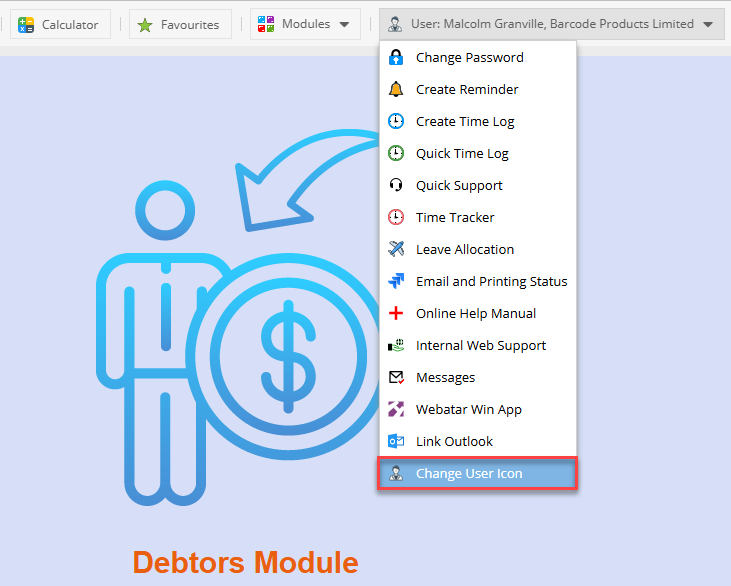
In any module at the top right of your screen, you will see your user icon.
Click the drop-down arrow
At the bottom click "Change User Icon"
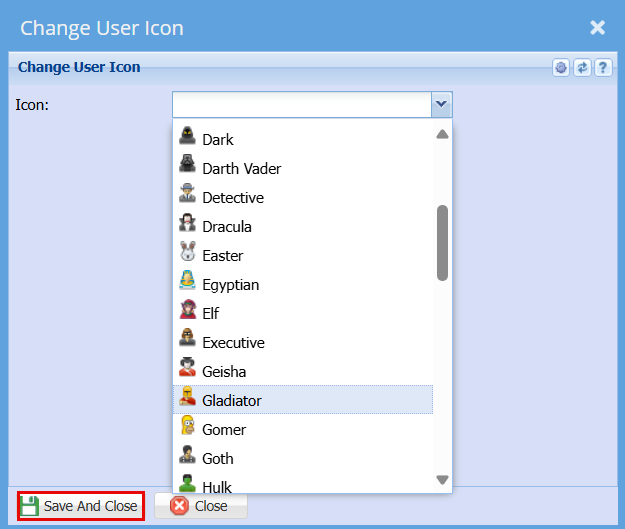
Select an item from the drop-down menu
Click Save and Close
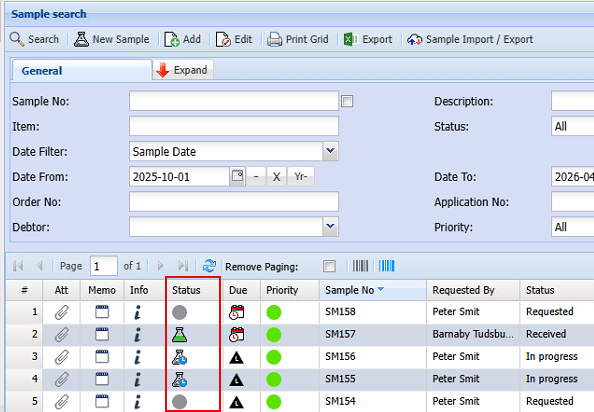
Lab Samples Search Icons defined
Search icons defined for Sample Status
| Icon | Status Detail |
|
|
Requested |
|
|
Received |
|
|
In Progress |
|
|
Completed |
|
|
Cancelled |
|
|
Closed |


Icons are based on the sample status
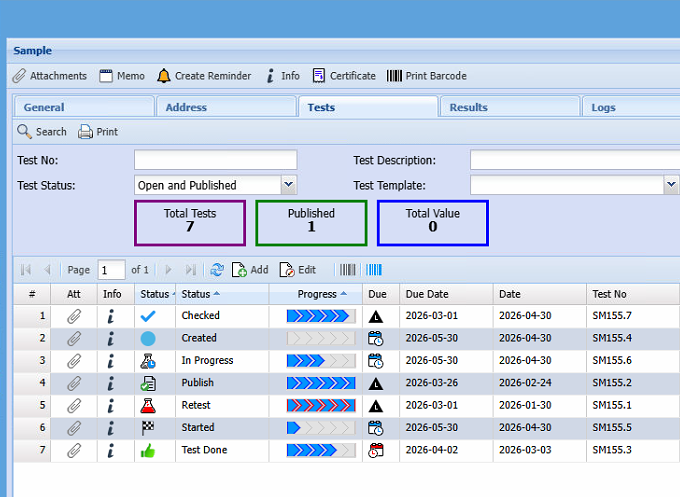
Lab Tests search Icons defined
Icons defined for test progress
| Icon | Detail |
|
|
Created |
|
|
Started |
|
|
In Progress |
|
|
Test Done |
|
|
Checked |
|
|
Retest |
|
|
Certificate Issued |
|
|
Published |
|
|
Cancelled |
|
|
Closed |
|
|
Re-Opened |


Test icons are managed by the status of the test
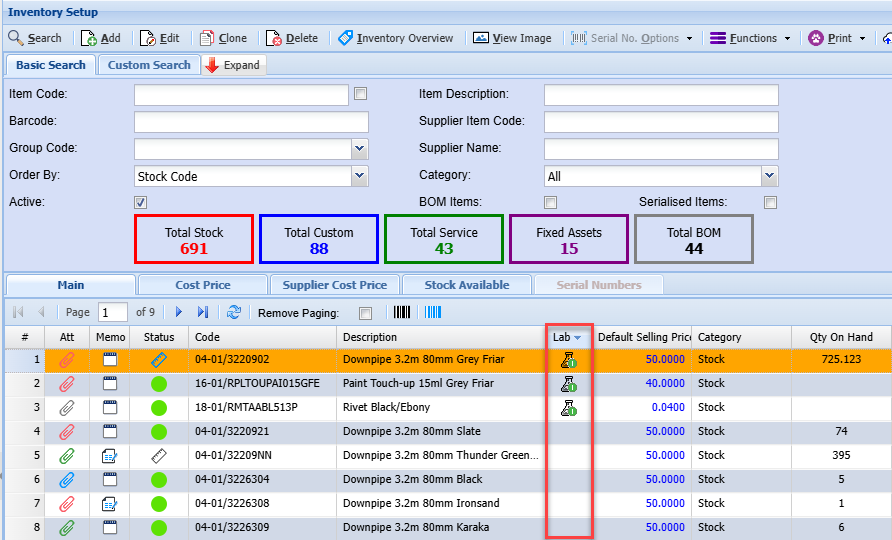
Inventory Lab Status Icons
These icons inform the user whether a test sample was submitted to the lab.
| No Icon | No test has been done on this item |
|
|
One active test submitted |
|
|
Two active tests submitted |
|
|
Three active tests submitted |
|
|
Test completed within 6 months |
|
|
Test completed greater than 6 months but less than a year |
|
|
Test completed more than 1 year ago |


Icons do not automatically update when searching the grid.
Icons are updated as follows:
- When editing a stock item and saving
- Manually running the function to update test icons
- Setup an automatic task to update icons every day
Manually update the icons through Functions menu
This will update all items with the icon
